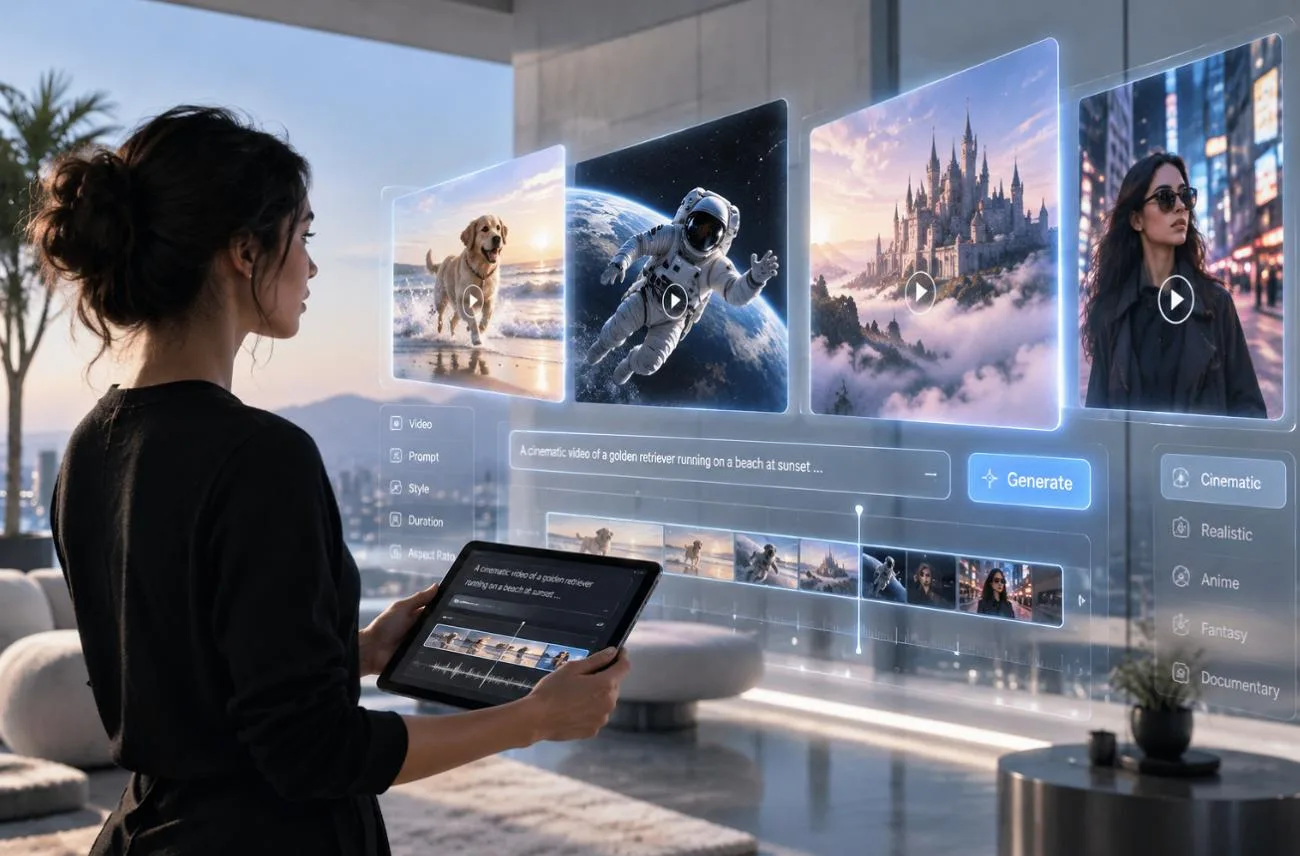
A short video idea only looks cinematic when the prompt behind it names the subject, the shot, and the light. The best Sora prompts earned their reputation by reading like a director’s shot list, with each detail placed where the model expects it.
OpenAI closed the Sora app on April 26, 2026, and ended API access on September 24, 2026. However, its prompt structure remains useful for AI video generation, and tools such as MagicLight AI can use similarly detailed prompts to create complete videos.
Part 1. What Makes the Best Sora Prompts?
The best Sora AI prompts give the model clear direction without overcrowding each shot. A useful prompt works like a short production brief, defining what happens, where it happens, and how it should look on screen. Here are the 5 elements that provide a practical structure for creating one:
- Define the Main Subject and Action: Name the central subject and one visible action, such as “a chef flips an omelet.” Break longer sequences into short, manageable beats.
- Establish the Scene and Setting: Specify the location, time, and weather. “A rainy Lisbon tram stop at night” provides clearer visual context than simply writing “a city.”
- Direct the Camera: Set the shot size, lens, and one camera movement, such as “medium close-up, 50mm lens, slow push-in,” instead of combining several moves.
- Set the Visual Direction: Introduce the intended aesthetic early, whether 1970s film, 16mm black-and-white, claymation, or anime, so the rest of the prompt follows that direction.
- Build the Atmosphere: Add lighting, colors, movement, and relevant sound cues. Details such as “soft window light, muted greens, slow drifting dust” help establish the final mood.
Prompt length is flexible rather than fixed. More detail provides tighter creative control, while shorter prompts give the model greater freedom to interpret the scene.
Part 2. 15 Best Sora Prompts for Different Video Ideas
A practical format for the best Sora prompts starts with aspect ratio, clip length, and shot type. The examples below cover different video ideas, with ready-to-use prompts that specify the scene, action, camera direction, and visual style:
Cinematic Scene Prompts
Cinematic Sora video prompts read like a single shot from a film script, with one subject, one move, and a clear light source. Lens and film-stock references give each shot a finished look.
- 16:9 | 10s | Slow push-in. An elderly clockmaker adjusts brass gears inside a tower clock at dawn. Shot on 35mm film, warm lamps glow against cold blue windows, dust drifting in the light.
- 16:9 | 8s | Tracking shot. A cyclist in a yellow raincoat rides through a narrow Tokyo alley after rain, neon signs reflecting in puddles. Low angle, shallow focus, teal and magenta grade.
- 16:9 | 12s | Static wide shot. Wild horses cross a frosty Icelandic valley as morning fog lifts off a river. Natural documentary style, soft pastel sky, breath clouds rising from the herd.
Product and Ad Prompts
Product-focused Sora prompt examples keep the item sharp from the first frame to the last. Clean backgrounds, controlled studio light, and a single hero move keep the result usable as an ad.
- 9:16 | 8s | Macro orbit. A glass perfume bottle rotates slowly on wet black stone as droplets slide down its sides. Studio key light from the left, deep shadows, luxury commercial style.
- 16:9 | 10s | Top-down shot. Fresh coffee pours into a white ceramic cup on a marble counter, steam curling upward. Bright morning window light, clean minimalist style, soft cafe sounds.
- 9:16 | 8s | Dolly out. White running shoes land on a wet track at sunrise, splashing water in slow motion. High-contrast sports ad style, golden rim light, energetic mood.
Fun and Funny Prompts
Playful ideas travel fast on social feeds, and fun Sora prompts work best when the joke is visual and easy to read in seconds. Exaggerated animal behavior and everyday mishaps are reliable starting points.
- 9:16 | 10s | Handheld shot. A golden retriever in a tiny chef hat flips pancakes in a home kitchen, flour everywhere. Bright sitcom lighting, playful mood, a pancake landing on its nose.
- 9:16 | 8s | Security camera angle. A raccoon pushes a shopping cart through an empty supermarket at night, calmly picking snacks. Grainy CCTV look, green night tint, deadpan comedy tone.
- 16:9 | 10s | Slow-motion close-up. A grandmother wins a backyard paintball match and lowers her goggles with a proud grin. Summer afternoon light, action-movie style, colorful paint splashes.
Dialogue and Sound Prompts
Sora 2 added synchronized dialogue and sound effects, so the best Sora 2 prompts describe what the viewer should hear as well as see. Tools without native audio can reuse those lines as a voiceover script.
- 16:9 | 12s | Medium two-shot. Two astronauts share a quiet moment by a cabin window as Earth rises outside. One whispers, “Home looks so small from up here.” Soft cabin hum, cool blue light.
- 9:16 | 8s | Close-up. A street vendor in Mexico City flips tortillas on a sizzling griddle and calls out, “Two more, coming right up!” Crackling heat, busy market chatter, warm color.
- 16:9 | 10s | Wide shot. Waves crash against black volcanic rocks during a thunderstorm while a lone surfer watches from shore. Deep rolling thunder, roaring surf, dark grade with lightning flashes.
Animation and Stylized Prompts
The best Sora prompt for animation names the medium early, such as claymation, watercolor, or anime. That choice sets the texture of every frame before any action begins.
- 16:9 | 10s | Slow pan. A claymation fox runs a tiny bakery in a snowy village, sliding a tray of buns into the oven. Stop-motion texture, warm fairy lights, cozy holiday mood.
- 9:16 | 8s | Low-angle shot. An anime courier sprints for a departing train as cherry blossoms swirl across the platform. Hand-drawn anime style, bright spring palette, hopeful mood.
- 16:9 | 12s | Crane shot. A floating island city drifts above the clouds while airships dock at glowing towers. Watercolor fantasy style, golden sunset light, calm orchestral music.
Part 3. How to Convert Sora Prompts to AI Videos
With the Sora app and API closed, Sora-style prompts can still guide other AI video generators. Their subject, setting, camera, action, lighting, and style details transfer naturally to MagicLight AI. Instead of recreating a prompt from scratch, you can adapt those directions to control characters, scenes, visual styles, movement, voices, and music within a new video workflow.
For longer projects, Story to Video connects multiple scenes into one video, while Text to Video works well for individual shots. MagicLight AI also provides multiple video models, including Kling 3.0, so Sora-style ideas can become standalone clips or connected stories.
Key Features of MagicLight AI
- MagicLight Agent: A single prompt can grow into a full script and storyboard through a chat that also suggests a format and budget.
- Reusable Characters: Describe a character in up to 1,000 characters or create one from a reference photo, then save and reuse it in later scenes and projects.
- Voices and Subtitles: Dialogue lines from Sora 2 prompts can become narration from 37 AI voices, with 16 subtitle styles for on-screen text.
How to Turn Sora Prompts Into Videos With MagicLight AI
You can adapt Sora prompts into longer videos by turning each idea into a connected scene. The steps below show how to add your prompt, set the characters and visual details, generate the story, and export the finished video:
Step 1. Enter Your Sora Prompt and Video Settings
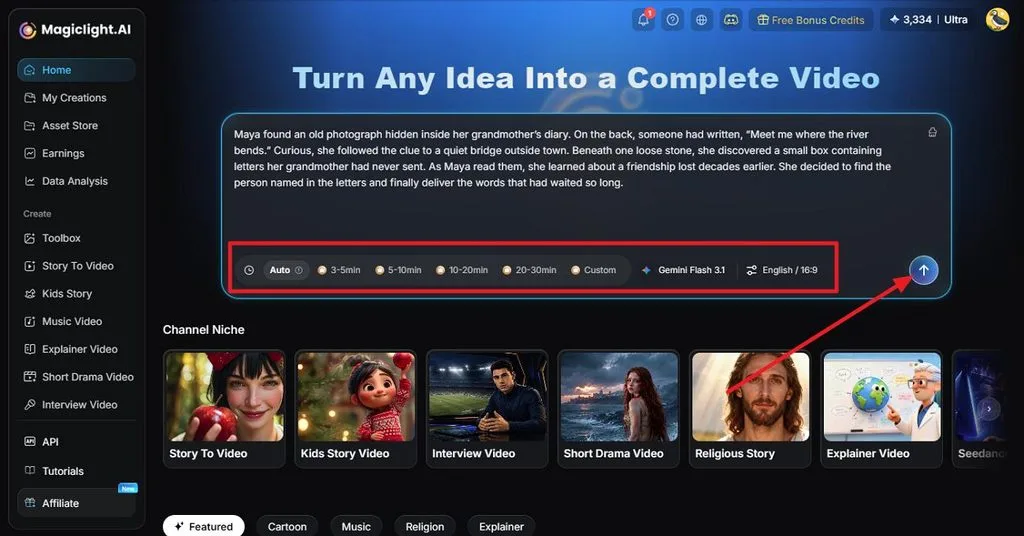
Open Story to Video and paste your Sora-style prompt or describe the video idea. Set the Aspect Ratio, Video Duration, Video Language, and AI Story Model, then click the Generate icon.
Step 2. Review the Generated Scenes
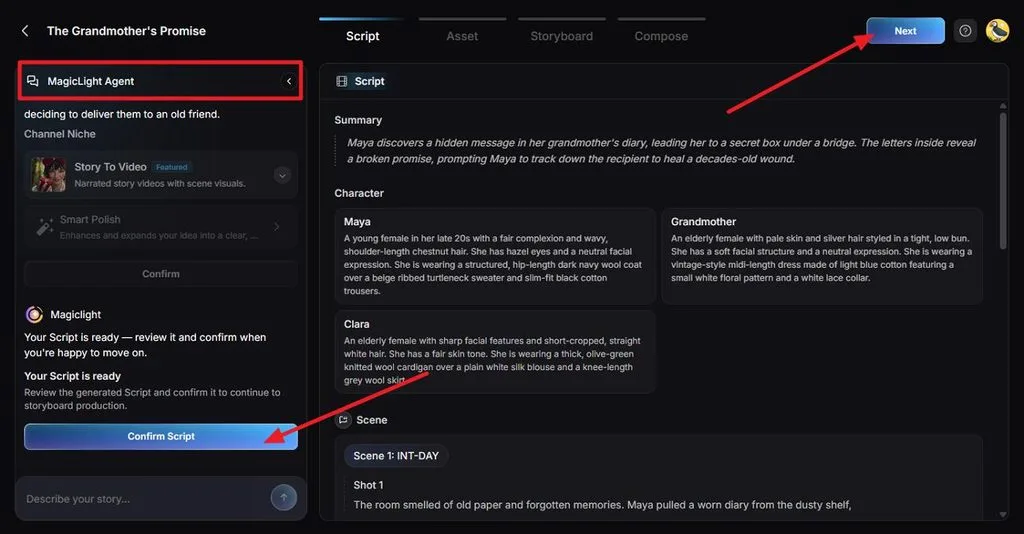
MagicLight Agent develops the prompt into a structured script containing a summary, characters, scenes, and individual shots. Review each section and edit details that differ from your original idea. Click Confirm Script, followed by Next.
Step 3. Choose the Visual Style and Motion
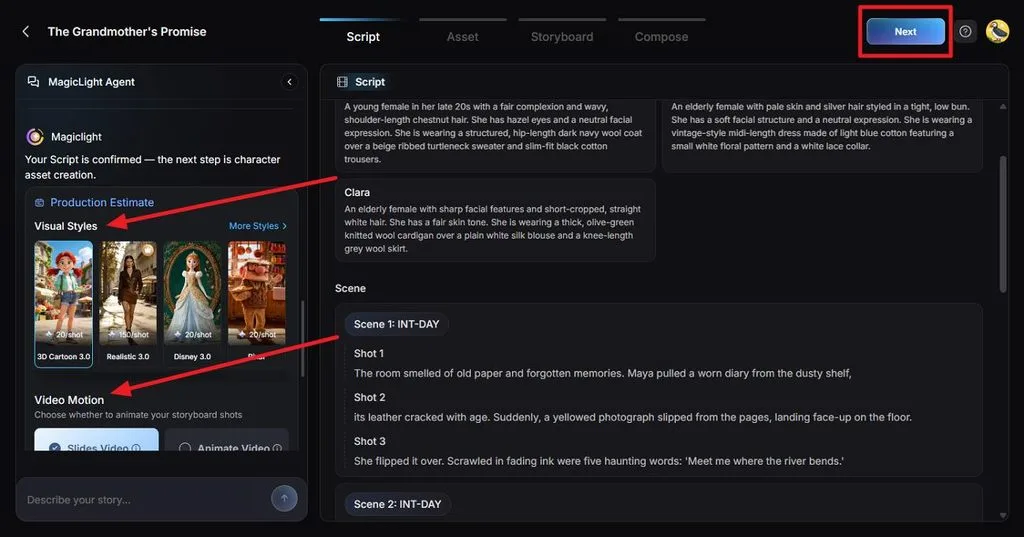
Select a Visual Style that matches the look described in your prompt. Under Video Motion, choose how the scenes should move or animate. Review the production settings and estimated requirements, then click Next.
Step 4. Review the Characters
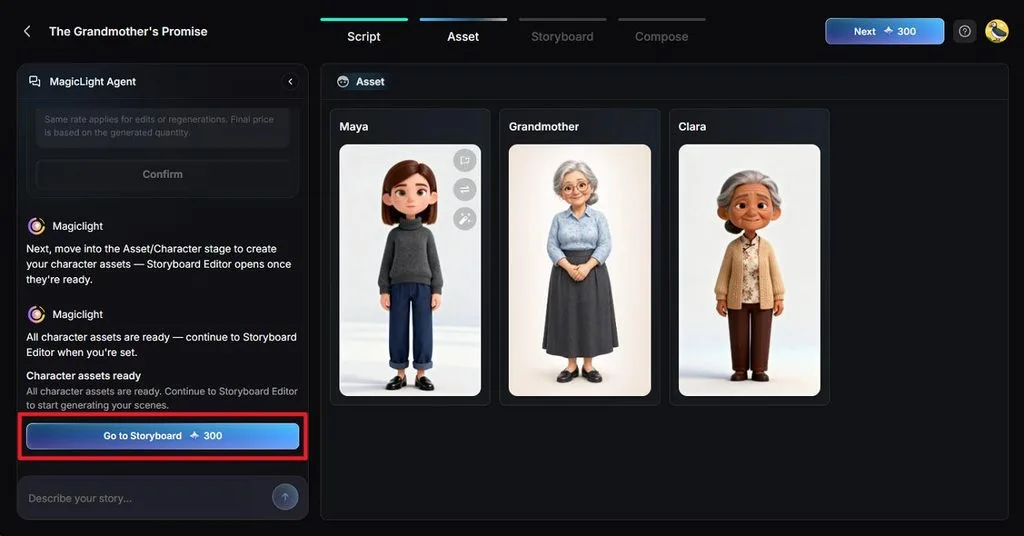
Check each generated character against the subject described in your prompt. Make any necessary appearance changes so recurring characters remain suitable for later scenes, then click Go to Storyboard.
Step 5. Refine and Animate the Storyboard
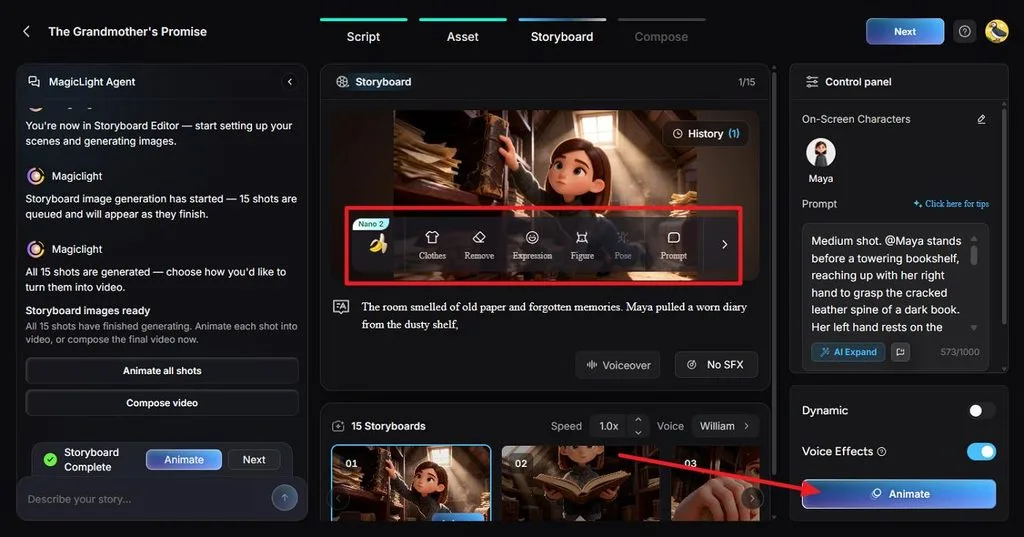
Review each storyboard shot against your original Sora prompt. Adjust Clothes, Expressions, Figure, Pose, or the scene Prompt where needed. Add suitable voices and sound effects, then click Animate.
Step 6. Add Subtitles and Background Music
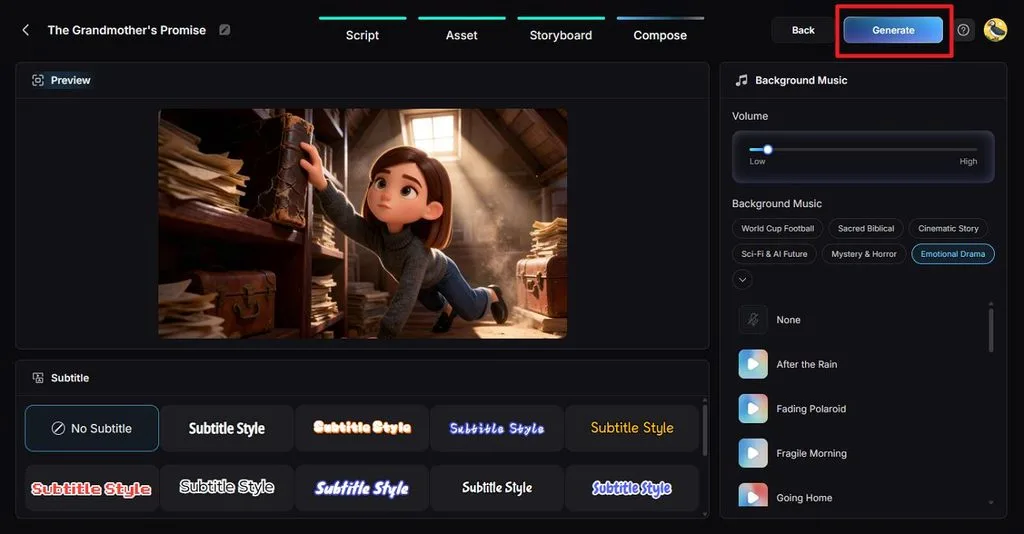
Open Compose to preview the animated scenes together. Choose a subtitle style and background music that suits the video, adjust the music volume, and click Generate.
Step 7. Set the Video Quality
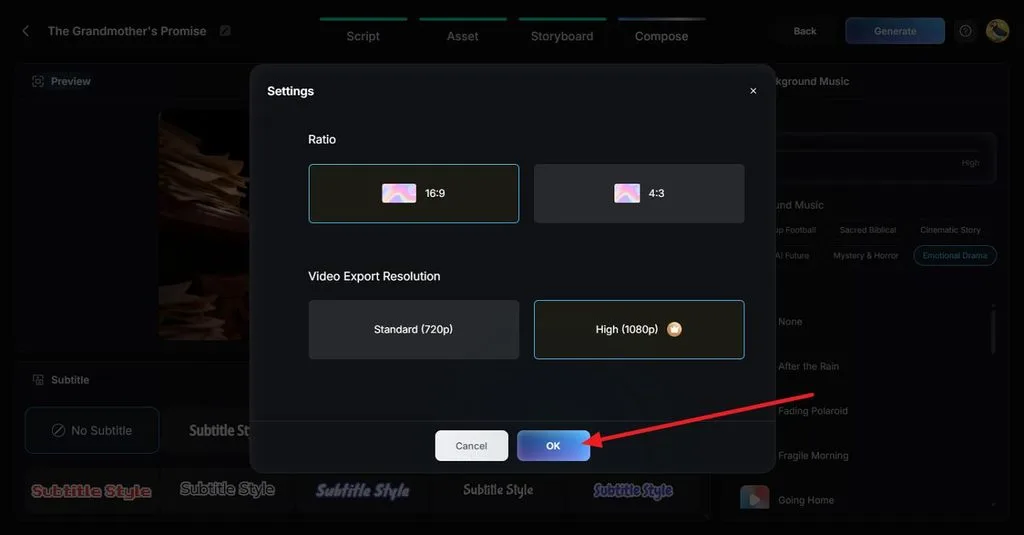
Open Settings and confirm the final Aspect Ratio. Choose 720p or 1080p resolution based on your intended platform, then click OK to apply the export settings.
Step 8. Preview and Download the Video
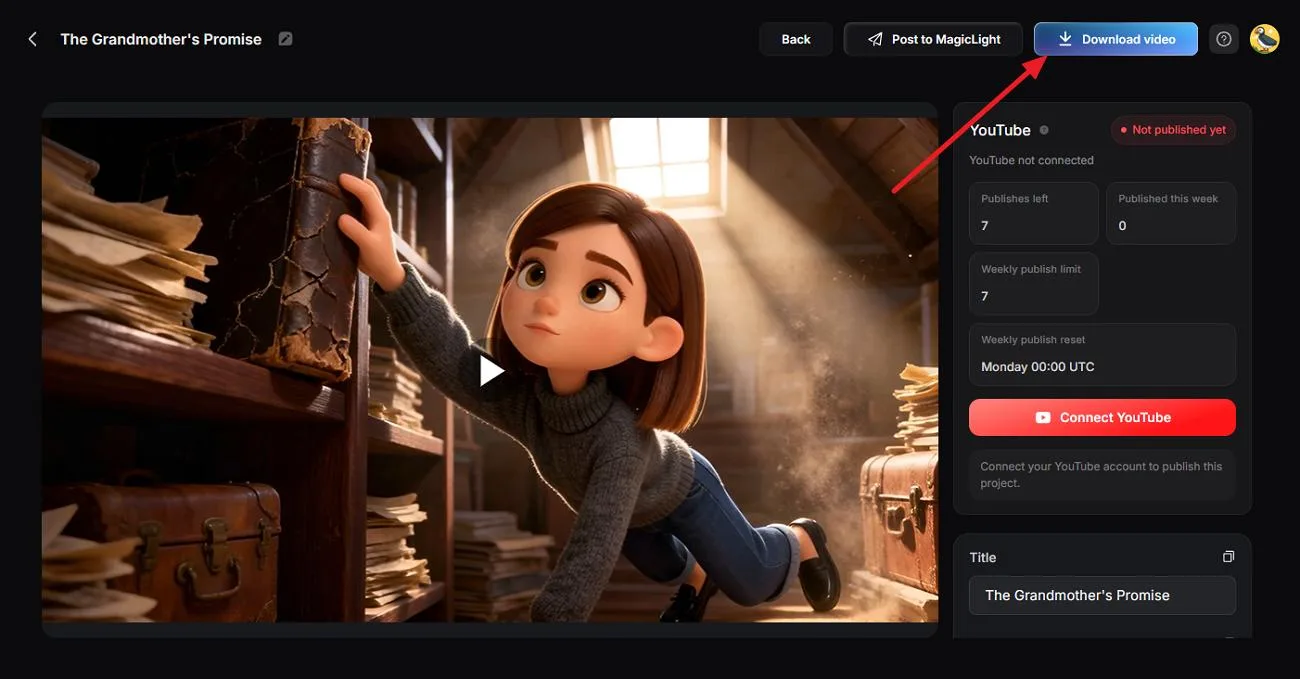
Play the completed video and check its scenes, character actions, subtitles, narration, and overall flow against your original prompt. Make any final corrections, then click Download video to save it.
Conclusion
The best Sora prompts stack 5 layers in a fixed order, from subject and setting to camera, style, and mood. That structure has outlasted Sora and still works across modern video models. For turning single prompts into complete videos with consistent characters, narration, and subtitles, MagicLight AI is a practical next step.
Frequently Asked Questions
1. What are the best Sora prompts for beginners?
Beginner-friendly prompts describe one subject, one action, one setting, and one camera move, such as a dog chasing bubbles in a sunny yard. Short, focused prompts are also easier to refine because fewer visual instructions compete within a single shot.
2. How do I write a good prompt for Sora?
A good prompt follows a set order of subject and action, setting, camera, style, and then mood and lighting. Keep one camera move per shot and describe actions in short beats. The same method works in MagicLight AI now that Sora has closed.
3. What details should I include in a Sora prompt?
Useful details include the subject’s look, a timed action, and the location, time of day, and weather. Add the shot size, lens, one camera move, a style reference, the light source, and the color palette. Set the duration and resolution in the tool’s settings instead.