Instagram ads fit naturally into the content people already browse and watch every day. Learning how to create an ad on Instagram makes campaign planning easier for beginners. You can set up campaigns through Meta Ads Manager or boost existing Instagram posts directly.
Making an ad that looks good can take more time than you expect. MagicLight AI turns simple product ideas into vertical video ads designed for Instagram campaigns. This guide explains each step for creating, improving, and publishing Instagram ads with confidence.
Part 1. What to Prepare Before Creating an Instagram Ad
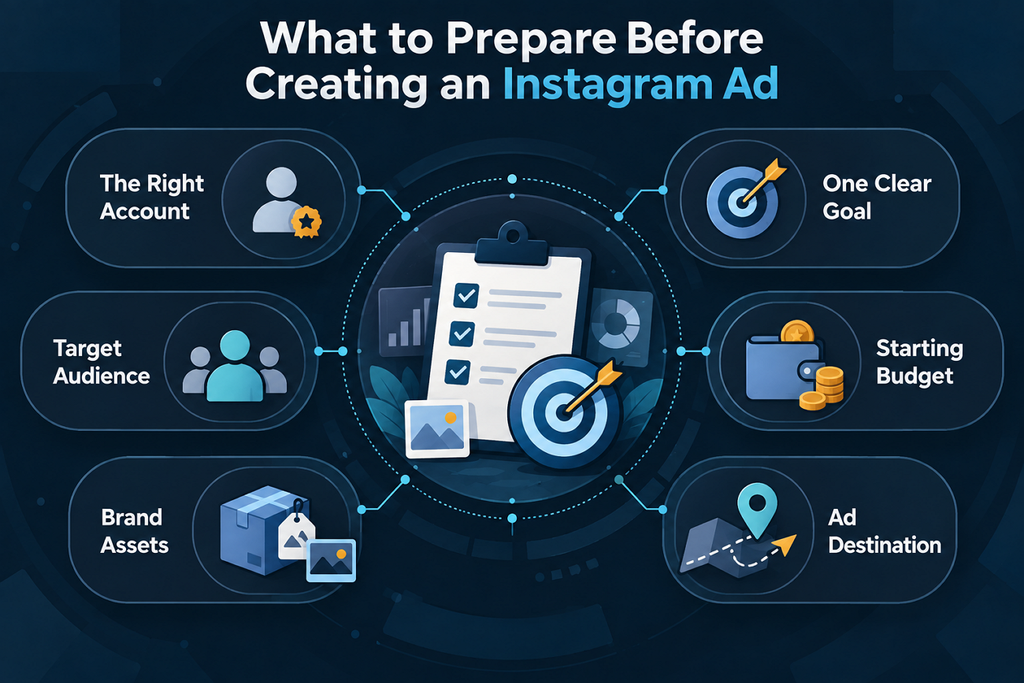
Good preparation makes Instagram ad setup easier and helps you avoid changes during creation later. Before you explore how to create an ad for Instagram, prepare the key campaign details. Below are the main campaign details you need before creating and setting up your ad:
- The Right Account: A business or creator account is needed for Instagram’s built-in promotion tools. Ads Manager can manage Instagram placements through connected Meta business assets.
- One Clear Goal: Decide whether you want more sales, leads, website visits, or another specific result before building the ad.
- Target Audience: Define who you want to reach based on factors such as interests, location, demographics, and likely customer needs.
- A Starting Budget: Set a manageable test budget first, then review performance before increasing your spending.
- Brand Assets: Prepare your logo, product images, videos, brand colors, and other visuals you may need for the creative.
- Your Ad Destination: Decide where people should go after interacting with the ad, such as a website, product page, profile, or message conversation.
Part 2. How to Create an Ad on Instagram
The stages below show how to create an ad on Instagram from setup through publishing. MagicLight AI handles the creative work while Instagram takes care of the campaign setup itself.
- Set Up Your Campaign
Two common ways to start are boosting an existing Instagram post or creating a campaign through Meta Ads Manager. Boosting works from the Instagram app, while Ads Manager gives you more settings to manage. These are the main campaign settings to work through before moving on to ad creation:
- Boost a Post: Turn an existing Instagram post into an ad without building one from scratch again.
- Choose an Objective: Select the result you want your campaign to focus on before moving forward.
- Set Budget and Audience: Set your spending limit and choose the people you want your ad reaching.
- Pick Placements: Choose where your ad appears or leave the placement decisions to Meta instead.
- Create Your Ad With MagicLight AI
MagicLight AI turns your written ideas into complete ad videos without requiring traditional filming. Its text-to-video tool accepts prompts of up to 12,000 characters, giving you plenty of room to describe your campaign idea. You can choose from 14 story models, including GPT-6 Astra, based on the type of video you want to create.
With 16 caption styles available, you can choose how the spoken content appears throughout the video. If you are exploring how to create an Instagram advertisement, follow the steps below to turn your prompt into a finished ad video:
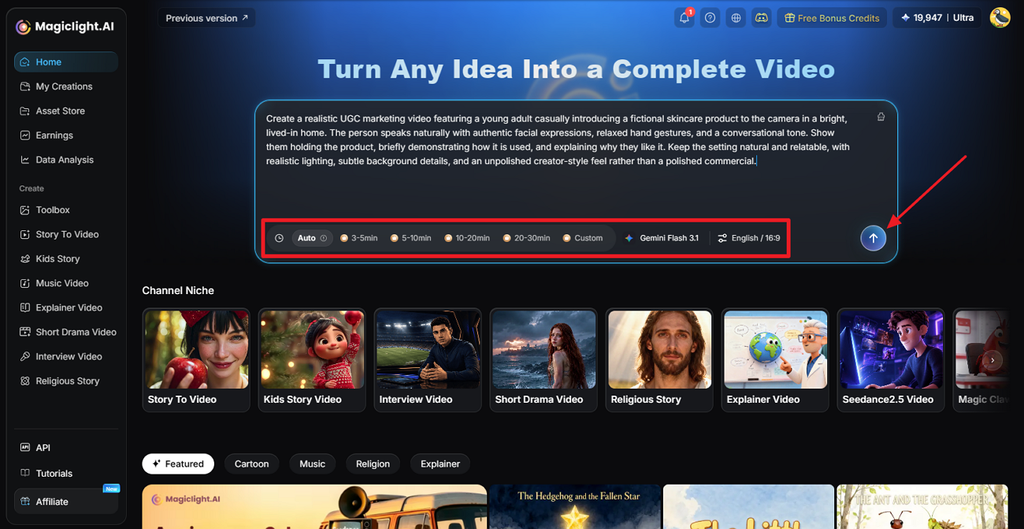
Step 1. Start Your Ad Project
In MagicLight AI’s homepage, paste your Instagram ad script into the text box. Choose Duration, Model, and Language based on your video. If you are creating the ad for Reels or Stories, set Aspect Ratio to 9:16, then click Send.
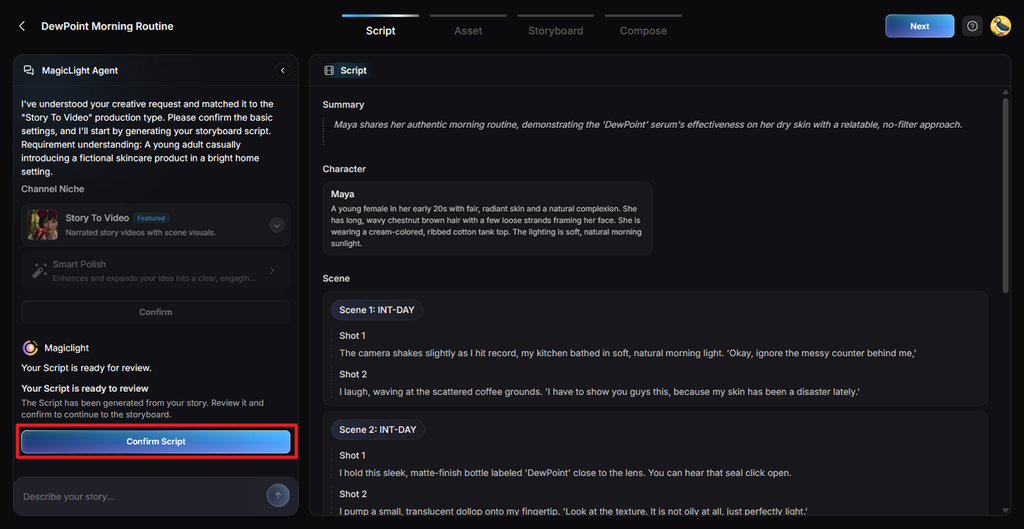
Step 2. Check the Video Plan
Look through the Summary first to see how MagicLight Agent understood your ad idea. Check the Characters, Scenes, and Shots, change anything that takes the video away from your message, and click Confirm Script.
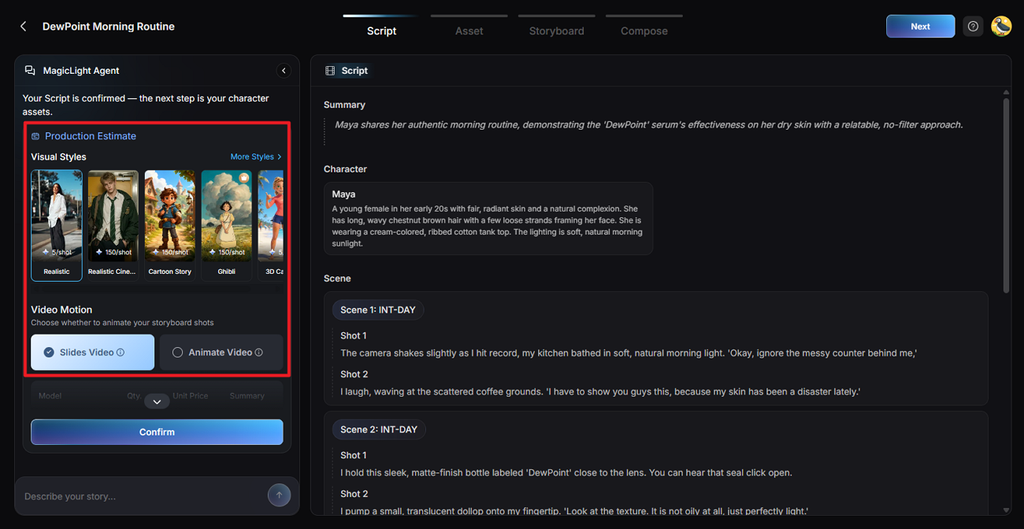
Step 3. Pick Your Video Look
Choose Visual Style based on how you want the product to appear in the ad. Decide whether a slide-based video or an animated video works better for your ad and click Confirm.
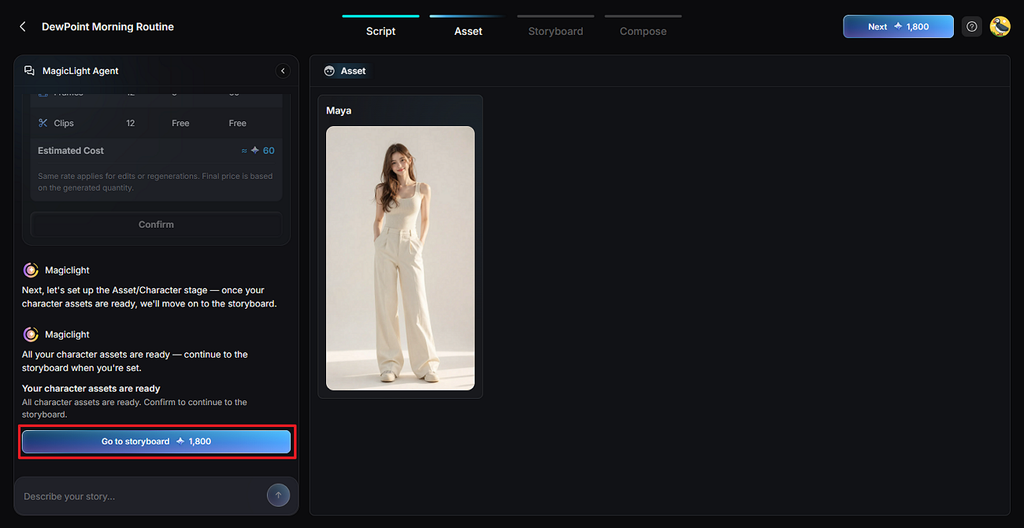
Step 4. Prepare the Main Character
Review the character MagicLight AI has built for the video before working on individual scenes. Change its appearance if it does not suit your ad, then click Go to Storyboard.
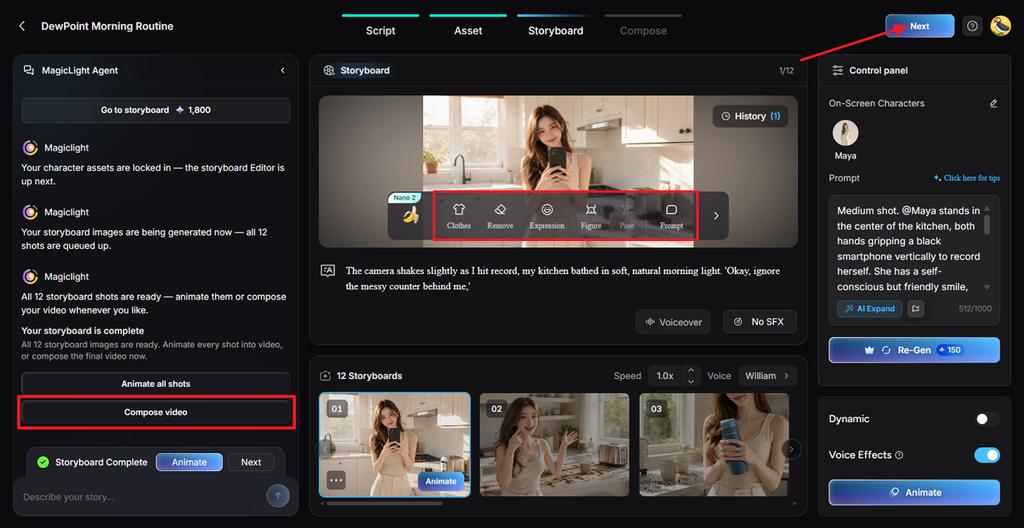
Step 5. Fix Individual Ad Scenes
Work through the storyboard one shot at a time instead of accepting every generated scene. Use Clothes, Expression, Figure, Pose, and Prompt to fix specific shots, then adjust voices or effects and click Compose video.
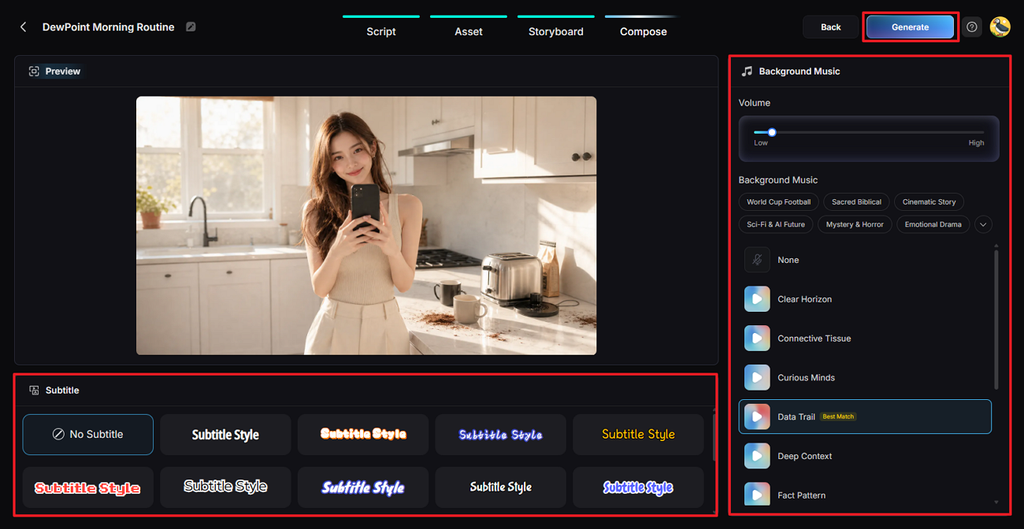
Step 6. Set Background Music and Captions
Preview how the assembled ad looks before finishing its sound and on-screen text. Pick a Subtitle Style, adjust the music and volume, then click Generate.
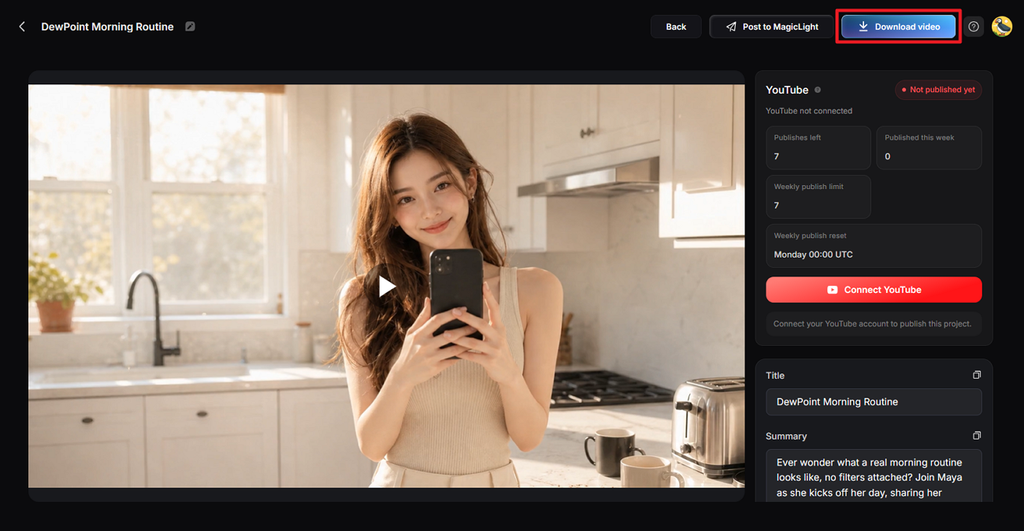
Step 7. Save Your Finished Ad
Once the video is generated, watch the generated video from beginning to end and check that nothing needs another edit. After the video is finalized, click Download video and save it for your Instagram campaign.
Note: Image to Video can also turn a still product photo into a moving ad for Instagram. You can add a prompt of up to 1,500 characters to describe the motion you want. It also lets you upload up to 5 reference images to guide the final video.
- Add Visuals, Text, Music, and Branding
Once the main video is ready, check that its visual elements work well on Instagram. MagicLight AI also offers 40 background music options and 16 subtitle styles during video creation. See the MagicLight AI steps above for adding music and subtitles before generating your video. Use the placement requirements below when preparing each version of your Instagram ad:
| Placement | Aspect Ratio | Recommended Size |
| Instagram Feed | 4:5 or 1:1 | 1080 × 1350 or 1080 × 1080 pixels |
| Stories | 9:16 | 1080 × 1920 pixels |
| Reels | 9:16 | 1080 × 1920 pixels |
| Carousel | 1:1 or 4:5 | 1080 × 1080 or 1080 × 1350 pixels |
After choosing the right size, check these parts of your ad before moving to publishing:
- Text: Keep important words away from the edges so Instagram controls do not cover them.
- Visuals: Make the product easy to spot without filling every part of the screen.
- Branding: Place your logo where viewers can notice it without taking attention away from the ad.
- Review and Publish Your Ad
Knowing how to create an ad for Instagram also means checking the finished version carefully. Previewing it before publishing helps catch cropped visuals, hidden text, or links that do not work. Use these final checks before sending your campaign for review:
- Look at Every Placement: See how the ad looks in Feed, Stories, and Reels before publishing it.
- Leave Room Around Content: Keep text and logos clear of the buttons Instagram places over ads.
- Review AI Information: Meta may apply AI-related information or labels to some ads created or significantly edited with generative AI, depending on how the content was produced.
- Publish Your Campaign: Send the ad for Meta’s review, then check its results in Ads Manager once it starts running.
Part 3. Tips for Better Instagram Ads
If you wonder, “How do I make an Instagram ad better?” start with the creative. Small changes to your visuals and message can change how people respond to your ad. The tips shared below can help you improve your Instagram ads without making them complicated:
- Use Eye-Catching Visuals
Strong movement and contrast can help your ad stand apart from Instagram posts. Show the product early so viewers quickly understand what the ad is about. MagicLight AI adds movement to product visuals without needing a full photo shoot.
- Keep the Message Clear
Stick to one message so people understand your offer without reading too much. Put the main benefit first before the rest of your caption gets hidden away. End with a simple action, giving people a clear next step after watching.
- Optimize for Mobile Viewing
Use 9:16 videos for Reels and Stories to fill more of the phone screen. For Feed ads, 4:5 gives your visuals more room while people are scrolling. Keep captions readable and place key text where Instagram buttons cannot cover it.
- Test Different Creative Ideas
Try different versions of your ad instead of sticking with the first idea. Change one part each time so you can see what actually works better. MagicLight AI lets you remake individual shots without creating the whole video again.
Conclusion
To conclude, knowing how to create an ad on Instagram starts with proper campaign planning. Good visuals, suitable placements, and a focused message can make your Instagram ads more useful. MagicLight AI helps turn your ideas into vertical videos without handling complicated production work yourself. It also stands among the best AI ad generators for creating campaign videos from scripts.
FAQs About Creating Instagram Ads
- How do I make an Instagram ad?
You can boost an existing Instagram post or build your campaign through Ads Manager. Choose your campaign goal and set the audience, budget, duration, and preferred ad placement. Anyone checking how to create an ad for Instagram can start with either method.
- What types of ads can I create on Instagram?
Instagram supports image, video, carousel, and collection ads across Feed, Stories, Reels, Explore, and placements. Vertical 9:16 videos work well for Stories and Reels on full phone screens during campaigns.
- Can AI help me create an Instagram advertisement?
AI tools can create scripts, visuals, voices, subtitles, and complete videos for Instagram ads. MagicLight AI turns written scripts into videos with adjustable scenes, characters, music, and subtitles.
- What is the best AI tool for creating Instagram ads?
MagicLight AI is a useful tool for turning written scripts into Instagram ad videos. It supports characters, scenes, styles, subtitles, music, and 9:16 videos for Stories or Reels.
![How to Create a TikTok Video for Beginners [2026 Guide]](https://magiclight.ai/wp-2/wp-content/uploads/tiktok-video-creation-guide-300x169.png)
![How to Blur Faces in Photos Like a Pro [2026 Guide]](https://magiclight.ai/wp-2/wp-content/uploads/blur-faces-in-photos-with-ai-300x198.png)