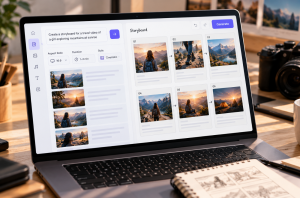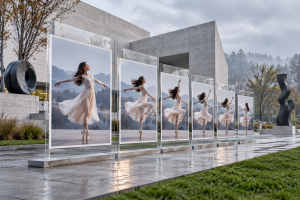
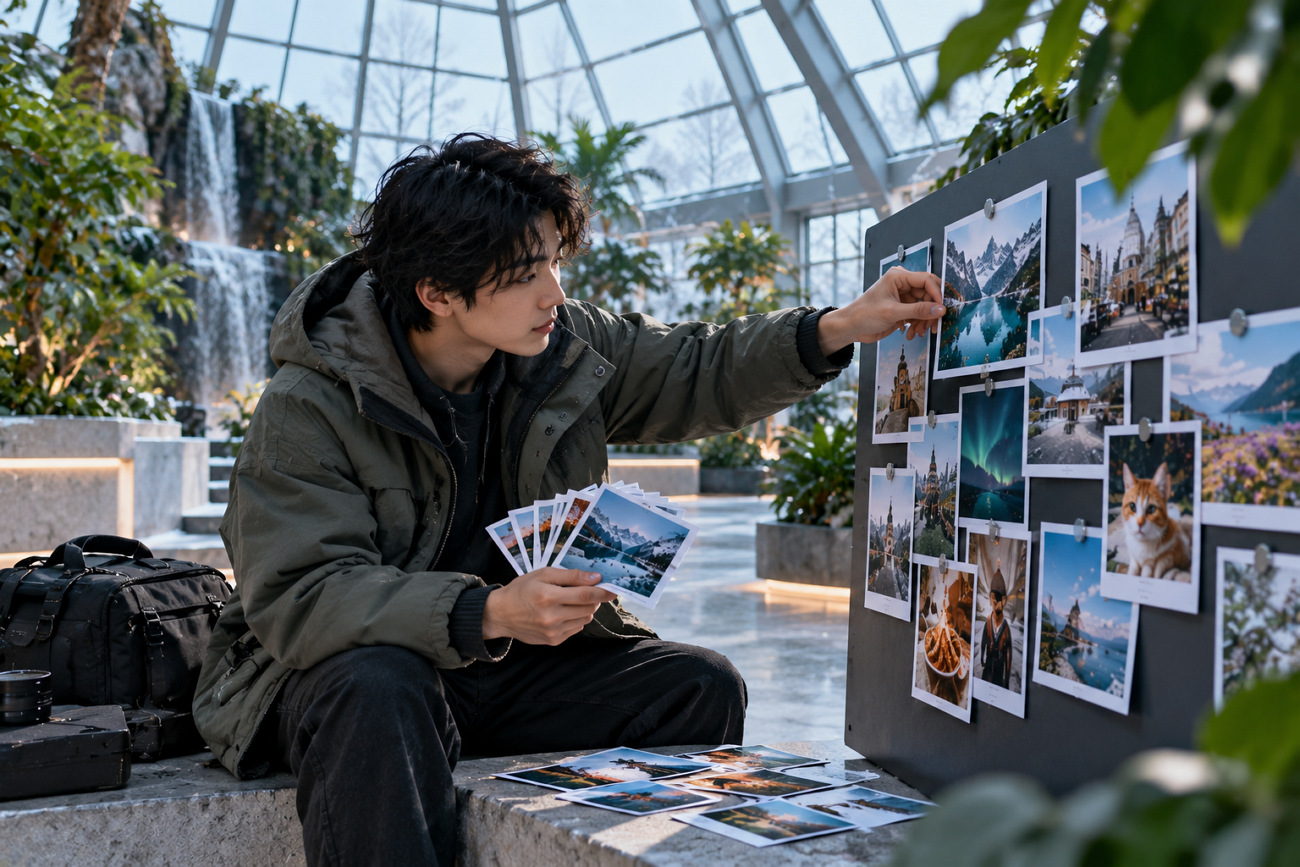
Photos can capture birthdays and special moments you want to share creatively. The best app for making videos with pictures can turn these photos into engaging videos. Useful editing tools can add smooth transitions, music, captions, effects, and creative visual styles.
Some apps also use AI tools to animate still photos and create natural movement. Free plans may differ in watermarks, AI limits, editing features, and available export quality. This guide compares 6 useful options to help you choose the right video creation app.
Part 1. How to Choose the Best App for Making Videos With Pictures
A good app to make a video from photos should offer simple creative controls. Below are the main areas to check before choosing the right app for yourself:
- Photo-to-Video Capabilities: Check whether photos move naturally instead of appearing like a basic slideshow on screen.
- Templates, Transitions, and Effects: Good templates help different photos flow together without requiring detailed editing from scratch.
- Music, Voiceover, and Captions: Audio and captions should be easy to match with each photo throughout your video.
- Creative Features and Customization: Look for enough control to change how your photos appear and move onscreen.
- Export Quality and Ease of Use: Make sure finished videos stay sharp without difficult steps or unwanted watermarks.
Part 2. 6 Best Apps for Making Videos With Pictures in 2026
The best app to make video from photos should make editing simple for everyday users. Some options create slideshows, while others bring still photos to life with realistic motion effects.
1. MagicLight AI
Best For: Creators turning photos into engaging animated videos.
Creators can use MagicLight AI to turn still photos into videos with smooth, natural movement. Its Image to Video tool supports JPG and PNG files for quick photo animation projects. Users can add camera movement and facial motion to make ordinary photos feel more dynamic.
Its Lip Sync tool can make a portrait speak naturally using uploaded audio or dialogue. Users can also generate videos from images through a mobile browser without complicated editing steps.
Key Features
- Precision Camera Control: Camera controls create pans, tilts, and zooms across separate photo layers. Prompts support 1,500 characters for describing specific movement within each image.
- Video Model Options: MagicLight AI provides 20 video models for different photo animation needs. Available choices include Seedance 2.5, Kling 3.0, and Hailuo 2.3 Fast.
- Lifelike Portraits: Portrait photos gain natural blinking and subtle movement during video creation. Facial details remain recognizable while added motion makes portraits feel alive.
- High-Fidelity Upscaling: Photo details remain sharp when still images become moving video scenes. Upscaling helps preserve visual quality as motion appears across each frame.
- Story to Video: Scripts can contain 12,000 characters for creating longer video projects. Finished videos can reach 50 minutes for stories requiring extended viewing.
Pros
- Creates natural camera motion beyond basic zoom effects.
- Combines photo animation, talking portraits, and story creation.
- Paid plans support watermark-free 1080p exports and commercial use.
Con
- Free credits provide limited room for repeated creation.
2. CapCut
Best For: Mobile creators making quick photo reels for socials.
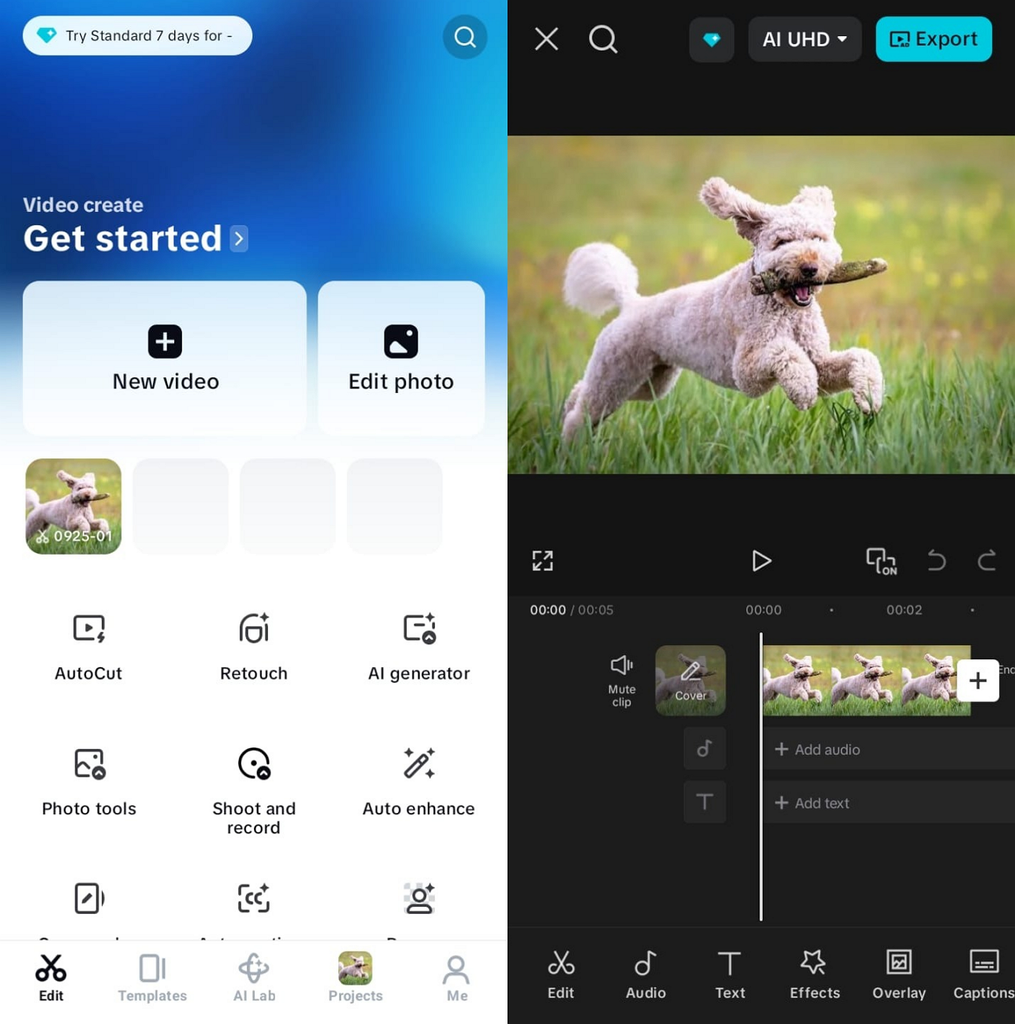
Short-form creators can choose this app to make a video of photos. Photos can become fast reels using automatic cuts that follow selected music beats closely. Users can then customize the generated sequence with filters, transitions, text, and other creative elements.
Key Features
- Offers AI-powered effects that can add movement and stylized transformations to still photos.
- Beat detection times photo changes around the rhythm of selected music.
- Generated sequences allow manual trimming, photo rearranging, filters, and music changes.
Pros
- AutoCut builds photo montages without manual timeline editing.
- Generated edits remain adjustable after automatic photo arrangement.
Cons
- AutoCut is available on CapCut mobile and desktop.
- Browser editing lacks the mobile AutoCut workflow currently.
3. Canva
Best For: Template lovers creating polished event and presentation videos.
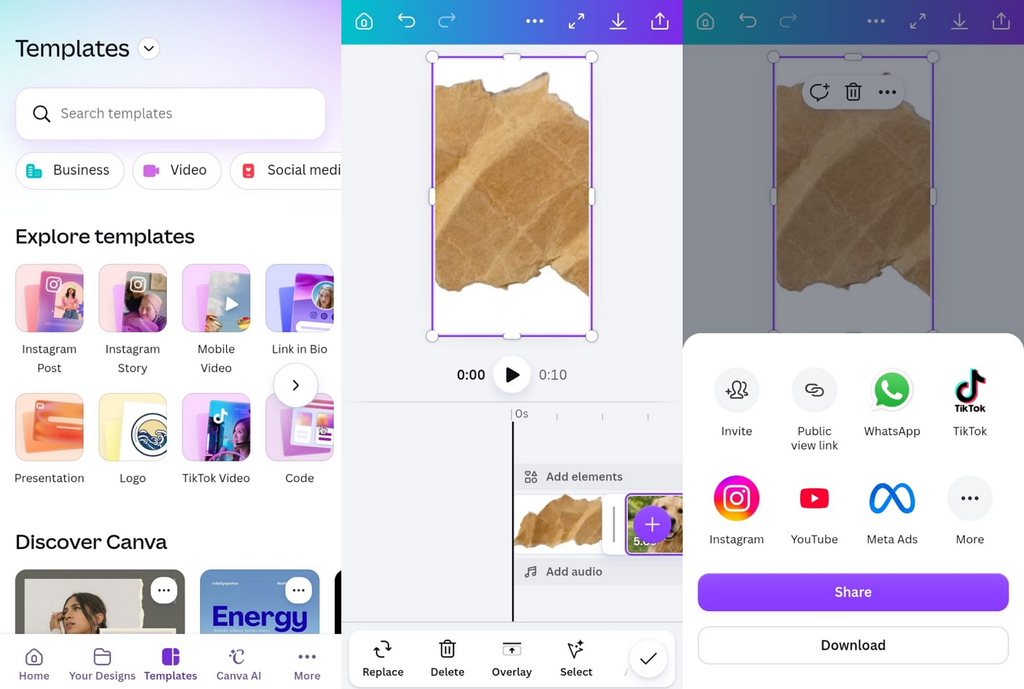
Template-focused users seeking the best app to make video from photos get flexible layouts. Its mobile editor combines uploaded pictures with editable designs for polished photo videos. Projects also stay accessible through Canva's browser editor when users switch devices.
Key Features
- Magic Video uses AI and prompts to help generate video content and speed up video creation..
- Image to Video animates static photos according to written movement prompts.
- Beat Sync aligns visual timing automatically with beats from selected soundtracks.
Pros
- Photo templates cover social posts, greetings, training, and presentations.
- Projects remain editable across mobile, web, and desktop.
Cons
- Automatic Beat Sync requires Canva Pro for access.
- Magic Animate also remains limited to Pro subscribers.
4. InShot
Best For: Beginners creating photo montages entirely on their phones.
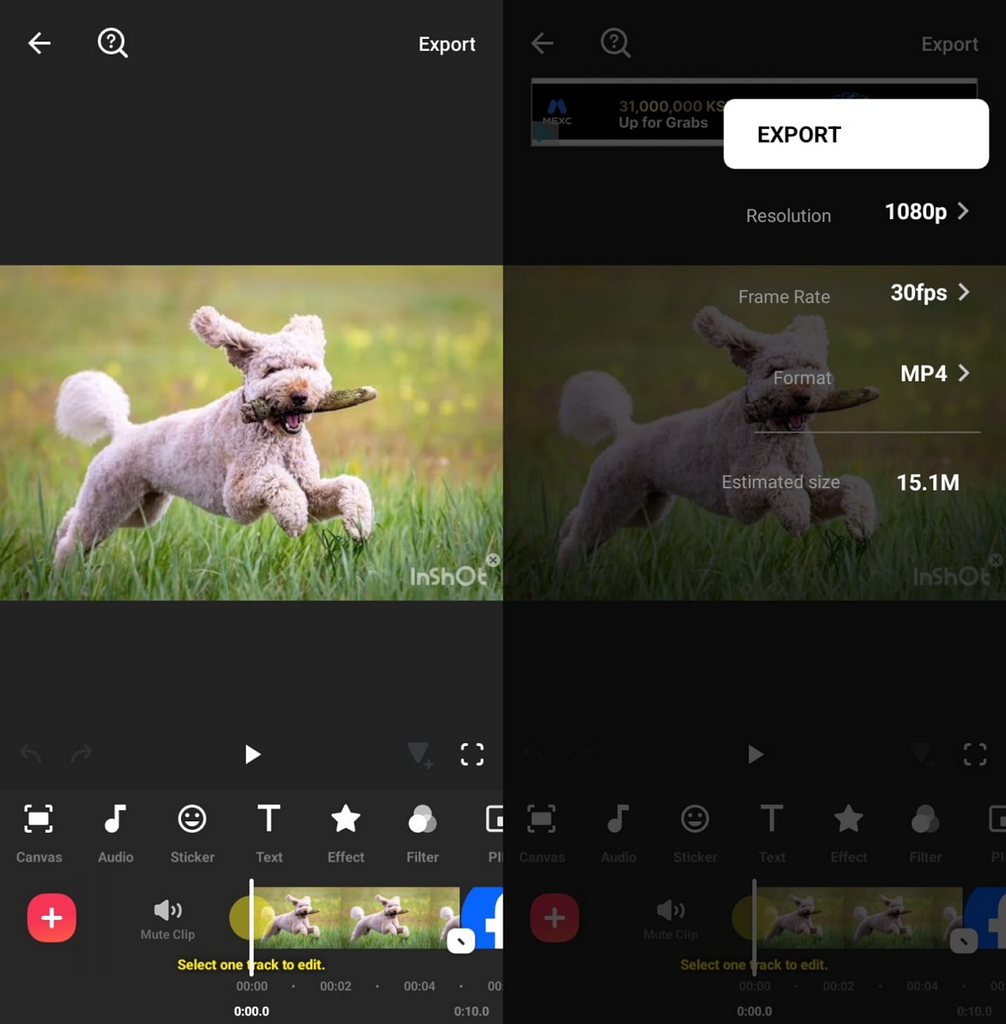
InShot gives mobile users the best app for making videos with pictures quickly. Photos fit directly into timeline projects where users control their order and screen duration. This mobile-focused editor keeps photo video creation accessible without requiring a browser workspace.
Key Features
- Auto Beat marks music rhythms for matching photo changes with sound.
- Keyframes control movement and scaling across individual photos during playback.
- Picture-in-Picture layers place additional photos over the main video canvas.
Pros
- Free exports support 4K resolution at 60 frames.
- Lifetime purchase removes watermarks without recurring subscription payments.
Cons
- Free exports include an InShot watermark on videos.
- Desktop users cannot continue projects through web browsers.
5. Adobe Express
Best For: Designers building branded photo videos for business content.
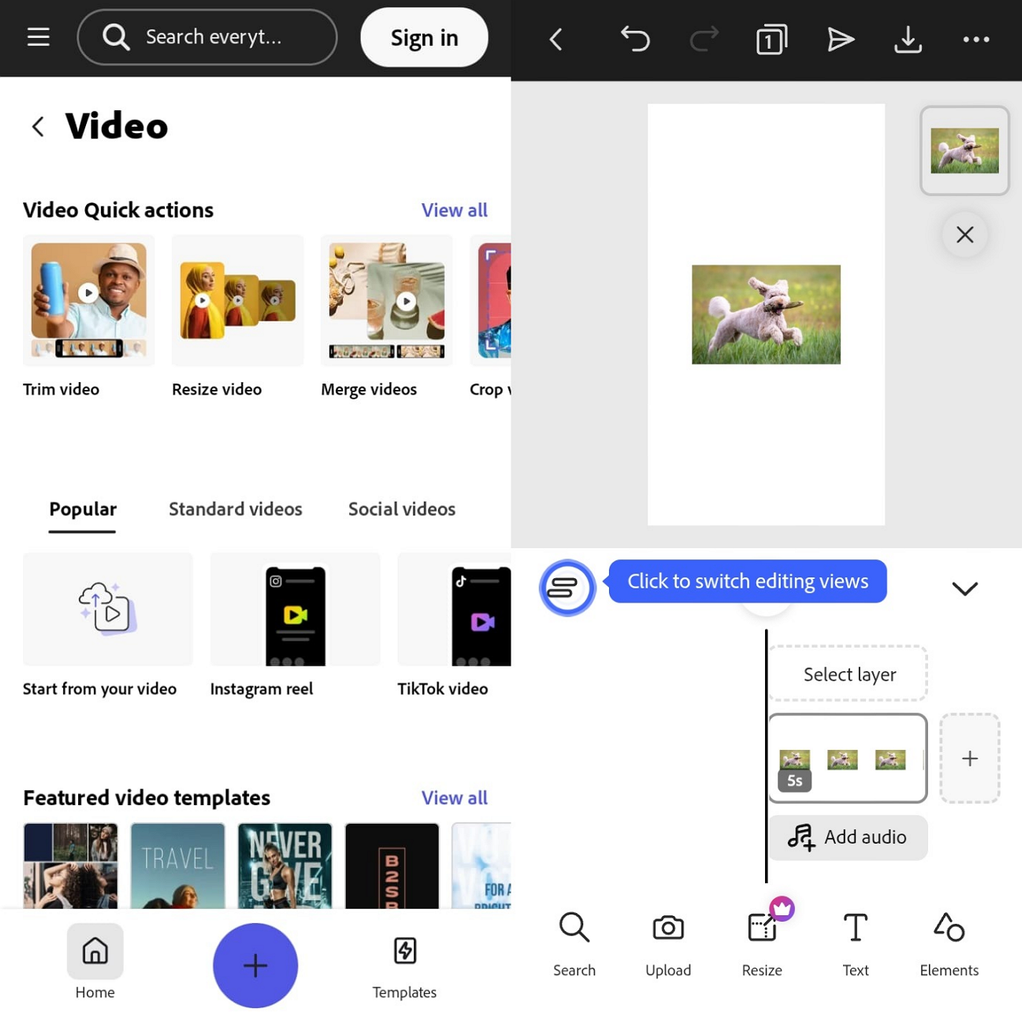
Design-focused users can pick this app to make a video of photos with templates. Each uploaded picture becomes a scene whose duration can be adjusted directly. The browser editor also lets users continue photo projects from computers.
Key Features
- Animate All applies movement across every element within photo designs.
- Dynamic Animations add physics-based movement to photos, text, and shapes.
- Caption Video generates editable subtitles directly from uploaded spoken media.
Pros
- Free video projects support lengths reaching 30 minutes.
- Adobe Stock content integrates directly into video projects.
Cons
- Free users cannot export finished projects in 4K.
- Premium stock requires licensing before watermark-free final exports.
6. Picsart
Best For: Creators exploring different motion styles from existing photos.
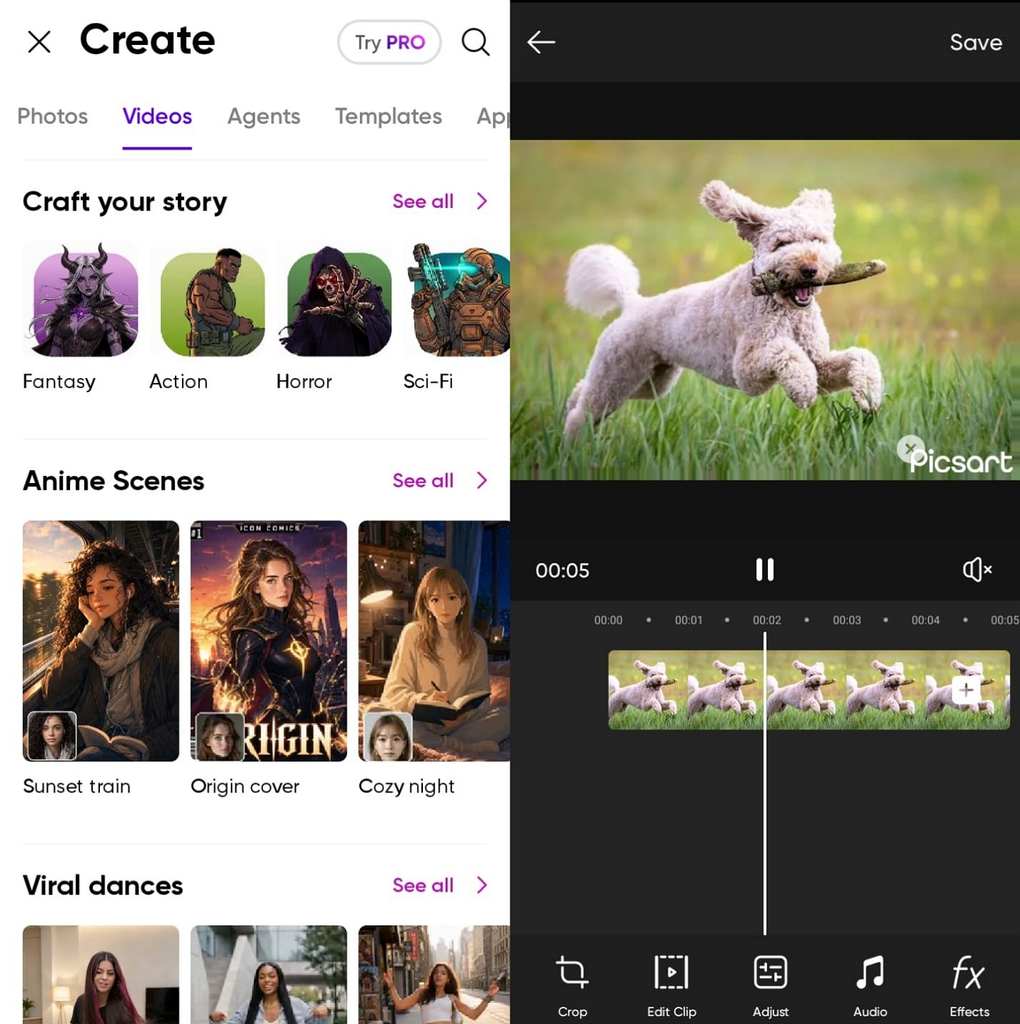
Picsart works as an app to make a video from photos with animation. Users can build slideshows on mobile before adding motion to selected still images. Its web editor provides another workspace for creating and editing photo-based videos.
Key Features
- Image-to-video accepts reference photos and turns them into moving clips.
- Kling Motion Control transfers body movement from videos onto portrait photos.
- Start-and-end frame controls guide movement between selected reference images precisely.
Pros
- Multiple video models handle different photo animation styles.
- Reference inputs provide stronger control over generated photo motion.
Cons
- Available controls differ between individual video generation models.
- Advanced generation requires credits that vary between models.
Compare the 6 Best Apps for Making Videos With Pictures
The best app to make video from photos depends on your editing needs. Some tools suit simple slideshows, while others add realistic movement to still photos. The table below compares 6 options across features, platforms, exports, and ideal uses:
| App | Photo-to-Video Approach | AI Photo Animation | Max Video Length | Best For |
| MagicLight AI | AI-animated photo scenes | Image to Video + Lip Sync | Up to 50 min | AI-animated photo stories |
| CapCut | Templates and timeline editing | AI photo-to-video tools | No fixed project limit | Short social photo videos |
| Canva | Template-based photo videos | Image to Video | Workflow dependent | Template-based photo videos |
| InShot | Manual mobile timeline | Keyframe-based motion | Project dependent | Mobile photo montages |
| Adobe Express | Scene-based photo videos | AI video generation | 30min Free / 2hrs Premium | Branded photo videos |
| Picsart | Slideshows and AI generation | Image to Video | Model dependent | AI photo animation styles |
Part 3. Why MagicLight AI Is a Strong Choice for Creating Videos From Photos
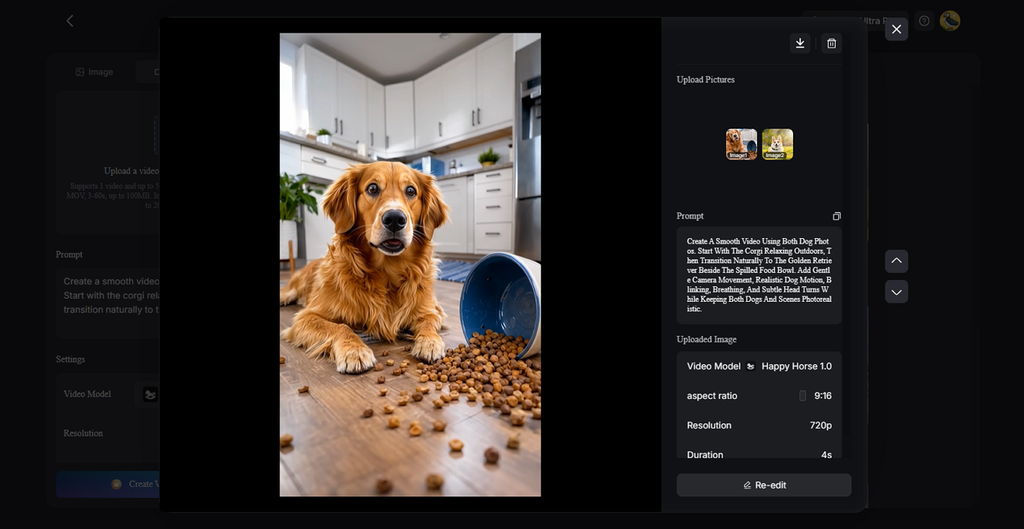
MagicLight AI turns still photos into moving scenes instead of creating basic photo slideshows. This is the best app to create video from photos, bringing image generation into one workflow. Generated images can become animated videos lasting up to 30 seconds with controlled movement. Videos support 9:16 and 16:9 formats for vertical posts and widescreen viewing across platforms.
How to Make a Video From Photos With MagicLight AI
Now, follow the steps below to animate your photos and create a finished video:
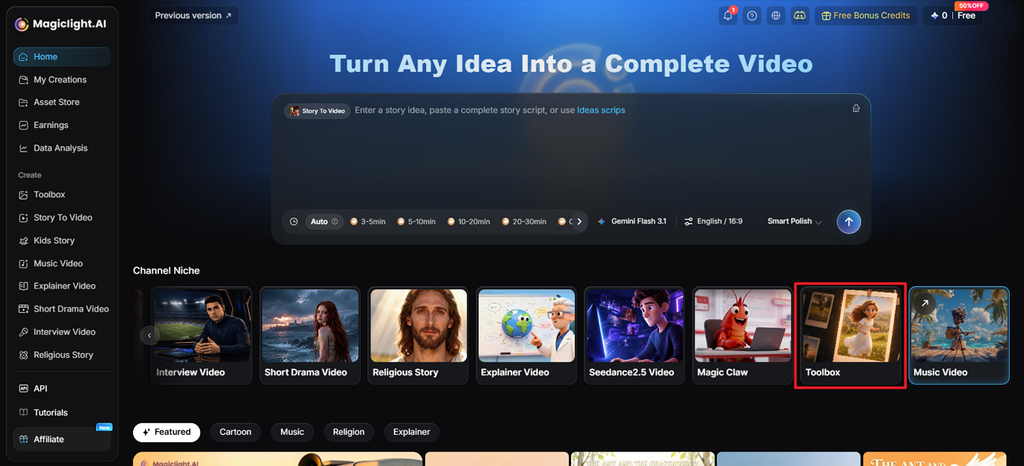
Step 1. Open Image to Video
Visit MagicLight AI, choose Toolbox, and open the Image to Video workspace.
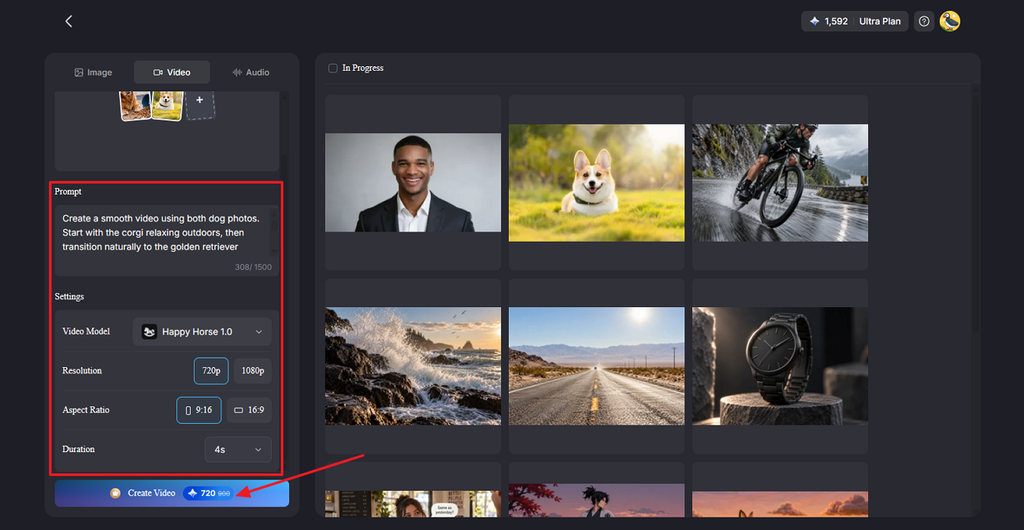
Step 2. Upload Photos and Choose Movement
Access the Video tab, upload or drag your photos into the workspace. Describe how you want the subjects, surroundings, or camera to move in the Prompt box. Select one of the available video models, then choose your preferred resolution and duration. Enable Sound Effects when supported by the selected model, then click Create Video.
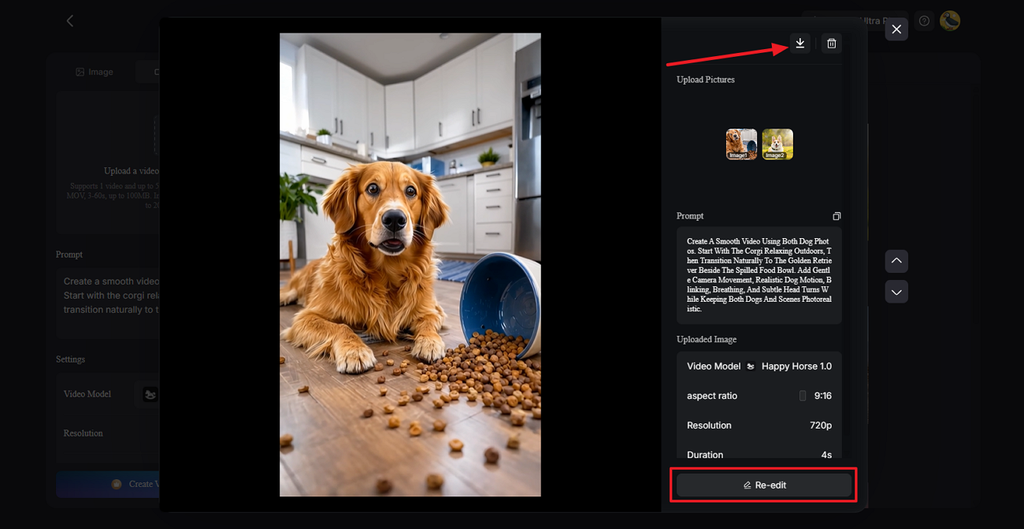
Step 3. Review and Download Your Video
Play the generated video and check how your photos move throughout the result. Choose Re-edit if you want to adjust the prompt or generation settings. Once the movement looks right, click the Download icon to save the finished video.
Conclusion
In summary, the best app for making videos with pictures depends on your project needs. Some options focus on quick slideshows, while others bring still images into natural motion. MagicLight AI combines image creation, animation, camera movement, and flexible video formats in one place. Choose an option based on your preferred editing style, output quality, and available creative controls.
FAQs About the Best Apps for Making Videos With Pictures
- How do I make a video from photos on my phone?
Choose an app to make a video of photos and upload your selected images. Arrange them in your preferred order, then adjust movement and timing for each image. Add music or captions when needed, then preview and export your completed video file.
- What is the best app to make a video from photos?
MagicLight AI can animate uploaded images with camera movement and natural subject motion. Users can select different video models, resolutions, durations, and formats for their projects. Free credits provide a simple way to test image animation before choosing paid access.
- Can AI turn photos into a video automatically?
AI tools can automatically turn uploaded photos into moving video clips. MagicLight AI, for example, lets users describe subject and camera movement through prompts before generating the animation.