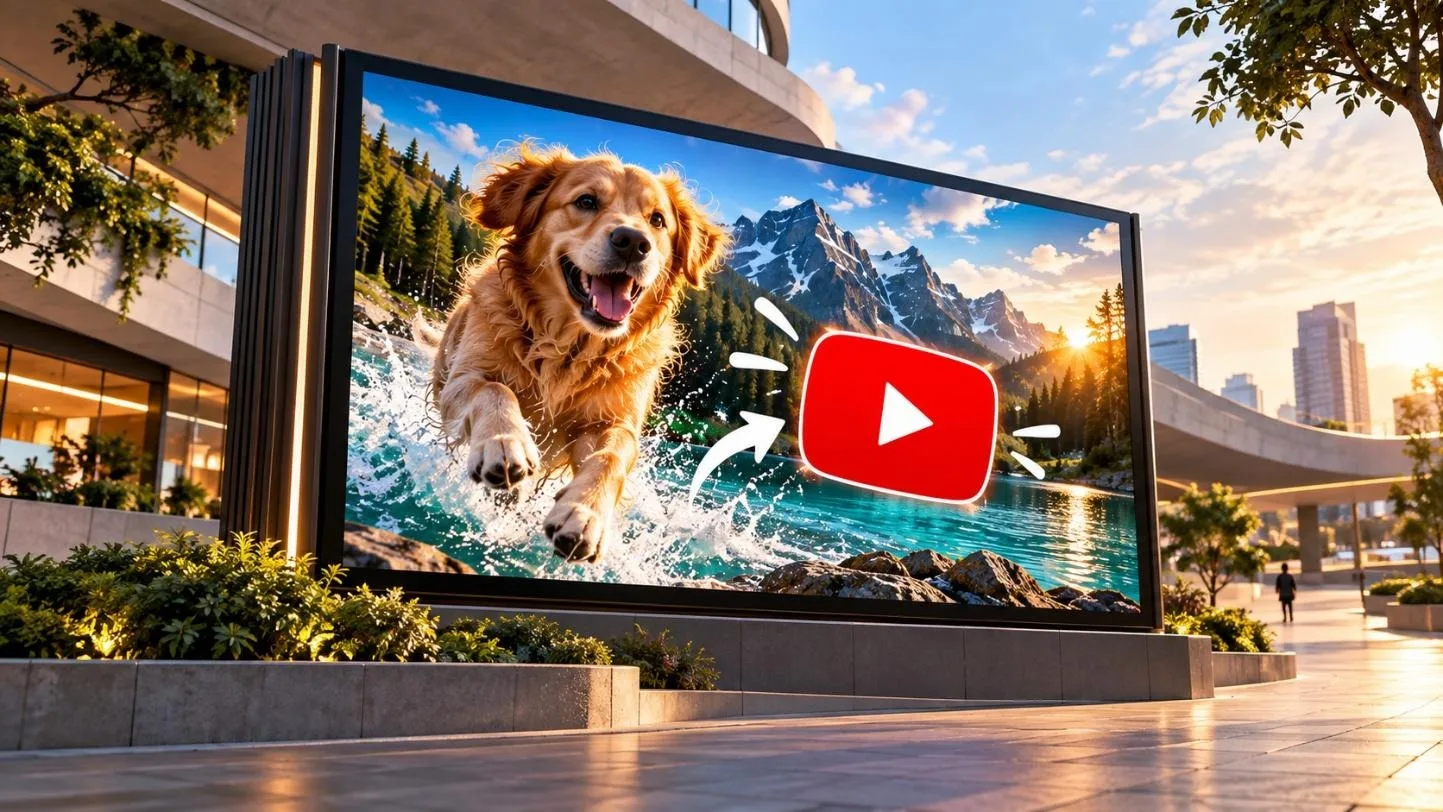
A strong YouTube thumbnail can catch attention before viewers read the title of the video. The right thumbnail can show viewers what your video offers and encourage more clicks online. Creating custom thumbnails traditionally involved selecting images, arranging visual elements, and adjusting text, backgrounds, and layouts manually.
Modern tools can turn simple video ideas into polished thumbnail visuals without complex design work. This guide explains how to create a YouTube thumbnail from your video idea to design.
Part 1. How to Create a YouTube Thumbnail
A YouTube thumbnail gives viewers a quick look at what they can expect from your video. Its layout should keep the main subject visible while leaving enough space for supporting text. MagicLight AI offers one option for how to make a thumbnail for YouTube from an idea.
Overview of MagicLight AI
MagicLight AI is a creative platform that can generate images from written descriptions and ideas. Its Image tool lets users enter a prompt and add reference images when needed. Creators can describe the subject, background, composition, colors, and other details for their thumbnail visuals.
This gives users more control over creating images that match the topic of their YouTube videos. MagicLight AI can help creators learn how to create YouTube thumbnail visuals without advanced design skills.
Key Features
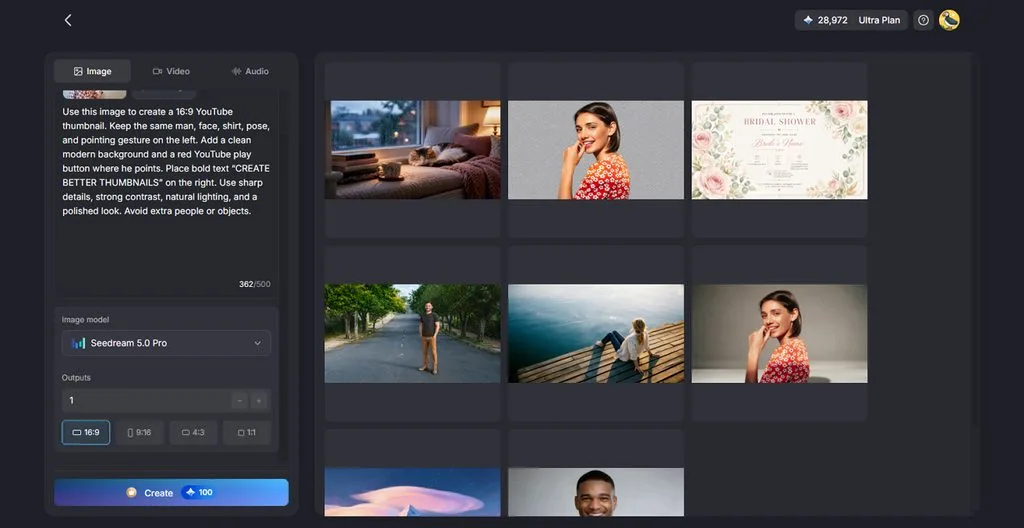
- Prompt-Built Scenes: A 500-character prompt defines subjects, expressions, backgrounds, lighting, and headline space. Creators can describe specific visual details for more suitable thumbnail results.
- Face and Product References: Reference photos help keep faces and products recognizable during image generation. Users can upload up to 10 headshots or product images, each up to 20MB.
- Several Variations: The Outputs setting creates several versions from one thumbnail idea instantly. Creators can compare different results before choosing their preferred thumbnail visual.
- Frames for Videos and Shorts: The 16:9 ratio provides the right frame for standard YouTube thumbnails. The 9:16 ratio creates vertical visuals suitable for YouTube Shorts thumbnails.
- Story to Video: MagicLight AI also creates complete YouTube videos using prompts up to 12,000 characters. Generated videos can reach up to 50 minutes in total length.
Guide to Create YouTube Thumbnail Visuals With MagicLight AI
If you are wondering, “How do I make a thumbnail for YouTube?,” this guide provides answers. Follow the steps below to create thumbnail visuals from your initial video idea:
Step 1. Access the AI Image Generator
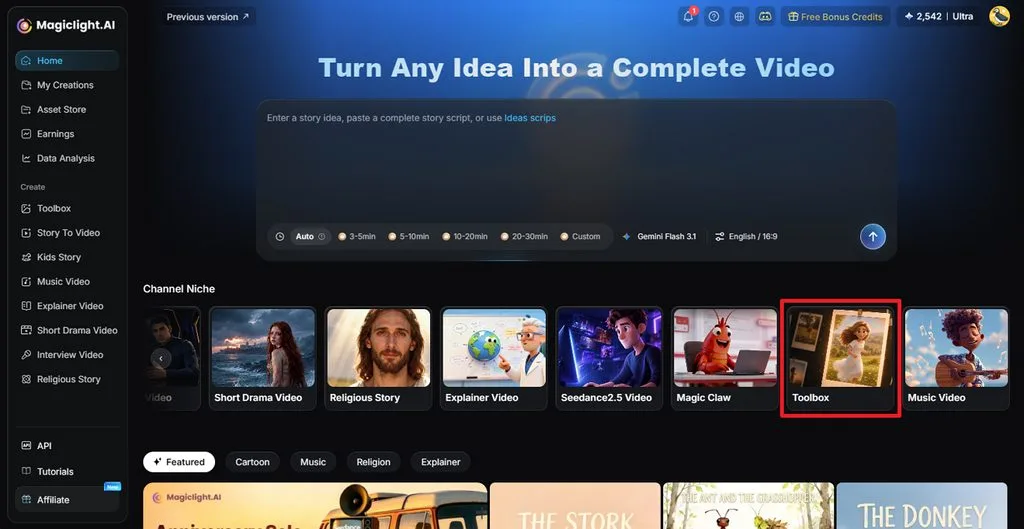
Open MagicLight AI and click Toolbox to enter the working interface. Select the Image tab to start creating your YouTube thumbnail visual.
Step 2. Create Your Thumbnail Visual
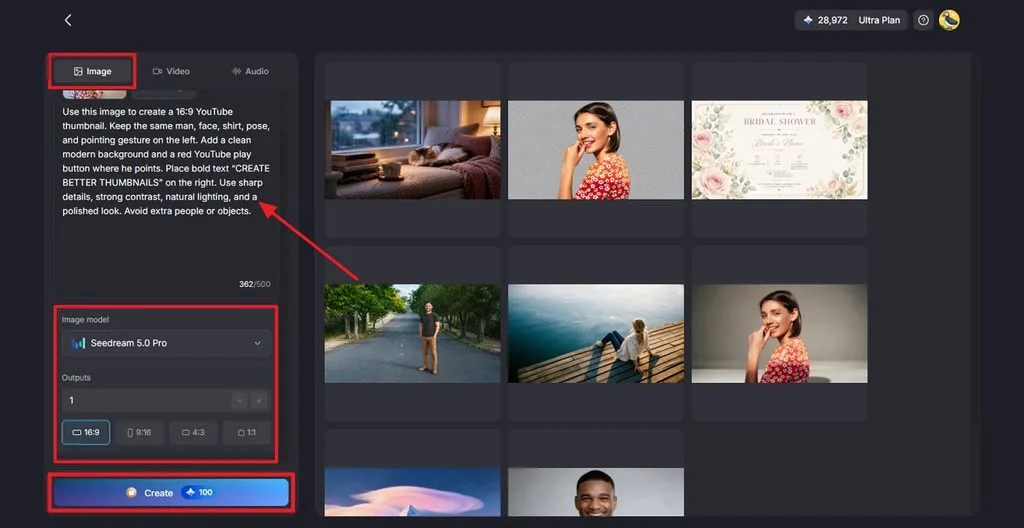
Upload a reference image if needed, then enter a prompt describing your desired thumbnail. Select the Image Model, choose the number of Outputs, and set Aspect Ratio to 16:9 for a YouTube thumbnail. Click Create to generate the image.
Step 3. Save Your Finished Thumbnail
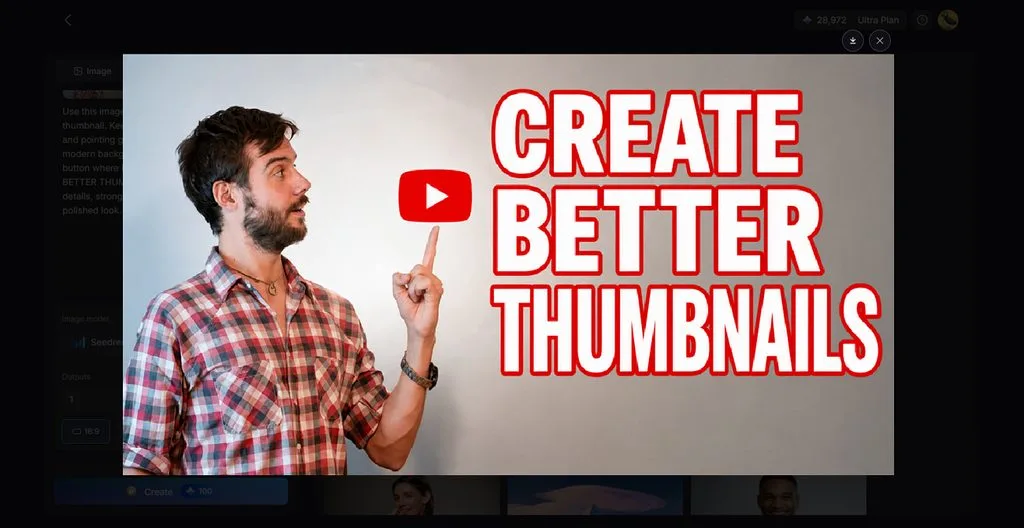
Review the generated thumbnail and create another version if the result needs changes. Once satisfied with the final visual, click the Download icon to save it.
Keep YouTube’s thumbnail specifications in mind before uploading your finished image. Look at the table below to check the required size, format, and account details:
| Thumbnail Requirement | YouTube Specification |
| Aspect Ratio | 16:9 for videos, 9:16 for Shorts |
| Recommended Resolution | 3840 × 2160 for videos, 2160 × 3840 for Shorts |
| Minimum Size | 640 pixels wide for videos, 640 pixels tall for Shorts |
| File Format | JPG or PNG |
| Maximum File Size | 50MB on desktop, 2MB for video thumbnails on mobile |
| Account Requirement | Account verification required to upload custom thumbnails |
Part 2. Why Use MagicLight AI for YouTube Thumbnail Creation
Thumbnail tools are everywhere, but many rely on templates that other channels already use. For creators comparing “how to create thumbnail on YouTube” options, MagicLight AI offers original visuals, recognizable faces, and a direct link to video.
- Original Scenes Instead of Stock Templates
Template-based designs tend to look alike once several channels in the same niche adopt them. MagicLight AI generates every scene from the prompt, so each thumbnail belongs to one specific video. A cooking channel’s burnt cake and a tech channel’s glowing gadget come out as original artwork rather than recycled stock imagery.
- Multiple Image Models
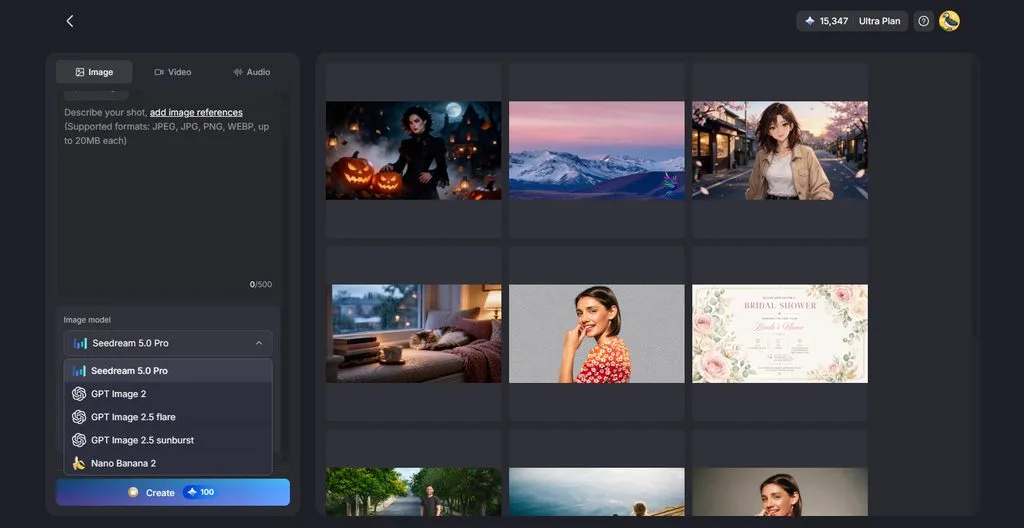
MagicLight AI includes 5 image models for creating different thumbnail styles and visual results. Options include Nano Banana 2, Seedream 5.0 Pro, and several GPT Image model variants. Creators can compare different models to find visuals matching their specific YouTube video topic.
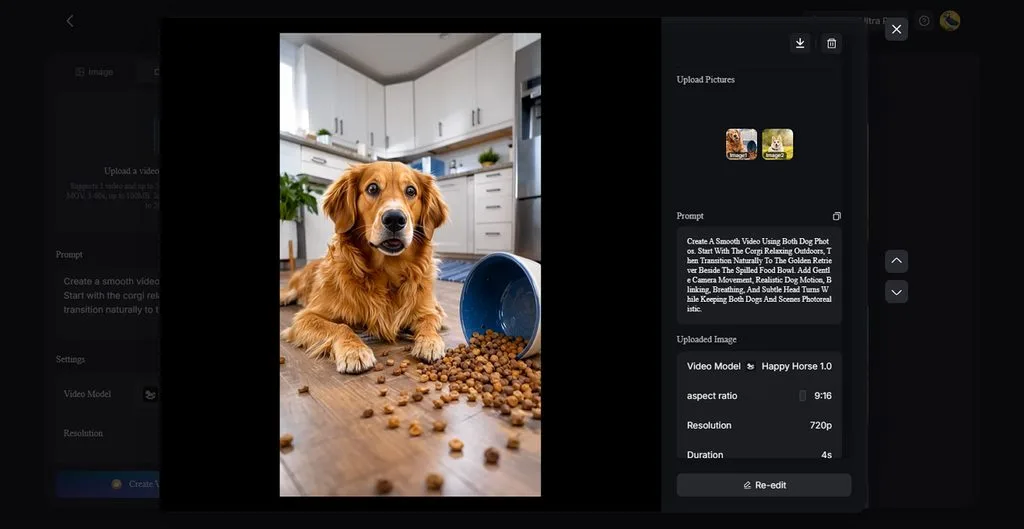
Creators can animate images to turn static visuals into engaging video content. Users can add up to 5 reference images to guide the generated result. Prompts support up to 1500 characters for detailed scenes, movement, and visual direction.
- AI Video Models
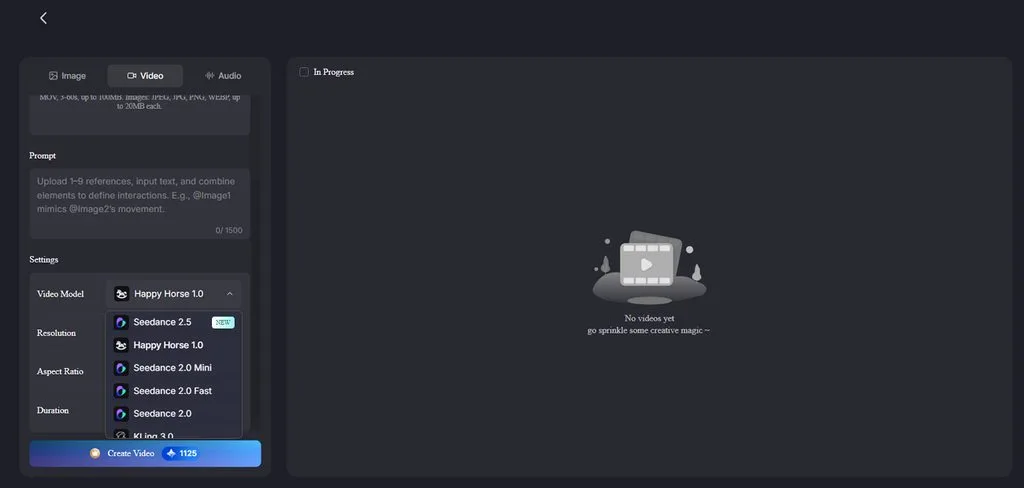
MagicLight AI provides 20 video models covering different motion styles and visual results. These options give creators more ways to produce videos beyond their static thumbnail artwork. Available models include Seedance 2.5 for creating videos using uploaded photo sets as references.
- Thumbnails and Videos From One Account
MagicLight AI designs the thumbnail and produces the video too, from Story to Video episodes to animated teasers. Each finished Story to Video episode already arrives with a thumbnail, cover, and hashtags, and the Image tab adds custom alternatives. Paid plans cover commercial use and add watermark-free 1080p video exports, while free credits handle a first test.
Conclusion
In summary, understanding how to create a YouTube thumbnail helps creators build stronger video visuals. MagicLight AI provides image tools, reference uploads, models, and flexible ratios for thumbnail creation needs. Creators can generate several options, compare results, and download the thumbnail they prefer most. A final check of YouTube requirements helps keep each thumbnail ready for successful uploading online.
Frequently Asked Questions on How to Create a YouTube Thumbnail
1. How do I create a YouTube thumbnail?
Plan one idea, create a 16:9 visual, and add short text that viewers can read quickly. Upload the finished thumbnail through YouTube Studio after checking the required size and format specifications first.
2. What makes a YouTube thumbnail effective?
Strong thumbnails combine one focal point, readable text, simple layouts, and visuals matching the video content. Creators learning how to create thumbnails on YouTube should avoid misleading, violent, vulgar, or inappropriate imagery.
3. Can AI create a thumbnail from a video idea?
Image generation tools can turn a written video idea into a complete visual for your thumbnail. MagicLight AI accepts prompts and optional reference images, then generates several thumbnail options for creator users.
4. Can I create YouTube thumbnails without design skills?
Advanced design skills are unnecessary when image tools can build compositions from simple written scene descriptions. MagicLight AI lets beginners describe their desired thumbnail scene and choose between several generated visual options.
5. What AI tool can I use to create YouTube visuals?
MagicLight AI provides image generation tools for creating thumbnail visuals in different ratios and visual styles. Creators can also animate finished images or produce longer videos using other available MagicLight AI tools.