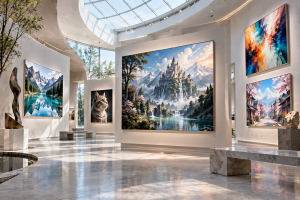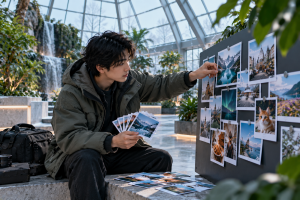
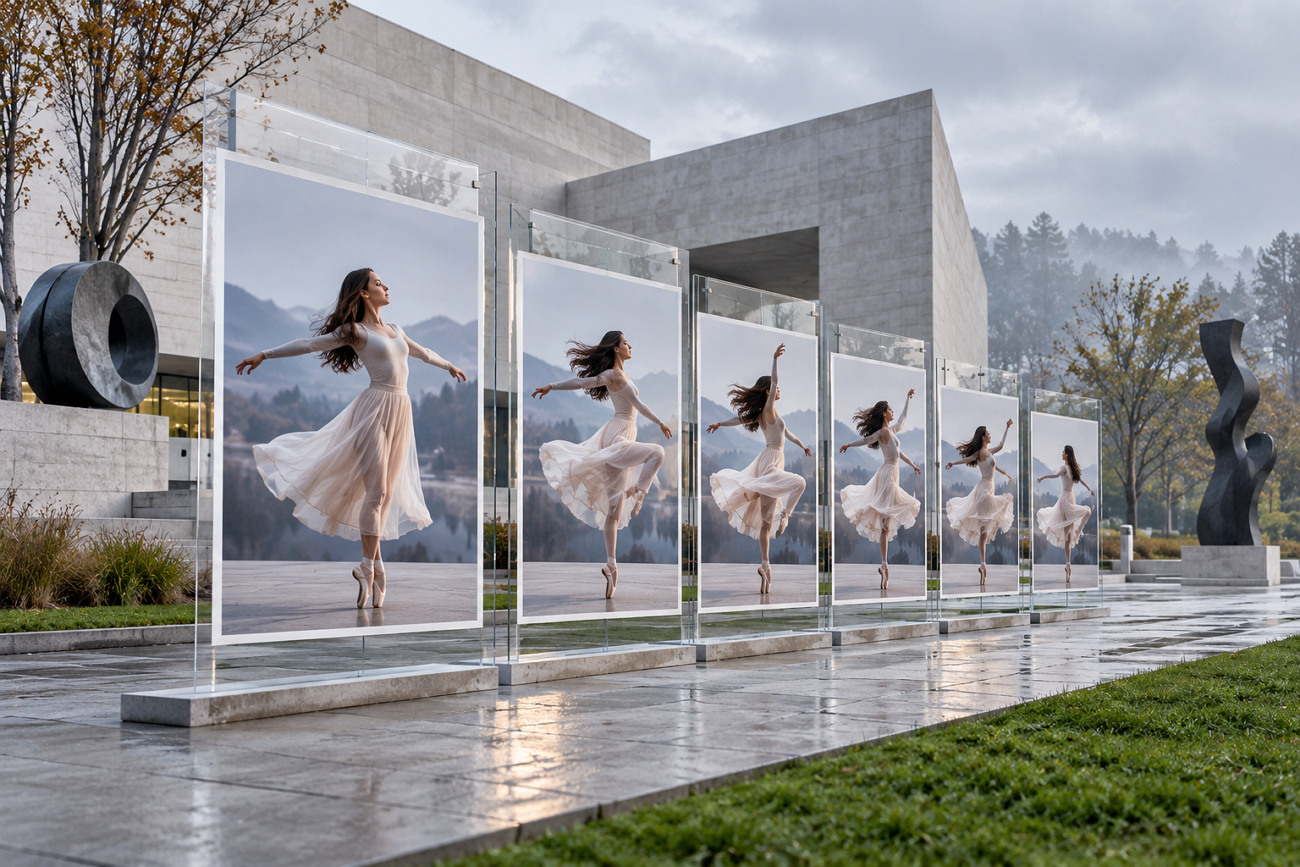
A single photo can become a moving video with natural motion, expressions, and sound. The best picture-to-video app can make this process simple for any creator. Each tool offers different options for video length, resolution, motion, audio, and creative control.
Some tools focus on realistic movement, while others provide more editing and animation options. Your choice will mostly depend on the type of video you want from a photo. This guide compares 6 popular tools to help you find the right option.
Part 1. How to Choose the Best Picture-to-Video App
The best AI photo-to-video app should match the video you plan to create. Below are the main areas that can help you choose a suitable option easily. Checking these areas can help you avoid poor motion, limited controls, and weak video quality:
- Photo-to-Video Quality and Motion: Check whether faces, hair, water, fabric, and objects move naturally without losing their original shape.
- AI Image-to-Video Capabilities: Look for reference images, start and end frames, and multi-shot tools for building connected scenes.
- Animation Effects and Customization: Verify if you can change camera movement, animate specific areas, and adjust effects yourself.
- Video Length and Output Quality: See how long each generated clip can be and what resolution you can download.
- Ease of Use and Free Access: Simple controls and free plans make testing easier before paying for regular video creation work.
Part 2. 6 Best Picture-to-Video Apps to Try
The best photo-to-video apps offer different ways to turn still images into videos. Some focus on longer clips, while others offer better motion, sound, or higher video quality.
1. MagicLight AI
Best For: Creators needing multiple video models in one platform.
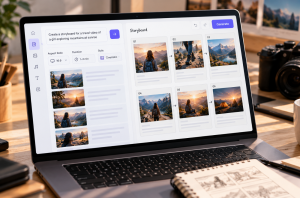
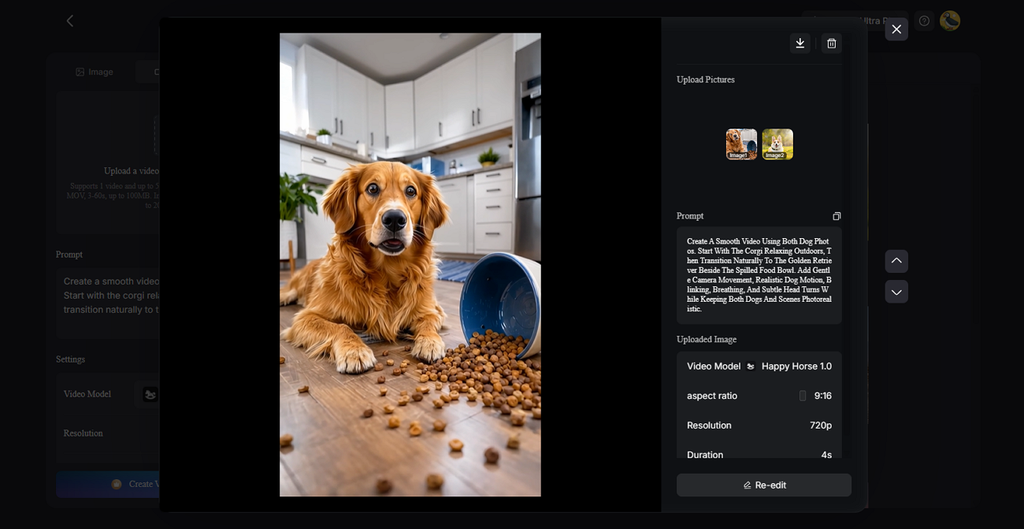
Creators can turn still pictures into moving videos with MagicLight AI using simple written prompts. Its Image to Video tool supports JPG, PNG, and JPEG files up to 10MB each. Users can write motion prompts up to 1,500 characters for more specific video movement instructions.
Generated videos can reach 30 seconds, giving creators more time to show their visual ideas. The tool also lets users add narration and captions while creating videos from their pictures.
Key Features
- Multi-Photo Sequences: Multiple photos can connect smoothly within one continuous video sequence. This works well when showing products, places, changes, or related images.
- Physics-Aware Motion: The tool creates movement based on objects visible within uploaded pictures. Water, smoke, hair, and fabric can move with more natural behavior.
- Locked Faces and Details: Important facial features and object details remain consistent during video generation. This helps reduce unwanted changes when animating portraits or product photos.
- AI Image Generation: Upload up to 10 reference images for creating matching visual content. Prompts support 500 characters for describing the image you want generated.
- Story to Video: Scripts can contain 12,000 characters for creating longer video projects. Finished videos can reach 50 minutes when more screen time matters.
- Video Model Options: Choose from 20 video models based on your preferred video style. Options include Seedance 2.5, Kling 3.0, and Happy Horse 1.0.
Pros
- Also offers the option to improve video content with the help of dedicated video models.
- Add narration and captions in 16 different styles without using another tool.
- Turn photos into characters for longer video projects with a 1000-character prompt and a reference image.
Con
- Cannot find export resolutions greater than 1080p.
2. Kling AI
Best For: Creators making controlled character animations from still photos.
The best AI image-to-video app gives creators more control when animating still photos. Kling AI turns uploaded pictures into videos reaching 15 seconds with its VIDEO 3.0 model. Motion controls help guide character actions, facial expressions, and camera movement throughout the generated clip.
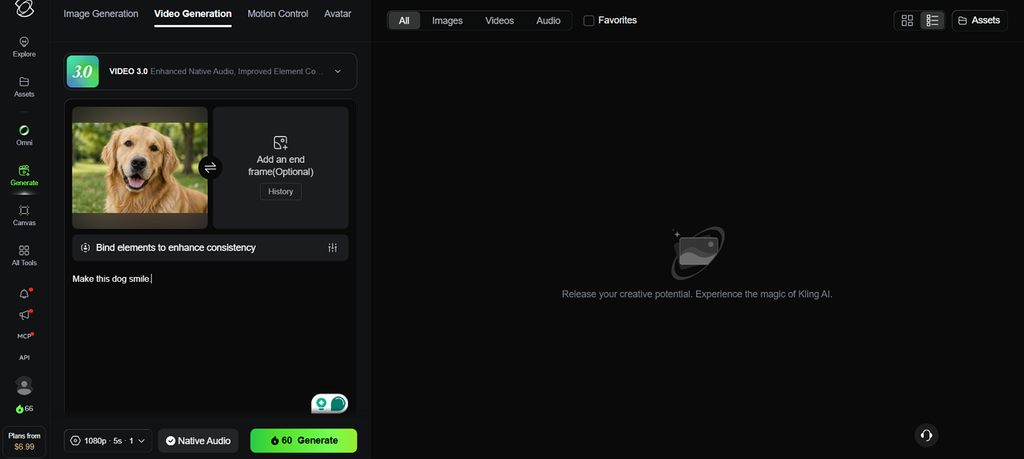
Key Features
- Motion Brush draws movement paths across 6 separate parts within uploaded images.
- Multi-Shot controls individual scenes, timing, framing, camera movement, and visual continuity.
- Motion Control transfers body actions and facial expressions from videos onto character images.
Pros
- Native audio creates dialogue in 5 supported languages.
- Start and end frames provide precise transition control.
Cons
- Detailed motion settings require carefully prepared reference images.
- Advanced controls take extra time for new users.
3. Runway
Best For: Filmmakers creating AI shots for professional editing workflows.
This best image-to-video app can turn simple pictures into carefully directed video shots. Runway Gen-4.5 creates 2- to 10-second clips using an image as reference. Detailed camera instructions help control movement and timed changes throughout the generated video.
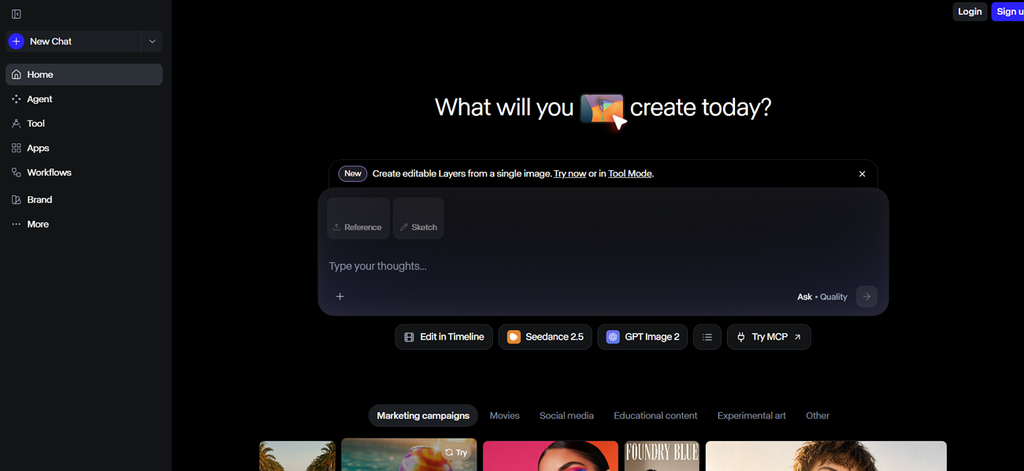
Key Features
- Gen-4.5 follows detailed camera instructions and timed changes across generated video scenes.
- Act-Two transfers body movements, hand gestures, speech, and expressions onto character images.
- ProRes exports and PNG sequences provide flexible files for professional editing after generation.
Pros
- Generated videos support 6 aspect ratios for different screens.
- Gen-4.5 provides both 24fps and 25fps output options.
Cons
- Gen-4.5 generates video at 720p before additional upscaling.
- Each generated second with Gen-4.5 costs 12 credits.
4. Luma AI
Best For: Filmmakers needing precise keyframe control for complex shots.
Luma AI brings detailed frame control to creators searching for the best picture-to-video app. Its Ray3.2 model lets uploaded images guide motion at selected points throughout the generated clip. Creators can use keyframes to shape how scenes change and movement develops across the video.
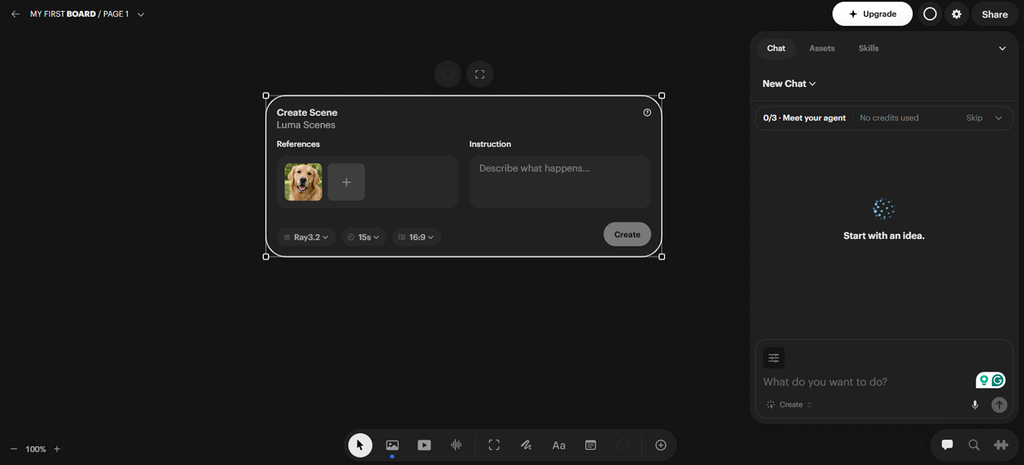
Key Features
- Multi-Keyframe places up to 16 guide frames throughout one generated video clip.
- Draft Mode creates faster previews before turning selected ideas into higher-quality video results.
- Native 16-bit HDR and EXR exports provide files ready for professional color work.
Pros
- Performance Tracking can follow 8 faces within scenes.
- Reframe changes aspect ratios while preserving original movement.
Cons
- Ray3 image-to-video currently generates clips without native audio.
- Advanced production controls can take time to learn.
5. Pika
Best For: Social creators making playful animations from everyday photos.
Turning a still photo into something playful takes only a few steps inside Pika. For creators comparing the best AI photo-to-video app, Pika offers several visual tools. Its browser platform provides quick access to image animation without a complicated editing setup.
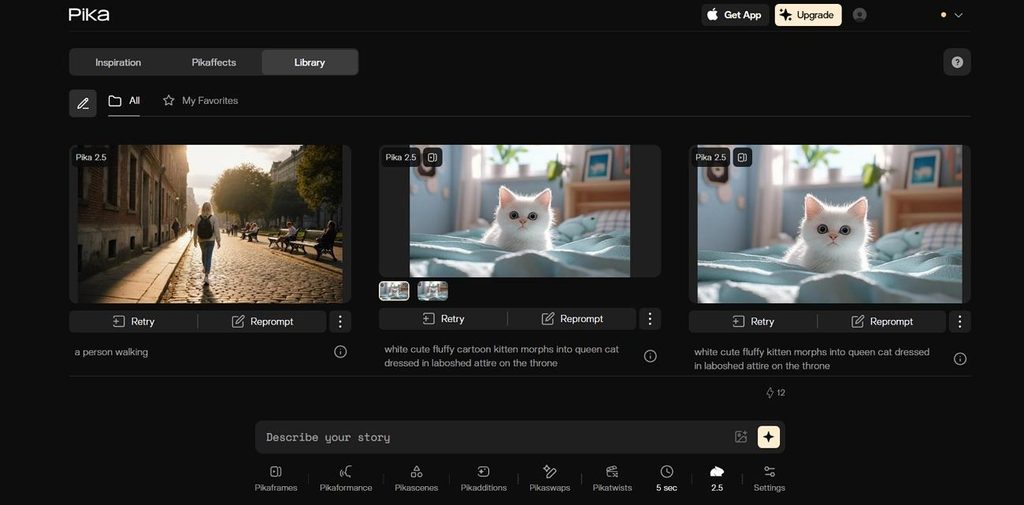
Key Features
- Pikaframes connects several images together through controlled transitions within one generated sequence.
- Pikaformance makes portrait images speak, sing, or perform using synchronized facial movement.
- Camera Director reshoots existing clips using different framing, angles, and camera movements.
Pros
- Pika 2.5 creates image-based videos reaching 1080p resolution.
- The image-to-video functionality of Pika supports 5-10 second outputs in 1080p quality.
Cons
- The platform focuses mainly on short video generations.
- Precise on-screen text remains difficult with generated clips.
6. Hailuo AI
Best For: Creators building detailed scenes from multiple reference files.
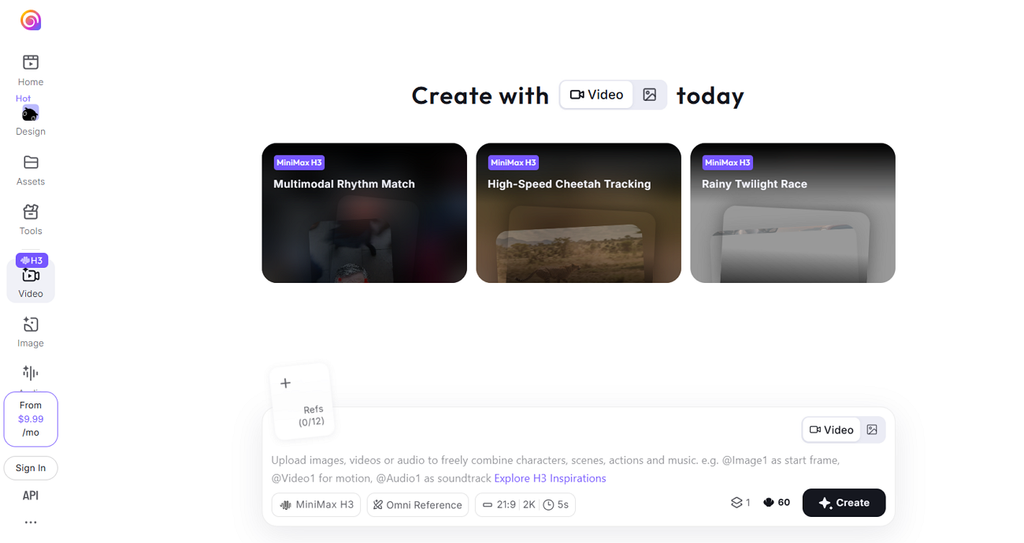
Hailuo AI combines image references with motion, sound, and camera guidance inside one workflow. The photo-to-video best app search becomes useful when projects need several reference files. Its reference-based workflow helps creators maintain a specific visual direction instead of relying only on text prompts.
Key Features
- Omni Reference combines images, videos, and audio files as guidance for generation.
- H3 transfers character appearance, camera movement, composition, and voices from reference files.
- Instruction editing can replace objects, backgrounds, lighting, dialogue, or voices within videos.
Pros
- H3 generates native stereo sound alongside video output.
- Video resolution reaches 2K with MiniMax H3 generation.
Cons
- Reference-heavy projects require carefully selected source files beforehand.
- Higher-resolution generations consume more resources than basic clips.
Compare the 6 Best Picture-to-Video Apps
Each tool handles picture-to-video creation differently, especially for length, resolution, sound, and pricing. Finding the best picture-to-video app becomes easier when comparing these differences directly. The table below compares all 6 tools across their main picture-to-video features and limits:
| App | Max Image-to-Video Length | Top Resolution | Built-In Audio | Reference Image Support |
| MagicLight AI | Up to 30 seconds | 1080p | Lip sync and Sound effects | Up to 5 reference images |
| Kling AI | Up to 15 seconds | Native 4K | Native audio and dialogue | Multiple image and element references |
| Runway | Up to 10 seconds with Gen-4.5 | 720p native; upscale available | No native audio in Gen-4.5 | Image input with visual reference controls |
| Luma AI | Up to 10 seconds with Ray3.2 | 1080p with HDR/EXR options | No native audio in Ray3.2 | Up to 16 multi-keyframes |
| Pika | Up to 10 seconds with Pika 2.5 | 1080p | Audio available through separate Pika tools | Multiple images with Pikaframes |
| Hailuo AI | Up to 15 seconds with H3 | 2K | Native stereo audio | Multiple image, video, and audio references |
Part 3. Why MagicLight AI Is a Strong Choice for Picture-to-Video Creation
MagicLight AI offers a simple way to turn still pictures into smooth moving videos easily. Among the best photo-to-video apps, it supports both 16:9 and 9:16 formats. Users can add motion, narration, and captions without moving their project between different tools. Free sample generations also give new users a way to test results before upgrading plans.
How to Turn a Picture Into a Video With MagicLight AI
Creating a short moving clip takes only a few settings inside the Image-to-Video tool. Follow the steps below to create your first picture-to-video clip with MagicLight AI:
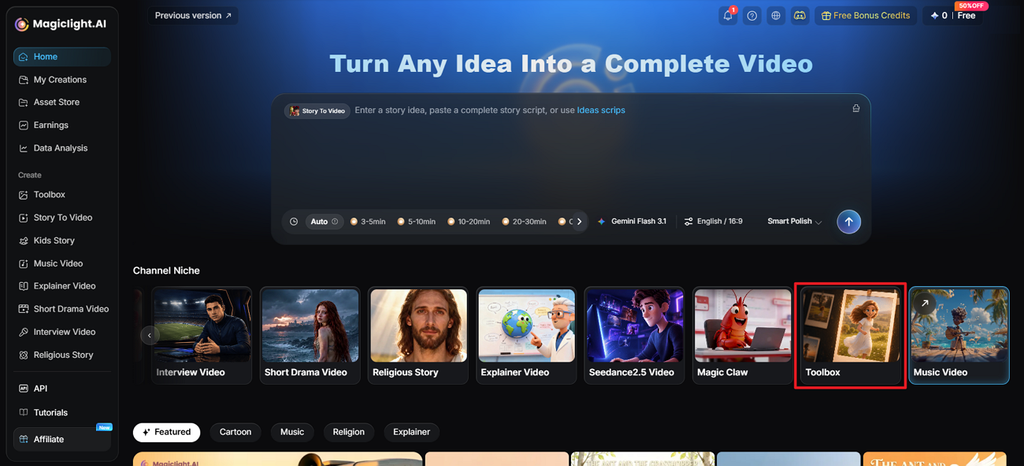
Step 1. Open Image to Video
Go to MagicLight AI and choose Toolbox. Find and open the Image to Video tool to begin.
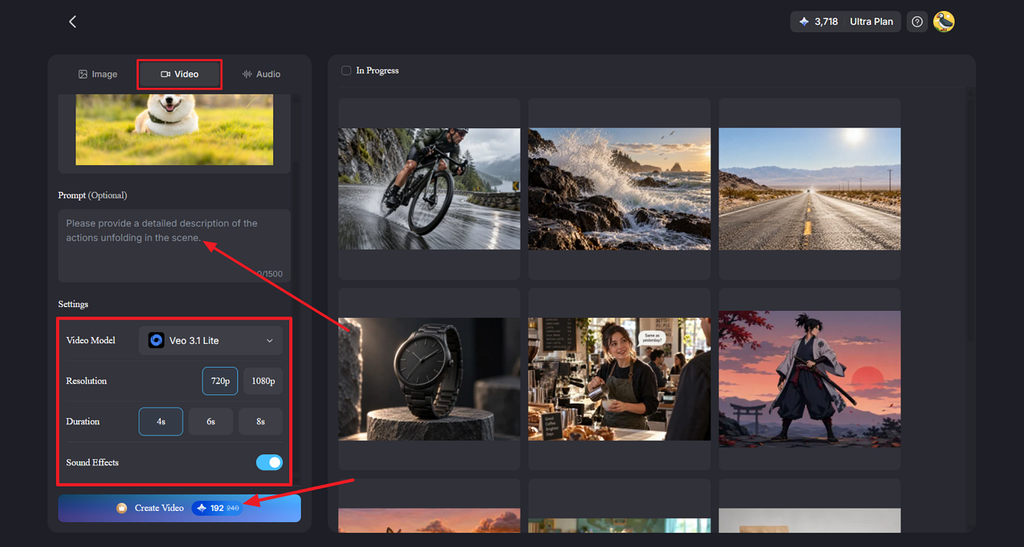
Step 2. Upload Your Picture and Add Motion
Open the Video tab, then upload or drag your picture into the workspace. Write a prompt describing the movement and camera action you want. Choose a Video Model, then select the Resolution and Duration. Enable Sound Effects when the chosen model supports audio, then click Create Video.
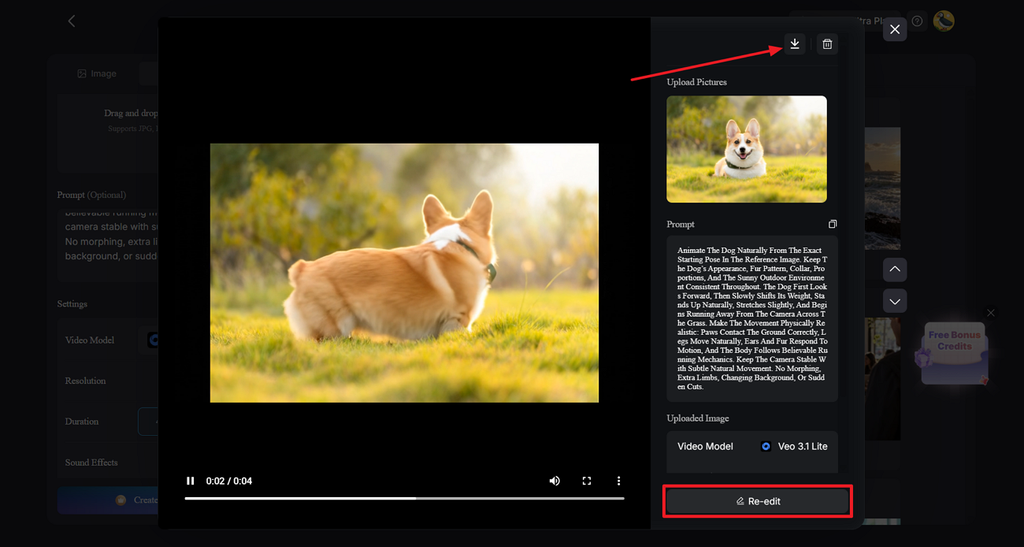
Step 3. Preview and Save Your Video
Play the generated clip and check the movement against your prompt. Click Re-edit if you want to change the prompt or video settings. Once the clip looks right, use the Download icon at the top to save it.
Conclusion
In summary, the best picture-to-video app depends on the videos you create most. Creators can animate an image with motion, camera movement, sound, and useful visual controls included. Some tools work better for short effects, while others handle detailed scenes and dialogue. MagicLight AI brings picture animation, narration, captions, and flexible formats into one simple creative workflow.
FAQs About the Best Picture-to-Video Apps
- How can I turn a picture into a video with AI?
Upload your photo to one of the best image-to-video apps available. Describe the movement you want and include any camera direction in your prompt. Choose the video length and format, then generate and review the finished clip.
- What is the best AI app for turning photos into videos?
Creators comparing the best AI image-to-video app can consider MagicLight AI. It provides different video models for creating motion from many types of pictures. Narration and captions also help finish videos without moving between several separate tools.
- Can I animate a photo with an AI video app?
Yes, a photo can gain movement, camera motion, and speaking facial expressions. MagicLight AI can keep facial details stable while adding natural movement to portraits. Its Lip Sync tool can also make portrait subjects speak from written text.