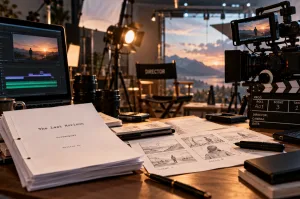
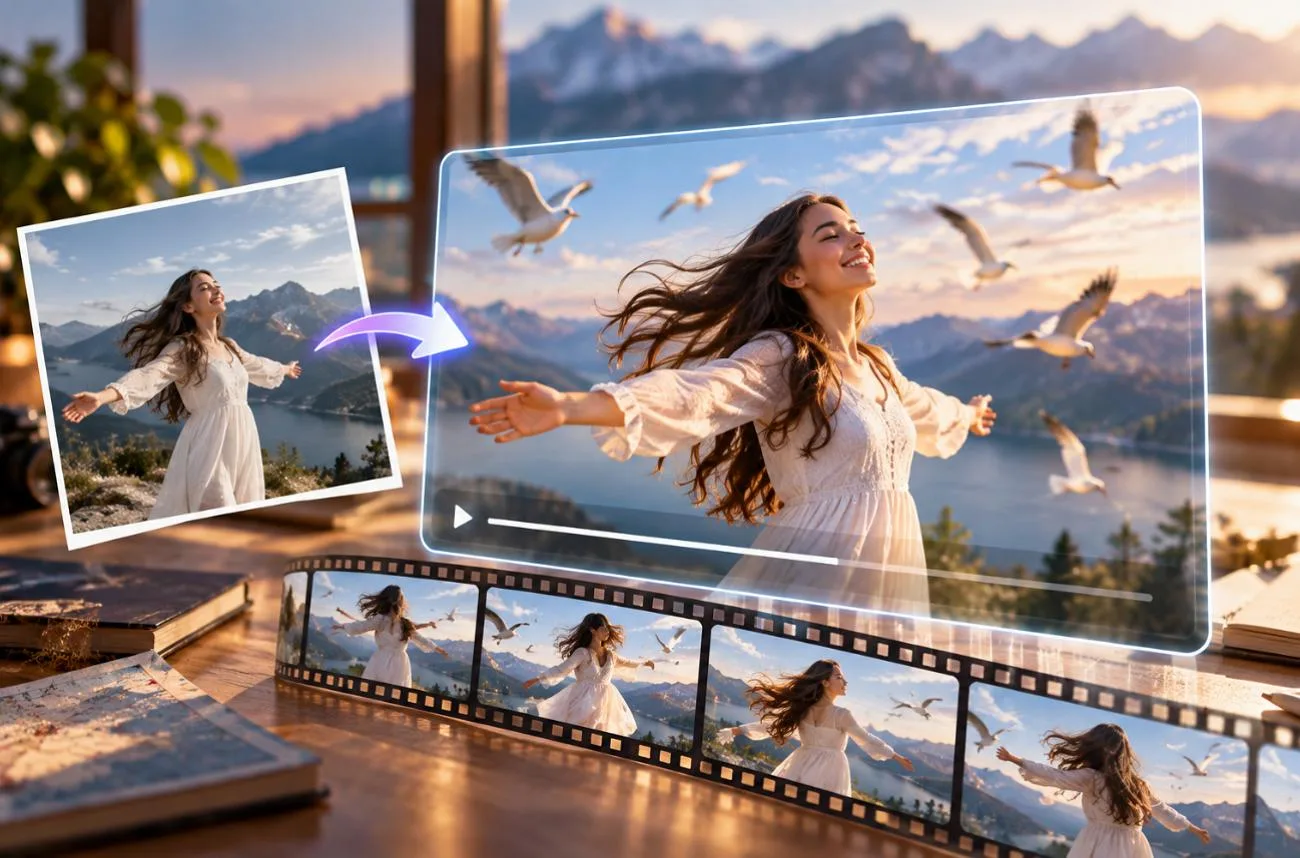
Seedance 2.0 turns text, images, video, and audio into shots of up to 15 seconds with synchronized sound. A vague Seedance 2.0 prompt wastes credits on drifting faces, random camera moves, and audio that misses the moment. Templates remove most of that guesswork, since the element order and reference syntax stay the same from one idea to the next. Only the subject, setting, and uploaded files need to change.
Part 1. How to Write a Seedance 2.0 Prompt
A good Seedance 2 prompt works like a short creative brief, explaining what appears, what happens, and how the final video should look and sound. The 6 elements below provide a simple structure for turning an idea into a clear, controllable video prompt:
- Define the Subject: Describe who or what appears on screen, including useful details such as clothing, age range, appearance, or material.
- Describe the Action: Give each shot one clear visible action, such as “pours tea into a glass cup,” rather than stacking several movements together.
- Build the Setting: Specify the location, time of day, and weather to establish the environment and guide the scene’s lighting.
- Direct the Camera: Choose a specific movement, such as a slow dolly-in, orbit, or tracking shot, instead of simply requesting a “cinematic camera.”
- Set the Visual Look: Combine the intended style with a clear light source, such as “35mm film grain, warm tungsten light.”
- Plan the Audio: Describe dialogue, sound effects, ambiance, and music mood when the scene requires synchronized audio.
You can reference uploaded files with an @ mention, such as @Image1, @Video1, or @Audio1, based on their upload order. Clear Seedance 2.0 prompts should give each reference one purpose, such as defining the character, opening frame, visual style, or camera movement.
For a reliable structure, place references first, followed by the scene, action, camera direction, visual style, and sound. Longer 10–15 second clips can also be divided into timed sections, such as 0–4s, 4–9s, and 9–15s, with a distinct shot in each segment.
Part 2. 10 Seedance 2.0 Prompt Examples and Tips
A reusable Seedance 2.0 prompt guide saves time when you adapt a proven structure instead of starting from scratch. Bracketed placeholders, such as [product] or [city], show exactly what to customize. For practical inspiration, explore the 10 prompts below and adapt each structure to suit your subject, scene, and video style.
1. Cinematic Text-to-Video Shot
Text-only Seedance prompts work best as one well-described shot with a single subject, action, and camera move. Keep short clips focused on one main action whenever possible. Packing several unrelated actions into a few seconds can reduce clarity and consistency.
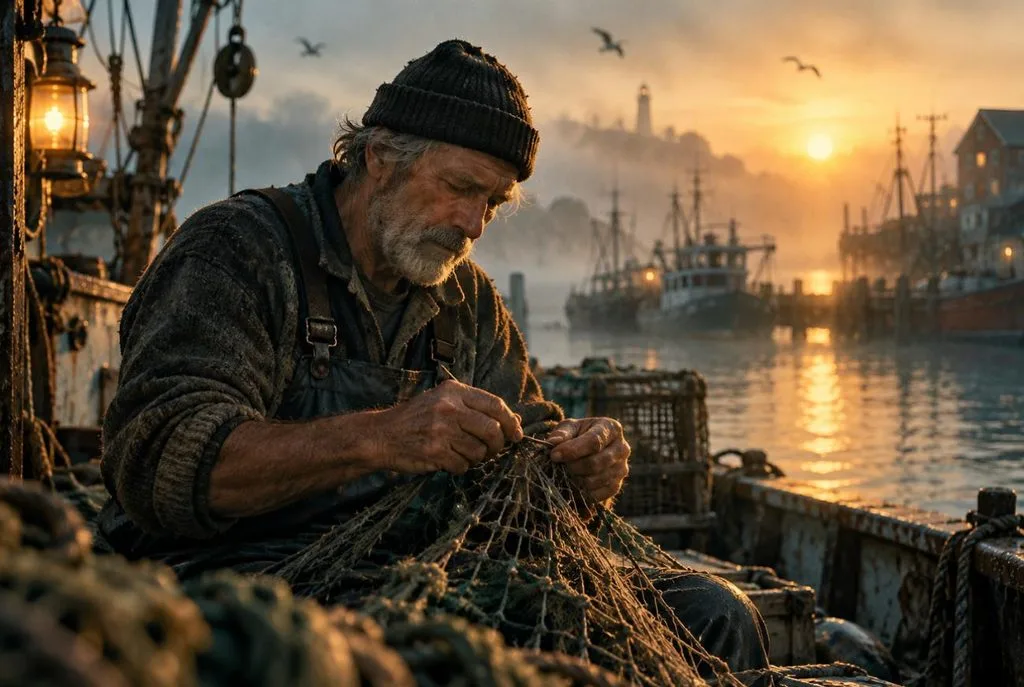
Template: A [weathered fisherman] [mends a net] on [a foggy harbor at dawn]. Slow dolly-in from a medium shot to a close-up of his hands. Soft golden side light, muted teal palette, 35mm film grain. Creaking boats and lapping water.
2. Multi-Shot Sequence With Timestamps
Longer generations need a timeline, or several ideas collapse into one confused shot. Putting the style and sound line at the end applies it to every segment.
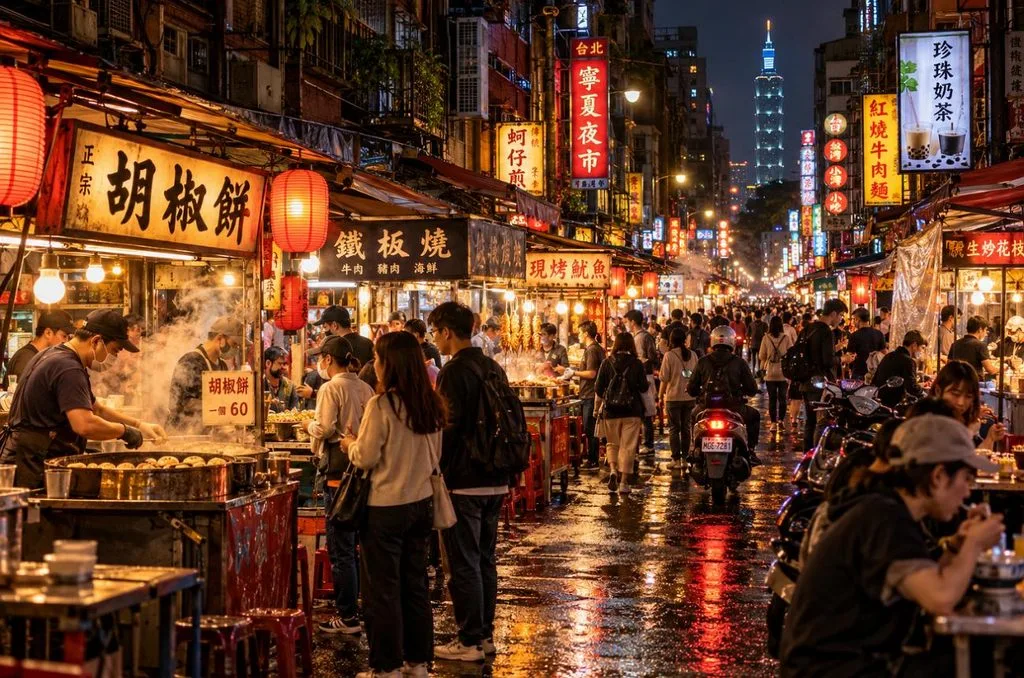
Template: 0-4s, wide shot of [a night market in Taipei], steam rising from food stalls. 4-9s, medium shot of [a young cook] flipping noodles in a flaming wok. 9-15s, close-up of the finished bowl as the camera pulls back. Warm neon light, handheld documentary feel, sizzling pans and crowd chatter.
3. Image-to-Video From a First Frame
The first rule in any “Seedance 2.0 image to video prompt guide” is to describe motion, since the image already sets the look. Re-describing visible clothing or colors can pull the result away from the frame.
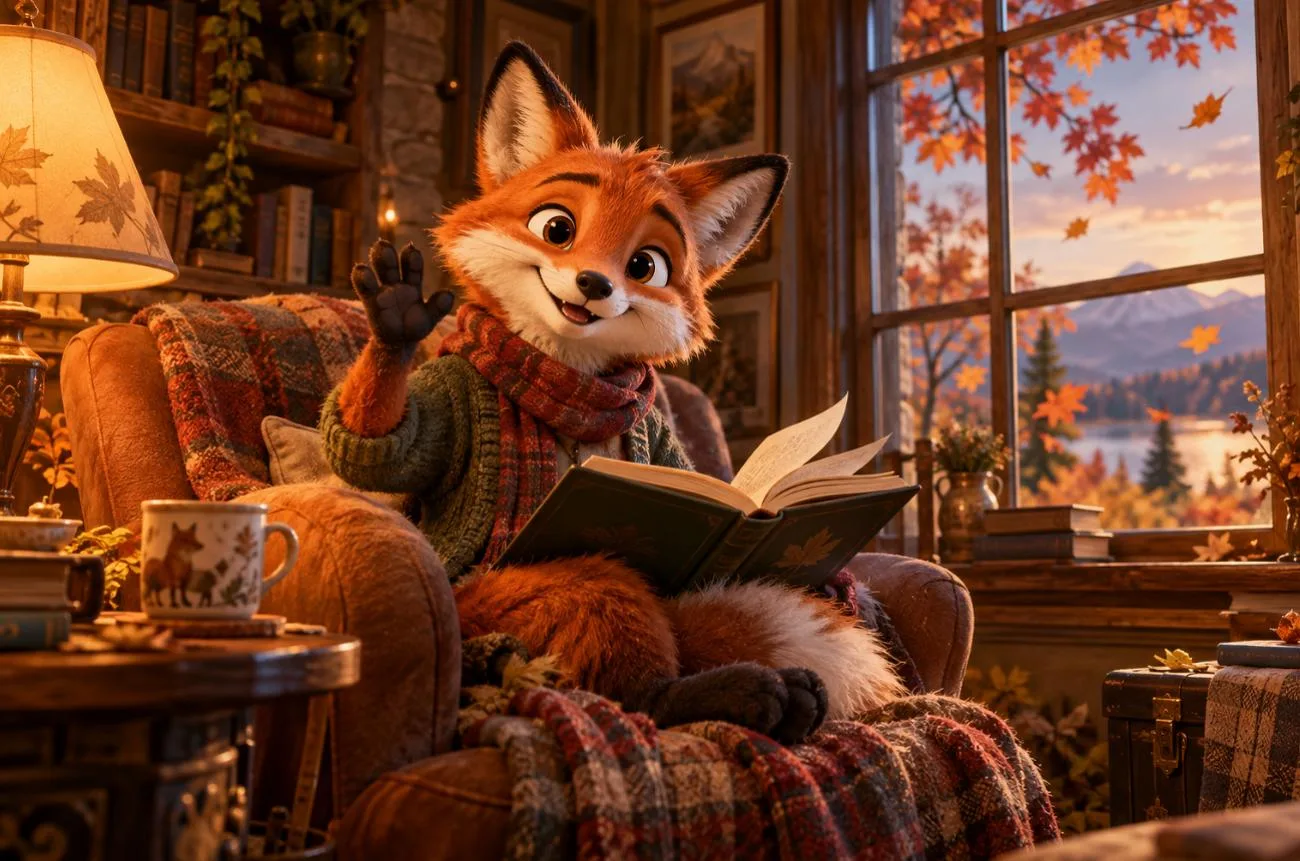
Template: @Image1 as the first frame. The [cartoon fox] looks up from its book and waves as [autumn leaves drift past the window]. Gentle push-in, warm lamp light matching the image. Soft pages turn and wind outside.
4. First and Last Frame Transition
A pair of keyframes lets Seedance 2.0 plan the path between them, which suits reveals and time-lapses. Matching camera angles in both frames prevents warped in-between motion.
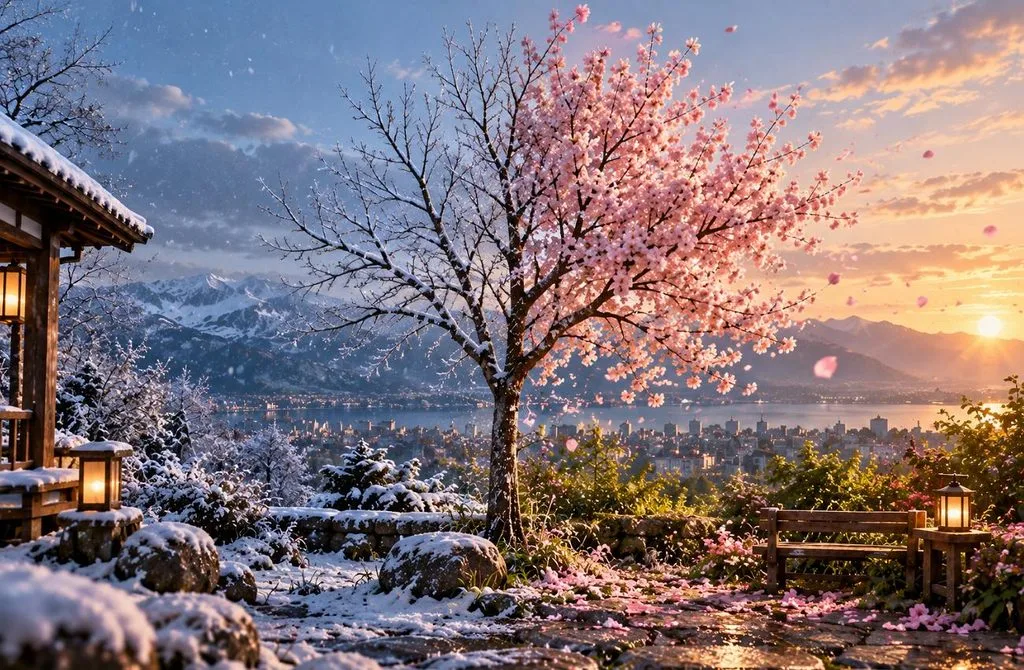
Template: @Image1 as the first frame and @Image2 as the last frame. A [bare sapling] grows into [a blossoming cherry tree] as winter turns to spring. Locked-off wide shot, time-lapse pacing, soft daylight. Rising birdsong and a light breeze.
5. Character Consistency With References
Recurring characters stay recognizable when each reference image covers one trait, such as the face or outfit. Illustrated or AI-generated characters work more reliably, since photos of real people are often blocked.
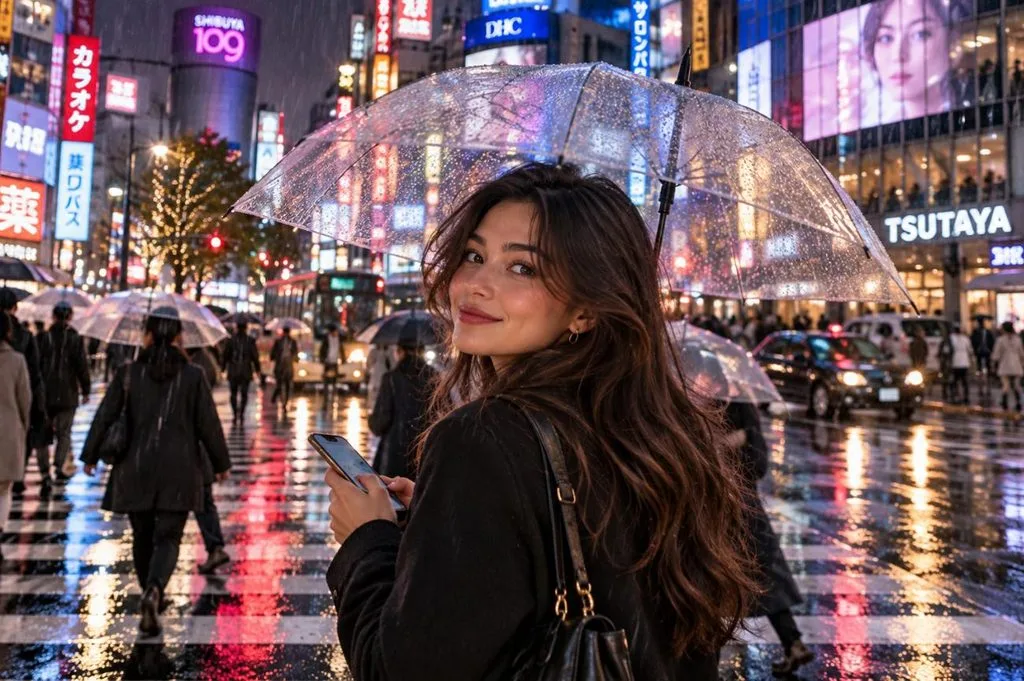
Template: @Image1 is [the heroine’s face and hairstyle], and @Image2 is [her red rain jacket]. She crosses [a rainy Tokyo intersection], checks her phone, and looks up at the camera. Shoulder-height tracking shot, neon reflections. Traffic hum and rain on umbrellas.
6. Camera Movement From a Reference Video
A Seedance prompt can borrow a complex camera move from a short clip instead of describing it in words. Adding “camera movement only” keeps the people and objects in that clip out of the result.
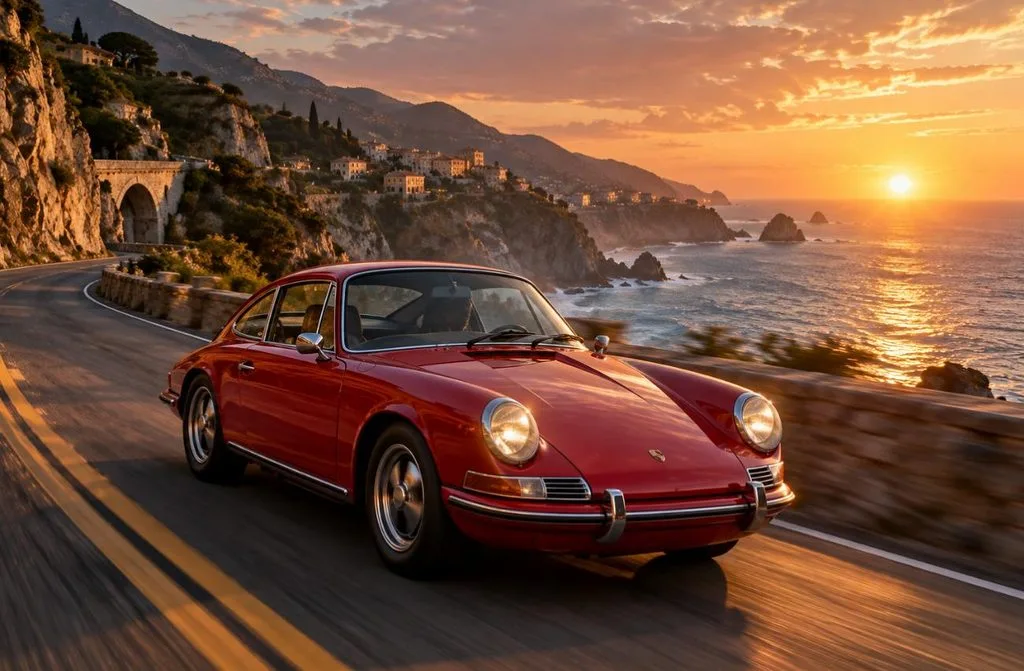
Template: Reference @Video1 for camera movement and pacing only. The subject is @Image1, [a red vintage sports car] on [a coastal cliff road]. Match the orbit speed of @Video1 and keep the car’s shape and color from @Image1. Engine rumble and ocean wind.
7. Dialogue With Lip Sync
Speech and lip movement are generated with the picture, so dialogue belongs inside the prompt itself. Quotation marks around each line, plus a named speaker, prevent mixed-up voices when two characters share the frame.
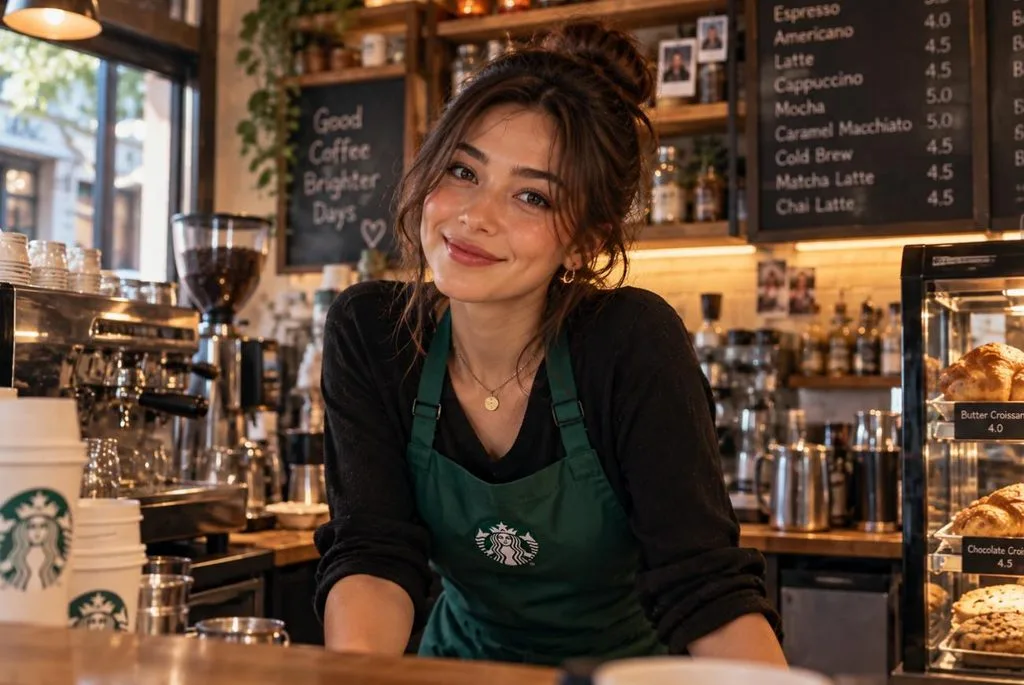
Template: The [barista in a green apron] leans on the counter, smiles, and says, “Morning! First coffee is on the house today.” Medium close-up, shallow depth of field, warm café light. Espresso machine hiss and soft jazz.
8. Music-Synced Clip From an Audio Track
An uploaded track can set the rhythm of the edit, with cuts and motion landing on the beat. Audio references max out at 15 seconds in total, so a short hook with a clear drop works best.
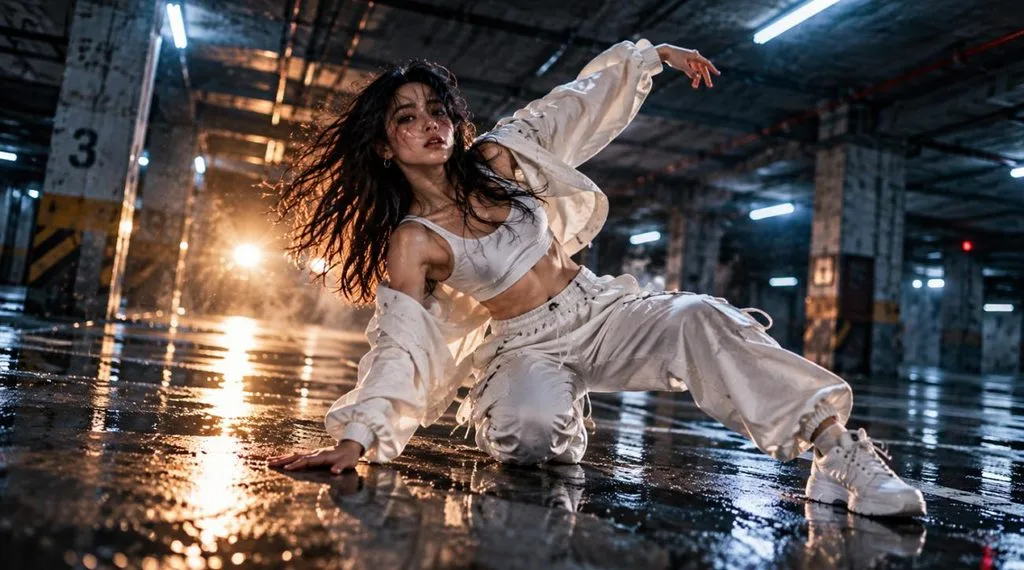
Template: Use @Audio1 as the soundtrack and cut on its beats. A [dancer in white] moves through [an empty parking garage], with a new angle on every downbeat. Flashing light, high contrast, handheld energy, and a slow-motion hold on the final beat.
9. Product Ad With Multiple Angles
Separate references for each side of a product keep logos, shapes, and materials accurate across the clip. A line such as “keep the logo and shape unchanged” adds another safeguard for ads.
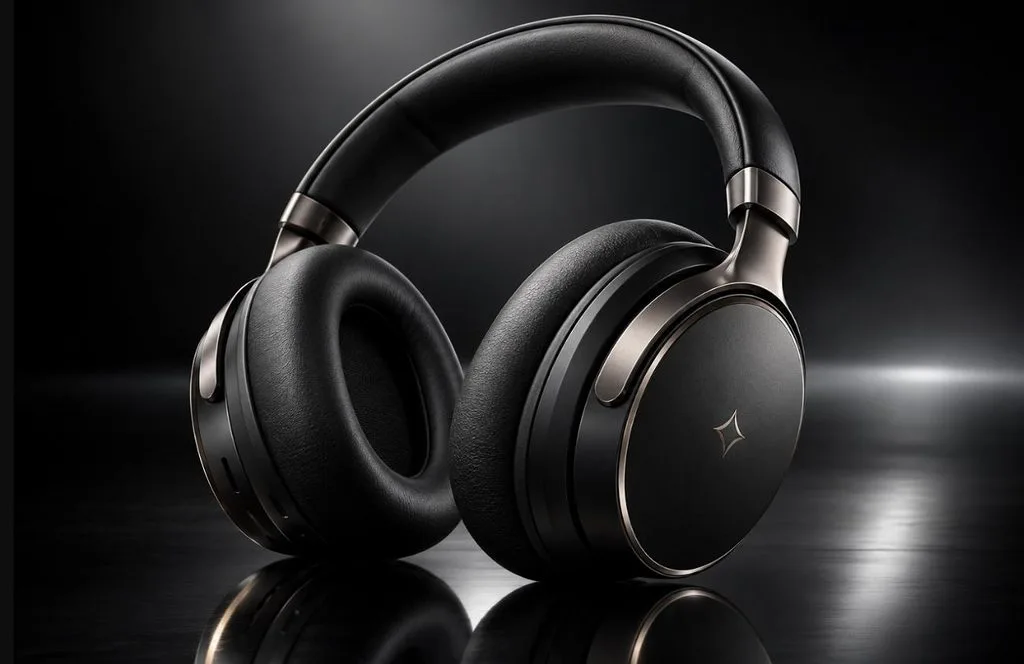
Template: @Image1 is the front of [the wireless headphones], and @Image2 shows [the side and logo]. The product rotates slowly on [a reflective black surface] as a light sweep crosses it. Macro orbit, studio lighting, dark gradient background. A soft whoosh on each light pass.
10. Extending an Existing Clip
Editing-focused Seedance 2 prompts start from existing footage and describe only what should change. Stating the added duration and what must stay the same helps new footage blend with the original.
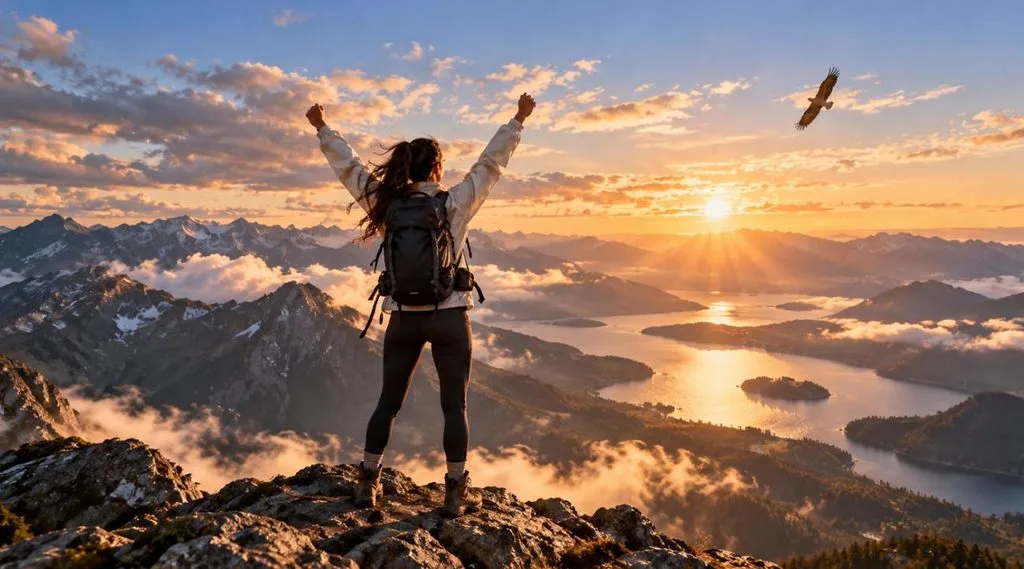
Template: Extend @Video1 by [5] seconds. The camera continues its slow rise as [the hiker reaches the summit and raises both arms]. Keep lighting, color, and the hiker’s appearance identical to @Video1. Wind gusts and a distant eagle call.
Part 3. How to Write Better Seedance 2.0 Prompt
Small wording changes can make the difference between a usable first generation and several retries. Most advice in a Seedance 2 prompt guide follows the same core principles. To make each prompt clearer and easier for the model to follow, try these 5 practical habits:
- Start With the Main Action: Put the subject and primary action in the opening sentence so the core scene is immediately clear.
- Assign Each Reference a Purpose: Give every uploaded file one specific role, such as character reference, opening frame, style, or camera movement.
- Match the Scene to the Duration: Keep five-second clips focused on one action, while longer clips can use several clearly timed shots.
- Use Specific Visual Details: Replace vague terms such as “beautiful” or “epic” with precise descriptions of lighting, texture, movement, and atmosphere.
- Refine One Detail at a Time: Change one element between generations so you can identify which adjustment actually improves the final video.
Writing a new prompt for every shot gets slow once a project runs past one 15-second clip. MagicLight AI includes Seedance 2.0 as a selectable engine in Image to Video. Drag in a picture, type a short motion prompt, and switch the engine to Seedance 2.0 to get started.
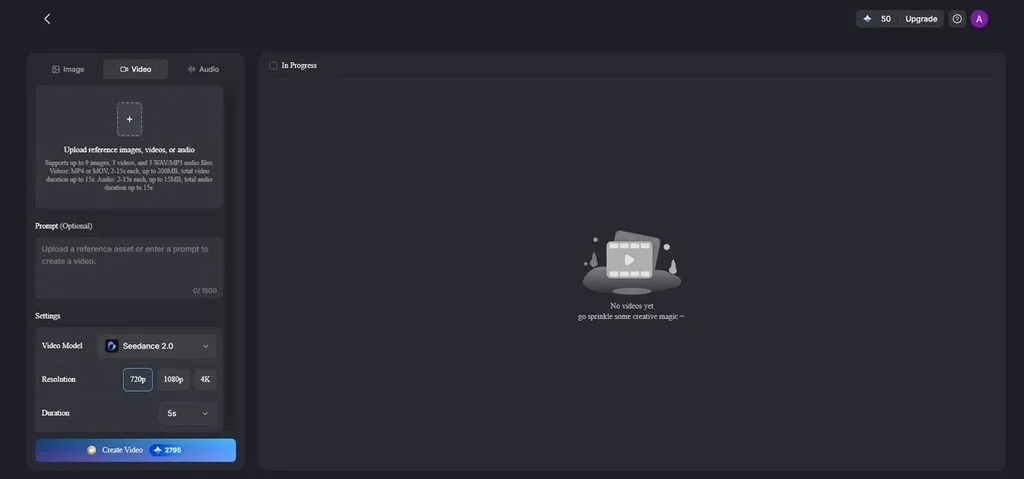
With Seedance 2.0 set as the engine, Story to Video acts as a built-in Seedance 2.0 prompt generator, turning scripts into coherent scene direction. Characters stay consistent across scenes, narration and subtitles come included, and a first test runs on free credits.
Conclusion
An effective Seedance 2.0 prompt names the subject, one action, the scene, one camera move, the style, and the sound. Every uploaded file gets a clear job, and timestamps keep longer clips organized. For projects longer than one clip, MagicLight AI pairs Seedance 2.0 with scripted scenes, consistent characters, and narration.
Frequently Asked Questions
1. How do I write a good Seedance 2.0 prompt?
Start with the subject and one action, then add the scene, one camera move, the style, and any sound. Label each upload with its purpose, such as first frame or camera reference. BytePlus also publishes an official Seedance 2.0 prompt guide for developers using ModelArk.
2. Can Seedance 2.0 use images, videos, and audio as references?
Seedance 2.0 accepts up to 3 video clips, 3 audio files, and 9 images per generation, with 12 files at most. Video and audio references can each total up to 15 seconds, and prompts call them by name, such as @Image1 or @Audio1.
3. How long should a Seedance 2.0 prompt be?
There is no fixed ideal length. Keep the prompt detailed enough to define the subject, action, setting, camera, style, and constraints without repeating information. Longer multi-shot videos can use timestamps or chronological instructions to organize each scene.