Making a short film once required cameras, actors, and many hours of editing work. An AI filmmaking tool can now create cinematic video scenes from simple written prompts easily. However, combining multiple generated clips into one consistent story can still challenge new filmmakers.
Beginner-friendly tools simplify this process with storyboards, consistent characters, sound, and helpful creative controls. Pricing, free plans, video lengths, and available features can differ across these filmmaking tools. This guide compares 7 options to help beginners choose a suitable AI filmmaking tool easily.
Part 1. What Should Beginners Look for in an AI Filmmaking Tool
Beginners need AI filmmaking tools that make creating complete films easier from scratch. A good option should handle important production tasks without adding complicated steps unnecessarily. Below are the main things beginners should check before choosing their first filmmaking tool.
- Story-Level Workflow: Look for script-to-scene features that connect separate shots into one complete story easily.
- Character Consistency: Keep the same character design across scenes without noticeable visual changes.
- Built-In Sound: Look for sound tools inside the platform, so you have less editing afterward.
- Guided Controls: Use simple controls that help shape scenes without learning complicated settings first.
- Useful Free Tier: Test enough filmmaking features before deciding whether the paid version makes sense.
Part 2. 7 Best AI Filmmaking Tools for Beginners
AI tools for filmmaking now help beginners handle different parts of video production. Below are the 7 best options for beginners who want a simpler filmmaking process. Each tool offers different features for creating scenes, planning stories, and producing finished videos.
1. MagicLight AI
Best For: Beginners creating complete films with connected scenes.
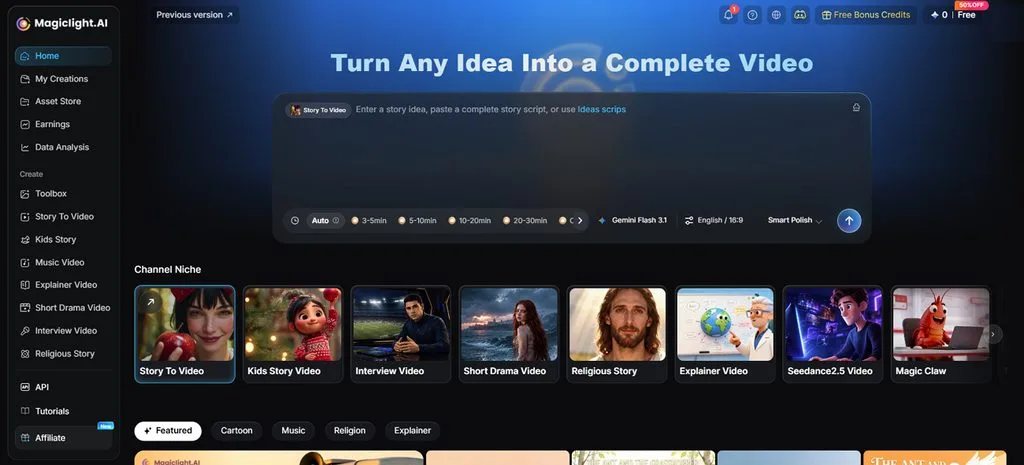
Beginners can turn a simple story into a complete multi-scene film using MagicLight AI. MagicLight Agent helps shape an early idea into a script through a short conversation. Story to Video then turns the finished script into separate scenes with matching characters.
Casting, storyboarding, and subtitles are handled through simple buttons instead of complicated prompt writing. This setup works well for first-time creators with little experience in traditional video editing. Paid plans provide watermark-free 1080p videos and include commercial rights for finished creative projects.
Key Features
- MagicLight Agent: Rough ideas become a clear story outline and practical production plan. There are also 3 budget options for planning the production costs.
- Story to Video: Longer scripts can contain up to 12,000 characters in one project. The script then breaks into connected scenes ready for video creation.
- Nano Storyboard: Outfits, poses, and facial expressions can be changed before video generation. This gives every shot the intended look before rendering even begins.
- Visual Styles: There are 52 character styles spread across 4 different creative groups. Realistic looks and 3D cartoon designs are both available for characters.
- AI Video Models: A pool of 20 engines gives projects different types of motion. Kling 3.0 and Seedance 2.0 are among the available video models.
Pros
- Films can run for up to 50 minutes.
- Narration and subtitles support 11 languages for wider audiences.
- Finished films include covers, thumbnails, and suggested posting hashtags.
Cons
- Video resolution reaches 1080p, but not higher 4K.
2. Runway
Best For: Beginners editing generated and existing footage together.
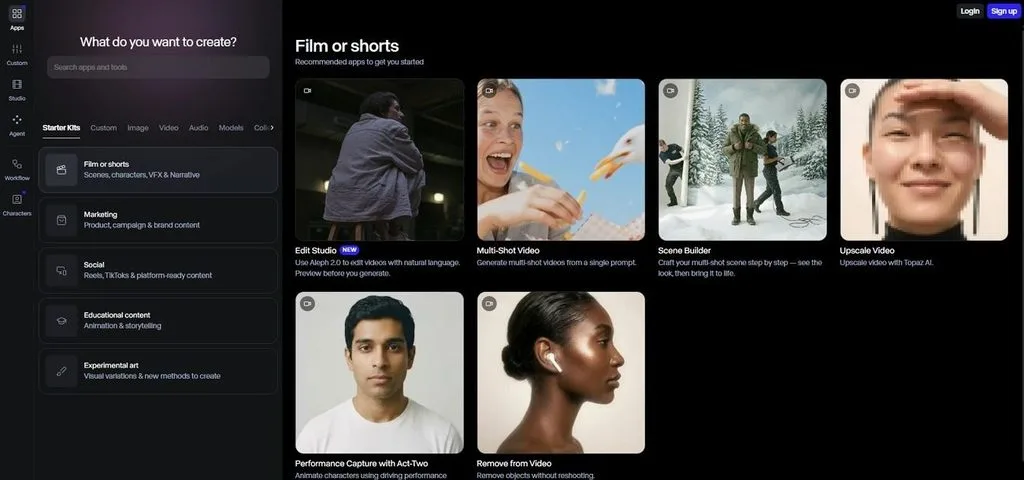
This tool combines generation and editing tools inside one workspace built for new creators. Runway Agent makes AI filmmaking software easier by building multi-shot videos through conversation. Creators can generate footage first, then reshape individual shots without leaving their project.
Key Features
- Gen-4.5 follows detailed camera choreography, scene timing, and sequenced instructions within prompts.
- Aleph 2.0 transforms existing footage using text instructions and visual references for editing.
- Act-Two transfers recorded performances onto characters, including gestures, speech, expressions, and movement.
Pros
- Gen-4.5 exports ProRes, image sequences, and HDR footage.
- Runway Agent builds complete multi-shot videos through conversation.
Cons
- Gen-4.5 output remains limited to 720p native resolution.
- Its generation currently runs through the web only.
3. Kling AI
Best For: Beginners creating dialogue scenes with camera changes.
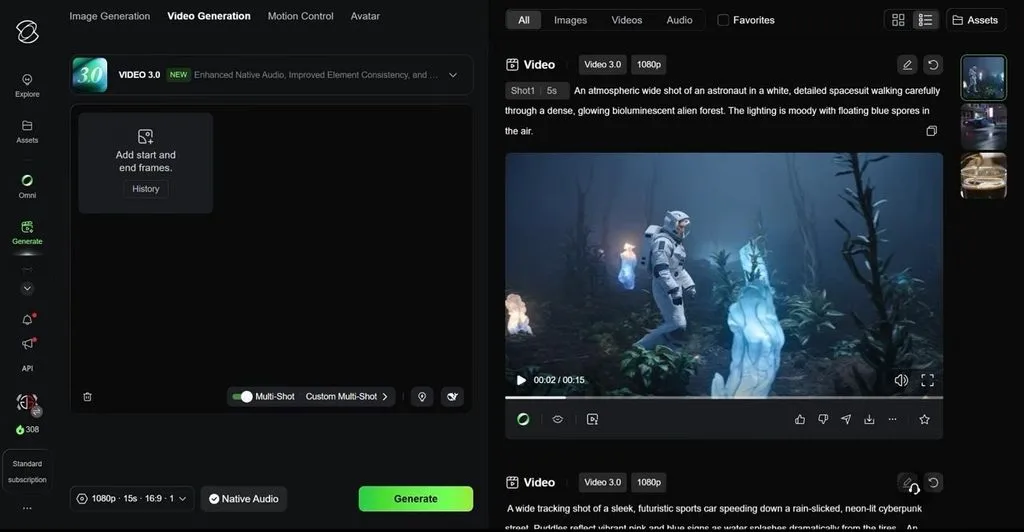
Kling AI gives new creators tighter control over shots, characters, dialogue, and movement. It stands apart among AI filmmakers with built-in multi-shot scene planning. VIDEO 3.0 handles story beats while keeping several characters recognizable between camera changes.
Key Features
- Custom Multi-Shot sets framing, viewpoint, duration, camera movement, and content for shots.
- Element references lock characters, products, props, and voice traits across changing scenes.
- Native audio creates dialogue, ambient sound, and effects across 5 supported languages.
Pros
- Clips can reach 4K resolution on supported plans.
- Video extensions can continue scenes for 3 minutes.
Cons
- Single generations still stop at 15 seconds maximum.
- Advanced controls vary between VIDEO 3.0 model versions.
4. Google Veo
Best For: Beginners building reference-led cinematic scenes in Flow.
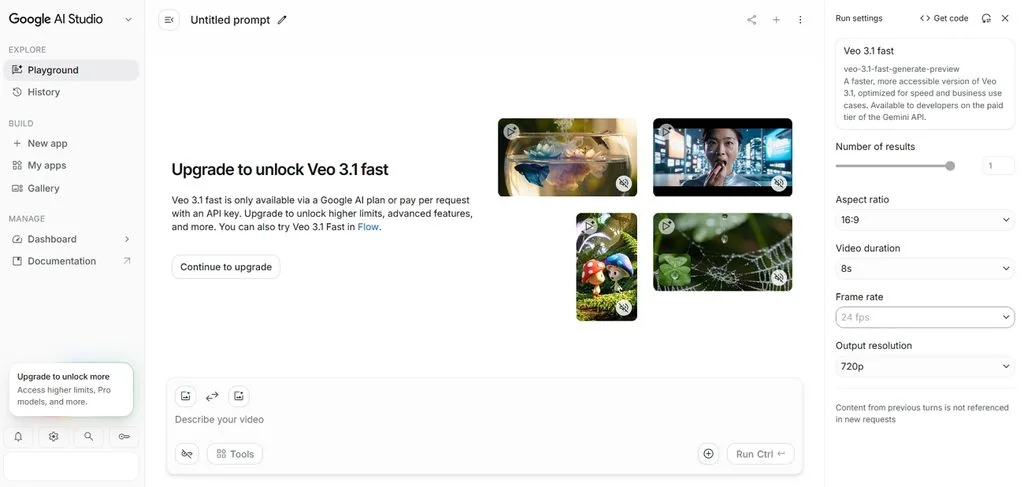
This tool brings cinematic generation into Flow, helping beginners build connected visual scenes. Google Veo supports AI for movie making through reference-led generation and scene editing. Flow keeps generated assets together, making it easier to shape shots into sequences.
Key Features
- Ingredients to Video combines image references for consistent characters, objects, and styling.
- Frames to Video bridges starting and ending images through one continuous transition.
- Scenebuilder arranges, trims, reorders, previews, and downloads several clips as one sequence.
Pros
- Veo 3.1 supports native vertical 9:16 video generation.
- Flow can upscale Veo footage to 4K resolution.
Cons
- Advanced Scenebuilder controls remain limited to desktop use.
- Veo feature availability still varies by selected model.
5. LTX Studio
Best For: Beginners planning every scene before video generation.
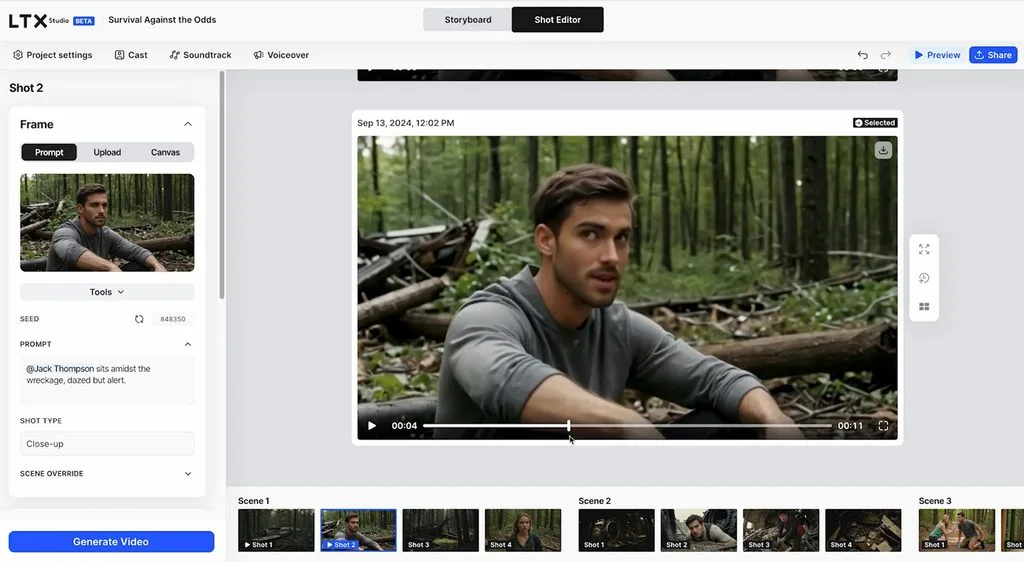
LTX Studio gives beginners a storyboard workspace for planning complete films before generating footage. Among AI filmmaking tools, its workflow keeps every planned shot open for changes. Scripts become visual sequences where creators can shape scenes before starting video generation.
Key Features
- Storyboards provide camera controls and keyframes for planning movement across individual film shots.
- Reusable elements keep characters, objects, and locations visually consistent throughout different project scenes.
- LTX-2.5 generates clips up to 20 seconds with synchronized sound and 4K output.
Pros
- Free accounts include 800 credits for testing LTX-2.5.
- Timeline editing and sound design stay inside one workspace.
Cons
- Commercial rights require the paid Standard subscription plan.
- Mobile editing remains unavailable because LTX works on desktop.
6. Luma AI
Best For: Filmmakers preparing generated footage for detailed grading.
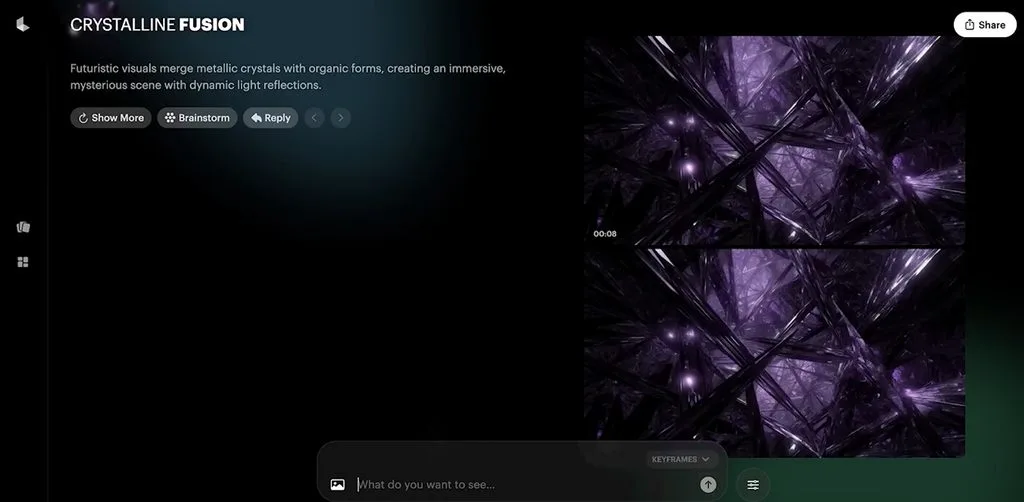
Color-focused creators get more room to shape footage before moving into post-production work. Luma brings AI tools for filmmakers into a workflow built around visual control. Ray3.2 provides HDR generation alongside detailed control over movement and changing shot composition.
Key Features
- Multi-Keyframe guides movement through as many as 16 keyframes inside one generated clip.
- Native 16-bit HDR provides richer image data for detailed professional color grading workflows.
- Modify Video transforms existing footage while keeping its original motion and performance intact.
Pros
- Draft Mode allows faster experiments while consuming fewer credits.
- Ray3.2 supports EXR exports for professional post-production workflows.
Cons
- Ray3.2 native output currently reaches only 1080p resolution.
- Native HDR generation currently works with 5-second clips only.
7. InVideo
Best For: Users who prefer refining a complete video draft.
InVideo turns a detailed brief into a complete first draft with connected scenes. Its filmmaking AI tools keep recurring characters and voices recognizable throughout longer video projects. Creators can request changes conversationally without rebuilding every scene or starting projects again.
Key Features
- Verification checks generated shots against character references before placing them into projects.
- Magic Box follows written editing commands for changing accents, scenes, or media directly.
- Agent Two selects suitable generation models separately for different shots within one project.
Pros
- Agent Two accesses over 200 image, video, and audio models.
- Manual timeline edits can be completed without spending additional credits.
Cons
- Agent processing consumes credits while completing background production tasks.
- Unused monthly credits expire instead of carrying forward automatically.
Compare All AI Filmmaking Tools for Beginners
AI filmmaking tools differ in clip length, story features, pricing, and free access. Comparing these details helps beginners find an option that matches their filmmaking needs better. Look at the table below to compare all 7 tools and their main differences:
| Tool | Length per Generation | Free Option | Pricing Plans |
| MagicLight AI | Full films up to 50 minutes | Limited credits, no card required | Free, Standard ($15/mo), Plus, Pro, Ultra, Ultimate |
| Runway | Gen-4.5 clips up to 10 seconds | Free plan available | Free, Standard, Pro, Max, Team, Enterprise |
| Kling AI | VIDEO 3.0 clips up to 15 seconds | Free access available | Basic, Standard ($10/mo), Pro, Premier, Ultra |
| Google Veo | Veo 3.1 clips up to 8 seconds | 50 Flow credits daily | Free, AI Plus ($4.99/mo), AI Pro, AI Ultra |
| LTX Studio | LTX-2.5 clips up to 20 seconds | 800 one-time credits | Free, Lite ($15/mo), Standard, Pro, Enterprise |
| Luma AI | Ray3.2 clips up to 10 seconds | Limited trial access | Plus ($30/mo), Pro, Ultra, Team, Enterprise |
| InVideo | Multi-scene video projects | Weekly credits, watermark | Free, Starter ($20/mo yearly), Plus, Max, Enterprise |
Part 3. Why Choose MagicLight AI for Beginner AI Filmmaking
Filmmaking AI tools can simplify early projects by keeping important production steps together. Let’s explore why MagicLight AI makes creating a first film easier for complete beginners.
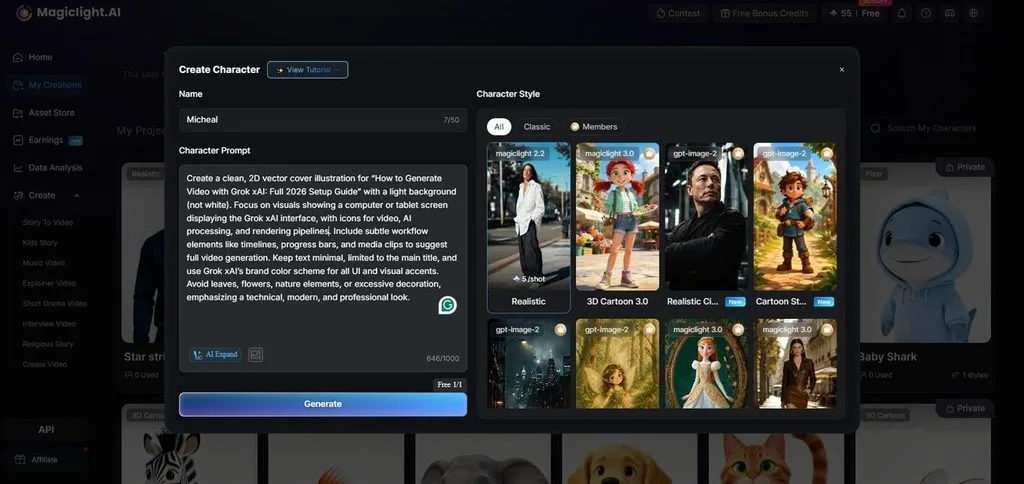
- Create Characters From Your Own Ideas: Describe a character using up to 1,000 characters for a custom visual design. Reference images can also guide appearances, while saved characters remain available for future projects.
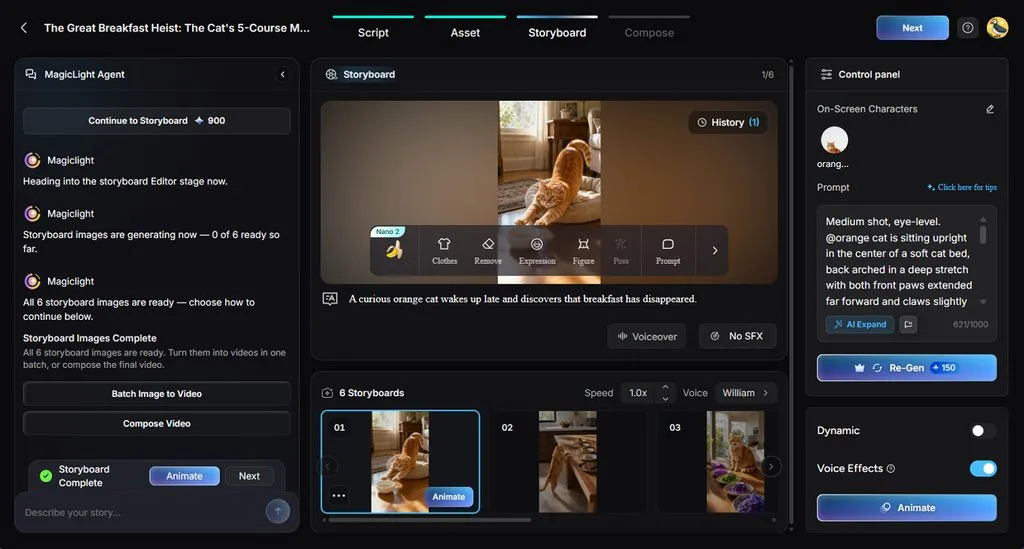
- Review Every Scene Before Generation: Nano Storyboard breaks the story into scenes before any video generation work begins. Creators can adjust clothing, expressions, individual shots, and select from 50+ character poses.
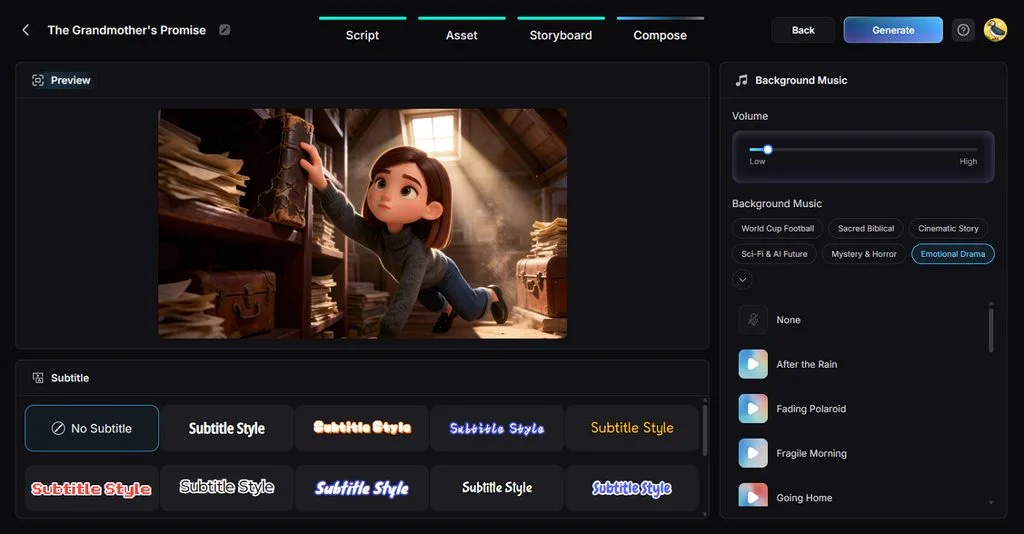
- Add Sound Without Separate Software: MagicLight AI provides 40 background tracks and 16 subtitle styles for finished films. Dialogue gets more flexibility through 37 available voices and built-in voice cloning features.
Guide on How Beginners Can Make a Short Film With MagicLight AI
AI filmmaking software helps beginners make free AI videos from simple story ideas. Follow the steps below to create your first short film with MagicLight AI easily:
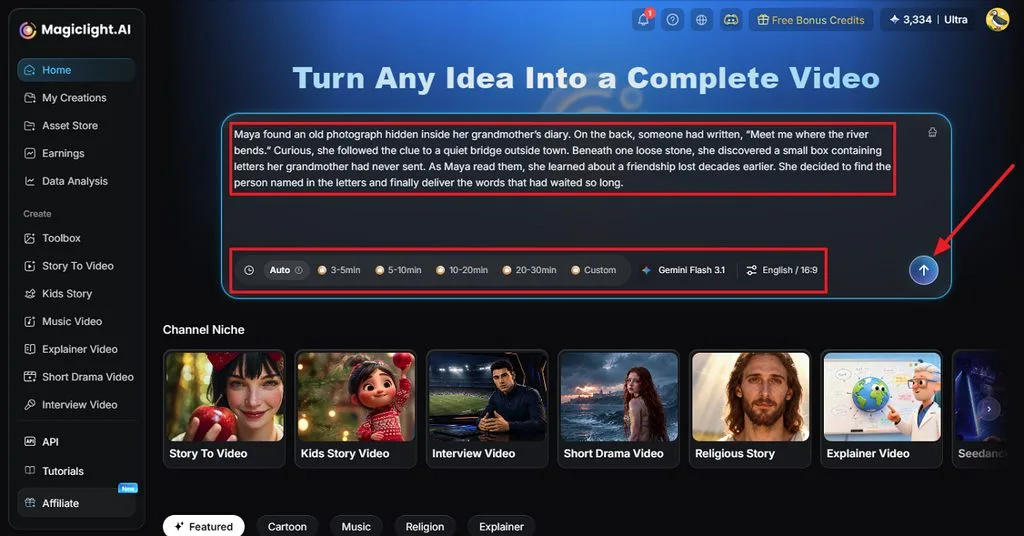
Step 1. Add Your Short Film Script
Open Story to Video and paste the script you want to turn into a film. Set the duration, model, language, and aspect ratio, then click Send to continue.
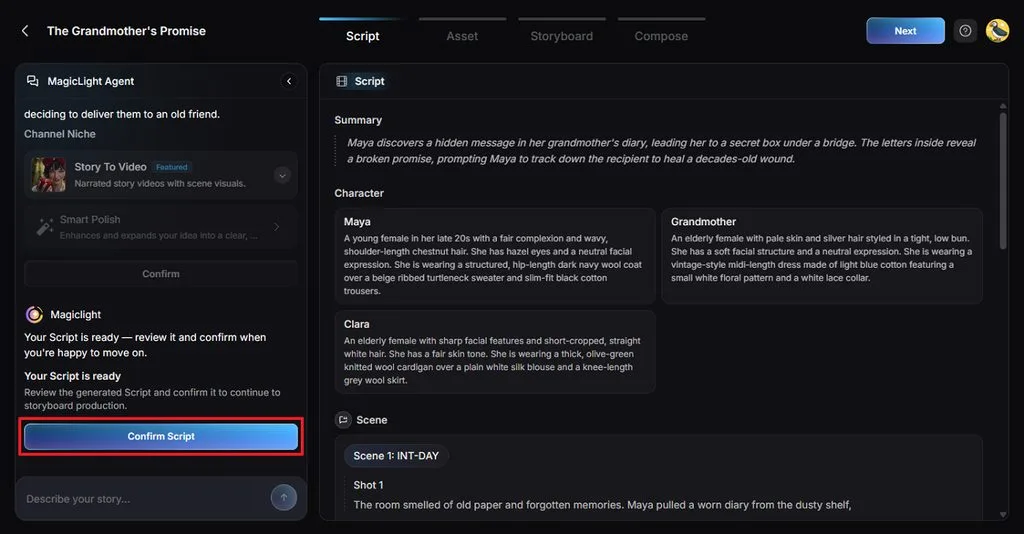
Step 2. Review the Script Breakdown
MagicLight Agent separates your script into Summary, Characters, Scenes, and Shots automatically. Review each section, correct anything that differs from your story, and click Confirm Script.
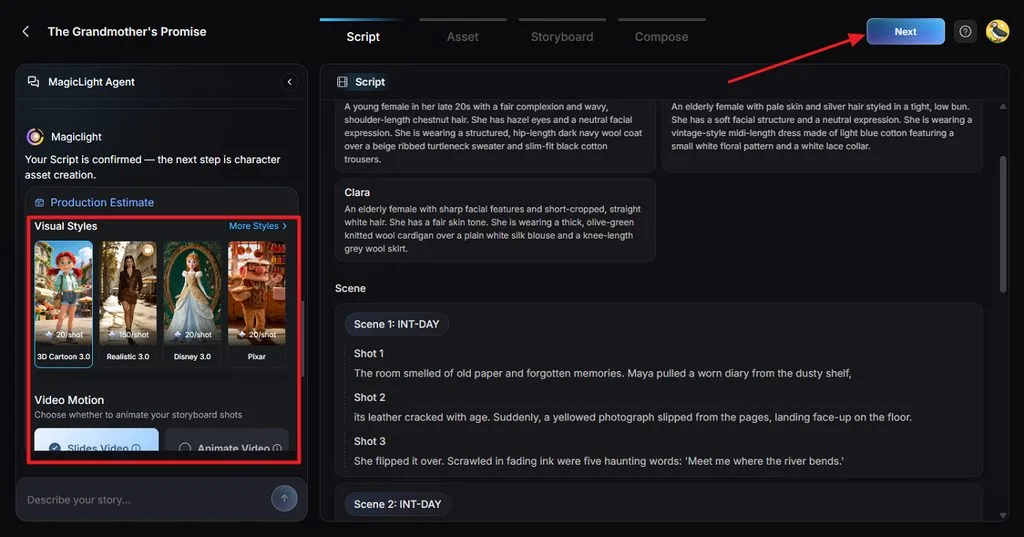
Step 3. Set the Film Style
Select a Visual Style that fits the intended look and mood of your film. Choose Slides Video or Animate Video, adjust the available options, and confirm the settings.
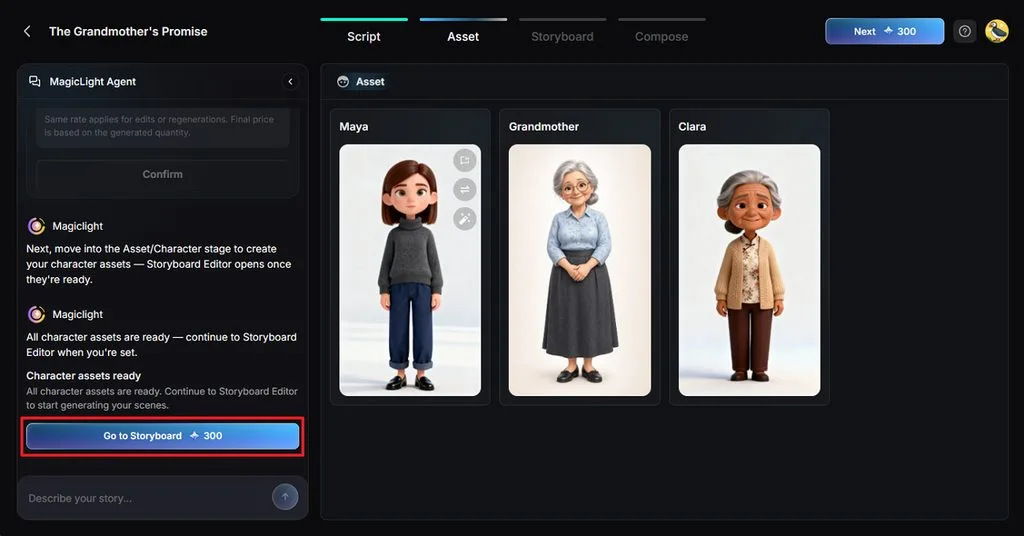
Step 4. Check Your Characters
Review the character assets MagicLight AI creates from the people described in your script. Make any necessary changes to their appearance, then click Go to Storyboard.
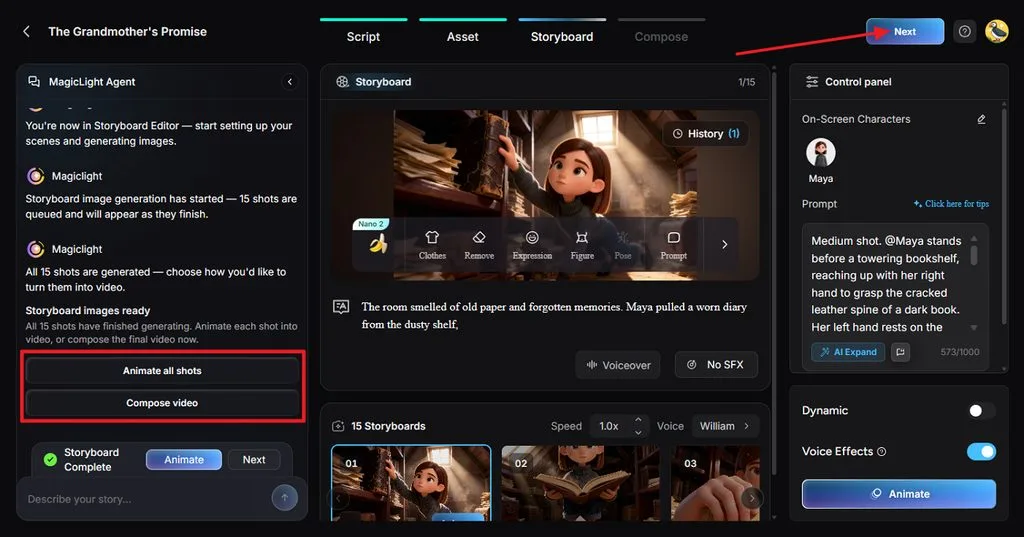
Step 5. Refine and Animate Each Shot
Review every storyboard shot and adjust Clothes, Expression, Figure, Pose, or Prompt when needed. Change voices or effects if required, then choose Animate all shots or Compose video.
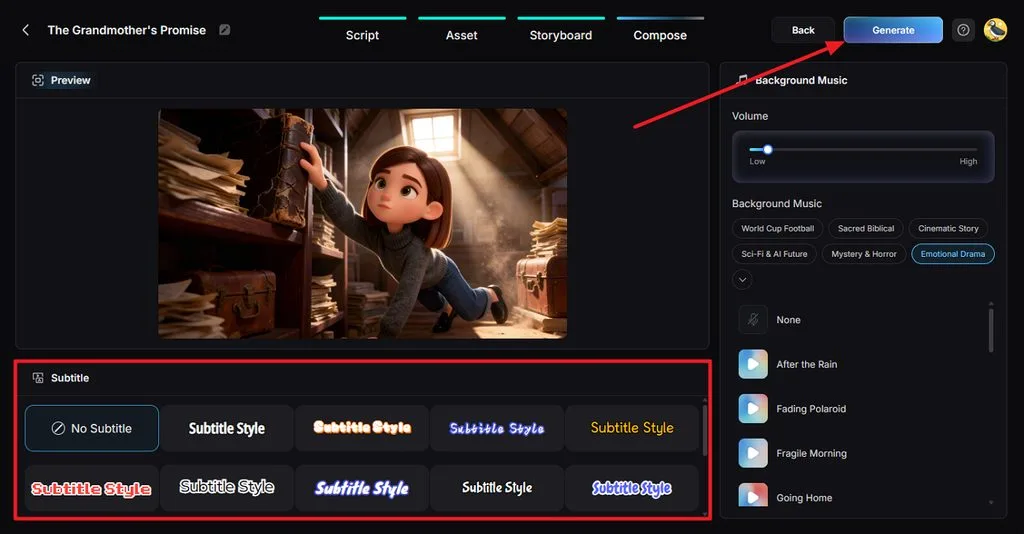
Step 6. Add Subtitles and Music
Preview your short film and select a Subtitle Style, or choose No Subtitle instead. Adjust the Background Music and volume, then click Generate to produce the final video.
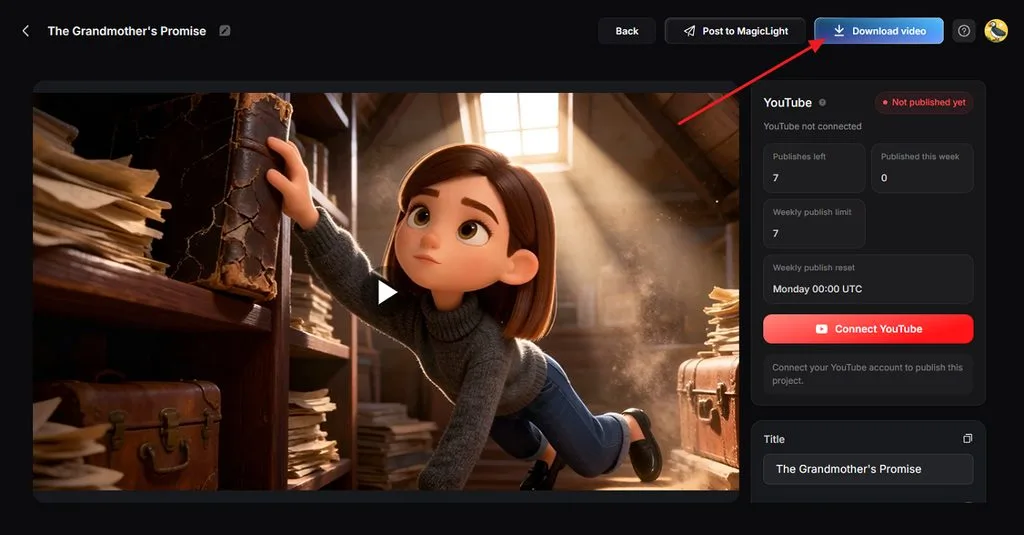
Step 7. Download Your Finished Film
Watch the completed film and review its scenes, voices, music, subtitles, and overall pacing. Once everything looks correct, click Download video to save the finished short film.
Conclusion
An AI filmmaking tool can make complete film production easier for complete beginners. Different platforms offer useful options for generating scenes, controlling visuals, sound, and story development. MagicLight AI brings scripting, characters, storyboards, audio, and generation together within one filmmaking workflow. Beginners can compare these options and choose software matching their creative goals and workflow needs.
FAQs on AI Filmmaking Tools for Beginners
1. Do I need video production experience to use AI filmmaking tools?
Beginners can use AI tools for filmmakers without previous production or editing experience. Clear story ideas still help generated scenes follow a more understandable narrative structure.
2. Are AI filmmaking tools suitable for beginners?
Many filmmaking AI tools provide simple controls, presets, and guided workflows for beginners. Free credits also give new creators room to test features before choosing plans.
3. Can beginners turn a script into a film with AI?
Beginners can paste scripts into MagicLight AI and automatically organize them into scenes. Editable storyboards allow creators to review shots and correct problems before generating video.
4. Can beginners create films with consistent characters?
Saved characters help beginners maintain the same visual identity throughout multiple film scenes. MagicLight AI also allows poses and expressions to change without replacing character appearances.
5. Which AI filmmaking tool is easy for beginners to use for multi-scene stories?
MagicLight AI keeps multiple scenes organized inside one project from script through generation. This workflow helps beginners create longer stories without manually joining separate video clips.



![How to Remove People from Photos in 2026 [Full Guide]](https://magiclight.ai/wp-2/wp-content/uploads/remove-people-from-photos-guide.jpg-300x197.webp)
![6 Best Picture Modification Apps in 2026 to Try [New List]](https://magiclight.ai/wp-2/wp-content/uploads/best-picture-modification-apps-for-photos.jpg-300x200.webp)