Memes turn jokes, reactions, and relatable ideas into content people can quickly understand online. A meme starts with a funny idea, a good image, and some short, clear text. People searching “How do I make a meme?” can follow a few simple creative steps.
You can combine funny captions with images or clips to create something worth sharing. MagicLight AI can also turn written meme ideas into animated videos with voices included. This guide explains the complete meme creation process using simple steps for complete beginners.
Part 1. How to Make a Meme in Simple Steps
Making a meme is simple when you start with a clear and funny idea first. If you wonder, “How do I create a meme?” the basic process is quite easy. Below are the simple steps you can follow to create your own meme easily:
Step 1. Pick the Idea: Choose a joke, reaction, or situation that your audience has probably experienced before.
Step 2. Choose a Format: Pick an image for a simple joke, or use video when timing matters more.
Step 3. Find the Visual: Use a photo that fits your joke and makes the meaning clear right away.
Step 4. Write a Short Caption: Add a short caption that delivers your joke without explaining too much to readers.
Step 5. Size and Share: Set the right size for your chosen platform, then post your meme for others.
Key Features of MagicLight AI
MagicLight AI gives a practical answer to “How can I make a meme?” with video. Story to Video accepts scripts up to 12,000 characters for longer meme ideas and scenes. Its 52 visual styles give you plenty of options for changing how your meme looks. Let's explore the MagicLight AI features that make creating meme videos simple and more flexible:
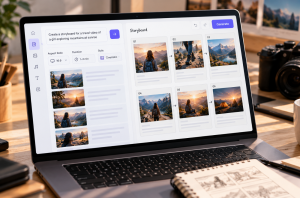
- MagicLight Agent: The AI video agent handles the planning once you enter your meme concept. Your idea becomes a script, storyboard, character setup, and visual plan before video generation begins.
- AI Character Creation: Character details can be written in descriptions containing up to 1,000 characters. You can also upload reference pictures, and you can save finished characters for later projects.
- Pose and Expression Control: Nano Storyboard includes 50 poses for shaping different moments in scenes. Expressions can be changed separately, making character reactions match each meme moment closely.
- Voices and Captions: Meme dialogue can use 37 voices, with speech available across 11 languages. For silent viewing, 16 subtitle styles keep conversations and punchlines easy to follow.
- Story Models: Choose from 14 models to shape how your meme story develops from prompts. Options include Gemini 3.5 Flash, Gemini 3.1 Pro, DeepSeek V4, and several other models.
Guide: How to Make a Meme With MagicLight AI
You may ask, “How do I make a meme video?” MagicLight AI keeps the process simple. Now, see the steps below to turn your meme idea into a complete video:
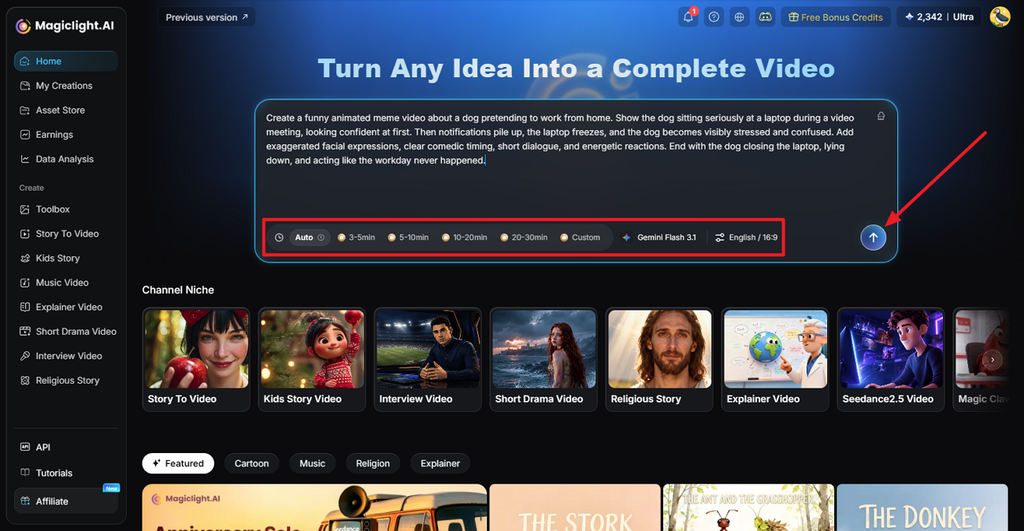
Step 1. Enter Your Meme Idea
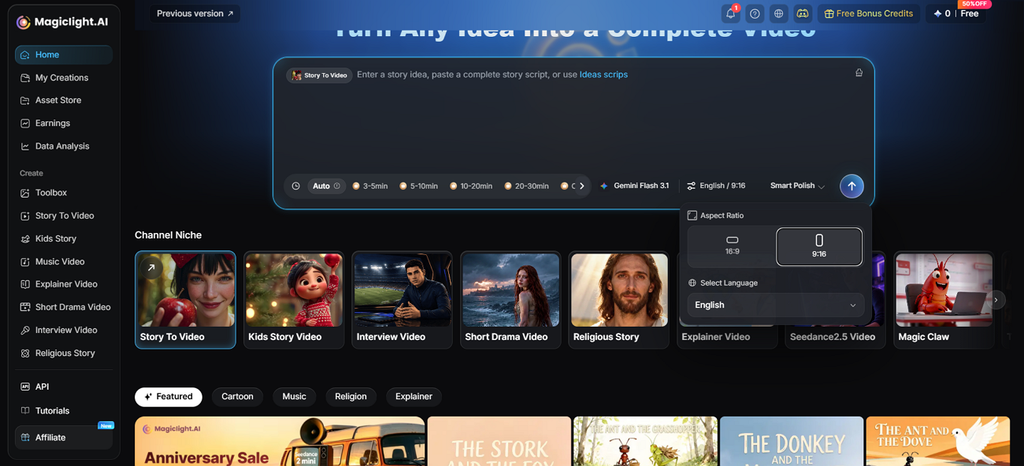
Start across the platform’s homepage by adding the script or meme concept you have in mind. Before sending it, choose your preferred Duration, Model, Language, and Aspect Ratio.
Step 2. Review the Script
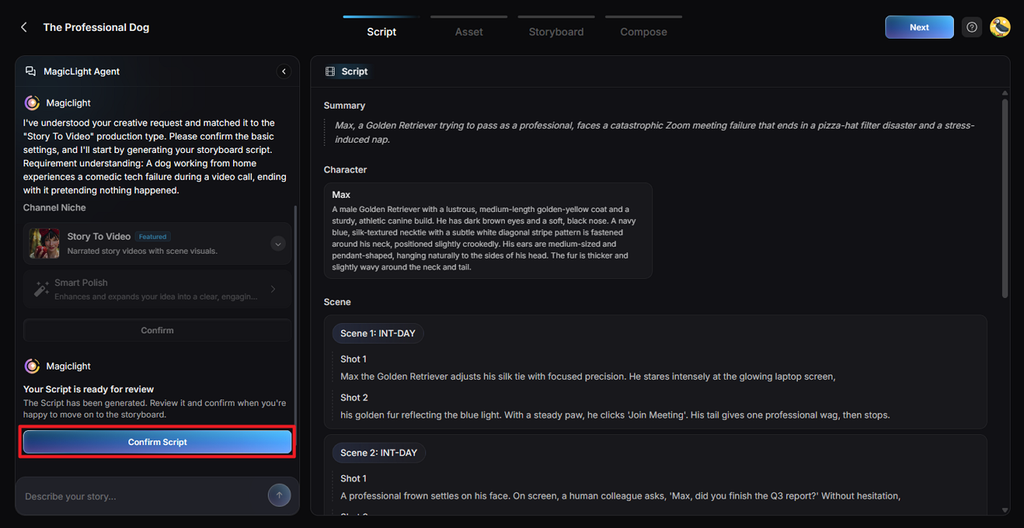
Your idea is organized by MagicLight Agent summary and shots. Check these sections, make any necessary edits, then use Confirm Script to move forward.
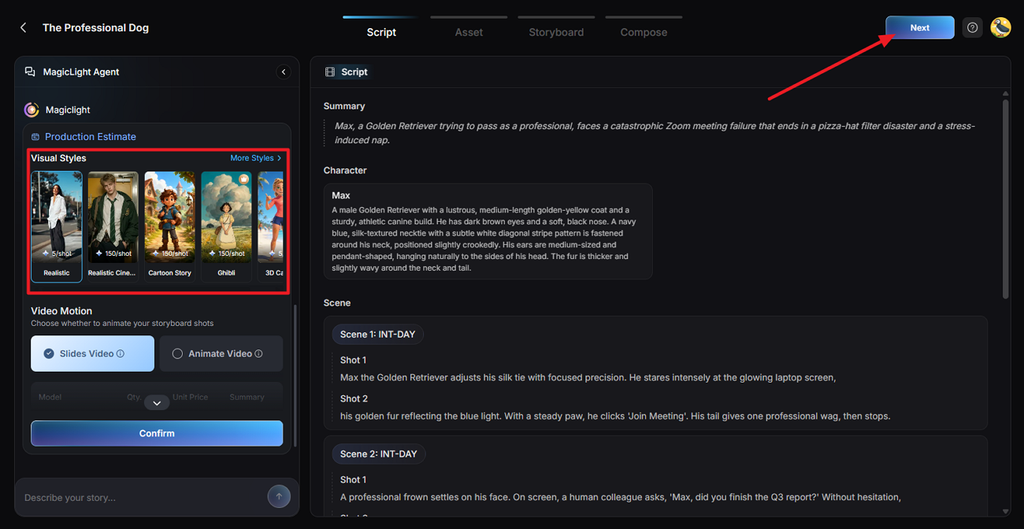
Step 3. Choose a Video Look
Decide how your meme should appear by selecting a suitable Visual Style. Next, choose Slides Video, change the available settings as needed, and confirm your choices.
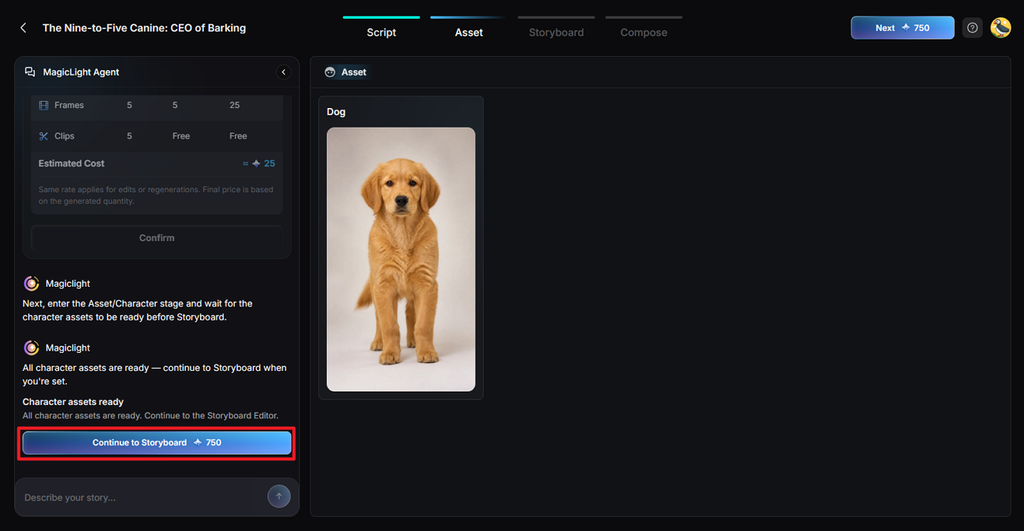
Step 4. Review the Characters
Based on your script, MagicLight AI generates images for the characters appearing in the meme. Make changes if any character needs work or click Continue to Storyboard when everything looks right.
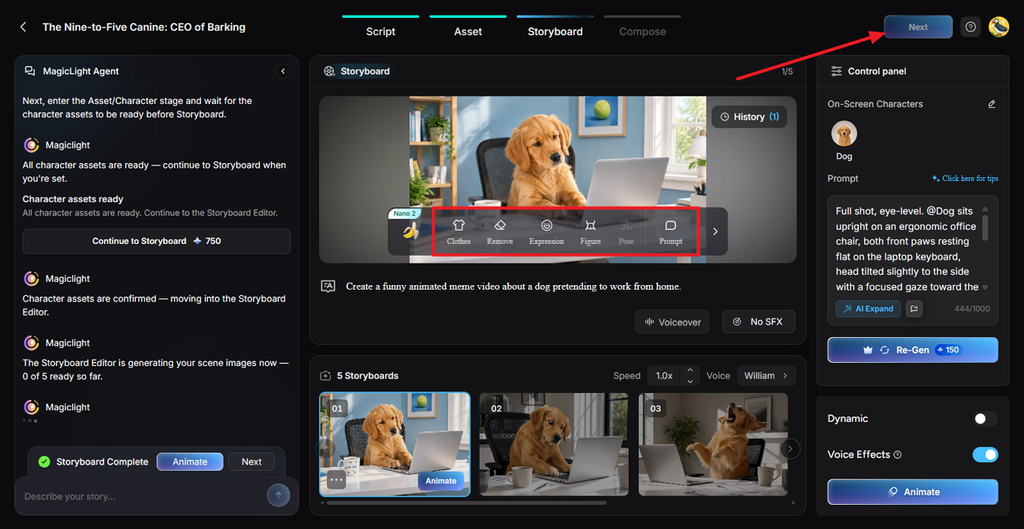
Step 5. Edit the Storyboard
Work through the storyboard and fine-tune individual shots using Clothes, Expression, Figure, Pose, or Prompt. You can also change voices and effects before selecting Next.
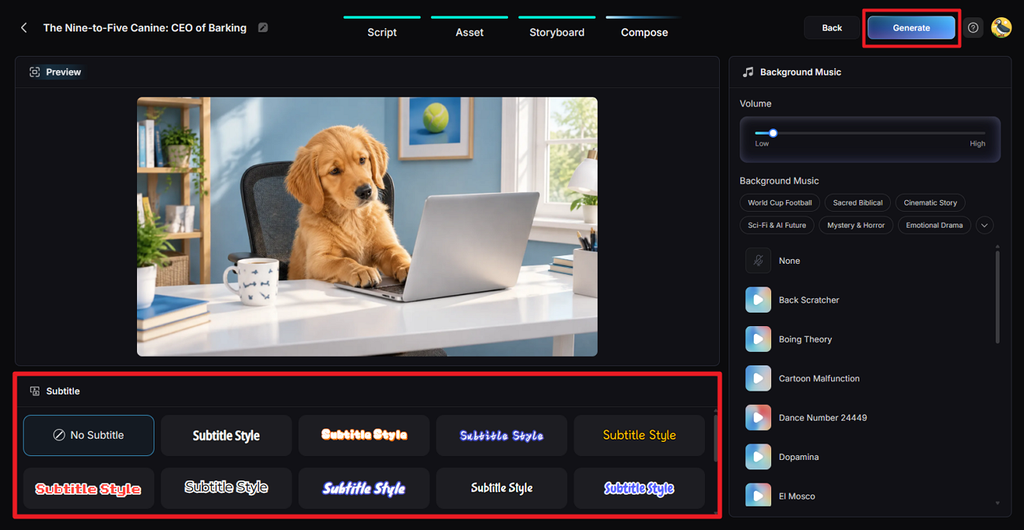
Step 6. Set Captions and Music
Play the assembled meme first to see how everything comes together. Pick a Subtitle Style or No Subtitle, adjust the Background Music and volume, then click Generate.
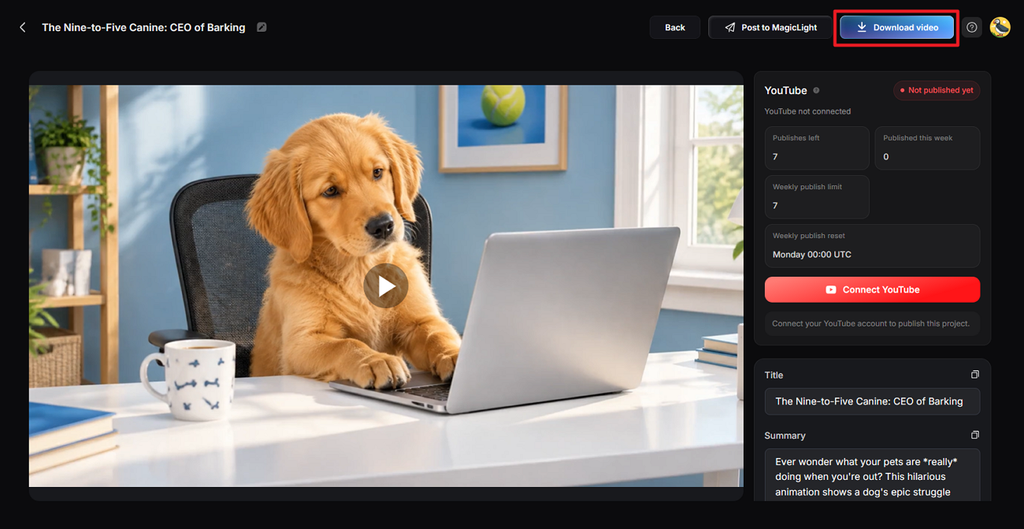
Step 7. Download the Video
Give the finished meme one final watch for scenes, audio, captions, and joke timing. Once you are happy with the result, select Download video and save it for sharing.
Part 2. Why Creators Use MagicLight AI to Make Memes
Creating meme videos becomes easier when characters, voices, scenes, and captions stay in one place. For anyone asking, “How do I make my own meme?” MagicLight AI offers useful tools. Let's see why creators choose MagicLight AI when making memes from their own ideas:
- Vertical or Widescreen Output: Choose 9:16 for meme videos made for Reels, Shorts, and TikTok feeds. The 16:9 option provides wider framing for YouTube videos and larger scenes.
- Meme Image Creation: Write prompts up to 500 characters to describe your meme image clearly. Pick from 5 image models to create different looks for each idea.
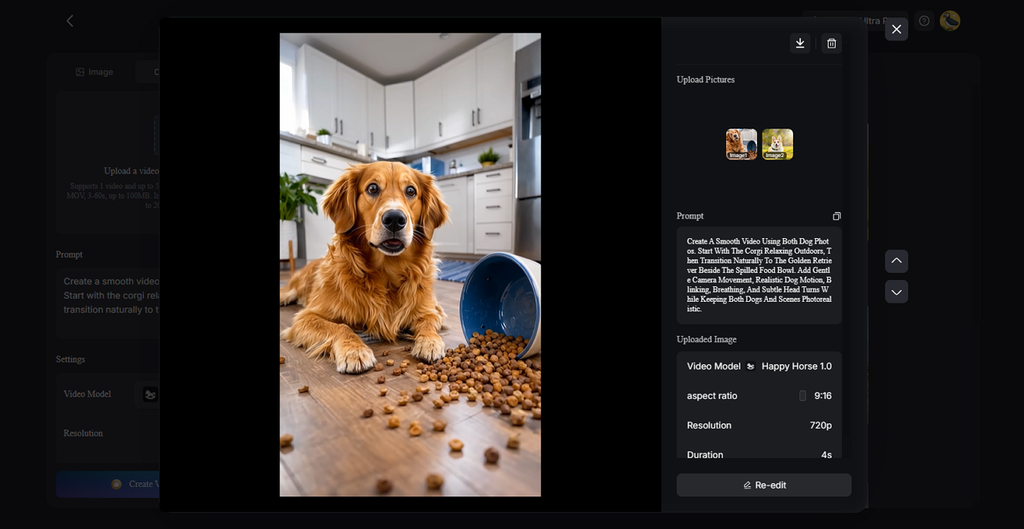
- Turn Images Into Videos: Animate images to give a still meme movement and extra personality. Photos, drawings, and other visuals can become short clips for sharing online.
- Free to Start: New accounts receive free credits, so you can begin without adding payment details. Paid plans provide 1080p downloads and remove watermarks from your finished videos.
- Create on Your Phone: Mobile apps let you work on memes directly from your phone anywhere. Both iPhone and Android users can create and finish meme videos on their phones.
Conclusion
In summary, learning “How do I make a meme?” starts with one clear, funny idea. Add a suitable visual and short caption to turn that idea into something shareable. Simple image memes work well, while video memes add movement and voices. The best meme makers can make this process simpler, especially when creating detailed content. MagicLight AI helps create animated meme videos with characters, captions, voices, and custom scenes.
FAQs About How to Make a Meme
- How do I create a meme from an idea?
Start by writing your meme idea as one short, easy sentence first. Choose an image or clip that clearly shows the situation behind your joke. Finish with a caption that makes the joke easy for readers to understand.
- How can I make my own meme?
Start with your own photo, funny moment, drawing, or another original visual idea. Add a short caption that matches the joke without covering the main visual. Export your meme in the right size for wherever you plan to post it.
- How do I make a meme video?
Use a short clip, then add captions, sound, or voice to build humor. MagicLight AI can create characters, scenes, voices, and captions from your meme idea. Keep the final video short enough for viewers to understand the joke quickly.
- Can I make memes for free?
Many free tools let you create basic image and video memes without paying. MagicLight AI also gives new users free credits to begin creating meme videos. You can start with those credits before deciding whether a plan suits you.
- What is the best AI tool for making memes?
MagicLight AI offers tools for building meme images and animated meme videos easily. Asking “How can I make a meme?” becomes simpler with several creation tools available. You can create characters, add voices, build scenes, and include captions in videos.