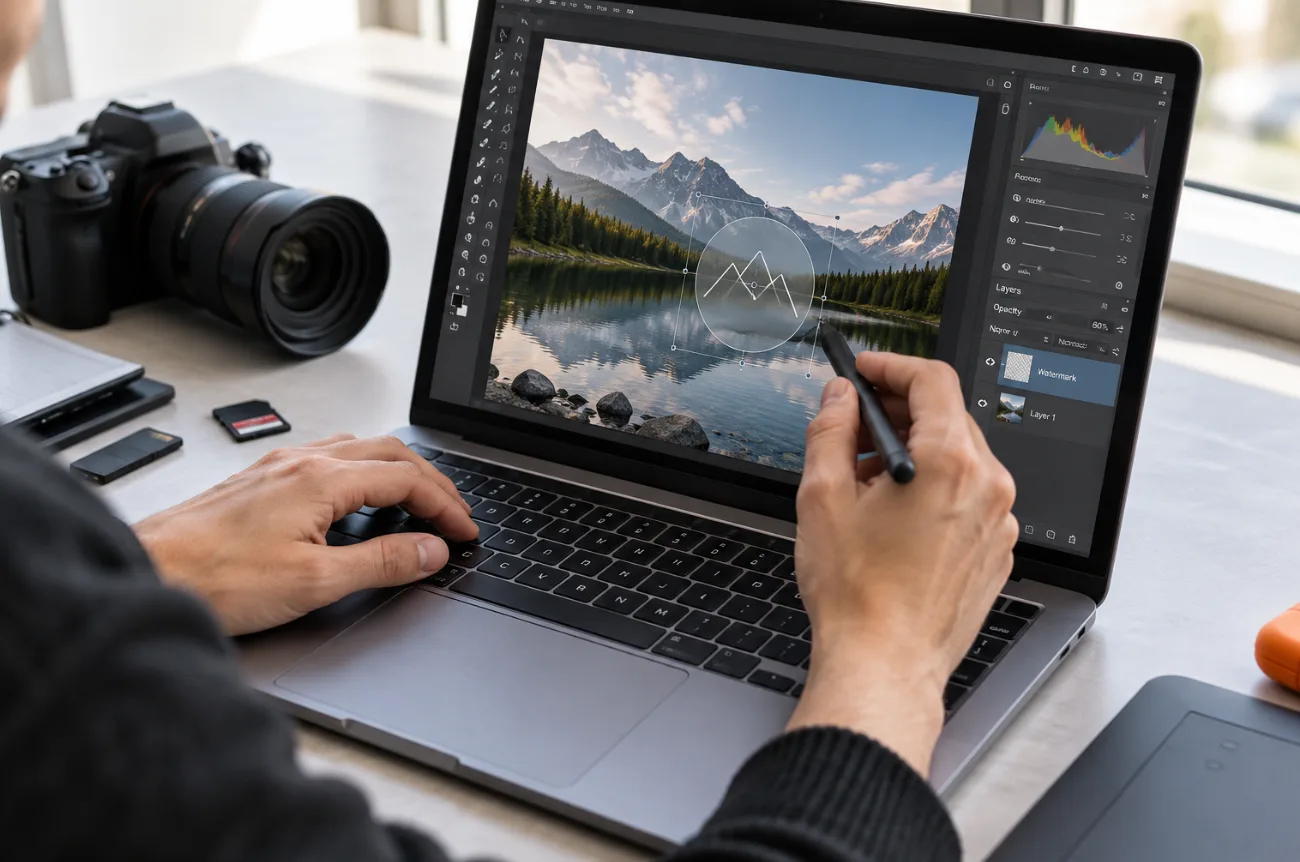
Knowing how to make a watermark matters because photos and clips often travel far beyond the page where they first appeared. Many lose their creator’s name along the way, and a watermark keeps that credit attached. U.S. copyright law can prohibit removing copyright management information, including an author’s name, when the required infringement-related conditions are met.
A watermark should be noticeable without pulling attention away from the image itself. Using the same mark on photos, product images, and videos also gives your content a more consistent look.
Part 1. How to Make a Watermark
A name, logo, or signature is often all you need for a watermark. If you’re learning how to create a watermark, MagicLight AI makes the process simple. Upload your image, then describe the watermark’s placement, size, and visibility in the prompt.
Overview of MagicLight AI
Brand owners can design a watermark and the content it protects in MagicLight AI, an AI studio for images, story videos, and narration. Its Toolbox includes an Image tab that generates logos, product shots, and social graphics from a prompt and with optional reference photos. That range fits “how to make watermark” searches from creators who want the mark and their visuals to match.
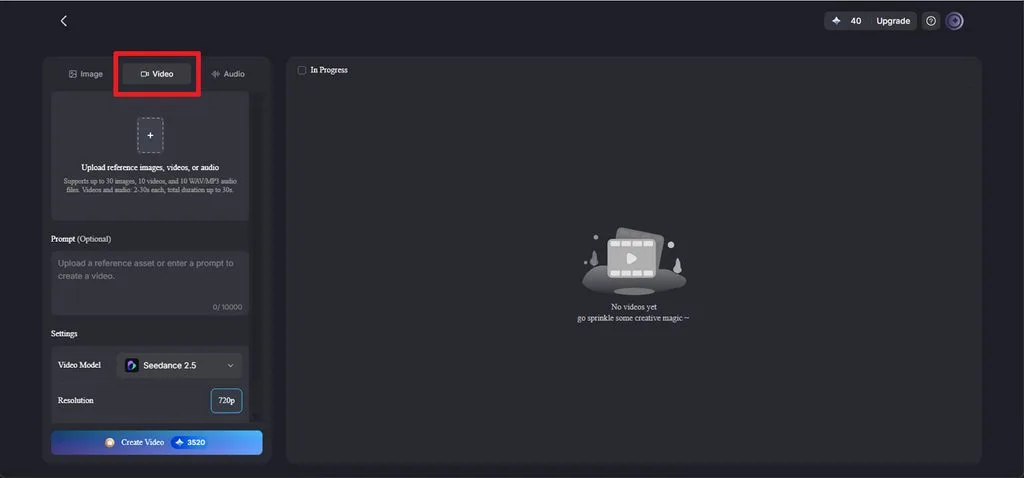
Video and Audio tabs sit beside it, so the same account also generates clips and sound. Dedicated tools such as Image to Video then add camera moves, captions, and narration to those assets.
Key Features
- Logo Concepts From Text: A written brief, capped at 500 characters, defines the initials, symbol, line weight, and color of a mark on a solid background.
- Brand Asset References: Several references can guide an image creation, such as a finished logo and a product shot. Accepted formats are PNG, JPEG, JPG, and WEBP, with a 20MB limit per file.
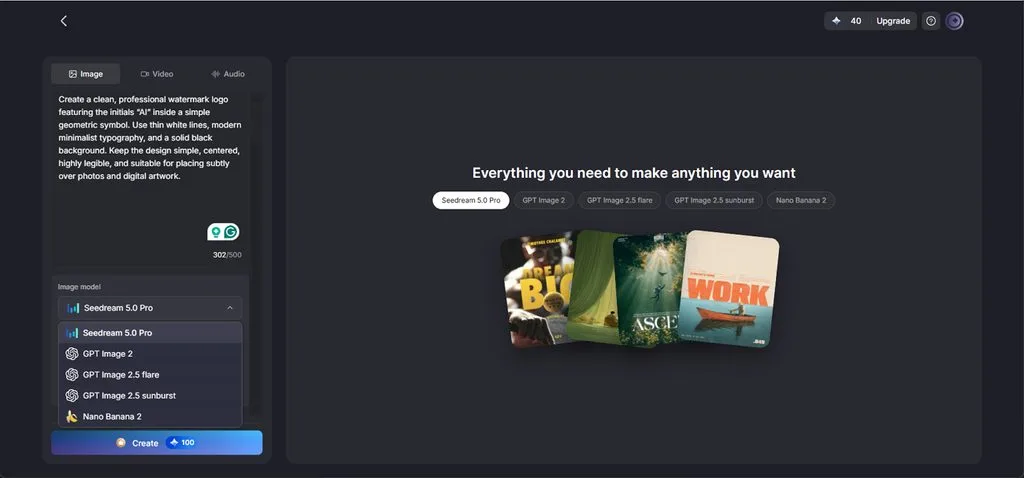
- Model Choice for Lettering: The 5 engines, including Nano Banana 2, draw letters and fine lines differently, so switching engines gives a flawed mark a fresh attempt.
- Batch Variations: Several alternatives arrive in one run through the Outputs setting, making it simple to pick the cleanest mark side by side.
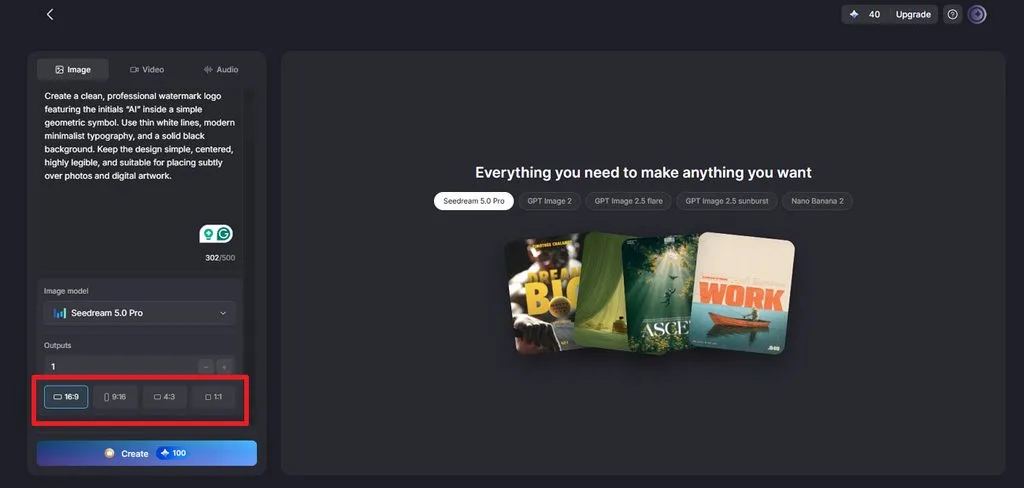
- Frames for Every Channel: A square 1:1 frame suits the logo itself, while 9:16, 16:9, and 4:3 fit vertical stories, banners, and blog images.
Step-by-Step Guide to Create Watermarked Content With MagicLight AI
Adding a watermark to an image starts with creating the mark and placing it where it remains visible without distracting from the main subject. The steps below show how to make a watermark and apply it to an image with MagicLight AI for perfect results:
Step 1. Choose Watermark Style and Access Toolbox
Start by deciding what your watermark should contain, as the style affects its appearance, size, and placement on the final image. The following 4 common options suit different branding and protection needs:
| Watermark Type | What It Contains | Main Trade-Off |
| Text | A name, handle, or © line | Quick to make but plain without styling |
| Logo | A brand symbol or monogram | Builds recognition but needs a clean file |
| Signature | A handwritten or scanned autograph | Personal but harder to read when small |
| Tiled Pattern | The mark repeated across the frame | Hard to crop out but covers more of the image |
Once you have chosen a style, go to the MagicLight AI home page and open Toolbox. Select the Image tab to access the prompt box, image uploader, model options, aspect ratios, and output settings.
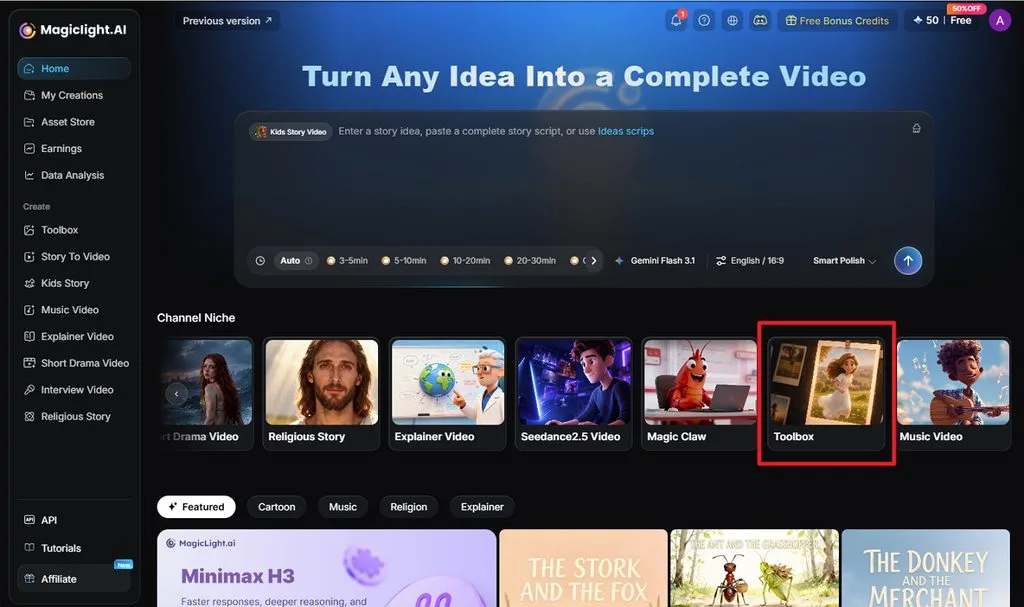
Step 2. Upload the Image and Describe the Mark
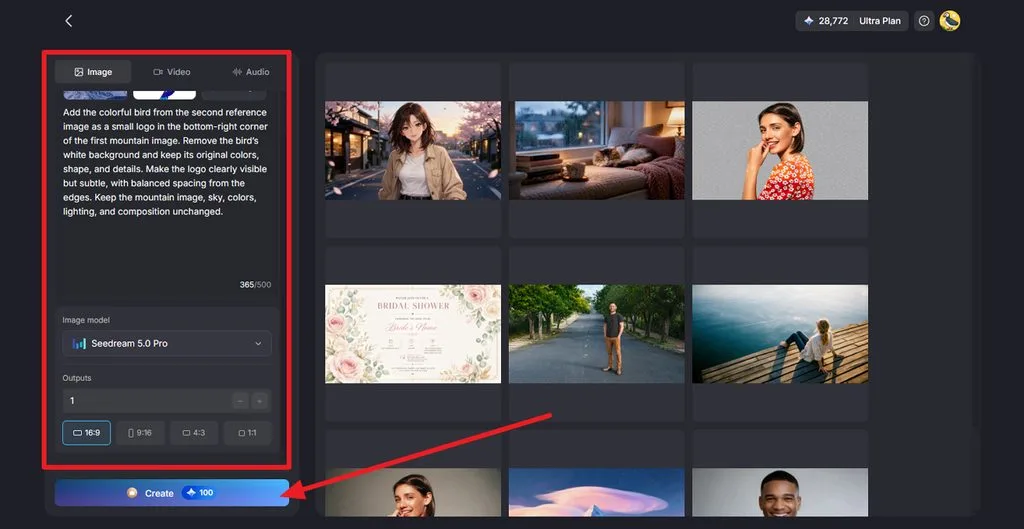
Click Upload images and add both the photo and logo you want to use as the watermark. In the prompt box, describe where the logo should appear, its size, and how visible it should be. Select an Image Model, choose the original Aspect Ratio, set Outputs, and click Create.
Step 3. Compare and Download the Result
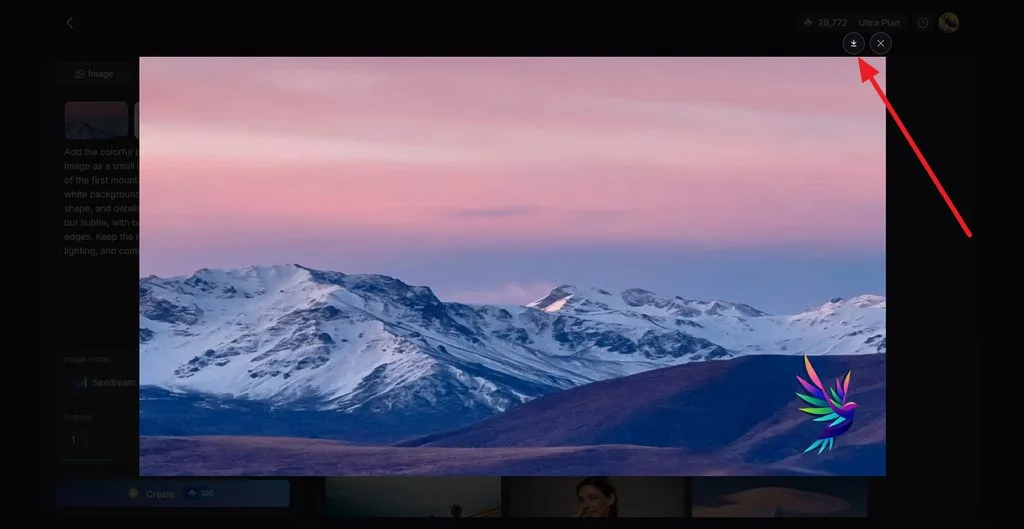
Open the generated versions and compare them with the original image. Check the watermark’s wording, size, position, and visibility, as well as any unwanted changes to the rest of the image. Once you find the best version, choose the Download icon to save it.
Part 2. Why Use MagicLight AI for Branded Content
Knowing how to make a watermark logo is only one part of building consistent branded content. MagicLight AI extends the process beyond a single mark, providing tools for creating branded images, animations, and videos in one workflow. The features below show how it supports each stage of visual content creation:
1. A Watermark Logo Without Design Software
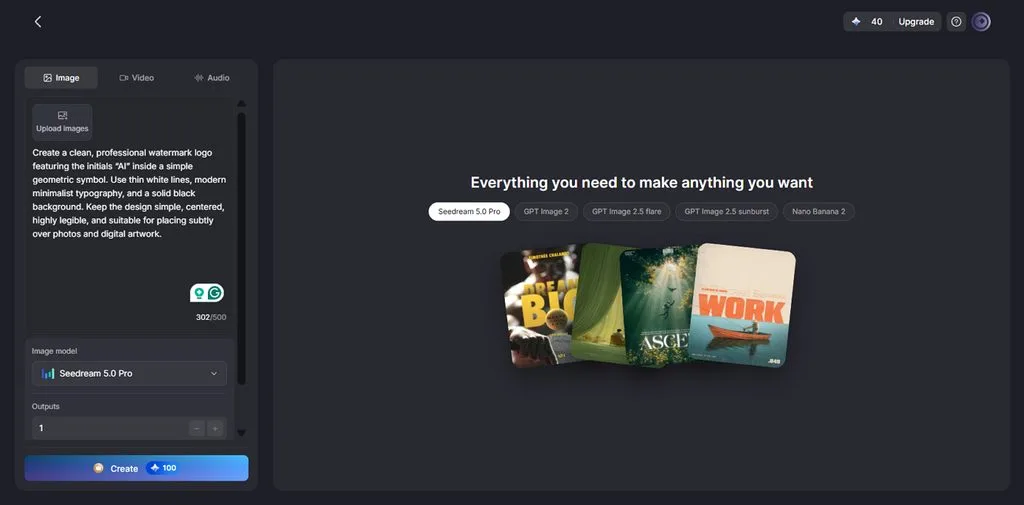
Vector editors and hired designers are the usual route to a logo, and both take time or budget. MagicLight AI replaces that stage with a written description and returns several concepts per run. Small businesses exploring how to make a watermark logo can test monograms, badges, and script styles in a single session.
2. The Same Brand Mark on Every Visual
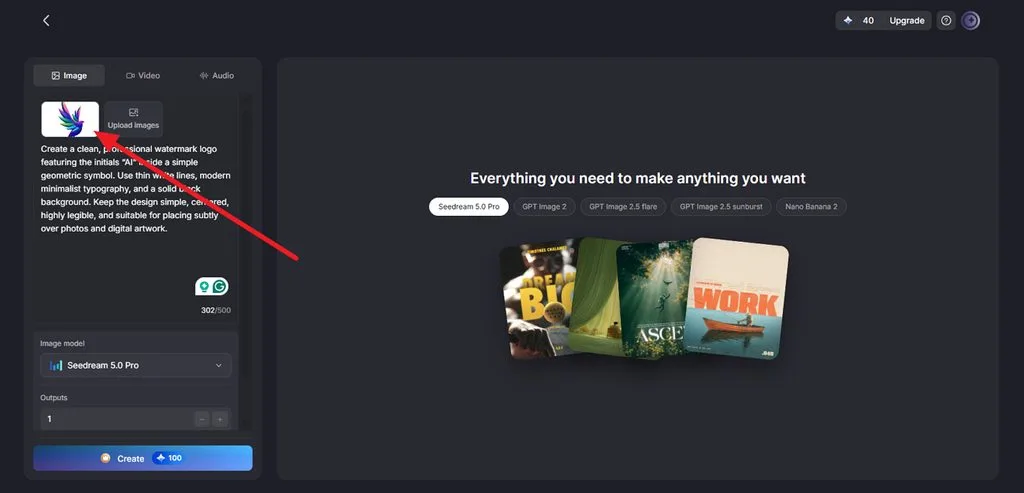
Using the same logo across your visuals makes your brand easier to recognize. MagicLight AI lets you upload your logo as a reference and include it in product shots, posters, or social graphics. It is a simple way to reuse your design after learning how do you make your own watermark.
3. Frames Sized for Each Platform
Branded content rarely lives in one place, so a mark must work on square posts, vertical stories, and wide banners. Generating each visual at its destination ratio keeps the logo clear of the crop lines that often slice through corner marks. Teams planning how to make watermarks for several platforms can produce each version from one prompt.
4. Choose From 5 Image Models
Different image models can produce noticeably different results when adding a watermark to photos. MagicLight AI provides 5 image models, including Seedream 5.0 Pro and Nano Banana 2. You can compare their results to find the clearest watermark with accurate placement.
5. Carry Your Watermark Into Videos
A watermark can remain part of your branding when a still image becomes video. Image to Video adds motion while keeping the branded visual as the starting point. Lip Sync can then add speech using text, uploaded audio, or AI-generated voices.
Conclusion
To conclude, how to make a watermark comes down to choosing a mark that fits naturally with your image. Its size and position should protect your work without getting in the way. MagicLight AI offers a practical way to develop watermark concepts and incorporate branded elements into AI-edited visuals through prompts
Frequently Asked Questions on How to Make a Watermark
1. How do I make a watermark for a photo?
Create your name, logo, or signature as a transparent PNG. Open the photo in an editor, place the PNG in a corner, resize it, and reduce its opacity. If you’re asking how do I make a watermark on a phone, apps like Canva let you add and position a logo directly.
2. What type of watermark should I use for my content?
The right type depends on where the content appears and how much protection it needs. A small corner logo keeps social posts clean, while client proofs need a centered or diagonal mark that resists cropping. Portfolio owners asking “how do I create a watermark” often pick a signature, while businesses lead with a logo.
3. Can I create a watermark without design skills?
A watermark no longer requires design training, since AI image tools turn short descriptions into clean marks. MagicLight AI’s Image tab creates one from a 500-character prompt and offers several versions to compare. Beginners wondering “how can I make a watermark” only need initials, a style, and a solid background color.
4. How do I add a watermark to a video?
Most video editors add a watermark as an image overlay that runs for the full timeline. YouTube Studio also adds a channel-wide watermark under Customization, then Profile, from a square image under 1MB. Video creators searching “how do you make a watermark” can design the mark in MagicLight AI first.
5. Can MagicLight AI help me create branded video content?
MagicLight AI supports branded video from planning to export, starting with MagicLight Agent, which outlines the script and storyboard. Story to Video then generates episodes of up to 50 minutes, keeping a brand mascot consistent from scene to scene.