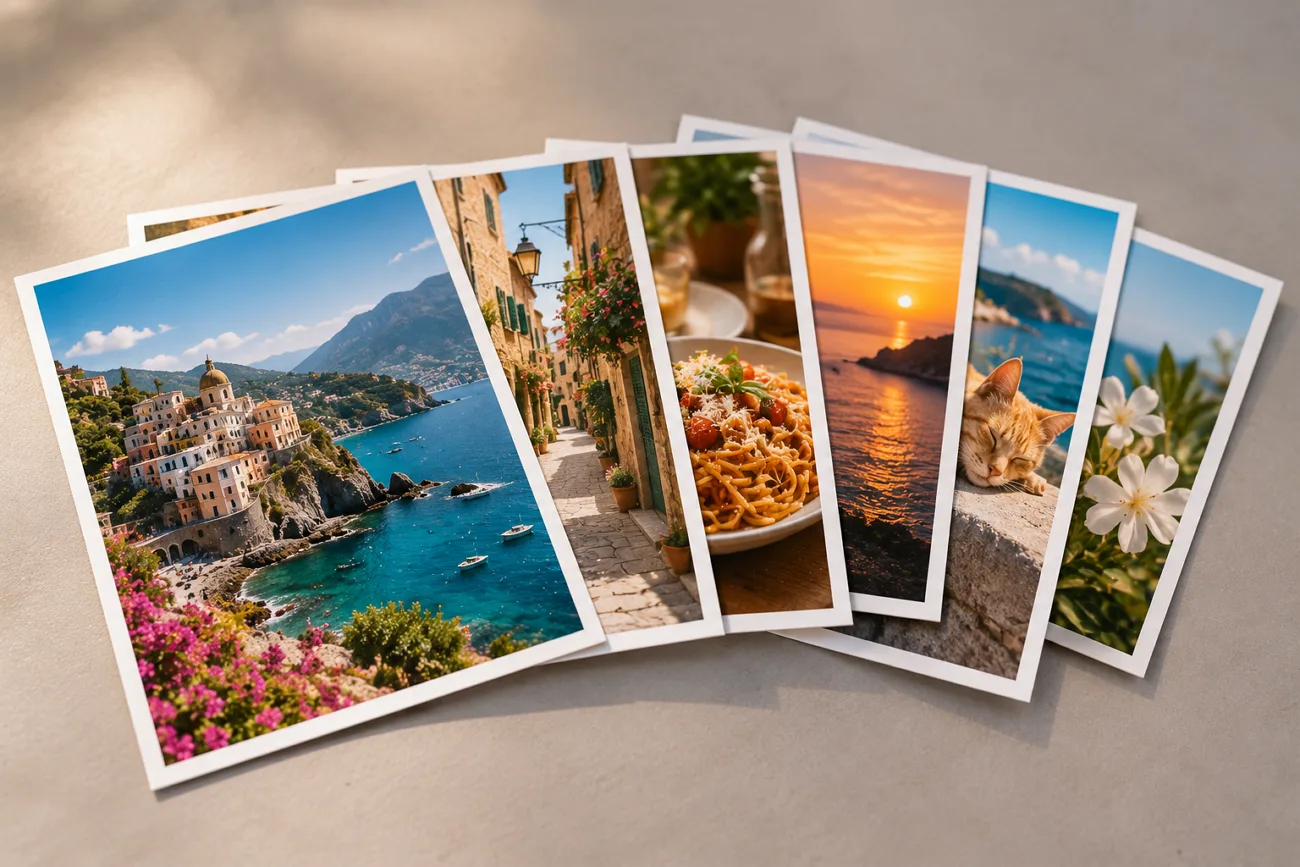
A carousel gives you room to show the moments one photo would leave out. Posting several pictures in one post is simple once you know how to post multiple photos on Instagram. Moreover, a little planning helps each image fit naturally with the photos around it too.
The crop and caption all affect how the finished carousel feels to viewers. Those same photos can also become a short AI video for your next Reel. This guide covers the posting steps and shows how to reuse your photos creatively.
Part 1. How to Post Multiple Photos on Instagram
With a carousel, you can put several photos and videos into the same post. Each carousel can hold up to 20 photos and videos for followers to swipe. Anyone asking, “How do you post multiple photos on Instagram?” should understand carousel cropping first.
By default, Instagram may apply the first photo's selected format to the remaining carousel images. Some accounts also offer a Mixed option that lets photos retain different aspect ratios. Preview every slide before publishing to check for unwanted cropping.
Step-by-Step Guide to Post Multiple Photos via Instagram
The mobile app is the easiest way to understand how to post several pics on Instagram. You get the same posting options on both iPhone and Android. Now, follow the steps below to put your photos together in one Instagram post:
Step 1. Once you open Instagram, tap + in the top left corner and choose the Post option.
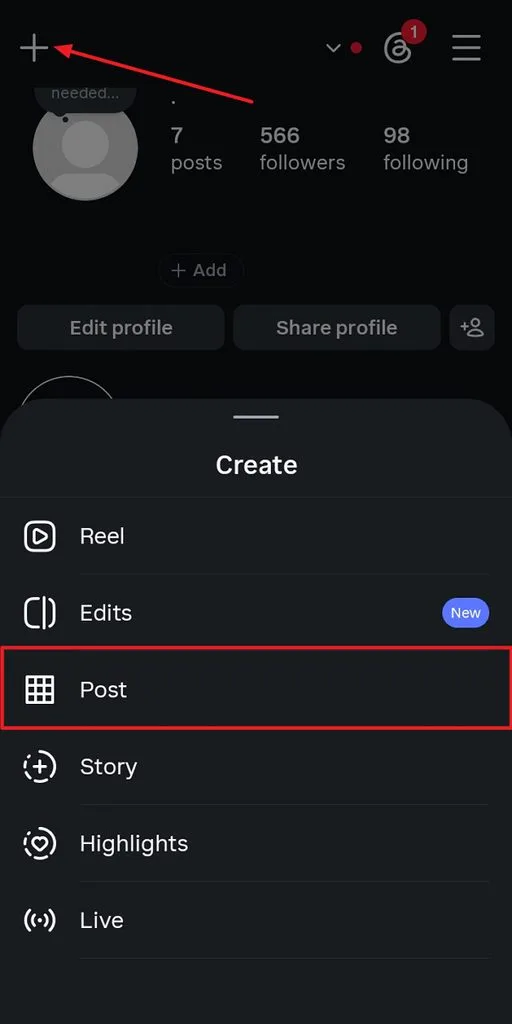
Step 2. Then, press the Select option and pick multiple images you want to post on Instagram. Once selected, tap the Next option.
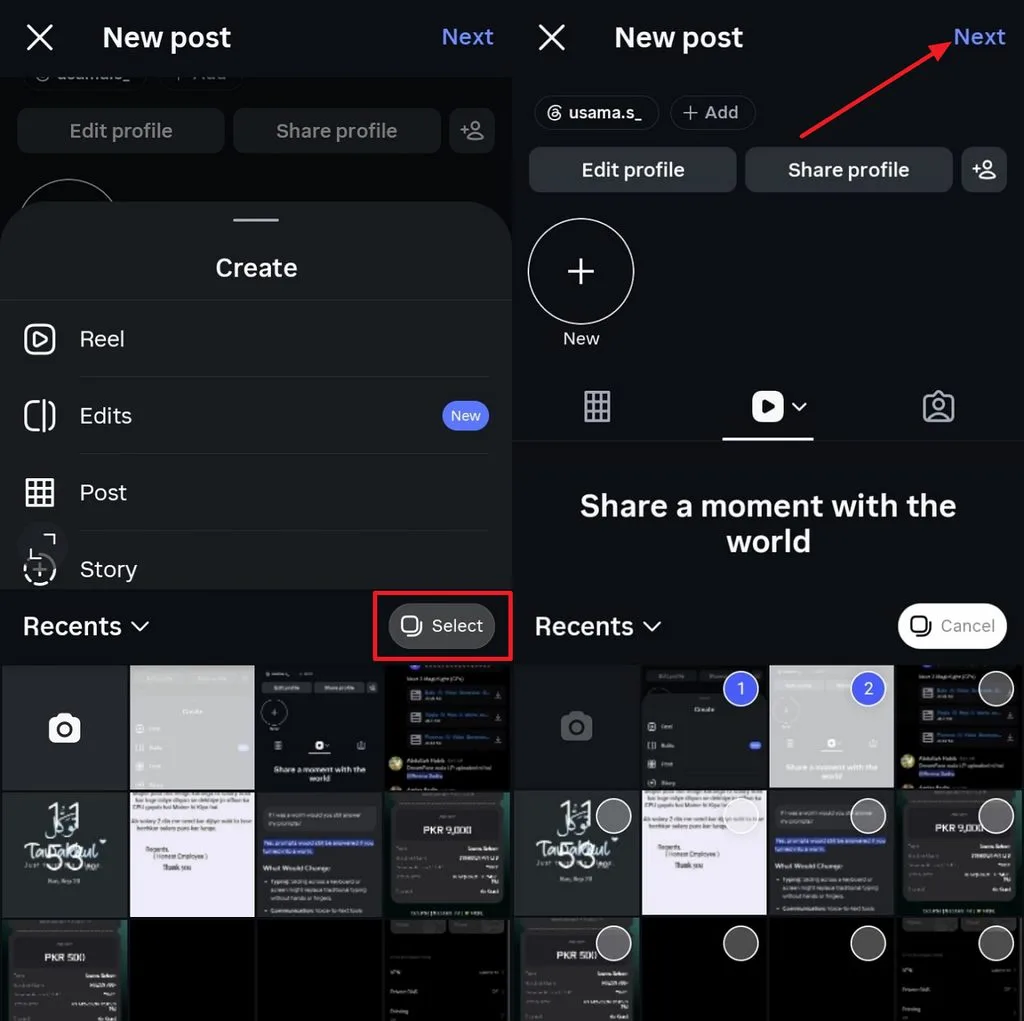
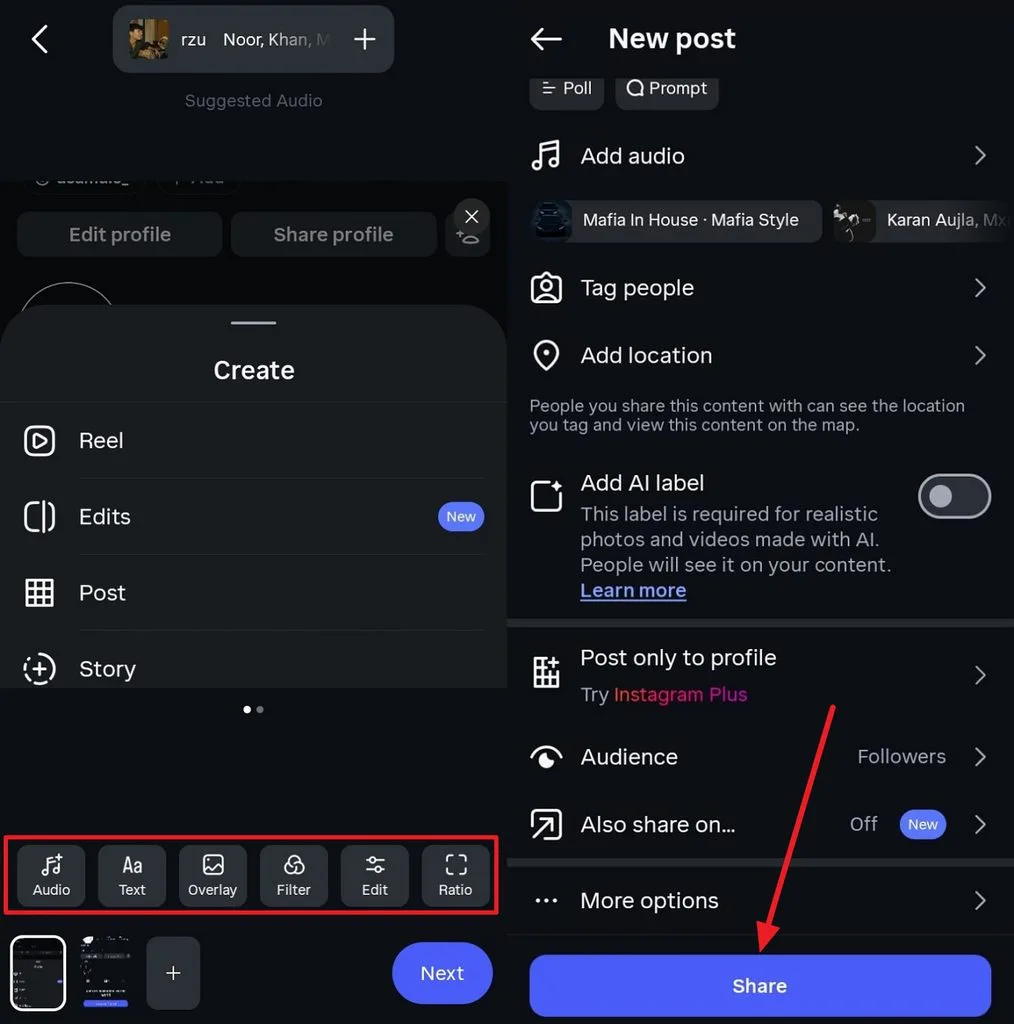
Step 3. Afterward, make edits such as cropping or adding filters, and tap Next. Then, add some music or tag anyone if you want. Once all is done, simply press Share to share the post on Instagram.
If you need to see how to upload multiple photos on Instagram through PC, the website works too. On instagram.com, click Create and choose Select from computer to start your post. From there, arrange your chosen photos before moving to the final editing screen.
The website offers basic editing options, but the mobile app gives you more control. Instagram does not let you add new photos after publishing your carousel post. Instagram now supports reordering photos and videos in published carousels on eligible accounts, although feature availability may vary by account or app version.
Part 2. How to Create Engaging Instagram Content With Multiple Photos
Knowing how to post multiple pics on Instagram gives your photos more ways to work. Those pictures can become a short, narrated video for carousels or standalone Instagram Reels.
MagicLight AI turns your selected photos into one continuous video using Image to Video. Voiceovers and captions stay within the same project, making the final video easier to post. MagicLight Agent can also plan the script and structure before you start creating videos.
Key Features of MagicLight AI
- Multi-Photo Sequences: Add up to 5 photos and turn them into one connected video sequence. This works well for travel recaps, event highlights, product showcases, and other visual stories.
- Scene-by-Scene Motion: Describe the movement you want, and MagicLight brings each scene to life. Choose from 50 poses to give characters different movements throughout your video scenes.
- Image Generator: Upload up to 10 reference images to guide your generated visuals. You can also write prompts up to 500 characters for more detailed image results.
- Voiceovers and Captions: Add voiceovers and captions directly while working on your video project. Everything stays together, so you do not need another app for finishing touches.
Step-by-Step Guide to Turn Multiple Photos Into Instagram Content With MagicLight AI
Once you know how to upload multiple photos in Instagram, try MagicLight AI next. Go through the simple steps below to turn those photos into an Instagram video:
Step 1. Open MagicLight AI Image to Video
In MagicLight AI, select Toolbox to open the Image to Video workspace. This is where you can turn your Instagram photos into short video content.
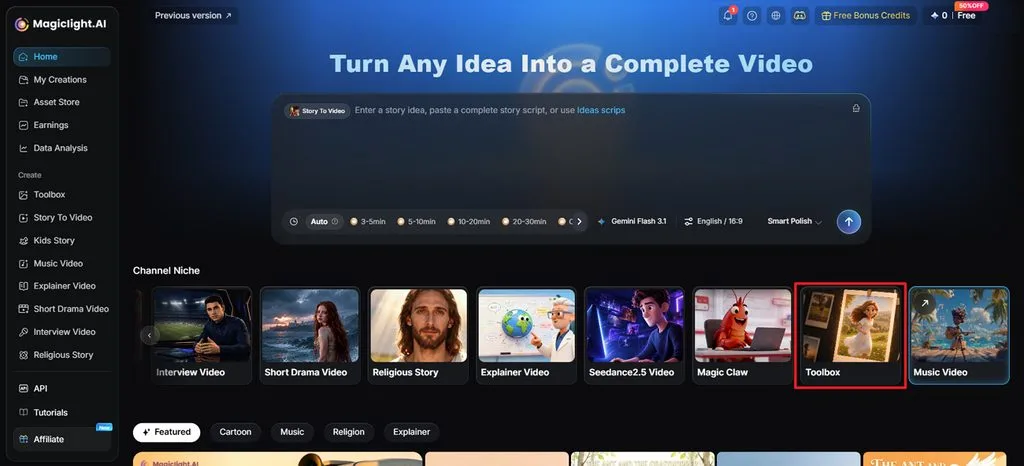
Step 2. Add Your Photos and Create the Video
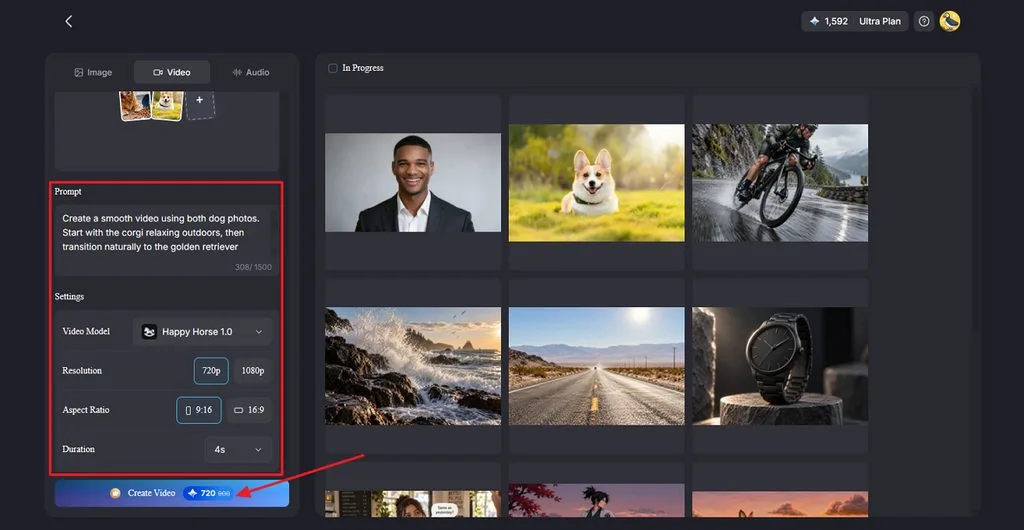
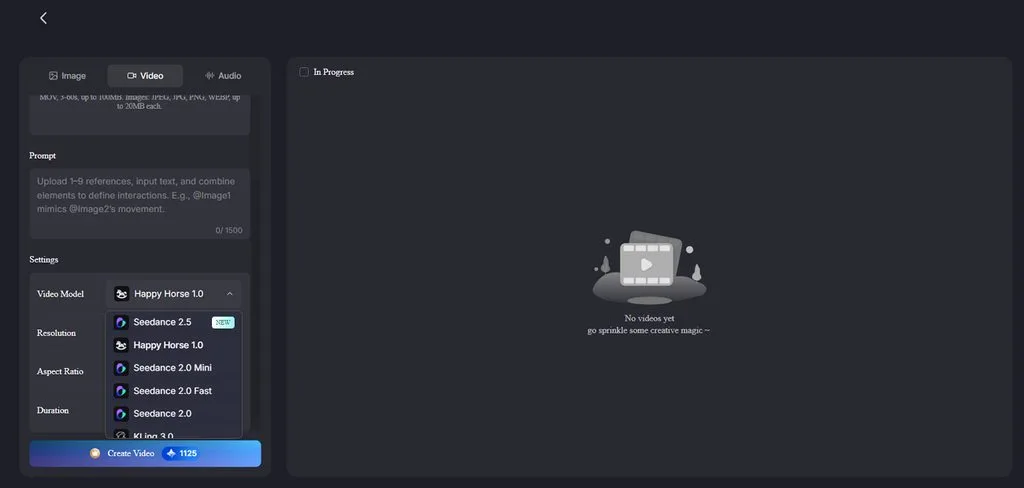
Select the Video tab, then upload or drag your photos into the workspace. In the Prompt section, describe how you want the photos to move or transition. Choose a Video Model from the 20 available choices, then set the Resolution and Duration. Then, press Create Video.
Step 3. Review and Save Your Instagram Video
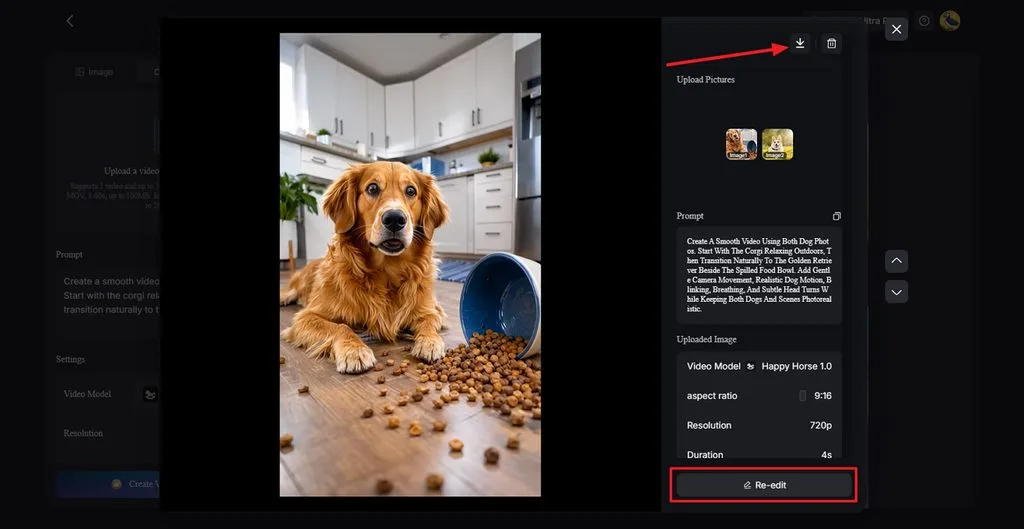
Play the finished video and check the movement, transitions, and overall result. Select Re-edit if you want to change your prompt or video settings. Once everything looks right, click the Download icon at the top to save it.
Part 3. Why Use MagicLight AI for Multiple-Photo Content
Knowing how to post multiple photos for Instagram covers, but your pictures offer more. MagicLight AI adds motion, voice, flexible formats, and useful options for photo content.
- 2 Formats From One Photo Set: MagicLight AI turns the same photos into videos while keeping originals for carousels. Creators can use the generated video as a Reel or another carousel slide.
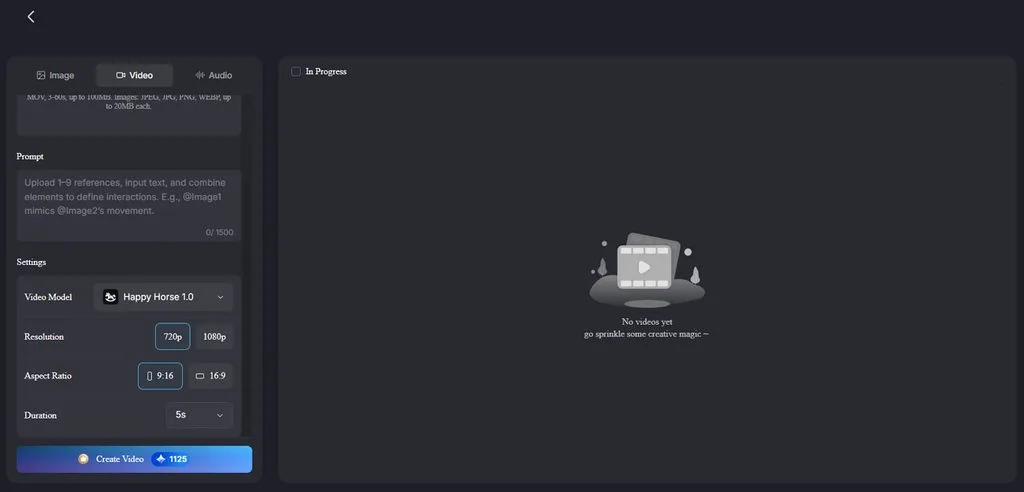
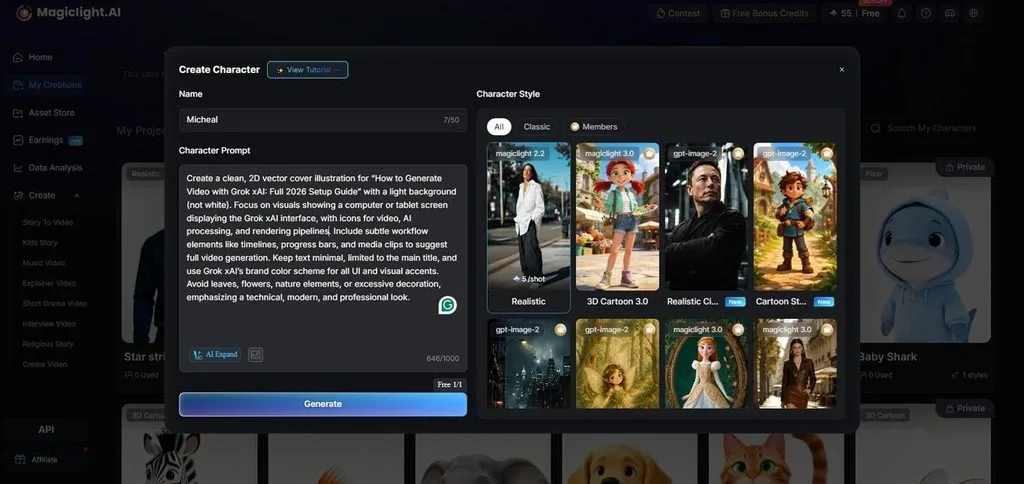
- Photos That Become Characters: MagicLight AI uses uploaded photos to keep character appearances consistent across video scenes. Pets and brand mascots can appear as recurring characters across different video projects.
- AI Video Models: It provides 20 video models for different motion styles and visual results. The available models include Seedance 2.5 for creating videos from uploaded photo sets.
- Captions and Voices in 11 Languages: MagicLight AI supports captions and voiceovers across 11 languages for video content. Creators can use one photo set to produce content for different language audiences.
Conclusion
Learning how to post multiple photos on Instagram helps you organize several moments, products, or highlights within a single carousel. You can also reuse the same images beyond static posts. MagicLight AI turns selected photos into animated Instagram videos with motion, narration, and captions, giving existing content a more dynamic format.
Frequently Asked Questions on How to Post Multiple Photos on Instagram
1. How do I post multiple photos on Instagram?
Choose Post, tap Select Multiple, and pick the photos you want to share together. Add your caption, check the photo order, and tap Share to publish your carousel.
2. How many photos can I post in one Instagram carousel?
An Instagram carousel can contain up to 20 photos and videos in one post. For larger photo collections, split your images between 2 separate carousel posts instead.
3. Can I turn multiple photos into one Instagram video?
MagicLight AI turns multiple photos into one video with smooth motion between scenes. You can also add narration and captions before exporting the finished video for Reels.
4. How can I make a multiple-photo Instagram post more engaging?
Choose a strong opening photo and arrange the remaining images in a natural order. MagicLight AI can add motion and narration to make your photo content more engaging.
5. What AI tool can I use to turn photos into Instagram videos?
MagicLight AI can turn your uploaded photos into videos using Image to Video. It also provides motion controls, narration, captions, and vertical formats suitable for Instagram Reels.