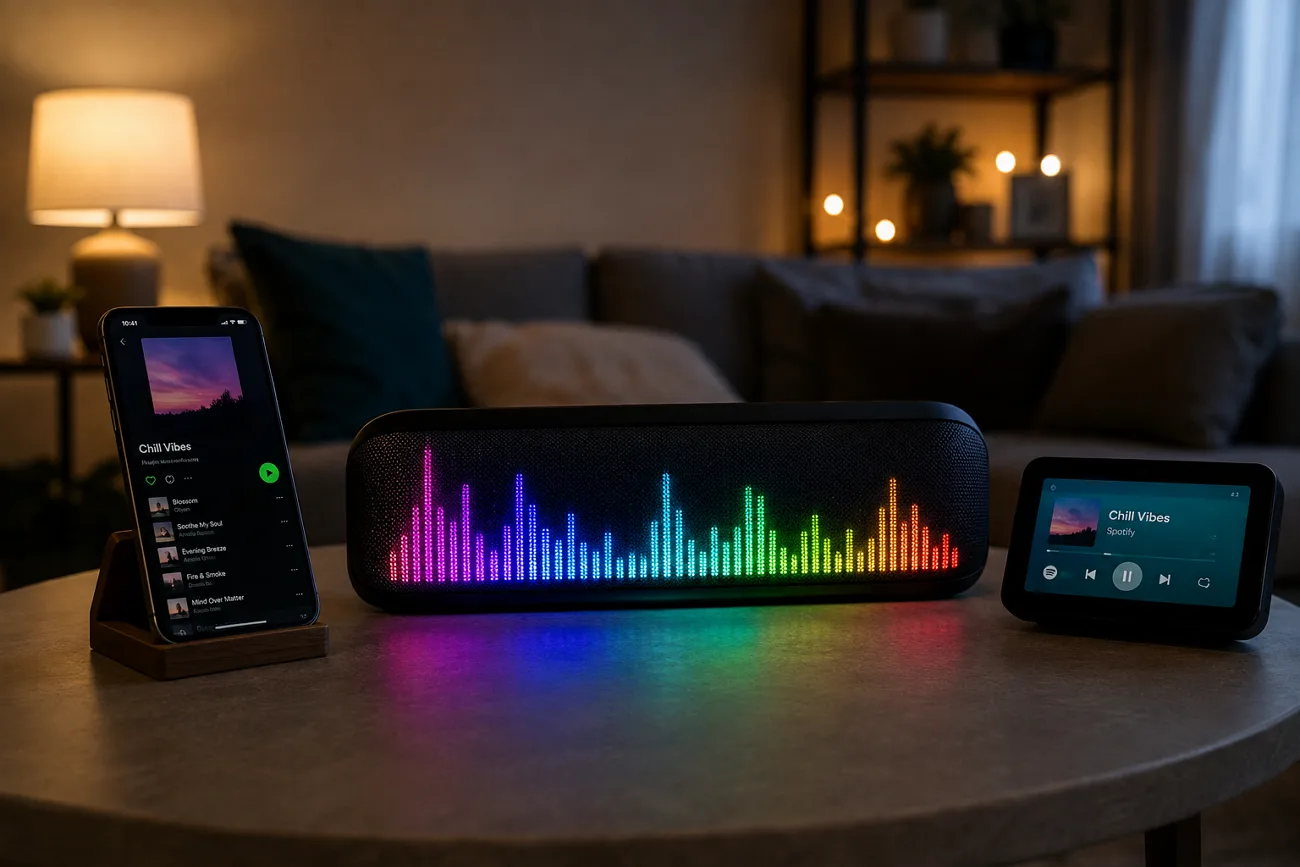
Many Spotify visualizers stopped working because Spotify changed the data available through its developer tools. Most visualizers cannot connect directly to Spotify anymore, leaving users searching for reliable working options. Desktop tools solve this problem by reacting to any audio currently playing through your computer.
Browser tools work differently, requiring users to upload or provide their music before creating visual effects. Choosing a music visualizer for Spotify depends on which of these two approaches fits you best.
Part 1. Comparison of Top Spotify Music Visualizers
Several working tools offer different ways to enjoy a music visualizer Spotify experience. Setup type and platform support matter most because some options only work on Windows. The table below compares each tool by platform, pricing, setup type, and purpose:
| Tool | Platform | Price | Setup Type | Best For |
| Tuneform | Browser | Free with watermark | Upload audio, no install | Artists exporting release visuals |
| MusicArt.ai | Browser | Freemium, starting from $29.99/month | Upload audio, no install | Quick social clips with lyrics |
| projectM | Windows, Mac, Linux | Free and open source | Install, reads system audio | Preset variety and tinkering |
| Plane9 | Windows | Freemium, no purchase required | Install, reads system audio | 3D scenes and screensaver use |
| Kauna | Windows | Free | Microsoft Store install | Plug-and-play second-screen visuals |
| MagicLight AI | Browser | Free plan available, starting from $6.00/month | Upload or generate music | A narrative music video |
Part 2. Best Online Music Visualizers for Spotify
Browser tools create publishable visuals from uploaded audio instead of showing live streaming effects. Now, let's explore music visualizer online Spotify tools designed for easy visual creation.
1.Tuneform
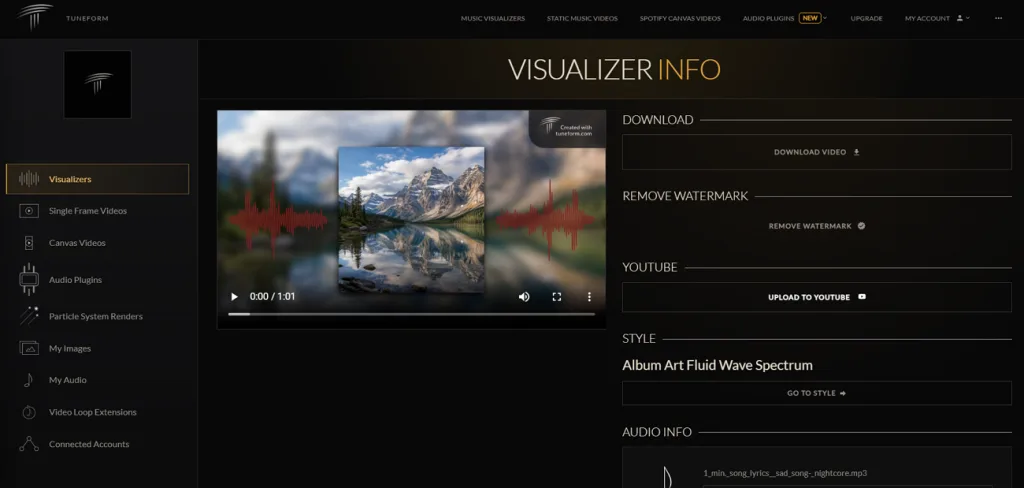
Tuneform focuses on exporting finished videos instead of creating visuals that react in real time. It creates standard visualizers, static music videos, transparent particle systems, and Spotify Canvas loops easily. Canvas clips are vertical 3-to-8 second loops playing behind tracks directly inside the Spotify app. Its companion plugin runs audio-reactive DAW visuals, helping producers preview results before final export.
Pros
- Supports 3D models, shaders, camera moves, and text.
- Shows visual previews before completing the full render.
- Creates Spotify Canvas loops many visualizers cannot produce.
Cons
- Free video exports include a visible Tuneform watermark.
- Advanced customization requires more learning than preset tools.
2.MusicArt AI
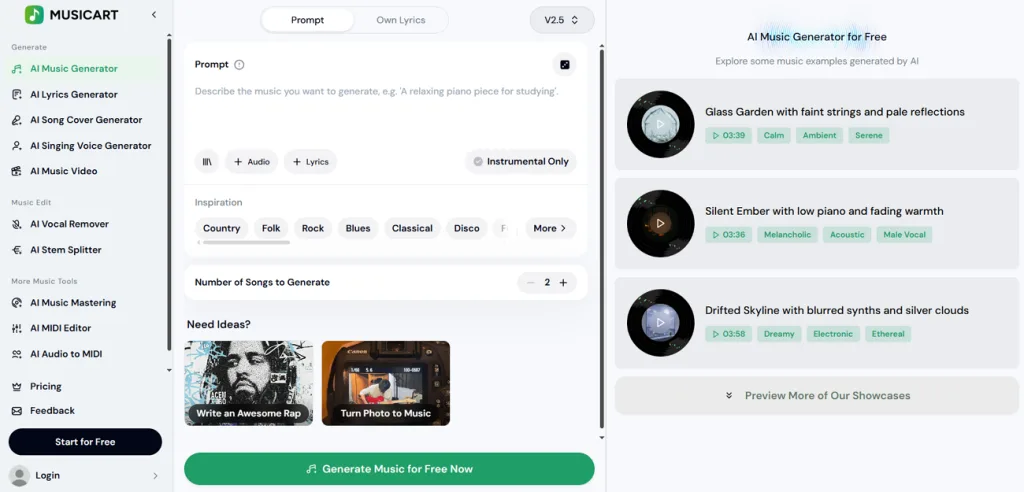
This music visualizer for Spotify reads tempo and frequency data directly from uploaded tracks. MusicArt AI maps both elements onto wave patterns, creating visuals that respond directly to music. Users can adjust color palettes, motion intensity, and add lyric subtitles using curated fonts. The tool turns single tracks into shareable clips without requiring users to learn anything.
Pros
- Free access includes high-resolution downloads without extra charges.
- Lyrics and sound waves can toggle independently anytime.
- Fast setup makes creating single social clips easy.
Cons
- Customization offers fewer controls than full visualizer suites.
- Output works better for clips than complete tracks.
Part 3. Best Music Visualizer for Spotify on PC and Mac
Desktop music visualizer for Spotify PC and Mac tools react directly to system audio. After exploring online options, install these tools, select your audio device, and play Spotify:
1.projectM
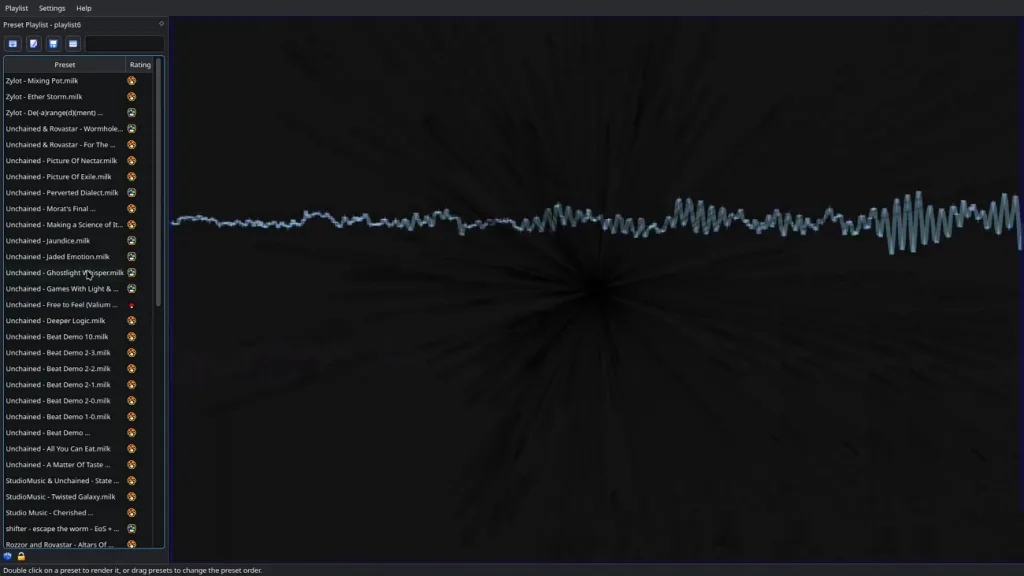
projectM rebuilds the MilkDrop preset engine as open-source software with thousands of visual presets available. Its extensive preset library offers far more visual choices than other desktop options listed here. As a Spotify music visualizer for Mac users, it can run alongside Windows and Linux.
Pros
- Offers 1000+ community presets available completely free.
- Renders audio-reactive visuals using GPU-accelerated graphics.
- VLC includes projectM as its built-in visualization option.
Cons
- Some builds capture microphone input instead of audio.
- Interface design feels less polished than commercial alternatives.
2.Plane9
Available on Windows only, Plane9 offers over 250 free three-dimensional visual scenes for music playback. Its scenes include particle systems, fractals, glowing cubes, and disco balls with varied effects. Users can chain scenes into sequences and run Plane9 as a screensaver or VR display.
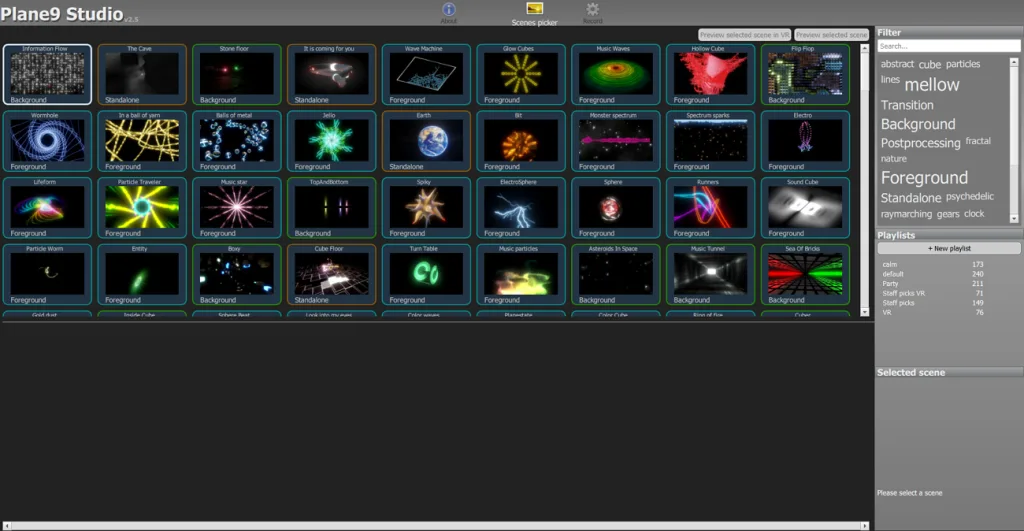
Pros
- Analyzes audio across up to 18 connected speakers.
- Pauses automatically when monitors enter standby, saving power.
- Included Studio application records visualizations directly into videos.
Cons
- Requires OpenGL 3.3-compatible graphics hardware for rendering.
- Public download remains version 2.5.1.3, released in 2016.
3.Kauna
This free Microsoft Store tool offers the lightest and easiest setup among these options. For anyone searching “music visualizer app Spotify,” Kauna provides a simple option without complicated configuration. Kauna converts system audio into responsive waves, bars, confetti, and colorful spectrum displays.
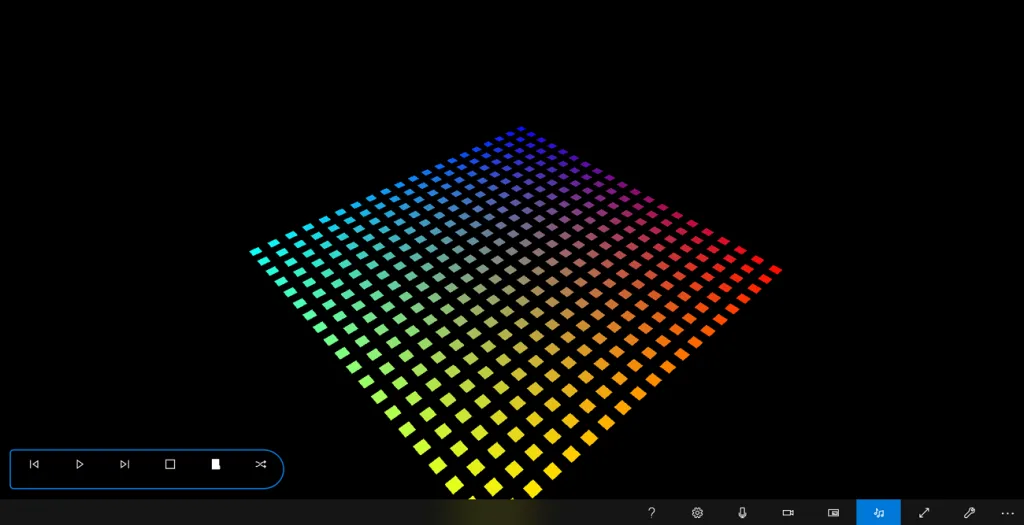
Pros
- Automatically changes visualizations using an adjustable display timer.
- Accepts microphone audio for external music visualization too.
- Lets users adjust sound sensitivity for visual response.
Cons
- Lacks recording, exporting, and options for saving visualizations.
- Offers fewer advanced controls than dedicated VJ software.
Pro Tip. Generate a Custom AI Video From Your Spotify Track in MagicLight AI
A music visualizer for Spotify creates reactive graphics but cannot build characters, locations, or stories. This is where MagicLight AI comes in, turning uploaded music into complete narrative video scenes. Unlike other AI music video generators, it keeps characters consistent across every generated scene.
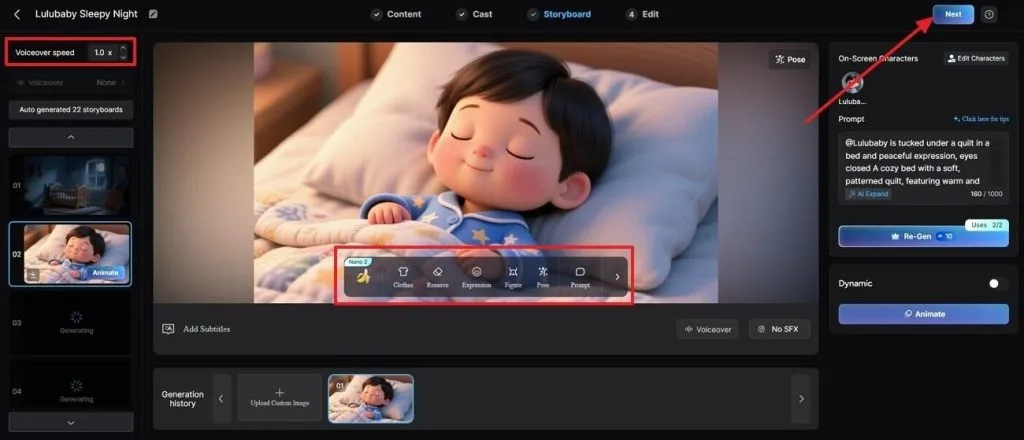
Users can edit storyboard prompts, including character clothing, expressions, poses, and other important visual details. One project supports both 16:9 and 9:16 formats, making YouTube and Reels publishing much easier. MagicLight AI generates subtitles in 16 styles and creates matching covers using 21 ready templates.
Building a Music Video Step by Step
The workflow turns uploaded audio into finished videos, with key choices made during storyboarding. Follow the steps below to create and export your complete music video:
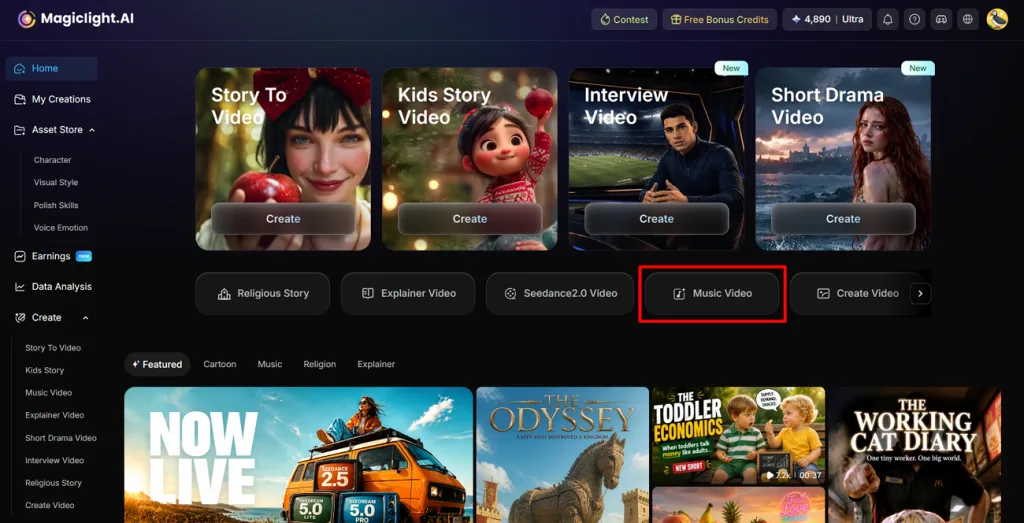
Step 1. Open MagicLight AI Music Video Tool
Start by opening the MagicLight AI dashboard and clicking Music Video from the home screen.
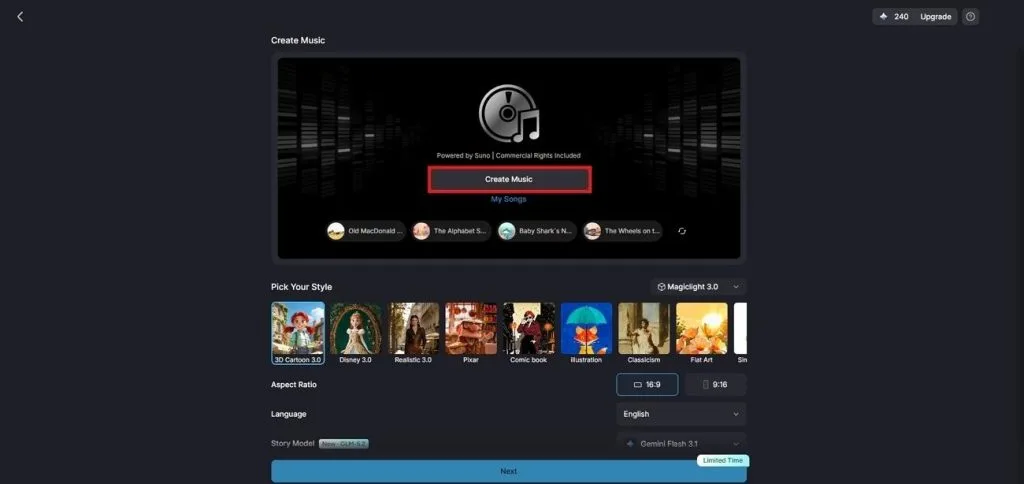
Step 2. Create Suno-Powered Music for Your Video
Next, press Create Music to generate Suno-powered music directly inside MagicLight AI. You can create a fresh track for your visual project before starting the video generation process.
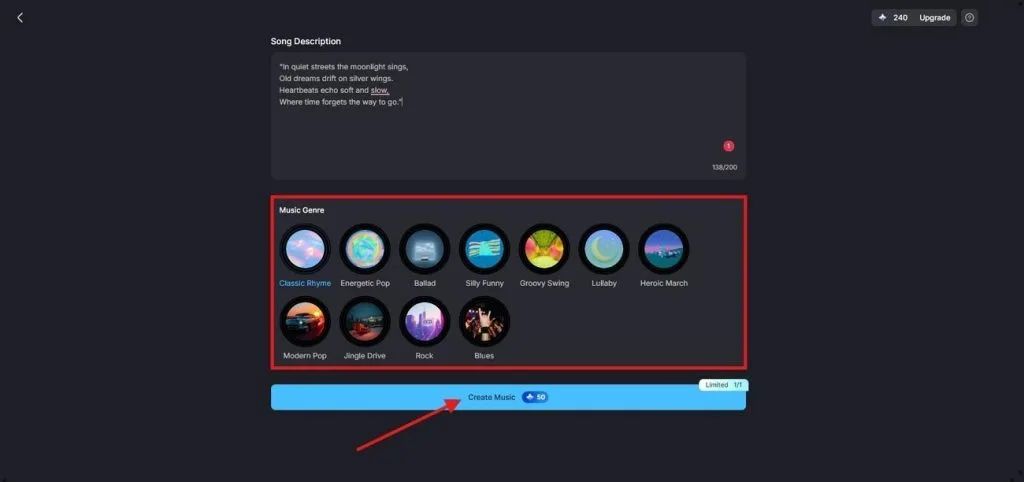
Step 3. Add Lyrics and Pick Music Genre
Enter your lyrics or Song Description inside the available prompt box. Then, select the Music Genre preset matching your track and click Create Music to generate it.
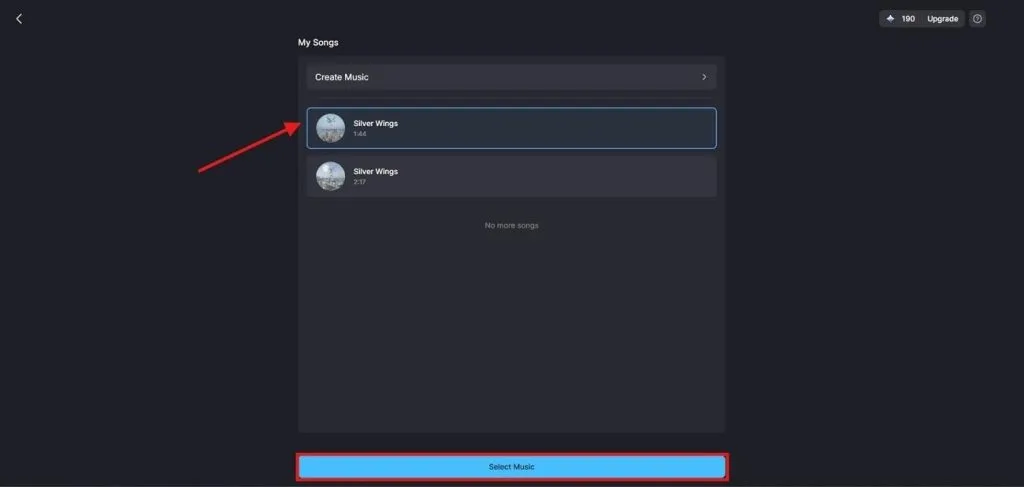
Step 4. Choose Your Generated Track for Video
Once your music is ready, open My Songs and review the generated track options. Select the version you prefer and click Select Music to use it for your video.
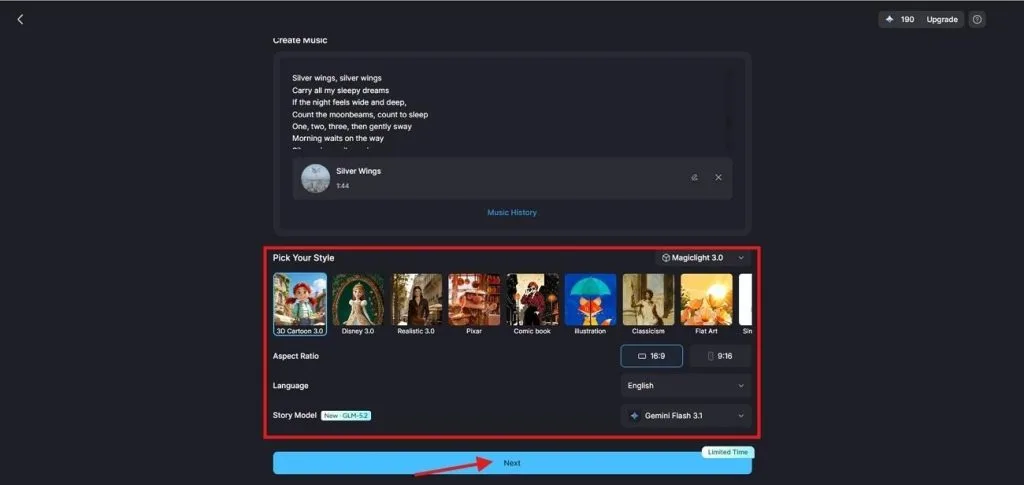
Step 5. Set Your Music Video Visual Preferences
Next, choose an AI Story Model and Visual Style that match your track. Select the Aspect ratio and Language for your audience, then click Next to generate your music video.
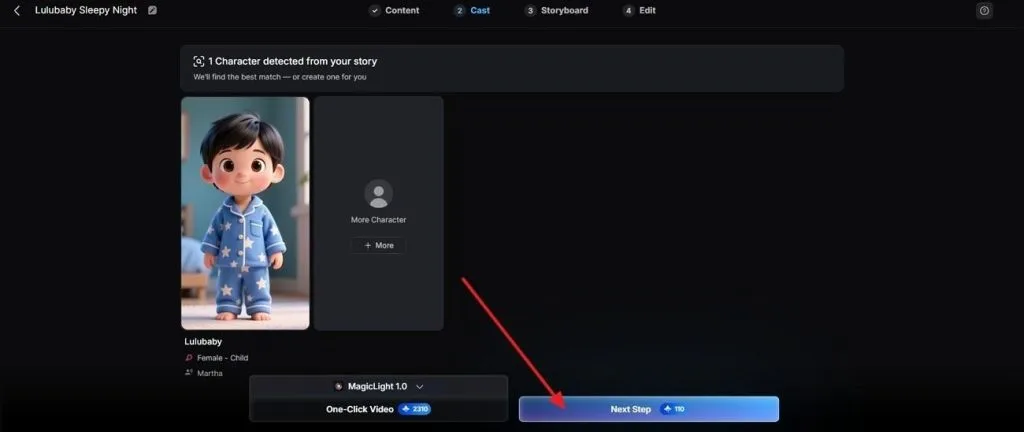
Step 6. Choose Characters Matching Your Music Video
MagicLight AI suggests characters based on your script and selected mood settings. Choose a suggested character or select More Characters for another option. Click Next Step after choosing your preferred character.
Step 7. Refine Every Scene Before Final Export
Inside the Nano Storyboard view, adjust Clothes, Poses, and Expressions wherever the visuals need improvement. Use the Voiceover Speed control to keep pacing consistent. Click Next to reach the final editing stage and download your completed music video.
Conclusion
In conclusion, choosing the best music visualizer for Spotify depends mainly on your intended use. Kauna and Plane9 suit casual listening, while projectM offers broader platform support for experimenting. Tuneform works better for artists creating polished visual assets for their music releases. For stronger music promotion, MagicLight AI turns tracks into complete narrative videos easily.
FAQs on Music Visualizer for Spotify
1.Does Spotify have a built-in music visualizer?
No, Spotify retired its old built-in visualizer for listeners several years ago. Canvas now lets artists add short looping clips behind their tracks on Spotify.
2.Is there a free music visualizer that works with Spotify?
Several free options include projectM, Plane9, Kauna, and browser-based MusicArt.ai for visualizing music. Tuneform also works for free, but exported videos include watermarks without a paid plan.
3.What is the best Spotify visualizer for PC gaming setups?
Plane9 works well as a music visualizer for Spotify PC setups with monitors. It supports screensavers, video recording, multiple monitors, and scene chaining during longer sessions.
4.Do Spotify visualizers work with a free Spotify account?
Desktop visualizers read system audio directly, so Spotify subscription levels make no difference. However, advertisements between songs on free Spotify accounts will also trigger responsive visuals.
5.Can MagicLight AI generate a video directly from a Spotify link?
MagicLight AI cannot create videos directly using only a Spotify track link currently. Upload your audio file or generate music by selecting a genre inside MagicLight AI.


![How to Write a Script for a Short Film in 2026 [Beginner’s Guide]](https://magiclight.ai/wp-2/wp-content/uploads/short-film-screenplay-writing-guide-300x169.webp)