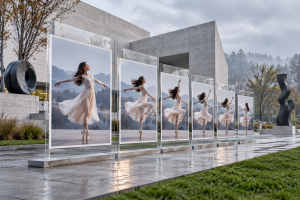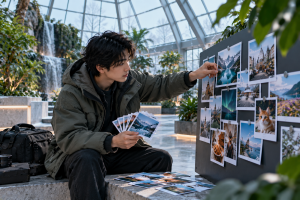
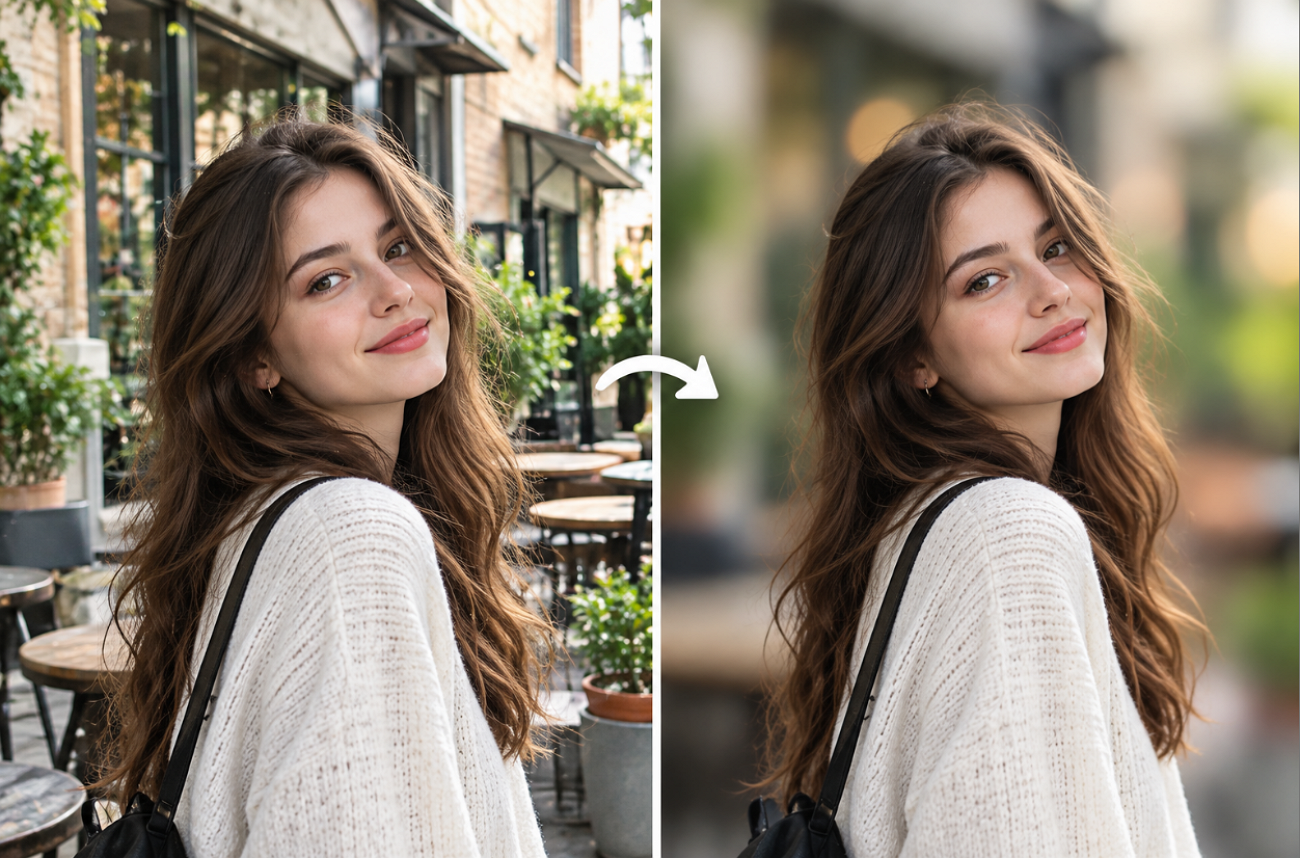
Clutter behind a subject, such as a busy street or a crowd of strangers, can weaken a strong photo. Learning how to blur the background of a photo turns that backdrop into soft color, drawing the eye straight to the subject.
Phone editors, free web tools, and desktop apps all handle the job in a few taps or clicks. MagicLight AI and similar AI editors go a step further, blurring the background from a written instruction instead of a brush or mask.
Part 1. How to Blur the Background of a Photo in Simple Steps
Background blur follows a similar process across phone, desktop, and online photo editors. If you are learning how to blur the background in a photo, the 5 points below cover the process from selecting your image to refining the final blur:
- Pick a Photo With Separation: Subjects standing well in front of the background blur more convincingly, and the subject itself must already be in sharp focus.
- Select the Subject: Let the editor detect the person, pet, or product automatically, or paint a mask around it by hand.
- Choose the Blur Type: Lens blur mimics optical bokeh, turning bright points into soft discs, while Gaussian blur spreads an even, smooth haze.
- Set Strength and Falloff: Start with moderate blur, then soften the transition so the background grows blurrier with distance, as it does through a lens.
- Check Edges and Save a Copy: Zoom in on hair, glasses, and fingers for halos, then export a new file so the original stays untouched.
Key Features of MagicLight AI
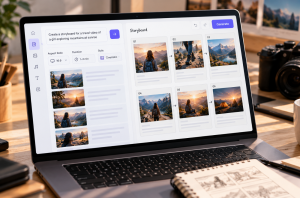
Most editors rely on sliders and masks when showing how to blur the background of a photo. MagicLight AI instead lets users describe the change they want in plain language. Beyond MagicLight Agent and Story to Video, its Toolbox Image tab provides several features for editing and refining still images:
- Plain-Language Focus Control: In a 500-character prompt, a single sentence names the subject to keep crisp and how far the backdrop should soften.
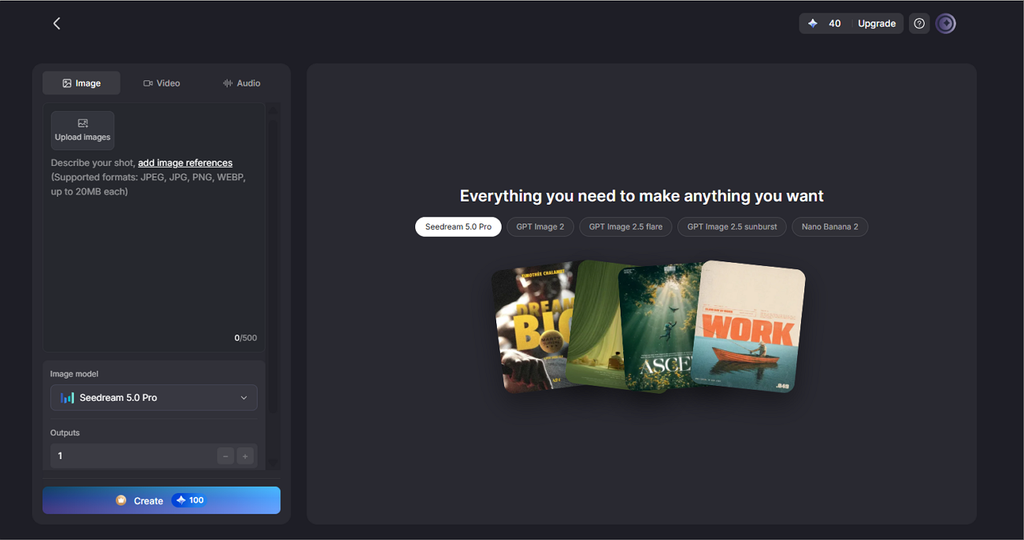
- Up to 10 References: The original photo sits beside sample portraits that show the desired bokeh, giving the model a look to match.
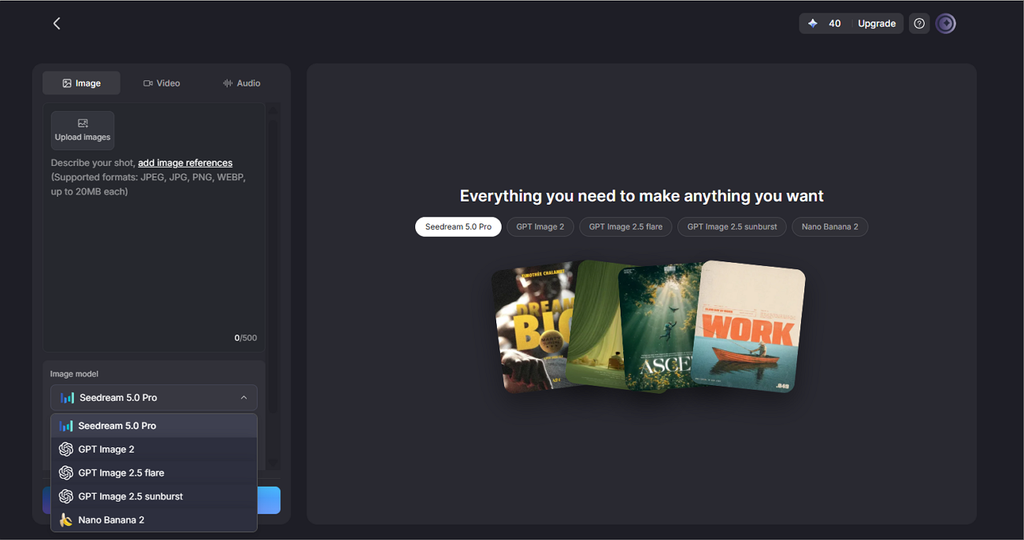
- Multiple Image Models to Try: Offers 5 image models, so if one model smudges hair into the backdrop, the prompt can rerun on Nano Banana 2, Seedream, or a GPT Image model.
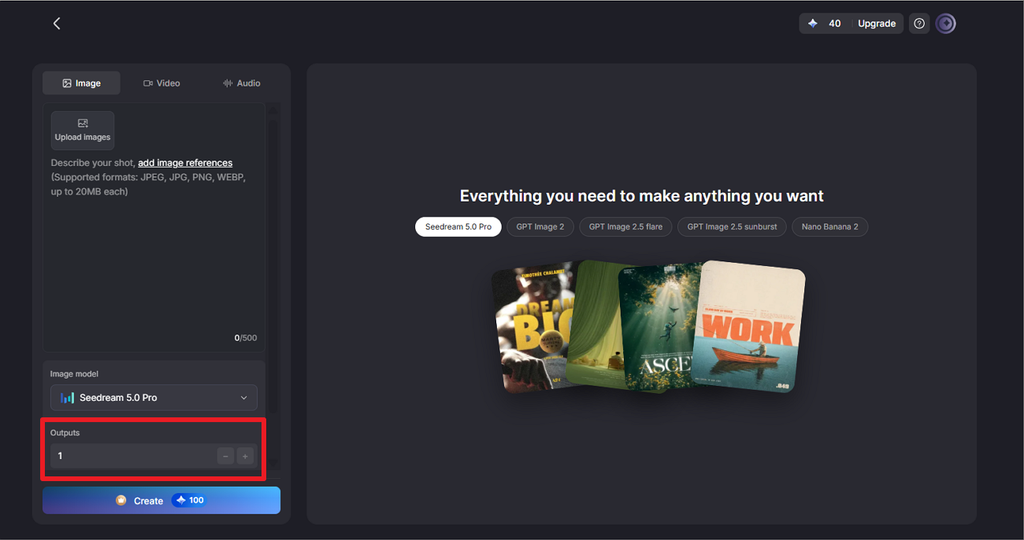
- Several Takes per Run: A higher Outputs number delivers multiple versions together, making the cleanest subject outline simple to pick.
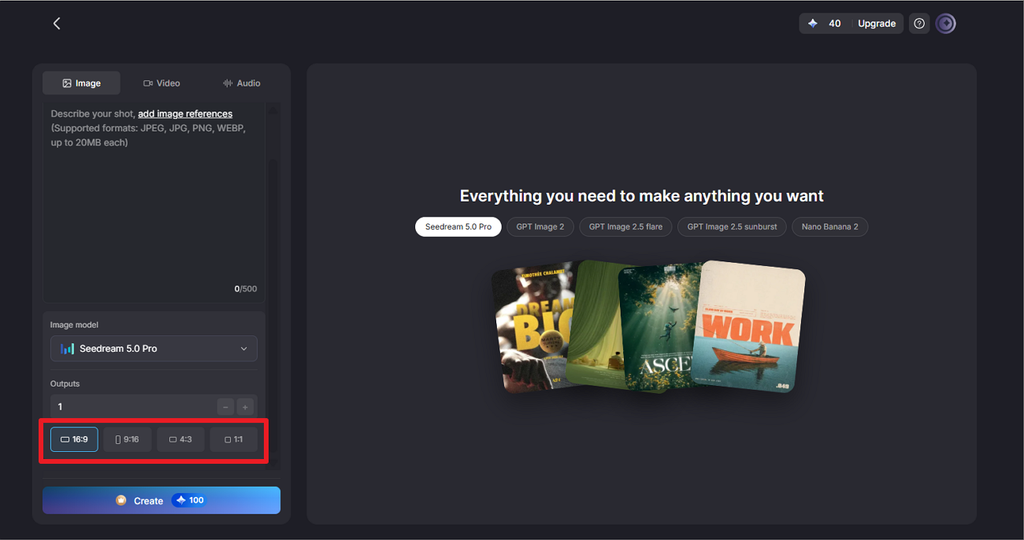
- Different Aspect Ratios Option: Frames come in 9:16 for Stories, 16:9 for thumbnails, 4:3 for prints, and 1:1 for profile photos.
Guide on How to Blur the Background of a Photo With MagicLight AI
Learning how to blur the background of a picture in MagicLight AI starts with a clear prompt for focus and blur strength. The process is straightforward once you know where to begin. Follow the steps below to apply the effect while keeping the main subject clear:
Step 1. Open the Image Tool and Upload Your Photo
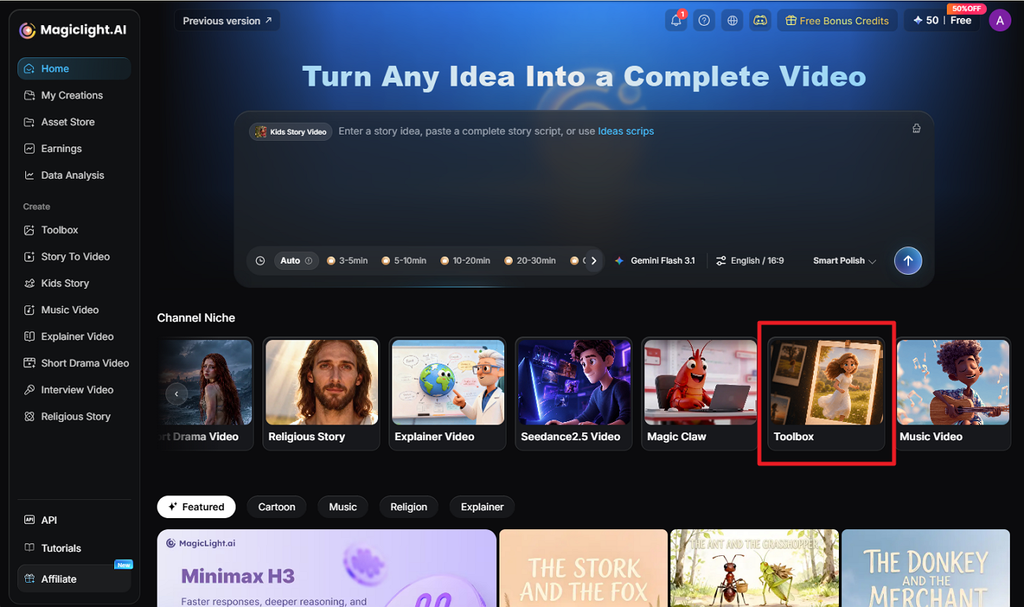
Go to the MagicLight AI home page and select Toolbox under Channel Niche. Open the Image tab, then click Upload images to add the photo you want to edit. Upload the original image, since better source quality helps preserve details around the subject.
Step 2. Describe the Background Blur
Enter a prompt explaining which area should appear blurred and what should remain sharp. Choose any image model such as Nano Banana 2 or Seedream 5.0 Pro from the available options. Set the output and aspect ratio, then click Create.
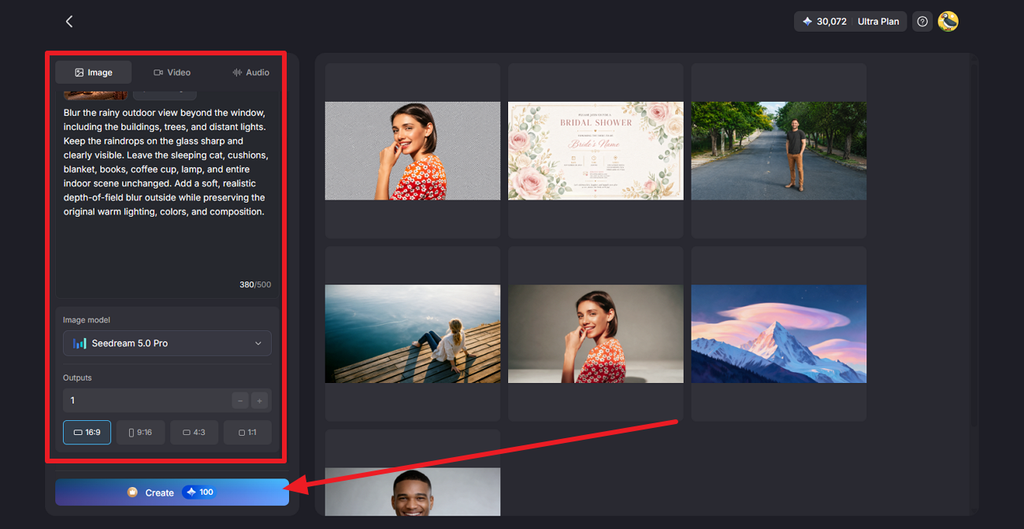
Step 3. Check and Download the Blurred Photo
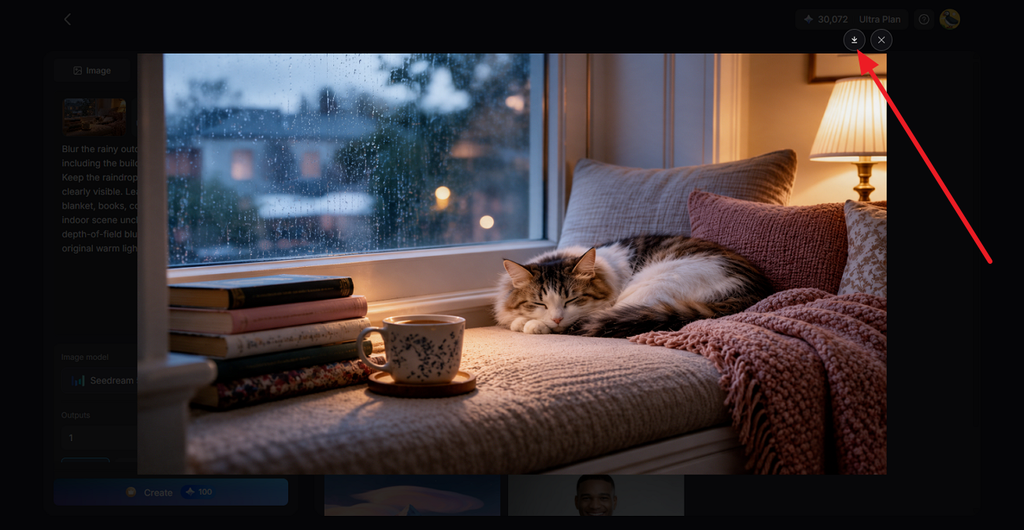
Open the generated results and check whether the subject remains sharp against the softened background. Look closely around hair, faces, clothing, and other detailed edges for unwanted changes. Compare the available versions, select the most natural result, and click the Download icon to save it.
Part 2. Why Use MagicLight AI to Blur Photo Backgrounds
Basic editors can blur one photo quickly, but repeated editing often calls for more control and flexibility. For anyone searching how to blur backgrounds in pictures for regular content, the points below explain the main reasons to use MagicLight AI for photo editing:
- Prompt-Based Background Blur: Written instructions remove the need to trace difficult edges around hair, fingers, glasses, and clothing manually.
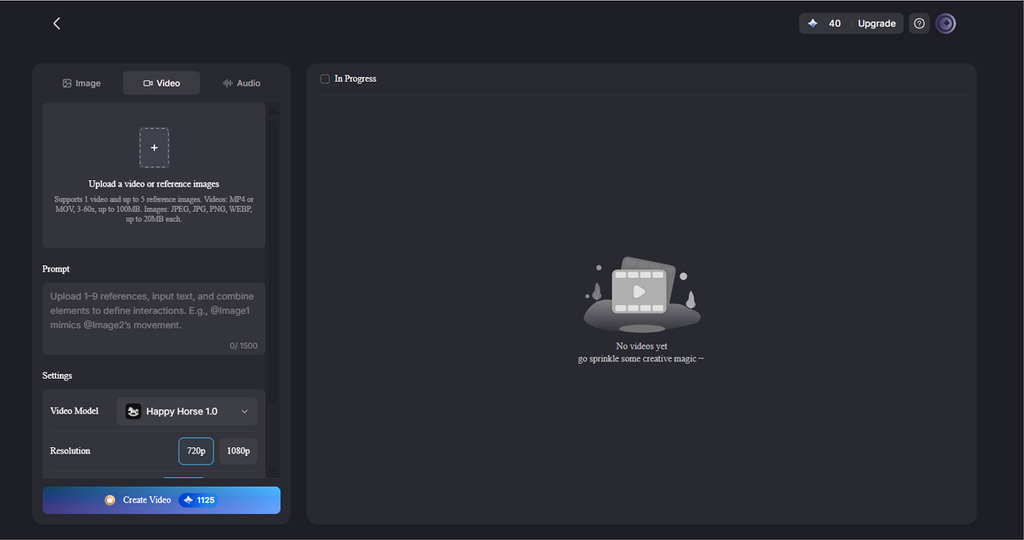
- Turn Photos Into Videos: Image to Video can animate the finished portrait with 1500 characters, while subtle camera movement adds depth to the softened background.
- More Edits in One Prompt: The same request can remove unwanted objects or adjust lighting while applying the background blur.
- Consistent Blur Across Photos: Reusing a prompt helps maintain similar blur strength across headshots, product photos, or related images.
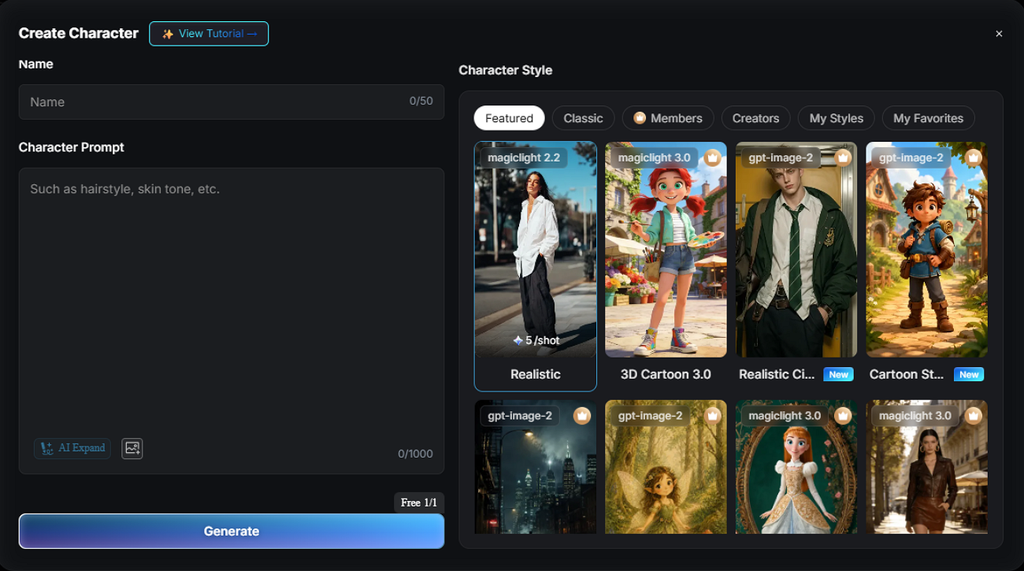
- Create Avatars From Portraits: The AI Avatar Generator can turn the same portrait into an avatar with realistic, 3D cartoon, or anime styling with a 1000-character prompt.
- Start Free, Upgrade for Commercial Use: Sign-up credits require no payment card, while paid plans include commercial rights for client and brand projects.
Conclusion
The basics of how to blur the background of a photo rest on a sharp subject, the right blur type, and clean edges. Options like Snapseed, Canva, GIMP, and built-in phone editors handle quick edits at no cost. For prompt-based control over blur strength and subject focus, MagicLight AI adds 5 image models and side-by-side versions to compare.
FAQs About Blurring the Background of a Photo
1. How do I blur the background of a picture?
Many phone and desktop editors include a portrait or background blur tool that detects the subject automatically. Drag its strength slider until the backdrop softens, then save a copy. MagicLight AI offers another route, blurring the background from a short written prompt.
2. How can I blur the background in a photo without Photoshop?
Several free tools skip Photoshop entirely, starting with Snapseed’s Lens Blur, which adjusts Blur Strength and Transition on a phone. GIMP’s Focus Blur filter applies Gaussian or lens-style blur on a desktop, and Canva’s Auto Focus effect runs in any browser.
3. Can I blur the background of a picture for free?
Built-in tools in iPhone Photos, Google Photos on Android, and Windows 11 Photos blur backgrounds at no cost. Browser users typing “how to blur background on picture” can turn to Canva’s free Auto Focus effect. MagicLight AI also offers free sign-up credits for prompt-based edits.
4. How do I make a photo background look naturally blurred?
Real lenses blur backgrounds gradually, and a natural edit copies that. At capture, a wide aperture like f/1.8, a longer lens, and extra distance behind the subject all help. When editing, choose lens blur, soften the transition, and add slight grain to match the subject.
5. What is the best AI tool for blurring a photo background?
MagicLight AI stands out for background blur because one written instruction defines the subject, the blur strength, and any extra focus effects. The 5 image models and several outputs per run make comparison quick, and Image to Video puts the finished portrait in motion.