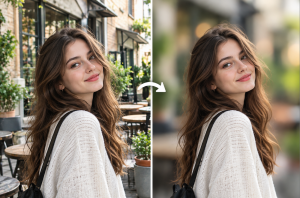
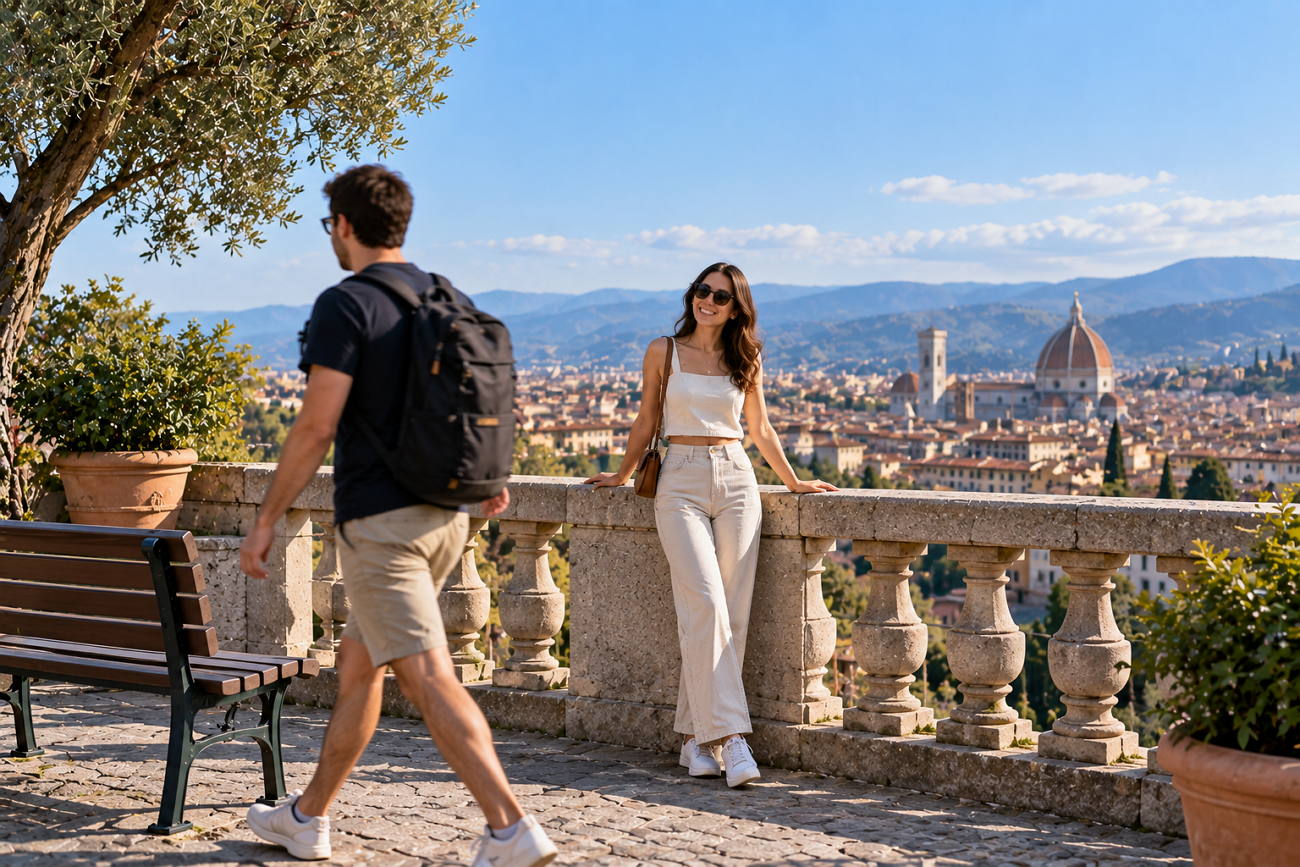
Great photos can lose their appeal when an unwanted person appears somewhere in the frame. That problem becomes frustrating when the background and other important details look nearly perfect. For edge distractions, understanding how to crop someone out of a photo starts with basic cropping.
People standing centrally may be better handled with AI removal, clone, healing, or other object-removal tools because cropping can cut important details away. MagicLight AI offers another option by removing unwanted people through a simple written prompt. This guide covers these methods and practical tips for creating clean, natural-looking photo edits.
Part 1. How to Crop Someone Out of a Photo
Cropping works near photo edges, while AI removal handles people standing deeper inside scenes. To learn how to crop someone out of a picture, both methods offer different editing options.
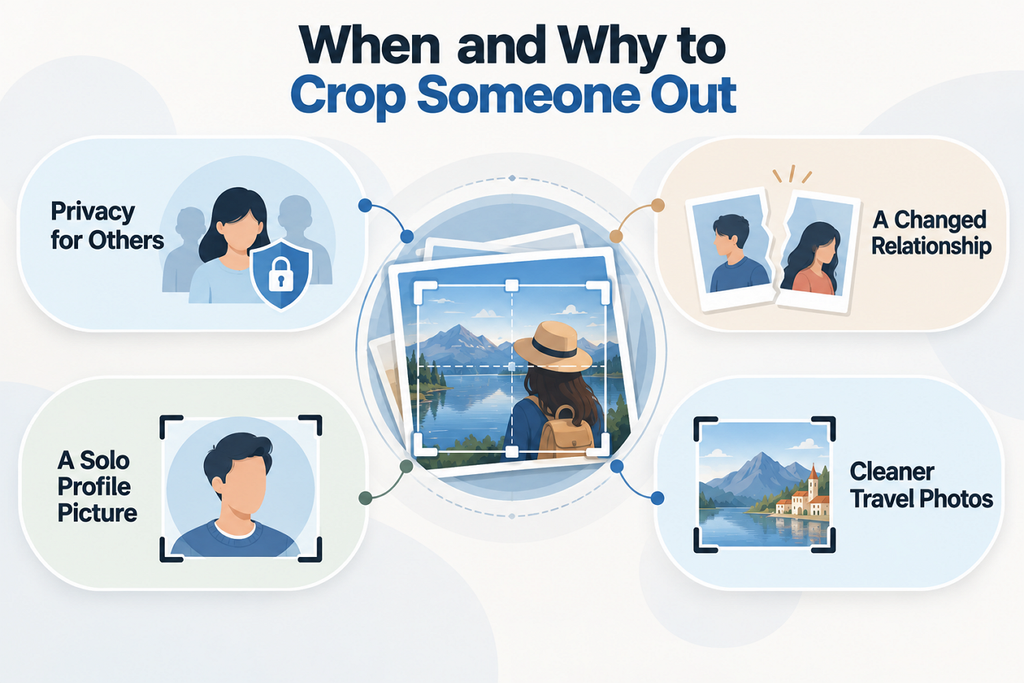
When and Why to Crop Someone Out
People remove someone from photos for privacy, personal reasons, and better composition. Now, let's look at common situations where removing someone makes sense:
- Privacy for Others: Strangers in public photos may not want their faces shared online. Cropping them out protects privacy before posting pictures on social media.
- A Changed Relationship: Old photos can still matter after friendships or relationships have ended. Removing one person lets you keep the memory without deleting everything.
- A Solo Profile Picture: A group photo may contain your best expression, pose, or lighting. Cropping others away can turn that shot into your profile picture.
- Cleaner Travel and Listing Shots: Tourists can block landmarks and make travel photos feel overly crowded. Removing them keeps attention on the place you actually photographed.
Simple Ways to Remove a Person From a Picture
The person's position and surrounding background help determine which editing method works best. When learning how to remove a person from a photo, consider what needs replacing afterward. Look at the table below to compare each method, purpose, and available editing tools:
| Method | Best For | Tools to Try |
| Crop Tool | People standing near the edge of a photo | Built-in photo editor on phones or computers |
| Built-In AI Eraser | Photobombers or small people in the background | Clean Up, Magic Eraser, Generative Erase |
| Layer-Based Editing | Detailed backgrounds requiring more manual editing control | Photoshop or GIMP with clone and healing tools |
| Prompt-Based AI | Large, central, or multiple people in one photo | MagicLight AI Image Generator |
Key Features of MagicLight AI
MagicLight AI edits images using written prompts containing up to 500 characters for instructions. Someone learning how to crop someone out of a photo can describe unwanted people. Its Image to Video tool creates videos using up to 5 reference images. Both tools make visual editing easier without requiring advanced photo or video editing experience.
- Background Rebuilding: AI rebuilds missing backgrounds after unwanted people are removed from photos. Walls, skies, streets, and scenery blend naturally into the cleared area.
- Reference Shots: Upload up to 10 reference images for more controlled visual editing. Extra images help AI understand characters, locations, objects, and background details.
- Image Generation Engines: Choose from 5 image engines, including Nano Banana 2 and GPT Image. Switch between engines when removing people around complex clothing, hair, or backgrounds.
- Built-In Reframing: Pick from 4 output shapes to reframe images for different platforms. Square and vertical formats work well for profiles, posts, or Stories.
- Story to Video: Turn written text into detailed stories with consistent characters and scenes. Create complete videos lasting up to 50 minutes from developed stories.
Guide: How to Crop Someone Out With MagicLight AI
MagicLight AI removes unwanted people from photos while rebuilding the empty background naturally. Follow the steps below to see how to remove a person from a photo using MagicLight AI:
Step 1. Open the Image Generation Workspace
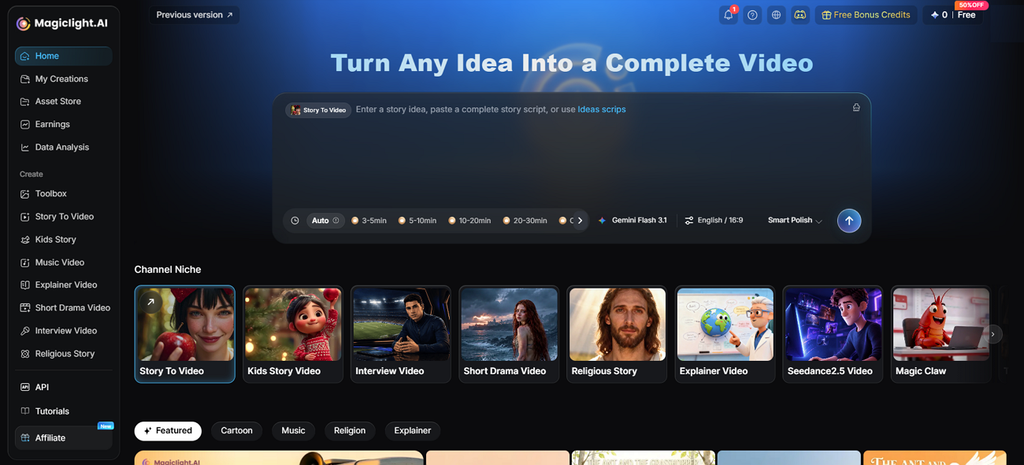
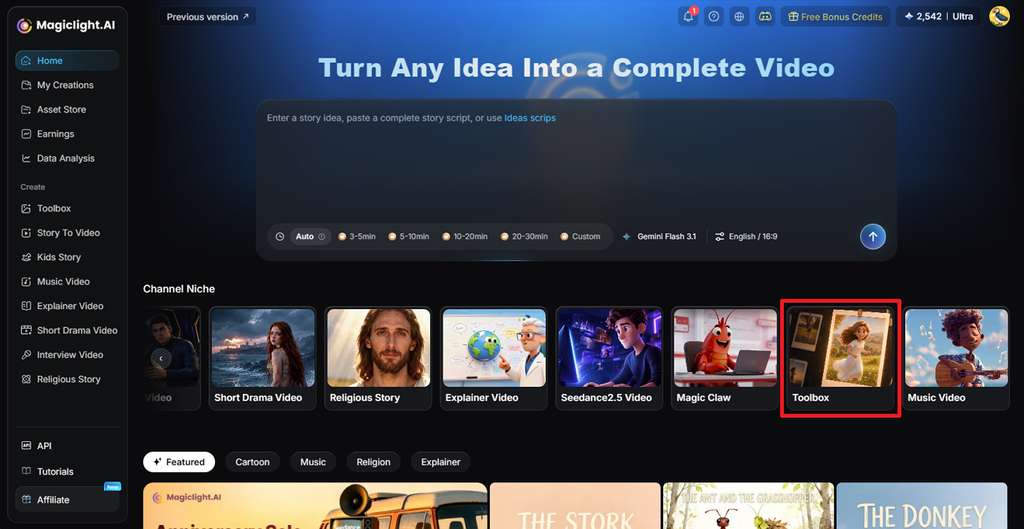
Once you enter the MagicLight AI main interface, press Toolbox from the main interface. Select Image to enter the image generation workspace and begin your edit.
Step 2. Upload and Edit Your Photo
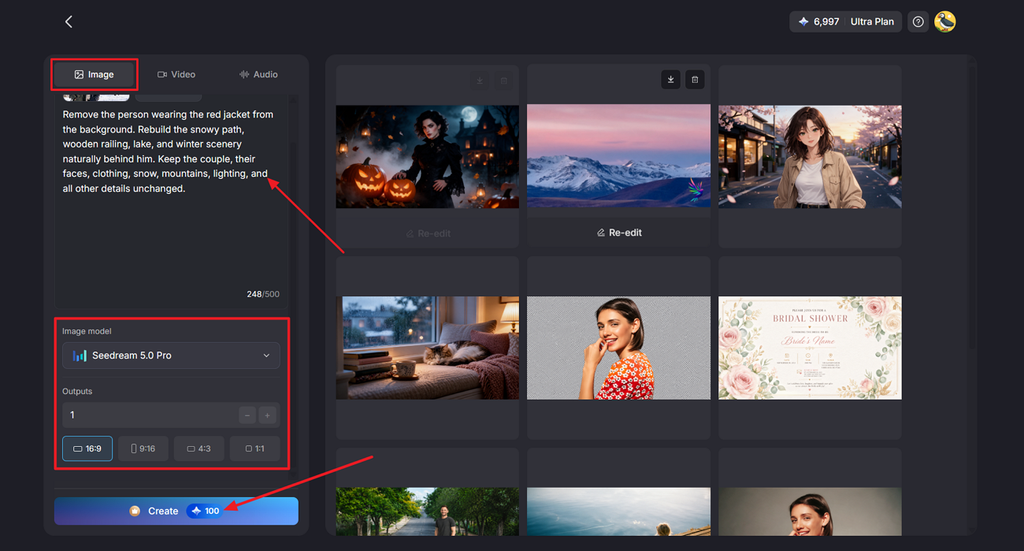
Add the photo containing the person you want to remove as your reference image. Write a prompt telling MagicLight AI which person to remove while keeping the remaining scene unchanged. Select your preferred Image Model, Outputs, and Aspect Ratio, then press Create.
Step 3. Check and Save the Result
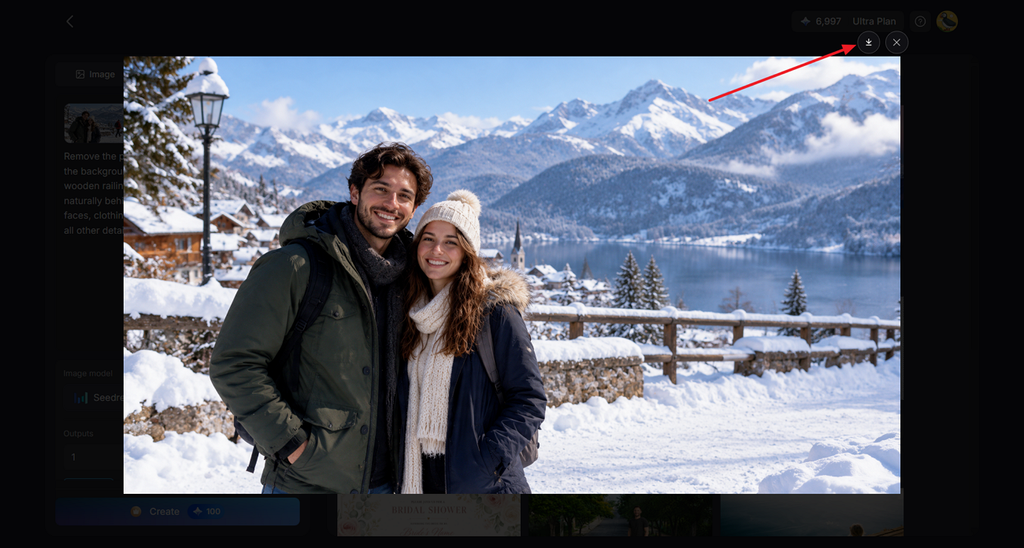
Review the new image to make sure the person is gone and the background looks natural. Generate another version if needed, or press the Download icon to save the final image.
Part 2. Tips for Getting a Clean Crop
Clean edits depend on more than simply removing the unwanted person from your photo. If you are wondering, “How do I crop someone out of a picture?” naturally, these tips can help:
- Save a Copy: Keep the original photo untouched, so you can start again if something looks wrong later.
- Look Around the Edges: Check for hands and clothing still showing near the edges after cropping someone.
- Check Shadows: Look for shadows or reflections left behind after removing someone from the original photo.
- Use the Original File: Start with the original image, as screenshots lose detail and become blurry after cropping.
- Fix Empty Space: Adjust the crop when removing someone leaves too much empty space beside your main subject.
- Zoom Into the Background: Check rebuilt walls, floors, fences, or skies for strange lines and repeated patterns after editing.
- Think Before Editing: Avoid removing people when the change could give viewers a false idea about what happened.
Conclusion
In summary, understanding how to crop someone out of a photo depends entirely on their position. Basic cropping works near edges, while AI removal handles people standing within busy backgrounds better. MagicLight AI removes unwanted people through prompts while rebuilding the missing background around them. You can also animate a cropped image afterward to create a more engaging video clip.
FAQs About Cropping Someone Out of a Photo
- How do I crop someone out of a picture?
Open your photo editor, select Crop, then move the edges past the unwanted person completely. Use an AI removal tool instead when that person stands near the photo's center area.
- What is the easiest way to remove a person from a photo?
Built-in AI erasers offer a simple option for removing small people from photo backgrounds quickly. When learning how to remove a person from a photo, MagicLight AI provides prompt-based editing options.
- Can AI remove unwanted people from pictures?
AI can erase unwanted people and rebuild the missing background using surrounding image details naturally. Simple backgrounds usually produce cleaner results, while detailed scenes may require another editing attempt afterward.
- What is the best AI tool for removing someone from a photo?
MagicLight AI removes unwanted people by following written prompts describing exactly what should disappear. Its image models and reference support provide more control when editing difficult or crowded scenes.

![How to Create a TikTok Video for Beginners [2026 Guide]](https://magiclight.ai/wp-2/wp-content/uploads/tiktok-video-creation-guide-300x169.png)
![How to Blur Faces in Photos Like a Pro [2026 Guide]](https://magiclight.ai/wp-2/wp-content/uploads/blur-faces-in-photos-with-ai-300x198.png)