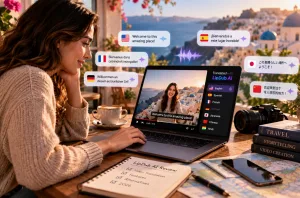
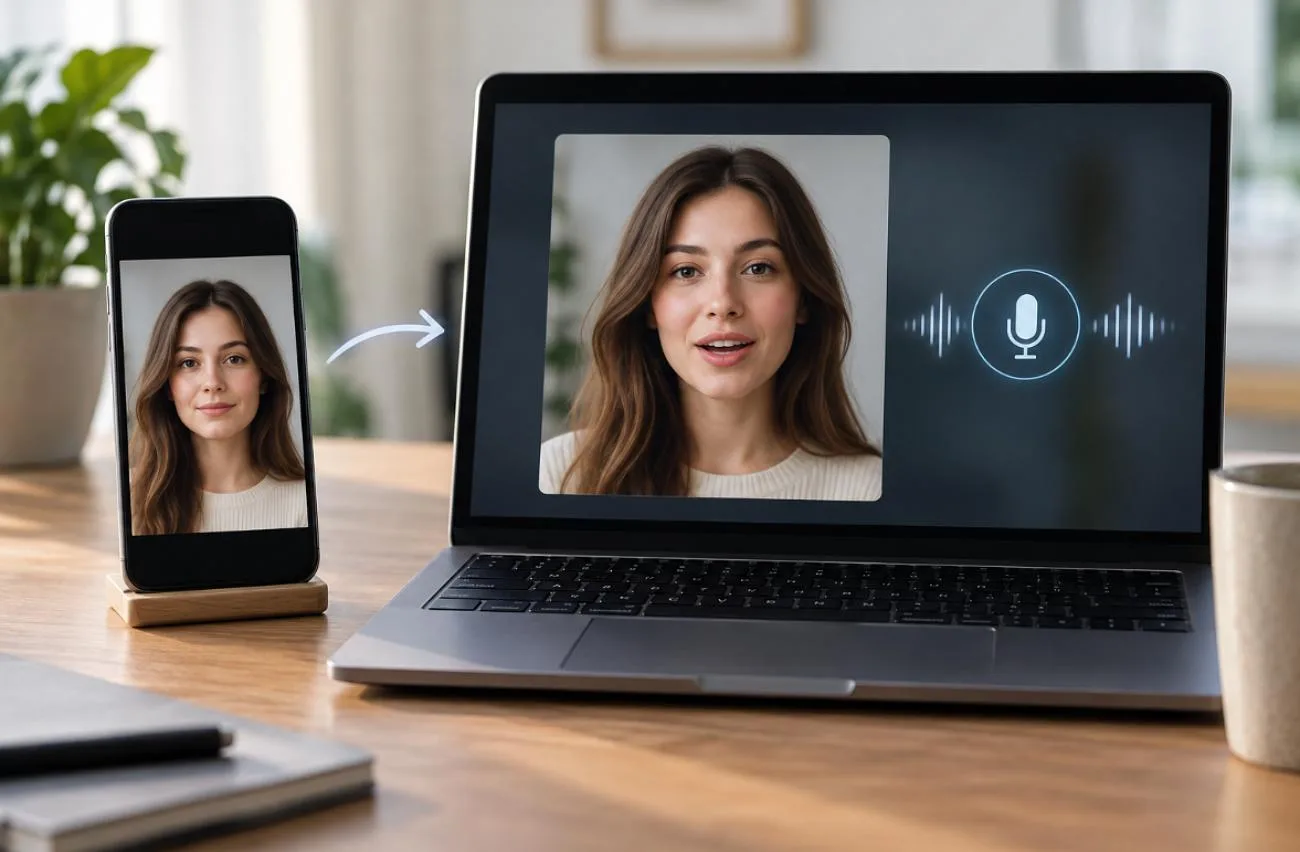
A talking picture combines a still photo with recorded or generated speech, making the person appear to speak the supplied words. Traditional methods required artists to animate facial movements manually, but AI has made it much faster to make a picture talk by generating movements from audio.
The quality of the photo, script, voice, and animation tool all affect the final result. Once these elements are ready, how to make a picture talk becomes a straightforward process that can be repeated with different photos and dialogue.
Part 1. What Do You Need to Make a Picture Talk?
The setup behind how to make a picture talk is simple and does not require animation experience. You need a suitable image, dialogue, a voice, and an AI tool that combines them. The table below explains what each element does and what generally produces better results:
| What You Need | What It Does | What Works Best |
| A Photo | Provides the face to animate | Clear, well-lit, mostly front-facing |
| AI Talking Photo Tool | Generates facial and mouth movement | Accurate lip sync and natural facial motion |
| Script or Text | Provides the spoken dialogue | Clear, concise, conversational sentences |
| AI Voice | Supplies the speech audio | Clear audio suited to the character |
| Basic Editing | Prepares the video for publishing | Captions, trimming, and correct aspect ratio |
For anyone learning how to make a picture talk, the source image is an important place to start. A clear face gives the AI more visible facial information to work with and can reduce unwanted distortions during animation. Check these details before uploading the image:
- Use a front-facing or slightly angled image where both eyes and the entire mouth are clearly visible.
- Keep hands, hair, masks, sunglasses, and other objects away from the eyes and mouth.
- Choose a sharp, evenly lit photo instead of a blurred, low-resolution, or heavily filtered image.
- Start with a neutral or moderately expressive face rather than an extreme expression that may be harder to animate naturally.
- Illustrations and cartoon characters can also work when the eyes, mouth, and other facial features are clearly defined
The script matters as well. Short, conversational sentences are easier to follow and suit brief talking-photo videos. At an average speaking rate of about 150 words per minute, 30 seconds of speech contains roughly 75 words, although the exact amount varies with speaking speed.
AI talking-photo tools typically analyze the speech and generate corresponding mouth movements. In animation terminology, visible mouth shapes associated with speech sounds are called visemes. Depending on the tool, it may also generate additional facial movement such as blinking, expressions, or small head motions. Clear, well-paced audio can make the final animation look more natural.
Note: Use photos you own or have permission to animate. When depicting a real person, make it clear when the resulting speech or video is AI-generated if viewers could otherwise mistake it for an authentic recording.
Part 2. How to Make a Picture Talk With AI
For a single photo, MagicLight AI Image to Video is the most direct way to make a picture talk. The tool supports facial movement, lip sync, and voice-based output, making it a practical option for talking portraits. It also provides 20 AI video models, including Kling 3.0 and Seedance, with prompting options up to 1500 characters.
For larger projects, MagicLight AI also offers MagicLight Agent at the start of the workflow. Users can begin with a chat, then develop the idea into a script, storyboard, production plan, and final video. The Agent can suggest formats such as Short Drama or Interview Videos, write dialogue-driven scenes, and prepare character visuals and voice assets before generation.
Key Features of MagicLight AI
- Portrait Animation: MagicLight AI detects facial landmarks automatically, then adds blinking, head tilts, and small expressions without distorting the original features.
- Multiple Reference Assets: Upload up to 30 images, 10 videos, and 10 WAV/MP3 audio files to provide visual and audio references for one generation.
- Video Reference Support: Reference videos can run for 2–30 seconds, allowing existing motion or visual material to help guide the generated video.
- Lip Sync: For word-by-word timing, MagicLight AI matches mouth movement to every sound in typed text, uploaded audio, or a recording.
- Audio and Subtitle Customization: Choose from 37 AI voices or use MagicLight’s voice cloning, apply 16 subtitle styles, and select from 40 background music options to complete the video.
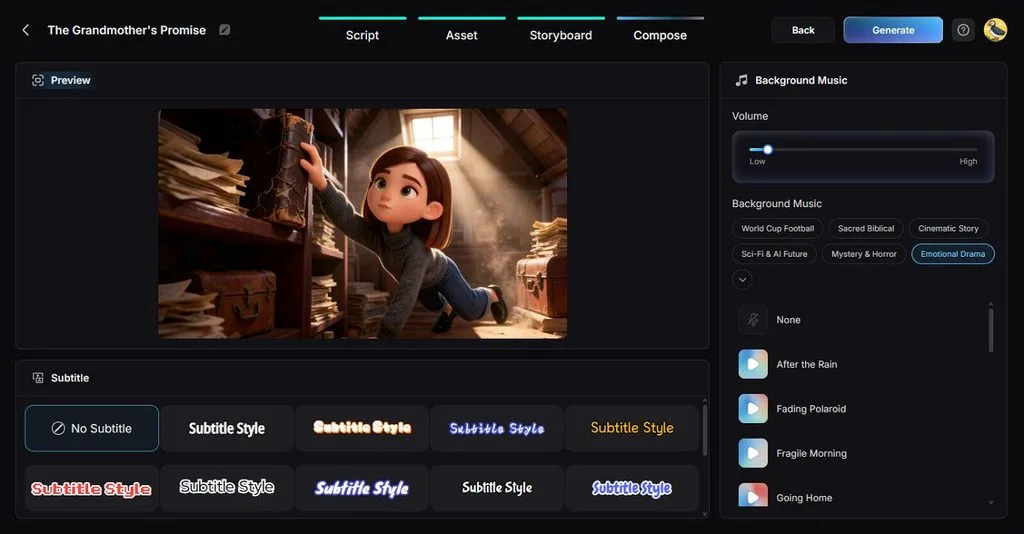
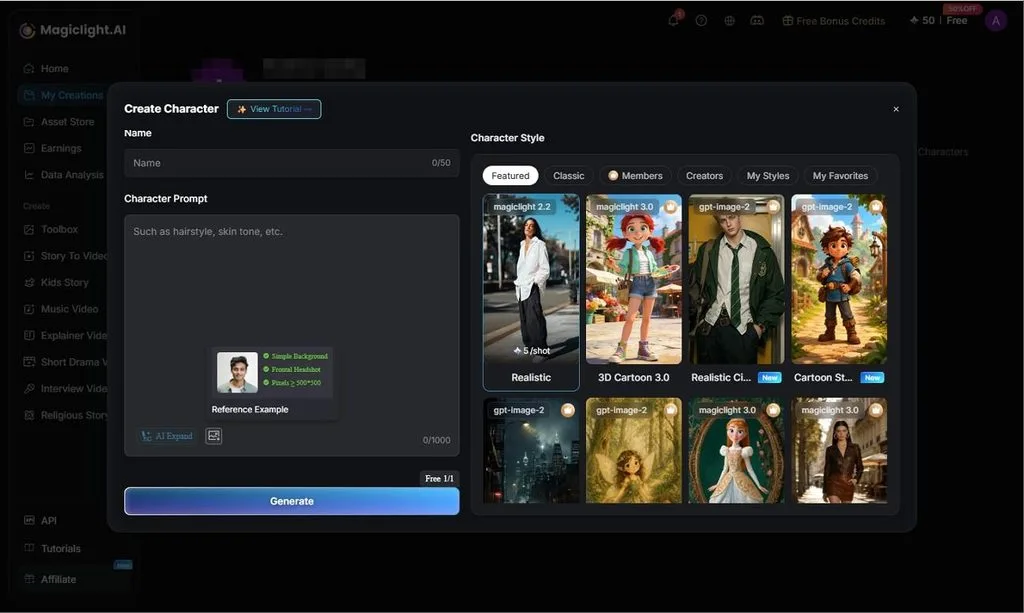
- Consistent Characters: MagicLight AI provides you with the ability to maintain characters across your videos. Create a 1000-character prompt, add a reference image, and get a character you can use in different scenes with no change.
Guide to Making a Talking Picture With Image to Video
In MagicLight AI, a “make pic talk” request moves through Image to Video from uploading the source photo to generating the finished clip. The workflow brings the main creation settings into one place, making each stage easy to follow. The steps below show how to upload, configure, generate, and export your talking picture:
Step 1. Open Image to Video
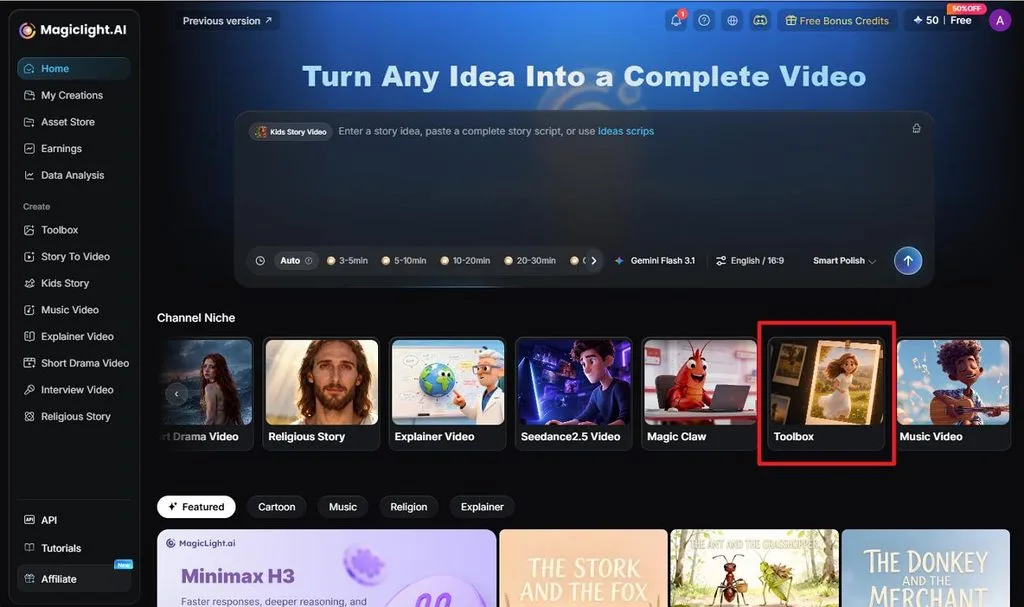
From the MagicLight AI home page, select Toolbox from the Channel Niche section. Open Image to Video to access the workspace for turning a still picture into an animated video.
Step 2. Upload the Picture and Add a Prompt
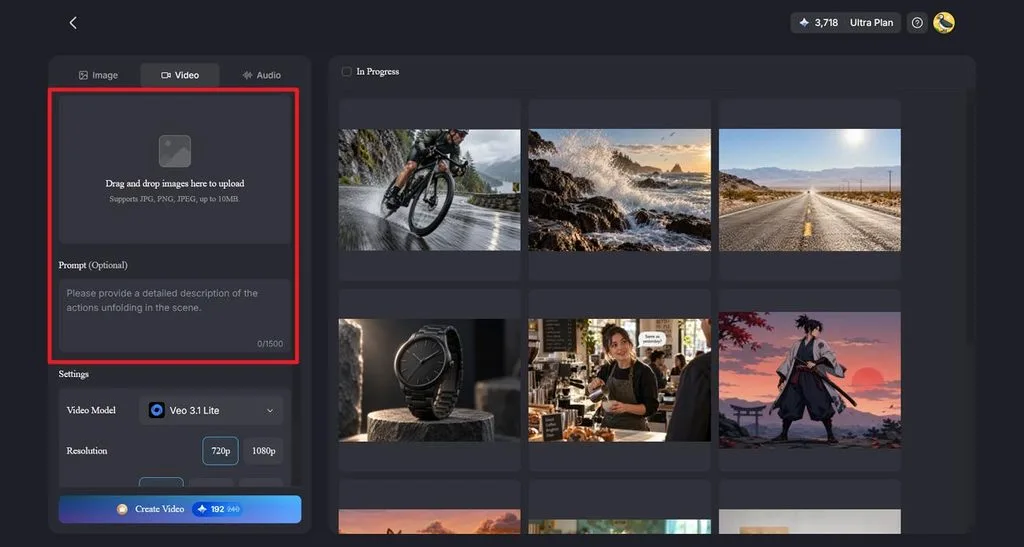
Drag and drop your picture into the upload area. MagicLight AI accepts JPG, PNG, and JPEG files up to 10MB. In the Prompt box, describe what you want the subject to do in the video, using up to 1,500 characters.
Step 3. Set the Video Options and Generate
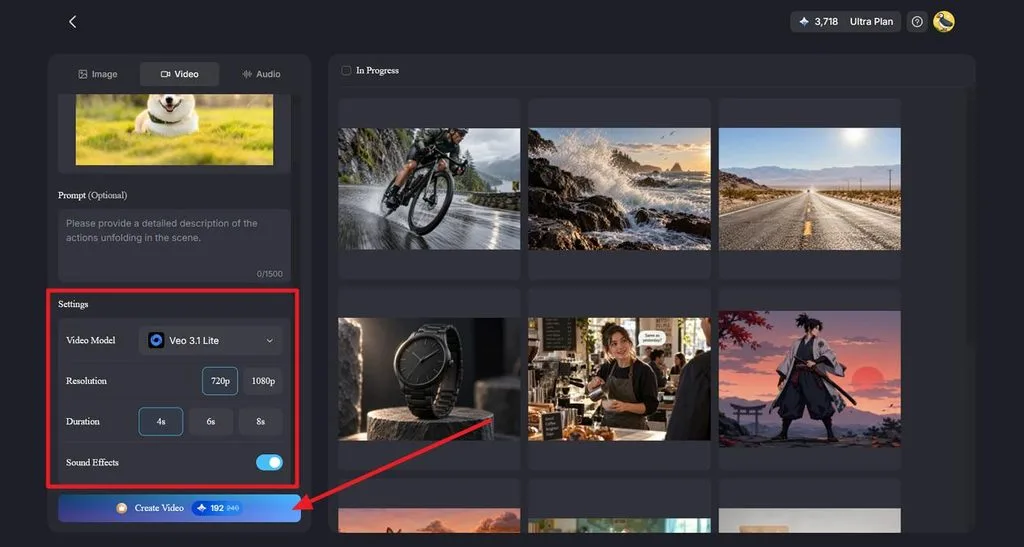
Choose a Video Model, resolution, duration, and sound effects from the Settings panel. The example uses Veo 3.1 Lite and provides 720p or 1080p resolution with 4-, 6-, or 8-second duration options. Click Create Video to generate the clip.
Step 4. Preview and Download the Video
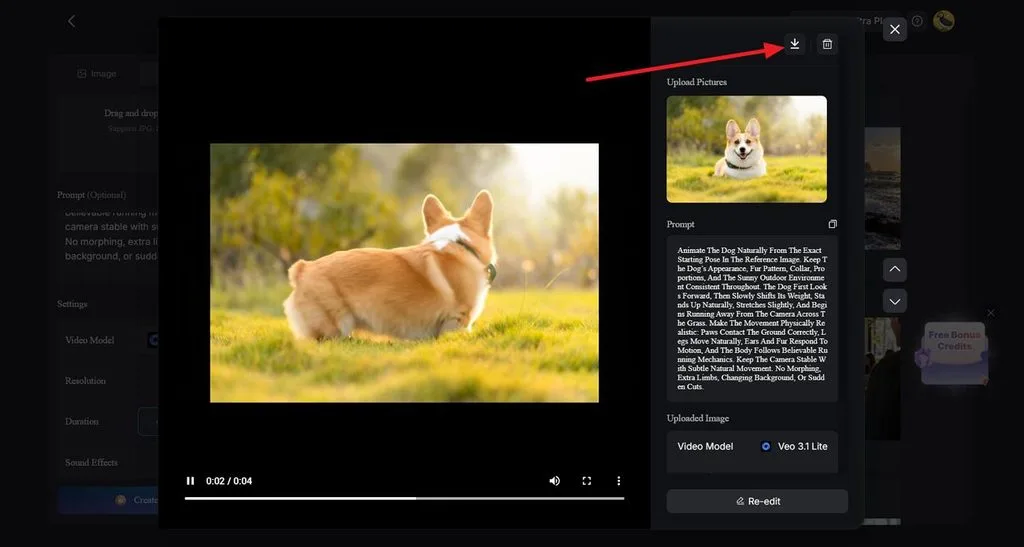
Play the generated video in the preview window and review the result. The side panel keeps the uploaded image, prompt, and selected model visible for reference. When the video is ready, click the Download icon at the top of the panel to save it.
Conclusion
Knowing how to make a picture talk no longer means animating every facial movement manually. Start with a clear image and well-paced dialogue, then let AI handle the movement and video generation. The final quality still depends on thoughtful inputs and settings. MagicLight AI is worth considering when you want to turn still photos into polished talking videos quickly.
Frequently Asked Questions
1. What AI can make a picture talk?
MagicLight AI can make pictures talk from photos, illustrations, or cartoon faces, using Image to Video for natural facial motion and narration. Its lip sync tool handles exact mouth timing when every word must match.
2. Can I make a talking picture for free?
Testing a first “make picture talk” clip costs nothing on MagicLight AI, which starts new accounts on limited free credits with no card required. Paid plans add 1080p exports without a watermark and commercial usage rights for published videos.
3. How do I make a picture talk and move?
Any good reply to “how do you make a picture talk” includes movement, since a frozen face with moving lips looks unnatural. In MagicLight AI, the action prompt handles gestures such as nodding or turning, while narration supplies the voice.