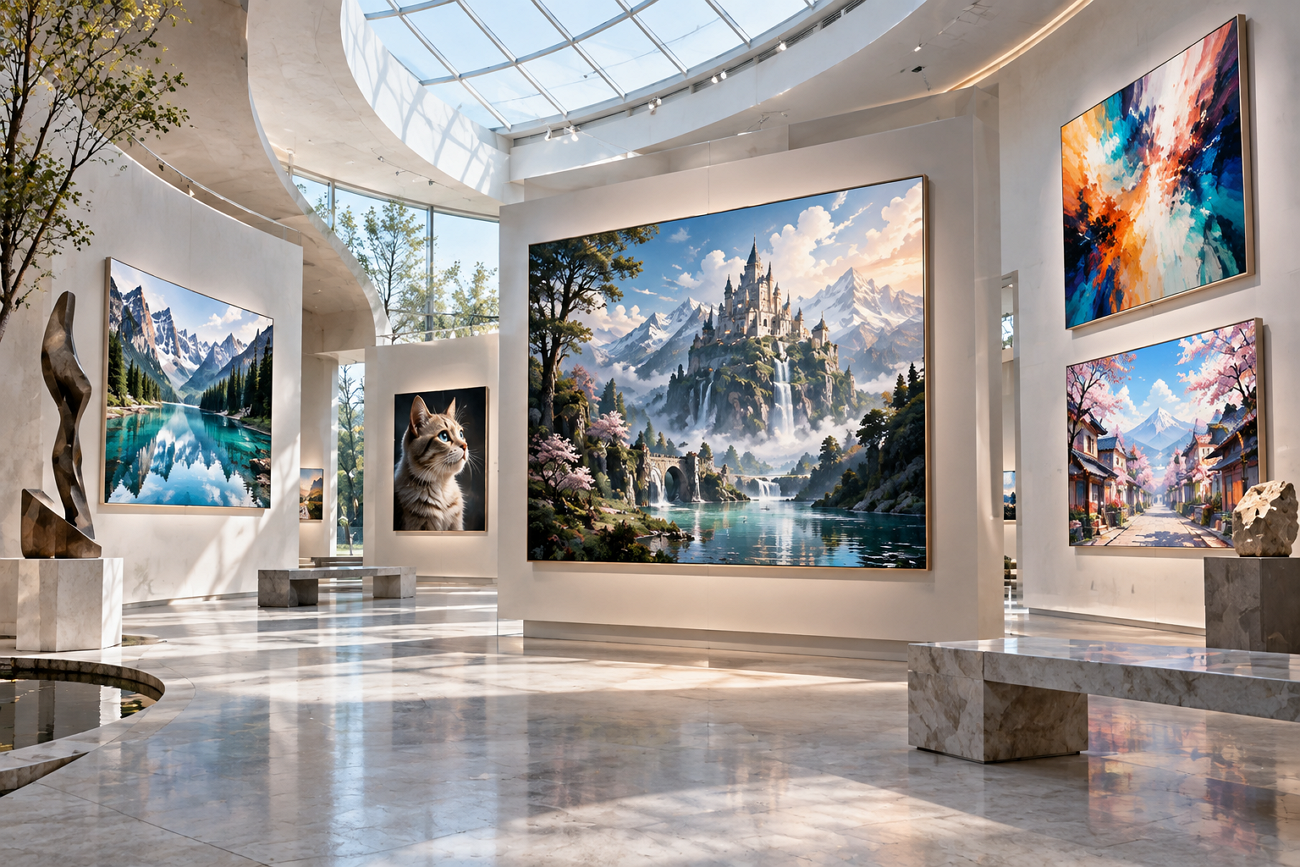
Making your own images used to take more time, effort, and design experience. AI image tools have changed this by turning written ideas into images within seconds. However, getting a good image still depends on what you tell the AI tool.
Learning how to create AI images can help you get results closer to your idea. MagicLight AI offers different image models, reference images, and controls in one creative workspace. This guide covers the process with MagicLight AI, from writing prompts to creating images.
Part 1. How to Create AI Images in Simple Steps
Most AI image tools follow similar steps, making the process easier to learn. Knowing how to create an AI image helps you work with different generators. The table below covers planning, prompting, references, settings, and refining your final image:
| Stage | What to Do | Beginner Tip |
| Plan the Idea | Pick one subject, a style, and where the image will be used | Decide the shape early, such as 9:16 for phone screens |
| Write the Prompt | Describe the subject, setting, style, lighting, and composition | Put the most important detail first |
| Add References | Upload photos of a product, face, or style to follow | Use clear, well-lit reference photos |
| Choose Settings | Select a model, the number of outputs, and an aspect ratio | Generate several versions to compare |
| Refine and Save | Change one phrase at a time and run the prompt again | Check hands, text, and edges before downloading |
Key Features of MagicLight AI
MagicLight AI keeps the main image creation tools together within one easy Image panel. It helps beginners understand how to use AI to create images without complicated steps. Let’s explore the key features that make image creation easier with MagicLight AI tools:
- Model Menu: The model menu includes 5 engines for different image generation needs. Options include 3 GPT Image releases, Seedream 5.0 Pro, and Nano Banana 2.
- Multiple Reference Uploads: Reference images can guide faces, products, styles, and other important visual details. Supported formats include WEBP, PNG, JPG, and JPEG, with a 20MB limit each.
- Batch Outputs: Batch outputs let you generate multiple image versions from a single prompt. This makes comparing different results faster before choosing your preferred final image.
- Frame Shapes: Different frame shapes help create images suited for several content formats easily. Available ratios include 1:1, 4:3, 9:16, and 16:9 for flexible image creation.
- Focused Prompt Field: The prompt field provides 500 characters for describing your desired image details. You can include the subject, setting, style, lighting, and other visual information.
How to Create AI Images With MagicLight AI
Learning how to create an AI image with MagicLight AI starts with one simple idea. Follow the steps below to generate, review, refine, and save your preferred image with ease.
Step 1. Access the AI Image Generator
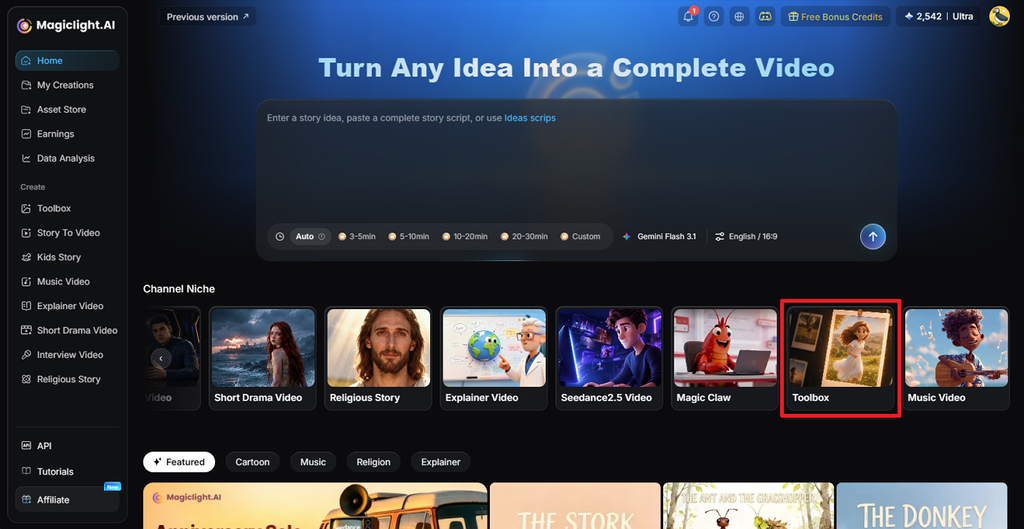
Open MagicLight AI and select Toolbox from the main screen. This takes you to the creative workspace where you can start making your AI image.
Step 2. Create Your AI Image
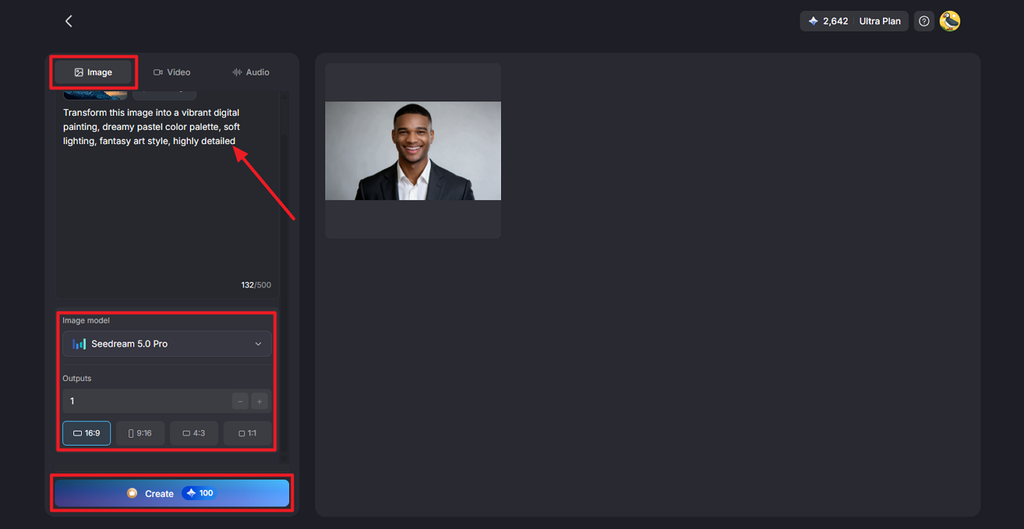
Select the Image tab and enter a prompt describing the image you want. You can also upload a reference image when needed. Next, choose an Image Model, set the Outputs, and select your preferred Aspect Ratio. Click Create to generate the AI image.
Step 3. Review and Save Your Image
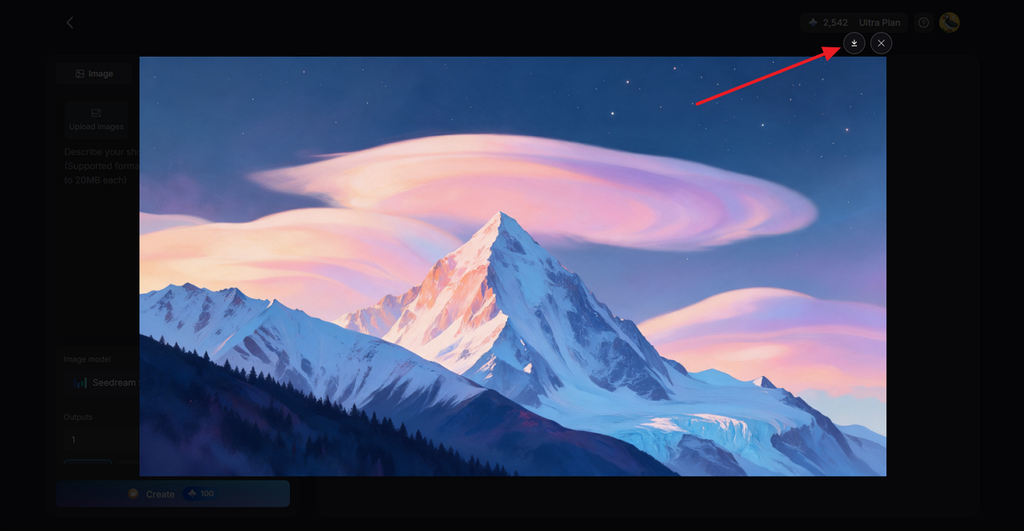
Check the generated image to see whether it matches your prompt and idea. If needed, adjust your prompt or settings and create another version. Once you are happy with the result, click the Download icon to save it.
Part 2. Why Creators Use MagicLight AI to Create AI Images
MagicLight AI gives beginners useful controls for creating images that match their creative ideas. It also makes learning how to generate AI pictures easier through simple image settings. Below are the main reasons creators use MagicLight AI for their image creation needs.
- Images Can Keep Moving
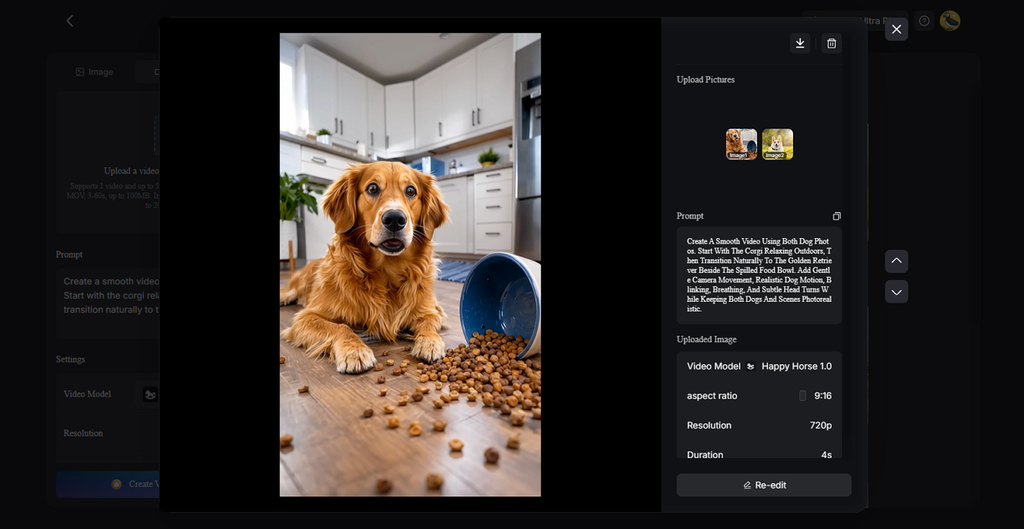
Still images can become the starting point for videos and other creative content. Image to Video can animate a generated picture, while Lip Sync can make portraits speak. This helps creators continue working without moving their content between different creative platforms.
- AI Video Models Give More Choices
MagicLight AI includes 20 AI video models for different styles and creative needs. Available options include Seedance 2.5, Kling 3.0, and several other video generation models. Creators can choose a model that better matches the video they want to produce.
- Story to Video Handles Longer Projects
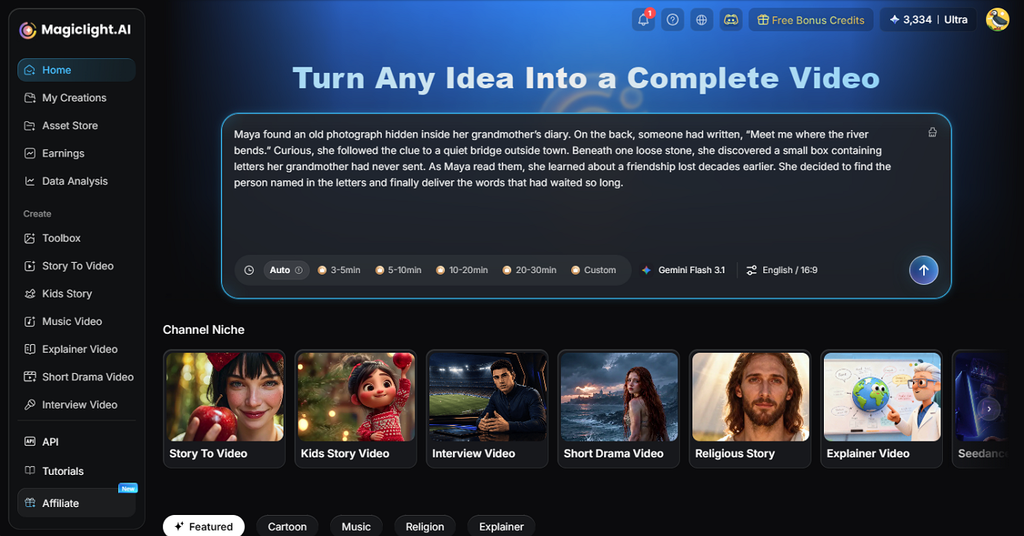
MagicLight AI supports Story to Video for creators working on longer visual projects. Prompts can reach 12,000 characters, giving more space for detailed stories and scenes. The tool can create videos lasting up to 50 minutes from one story project.
- Costs Stay Visible
The credit cost appears on the Create button before starting each generation. New accounts receive free credits, making it easier to test different prompts and results. Paid plans also include commercial rights for creators working on brand or client projects.
Conclusion
In summary, learning how to create AI images becomes easier with a simple process. Start with a focused idea, write your prompt, and select suitable image generation settings. MagicLight AI keeps useful image tools together, making creation easier for new users. You can test different results, improve your prompt, and save the version you prefer.
FAQs on How to Create AI Images
- How do I create an AI image from text?
Start by describing your subject, background, style, lighting, and other important visual details. Choose a suitable image model and aspect ratio before generating your first image version. Learning how to use AI to create images becomes easier with specific prompt details.
- Can I create AI images for free?
Many AI image platforms provide free credits that beginners can use for testing images. MagicLight AI also provides free credits for new users to try image generation features. Check available credits before generating because usage limits can vary between different service plans.
- What is the best AI tool for creating images?
MagicLight AI provides several image models and useful controls within one creative workspace. Users can choose models, upload references, select ratios, and generate multiple image results. These options make it useful for beginners exploring different AI image creation approaches.
- How can I make AI-generated images look more realistic?
Use natural lighting, realistic textures, camera details, and specific descriptions within your prompt. Learning how to generate AI pictures also involves comparing results and adjusting small details. Reference images can further guide important details like faces, products, colors, and styles.
- What can I use AI-generated images for?
AI images work well for blog graphics, social posts, thumbnails, and creative concepts. They can also support presentations, product mockups, marketing materials, and visual story projects. Always review usage rights before using generated images for commercial or client projects.
![How to Create a TikTok Video for Beginners [2026 Guide]](https://magiclight.ai/wp-2/wp-content/uploads/tiktok-video-creation-guide-300x169.png)
![How to Blur Faces in Photos Like a Pro [2026 Guide]](https://magiclight.ai/wp-2/wp-content/uploads/blur-faces-in-photos-with-ai-300x198.png)