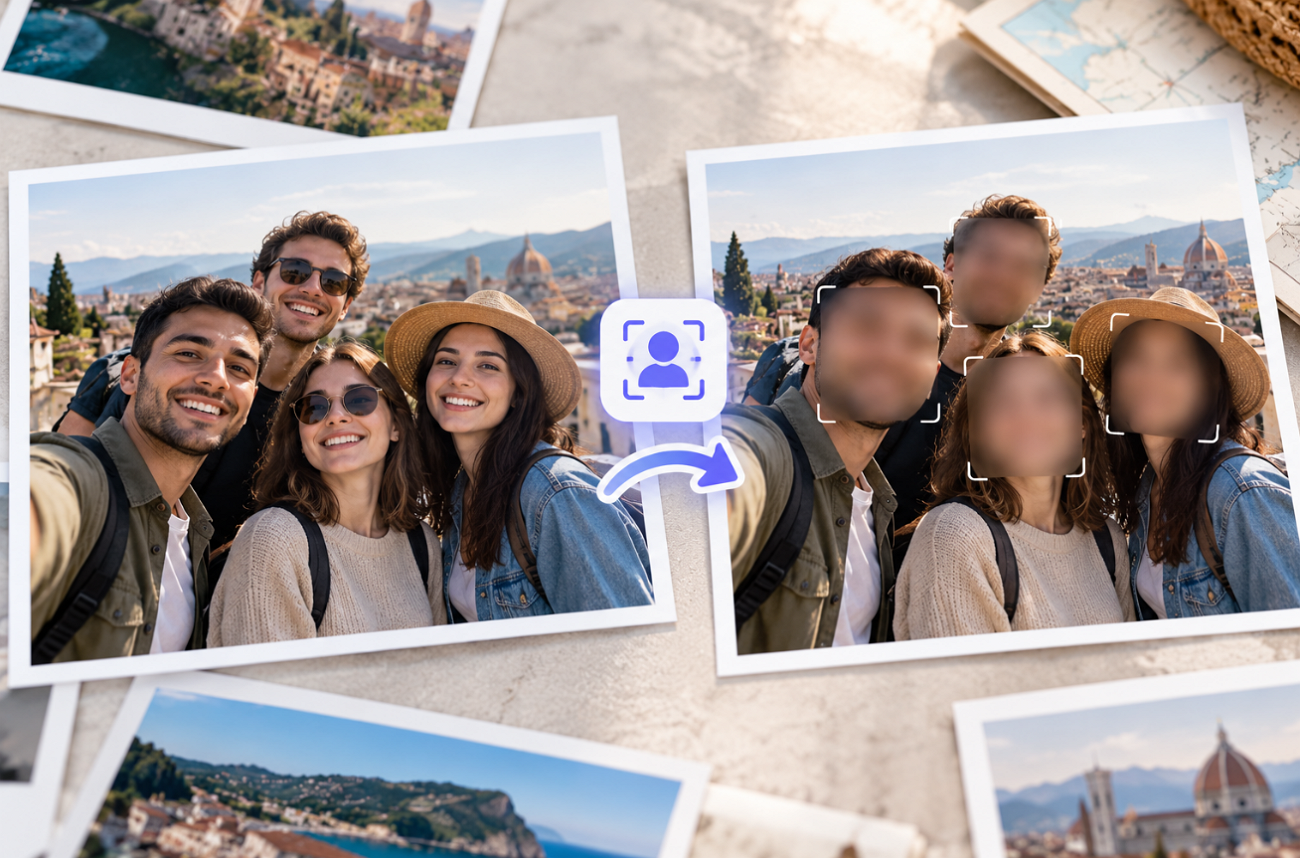
Photos shared online often include people who never agreed to appear, such as children, bystanders, or friends at a party. Learning how to blur faces in photos protects them without throwing away an otherwise good picture.
Manual blur brushes work, but they are slow when a photo holds many faces. AI tools now find faces automatically, and MagicLight AI blurs whichever ones a short written prompt describes.
Part 1. How to Blur Faces in a Photo
Face blurring can be done manually with brush tools or automatically with image-editing tools. Manual editing works well for one or two people, while larger groups may require a faster approach. The methods below explain how to blur faces in a photo across different devices and editing tools:
Key Features of MagicLight AI
MagicLight AI offers a prompt-based way to conceal selected faces while keeping the surrounding photo intact. Its Tomodels and tab provides controls for uploading photos, describing privacy edits, choosing image models, and comparing different results. The following features provide more control when blurring faces in photos:
- Target Specific Faces: A 500-character prompt can identify people by position or clothing, allowing selected faces to remain visible while others are blurred.

- Choose Different Aspect Ratios: Multiple aspect ratio options let users match the edited photo to social posts, portraits, landscapes, or other publishing formats.
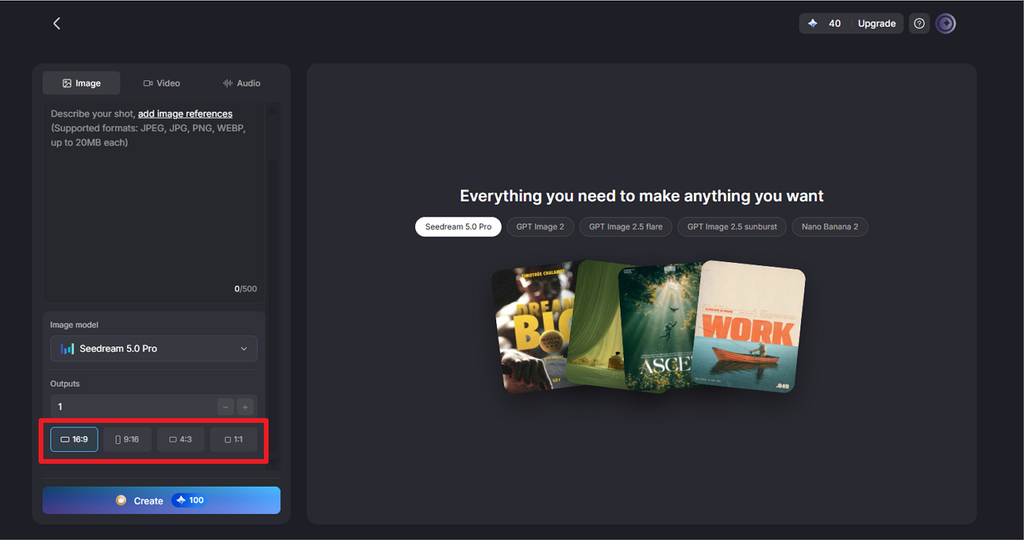
- Blur Multiple Faces at Once: Upload up to 10 images, each up to 20 MB, and use one instruction to blur several faces within each photo.
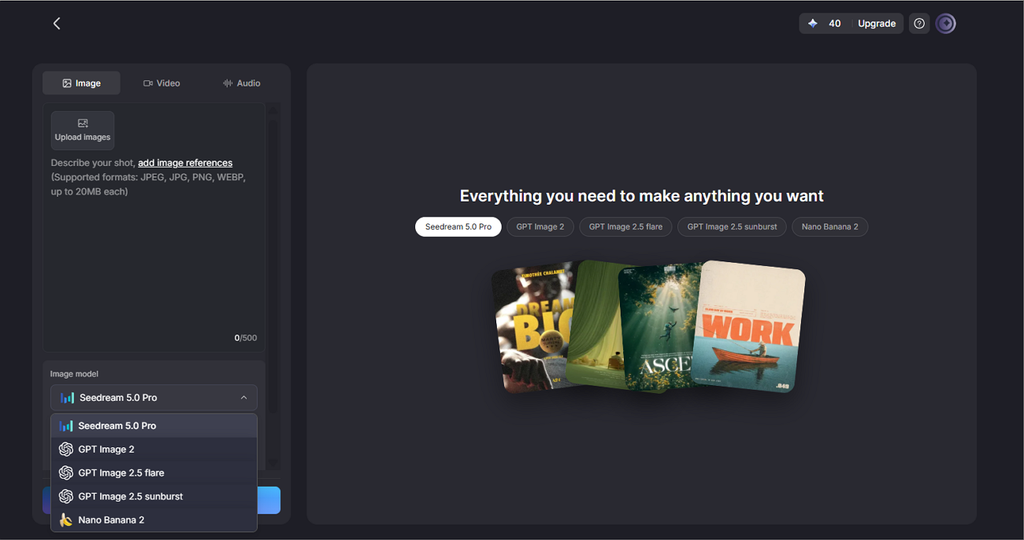
- Switch Between Image Models: If one model leaves a face partly recognizable, the same prompt can be tested with a GPT Image model or Nano Banana 2.
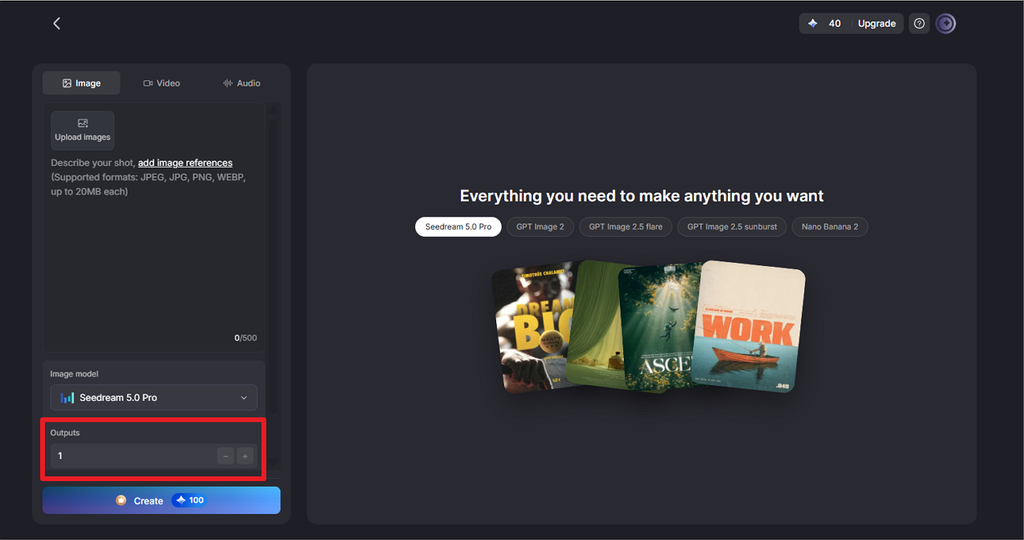
- Compare Multiple Results: Generate several versions from one request and compare them to find the result where the required faces are properly concealed.
Guide: How to Blur Faces With MagicLight AI
If you are wondering how to blur a face in a picture, MagicLight AI handles the edit through a simple prompt-based workflow. The steps below cover the process from uploading the original photo to checking and saving the final result:
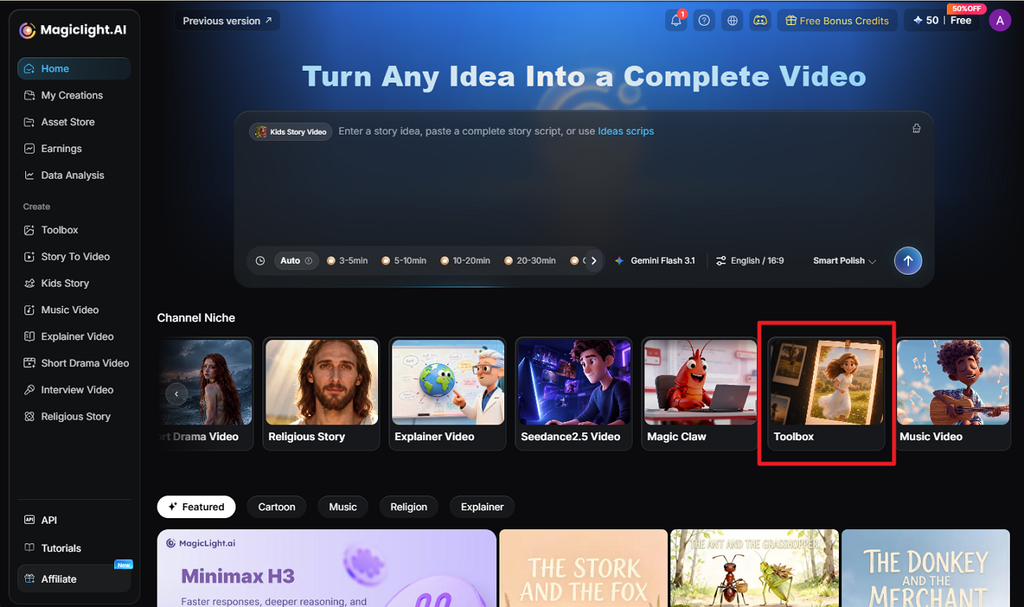
Step 1. Access the MagicLight Toolbox
Go to the MagicLight home page and open Toolbox. Select the Image tab to access the prompt box, image uploader, model options, aspect ratios, and output settings.
Step 2. Upload the Photo and Describe the Blur
Click Upload images and add the original photo. In the prompt box, identify the faces by position, clothing, or another visible detail. Specify which faces should stay clear and which should be blurred. Select an Image Model, choose the original Aspect Ratio, set Outputs, and press Create.
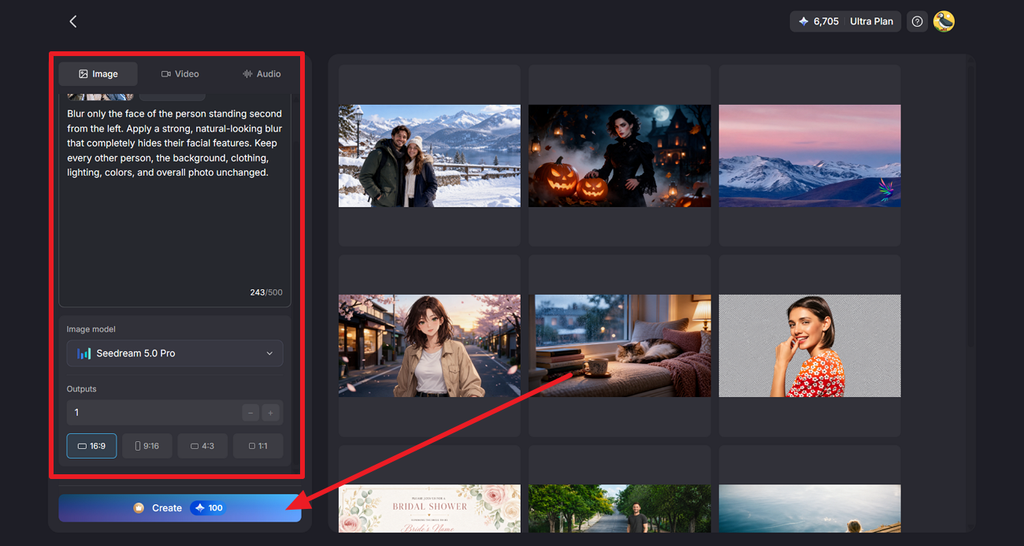
Step 3. Check the Faces and Download
Open the generated versions and inspect every blurred face closely. Make sure the selected faces are concealed while other people and background details remain unchanged. Compare the available results, choose the most accurate version, then select the Download icon to save it.
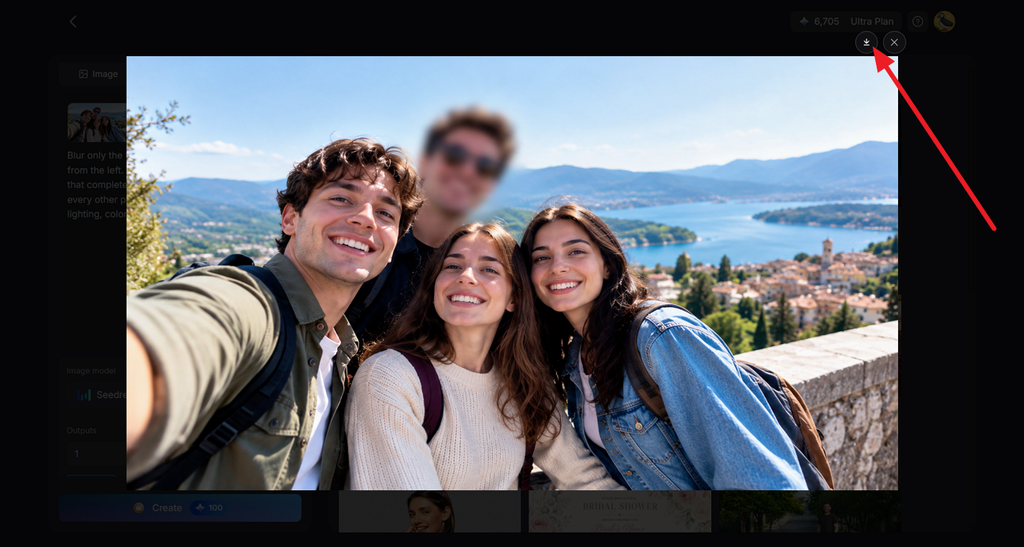
Part 2. Tips for Blurring Faces Naturally
Face blur should protect a person’s identity without making the edit unnecessarily distracting. Blur strength matters, but reflections, visible identifiers, and photo metadata can also affect privacy. For anyone learning how to blur faces in a picture, the tips below cover the details worth checking before sharing an edited photo:
- Use a Stronger Face Blur: Research published in 2016 showed that machine learning could identify some blurred or pixelated content, so blur alone should not be treated as guaranteed anonymity.
- Follow the Face Shape: An oval with soft edges that follows the head looks more natural than a hard square box pasted over the face.
- Apply Blur Consistently: Using the same blur strength on every hidden face creates a cleaner result than mixing different blur styles.
- Cover Identifying Details: Name tags, school logos, tattoos, and license plates may reveal a person even when their face is blurred.
- Inspect Nearby Reflections: Mirrors, windows, and sunglasses can reveal faces that were missed during the first edit.
- Export a Finished Copy: Save a new JPG or PNG so editable layers or previous versions are not included in the shared file.
- Remove Location Metadata: Turn off location sharing or remove photo metadata because GPS information may reveal where the image was taken.
- Use an Avatar When Appropriate: For recurring videos, the AI Avatar Generator creates a stand-in character from a text description, so the creator’s real face does not need to appear.
Conclusion
To conclude, how to blur faces in photos depends on balancing privacy with a natural appearance. Phone and web editors work well when only one or two faces require simple manual blurring. Group photos often need faster control over several faces without affecting surrounding details. MagicLight offers a practical, prompt-based option for more complex privacy edits.
FAQs About Blurring Faces in Photos
1. How do I blur a face in a picture?
Open the picture in an editor with a blur brush, such as Canva, and paint over the face completely. On iPhones with Apple Intelligence, circling a face in Clean Up pixelates it instead. MagicLight AI handles the same job from a written prompt.
2. Can I blur multiple faces in one photo?
Most tools can blur multiple faces in one photo, but brushing each one takes time. MagicLight AI can cover a whole group with one instruction, such as “blur every face in the back row.” Checking every face afterward confirms that none were skipped.
3. Can AI automatically blur faces in photos?
Signal’s free blur tool detects faces on the phone and blurs them with one tap. Its own blog warns that detection misses some faces, so a manual check still matters. A different approach comes from MagicLight AI, which blurs only the faces a prompt names.
4. What is the best AI tool for blurring faces?
MagicLight AI fits this job well because one written prompt can target a single face, a crowd, or everyone except the main subject. Five image models and several versions per run help find a take where nobody can be recognized.
![How to Create a TikTok Video for Beginners [2026 Guide]](https://magiclight.ai/wp-2/wp-content/uploads/tiktok-video-creation-guide-300x169.png)