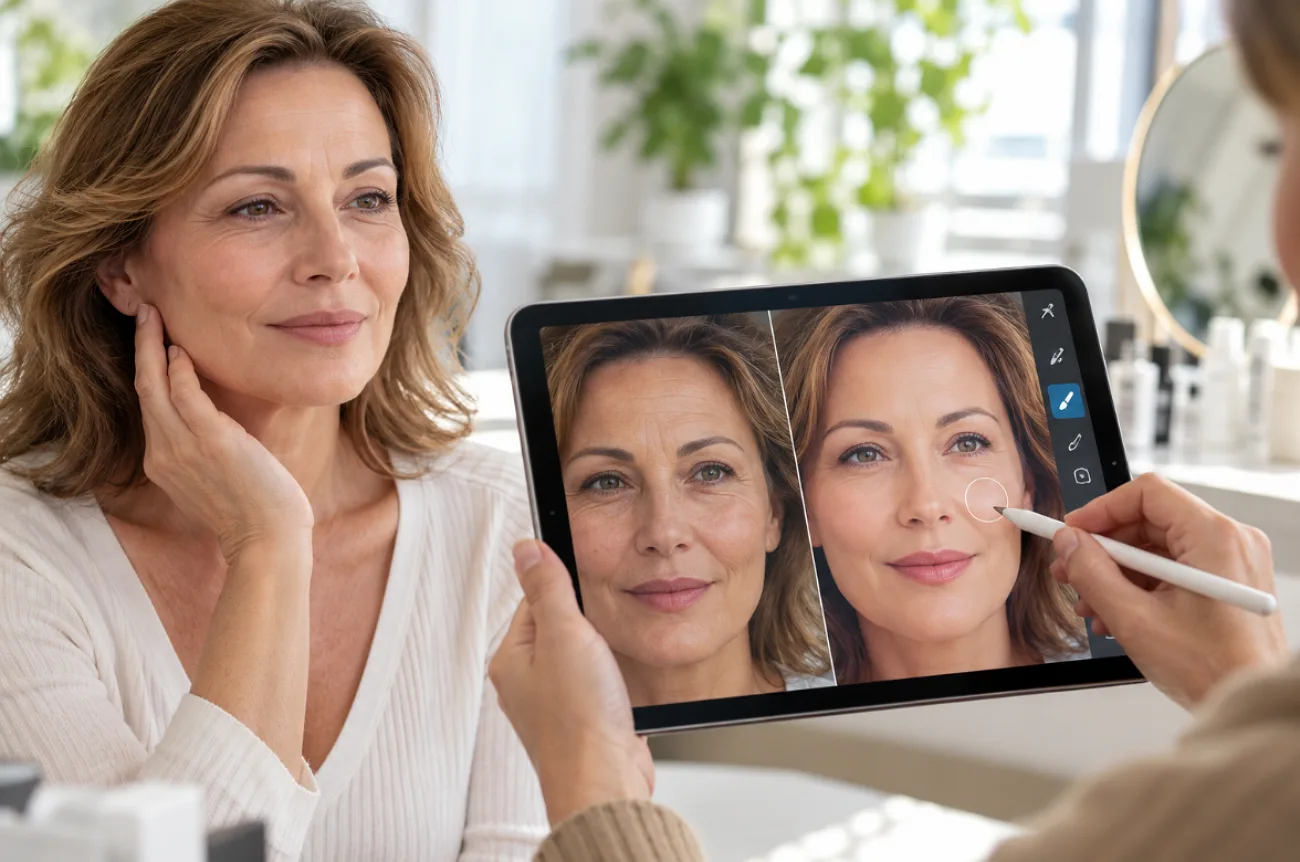
Forehead lines and crow’s feet appear stronger in photos under bright, unforgiving lighting. Direct flash can highlight small creases that barely stand out when seen in person. Knowing how to remove wrinkles from the face photo quickly helps portraits look smoother without lengthy retouching.
AI photo editors can now soften lines using a short, straightforward written instruction. Learning how to get rid of wrinkles on the face fast changes the image, not the skin.
Part 1. How to Remove Wrinkles From Face Quickly
Traditional retouching relies on healing brushes, masks, and careful blending in a desktop editor. AI tools swap that manual work for a written request, which suits anyone asking how to get rid of wrinkles quickly in a portrait. MagicLight AI handles this through its Toolbox tab.
Overview of MagicLight AI
Portrait retouching is one of the quicker tasks in MagicLight AI, an AI creation platform best known for turning stories into animated videos. Inside its Toolbox, the Image tab sits alongside Video and Audio and lets users edit an uploaded photo with a written prompt. This approach suits anyone learning how to remove face wrinkles fast without working with layers or masks.
Since the edit follows written instructions, a prompt such as “soften the forehead lines but keep the smile lines” can guide the result. Afterward, the portrait can be animated with Image to Video or used as a recurring character in Story to Video. Retouching and content creation both stay within the same account.
Key Features
- Precise Prompt-Based Retouching: A 500-character prompt names which lines to soften, how strongly, and what must stay exactly as it is. Specific wording keeps the edit focused on the right areas.
- High-Resolution Image Support: The tab accepts JPEG, PNG, WEBP, and JPG references as large as 20MB each, so fine skin detail reaches the model.
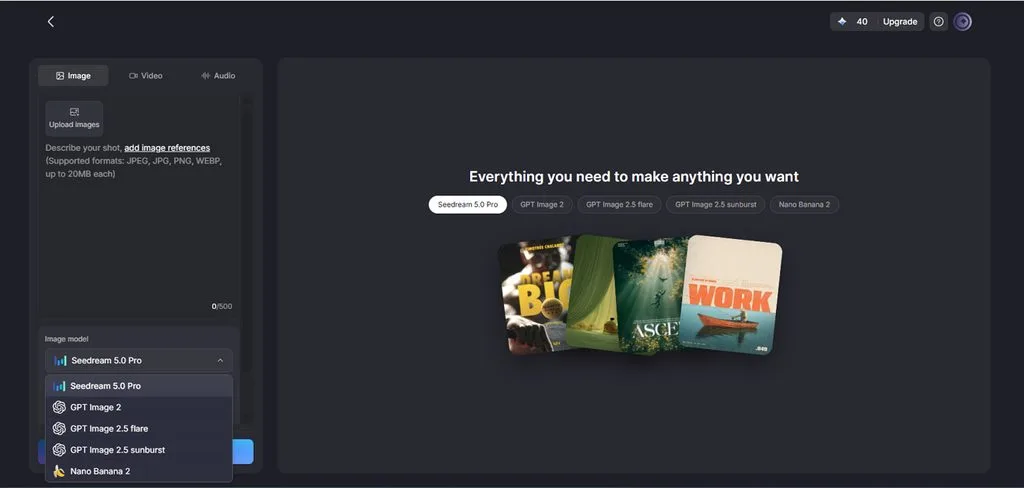
- Multiple AI Image Models: Options range from Nano Banana 2 to Seedream 5.0 Pro, plus GPT Image 2 and its two 2.5 versions. Each model reads skin texture a little differently, so a second try often helps.
- Batch Output Generation: Raising the Outputs count returns several retouched versions at once, ready to compare before anything is saved.
- Portrait-Friendly Frames: Square 1:1 suits profile pictures, 4:3 fits prints, and the 9:16 and 16:9 frames cover stories and banners.
How to Remove Wrinkles From a Face Photo With MagicLight AI
Removing wrinkles in MagicLight AI starts with uploading a clear portrait and telling the editor exactly which facial lines to soften. You can then choose an image model, set the number of outputs, and compare each version before saving. The steps below show how to remove wrinkles from a face quickly while keeping the portrait natural:
Step 1. Open the Image Workspace
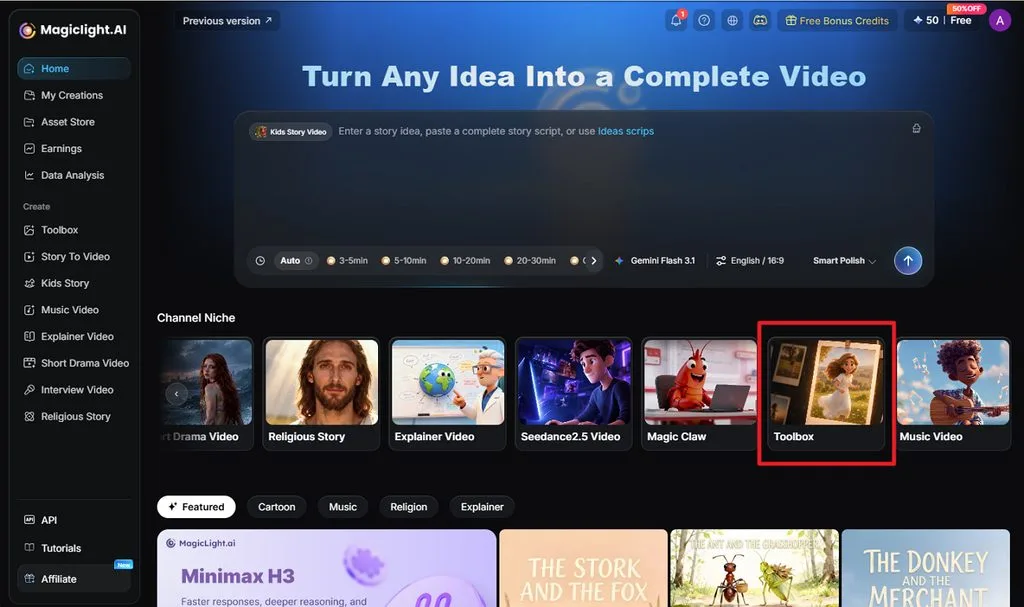
Go to the MagicLight AI homepage and select Toolbox under Channel Niche. Open the Image tab, where you can upload the portrait, write the retouching prompt, and adjust the image settings.
Step 2. Upload the Image and Write the Prompt
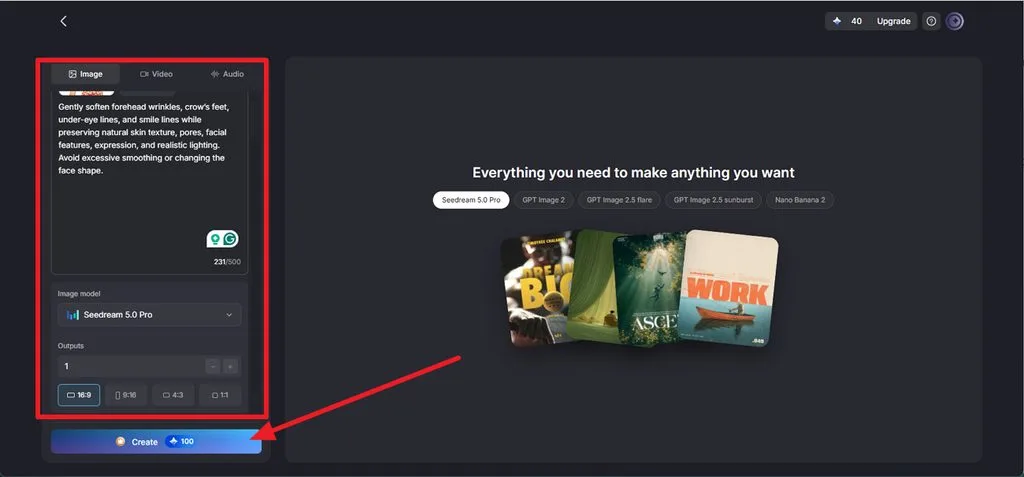
Click Upload images and add a clear portrait with enough facial detail to show the wrinkles you want to soften. In the prompt box, describe exactly which lines should change and which features should remain natural. The examples below provide wording for common areas:
| Wrinkle Area | Example Prompt Wording |
| Forehead Lines | Soften the horizontal forehead lines and keep the brow shape |
| Crow’s Feet | Reduce the fine lines beside both eyes and keep the eye shape |
| Smile Lines | Lighten the folds beside the mouth slightly and keep the smile natural |
| Under-Eye Lines | Smooth the creases under the eyes and keep the natural shadows |
| Neck Lines | Soften the neck creases and keep the skin texture visible |
Select an Image Model, such as Nano Banana 2, increase Outputs if you want several versions, and keep the Aspect Ratio close to the original photo. Click Create to generate the retouched results.
Step 3. Compare and Download the Result
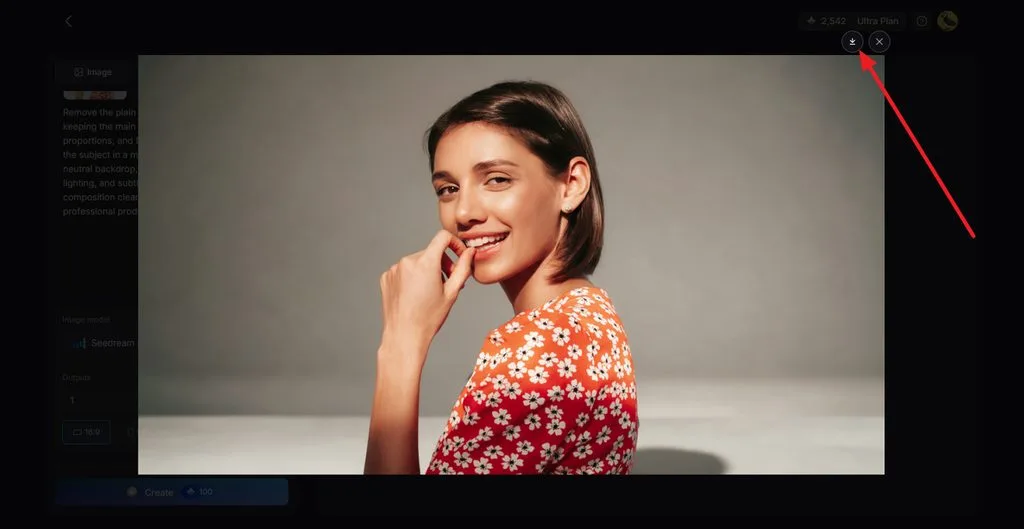
Open the generated versions and zoom in on the forehead, eyes, mouth, and other edited areas. Look for a result that softens unwanted lines without changing the person’s facial features or removing natural skin texture. Once you find the best version, click the Download icon to save it.
Part 2. Why Use MagicLight AI for Removing Wrinkles From Face
MagicLight AI keeps wrinkle retouching simple while preserving natural facial details. For how to remove wrinkles fast, the features below provide useful editing control:
1. Prompt-Based Retouching Without Manual Tools
Traditional retouching can involve healing, cloning, masks, and careful blending around individual lines. MagicLight AI instead provides a 500-character prompt for describing which wrinkles to soften, how much to reduce them, and which facial details to preserve. Beginners can therefore retouch portraits without learning layers or frequency separation.
2. High-Quality Reference Image Support
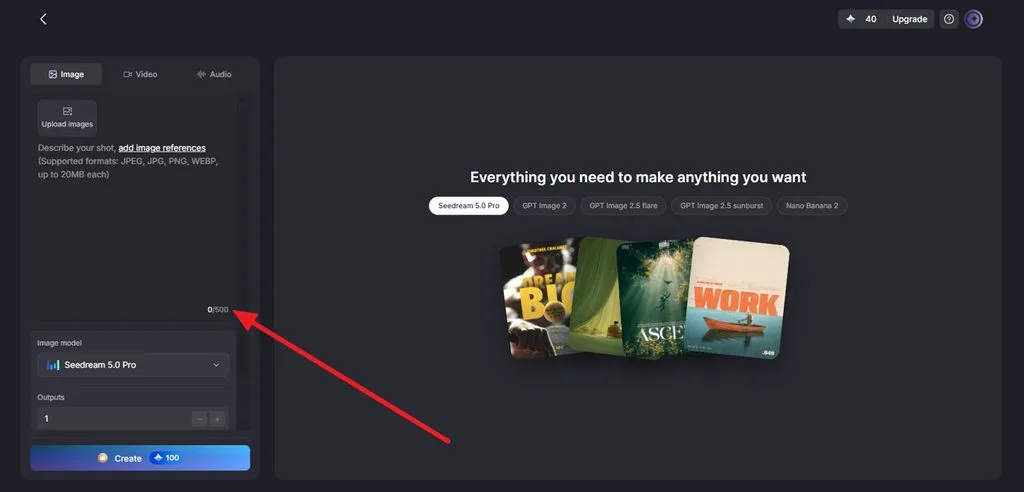
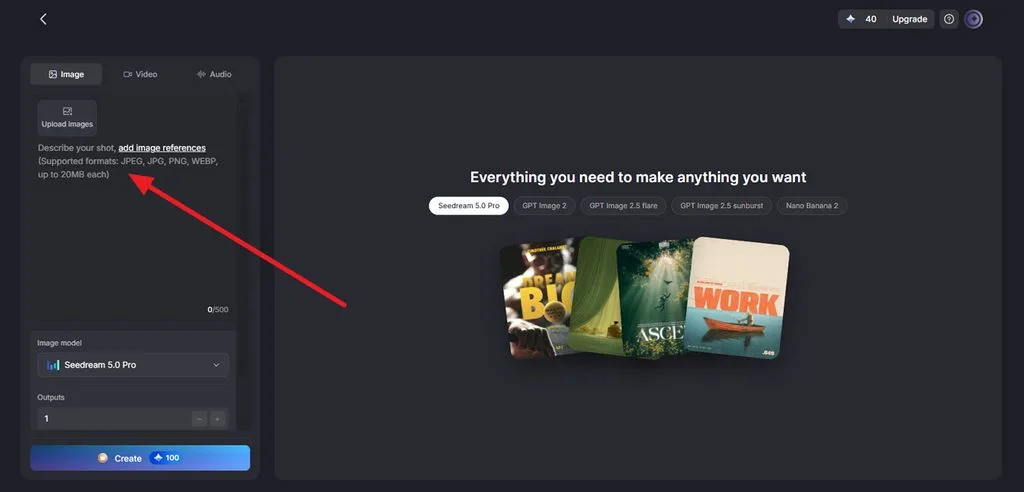
MagicLight AI accepts reference images up to 20MB, allowing users to upload detailed portraits without relying on heavily compressed files. It supports common image formats, including JPEG, JPG, PNG, and WEBP, making it easy to upload a clear portrait for wrinkle retouching.
3. Several Versions to Compare
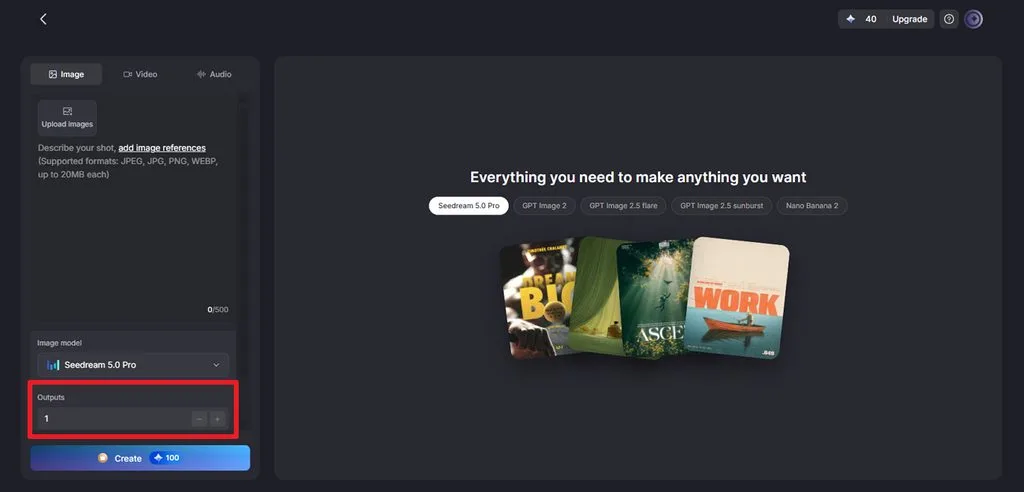
The Outputs setting can generate multiple versions from the same request, giving you alternatives to compare instead of relying on a single result. Different image models can also interpret facial texture differently, so another model or output may produce a result closer to the original portrait.
4. Compare From 5 AI Image Models
Users can choose from 5 AI image models, including Nano Banana 2 and Seedream 5.0 Pro. Switching between them helps compare how different models handle wrinkles, skin texture, and fine facial details.
5. Turn the Retouched Portrait Into a Video
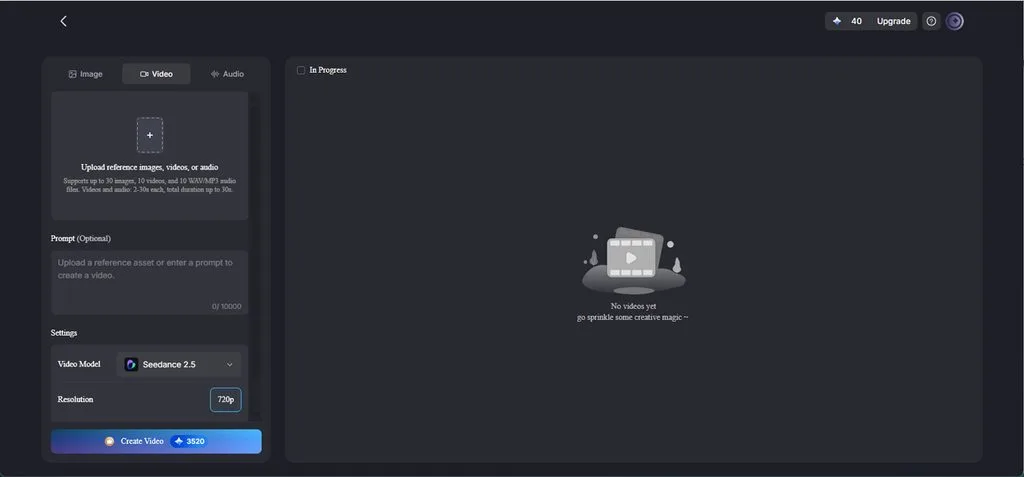
Retouched portraits can become animated videos instead of remaining static images after editing. The Image to Video tool in MagicLight AI adds movement, while Lip Sync creates speaking portraits from audio or dialogue.
Conclusion
A simple AI workflow makes how to remove wrinkles from the face quickly without advanced retouching skills. Clear photos and precise prompts help soften unwanted lines while preserving natural facial details. The finished portrait can also become animated or talking content, making MagicLight AI a practical choice for both tasks.
Frequently Asked Questions on How to Remove Wrinkles From Face Quickly
1. Can AI remove wrinkles from a face photo?
AI image tools can reduce the appearance of wrinkles by regenerating or editing facial areas according to a written prompt. MagicLight AI lets users upload a portrait and describe which lines they want softened.
2. How can I smooth wrinkles while keeping a natural look?
Ask for softening rather than full removal, and name the details to keep, such as pores and smile lines. Even when the goal is to get rid of wrinkles fast, comparing several outputs at full size helps avoid a plastic, over-smoothed finish.
3. Can I turn a retouched portrait into a video?
In MagicLight AI, the Image to Video tool animates a retouched portrait with natural blinks, gentle head turns, and subtle expressions. You can add narration and captions in the same workflow, and Lip Sync can make the portrait speak from a script or recording.
4. Can I add lip sync and dialogue to my edited portrait photo?
Yes. MagicLight AI’s Lip Sync feature matches mouth movements to your dialogue text or audio recordings. Your retouched portrait can deliver lines naturally, with synchronized facial movements to match the voiceover.
5. What AI tool can I use to create content from portrait photos?
MagicLight AI covers most portrait-based content in one place. Its Image tab retouches or restyles a portrait, and Image to Video animates it. Lip Sync makes the face talk, while Story to Video can cast it as a recurring character.