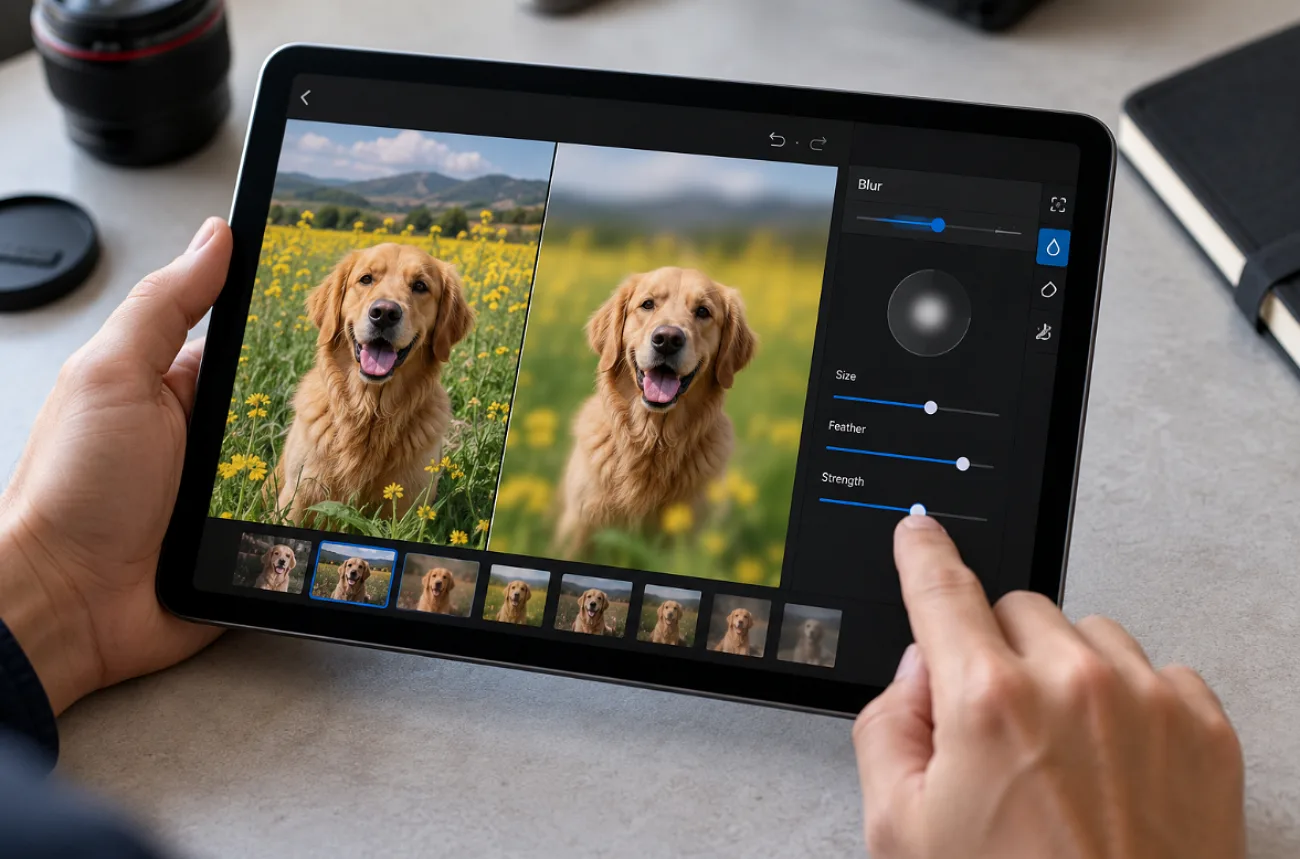
A good photo can still have something you would rather leave out, from a passerby to a readable license plate. How to blur a photo depends on where that distraction appears. Soften the background when it competes with your subject, or blur one small area when only a face, plate, or sign needs hiding.
Most devices include basic editing options, with browser tools offering more control. Once you understand how to blur pictures, choosing the right method becomes much simpler.
Part 1. How to Blur a Photo for Beginners
For how to blur a photo, first decide whether the whole background or one small detail needs attention. Phones and computers already have useful options for portrait blur, while browser editors are better suited to faces, signs, and license plates. The methods below show which tool to use for each type of edit:
1. Blur the Background With Built-In Apps
Anyone wondering how to blur photos behind a person, pet, or object can start with the editor already on the device. Built-in editors can handle background blur on supported photos, although available controls depend on the device, photo type, and editing app.
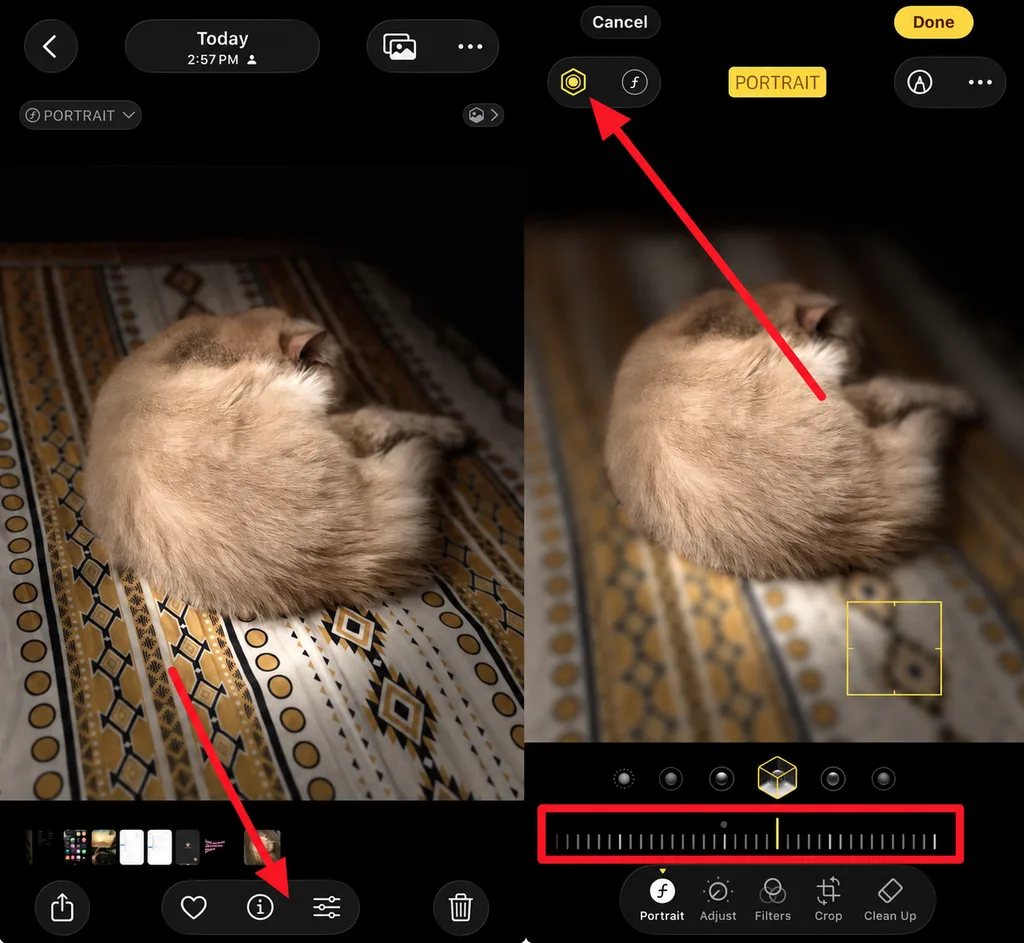
- iPhone (Photos App): Access a Portrait mode photo, tap the Edit icon, then tap the Depth Control button at the top and drag the slider. On supported iPhones, eligible Photo-mode shots of a person, dog, or cat can also receive Portrait effects later.
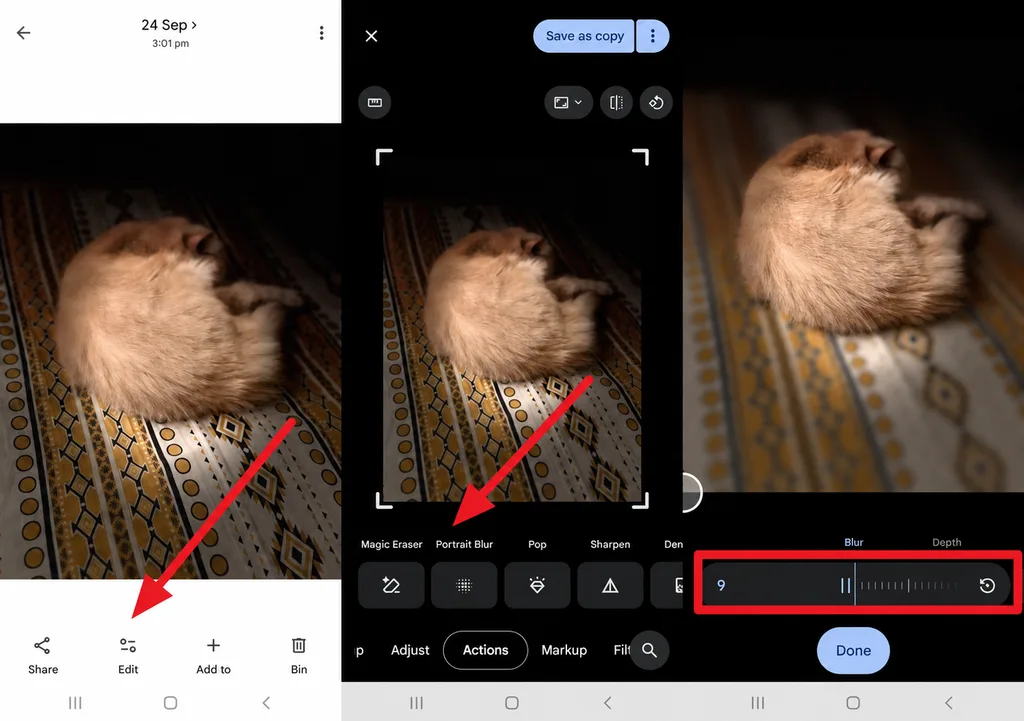
- Android (Google Photos): Tap Edit, open Portrait Blur from Actions or the editor’s search, and drag the Blur slider. Google Photos offers Portrait Blur on supported photos and devices. Many editing features require Android 8.0 or later with at least 3GB of RAM.
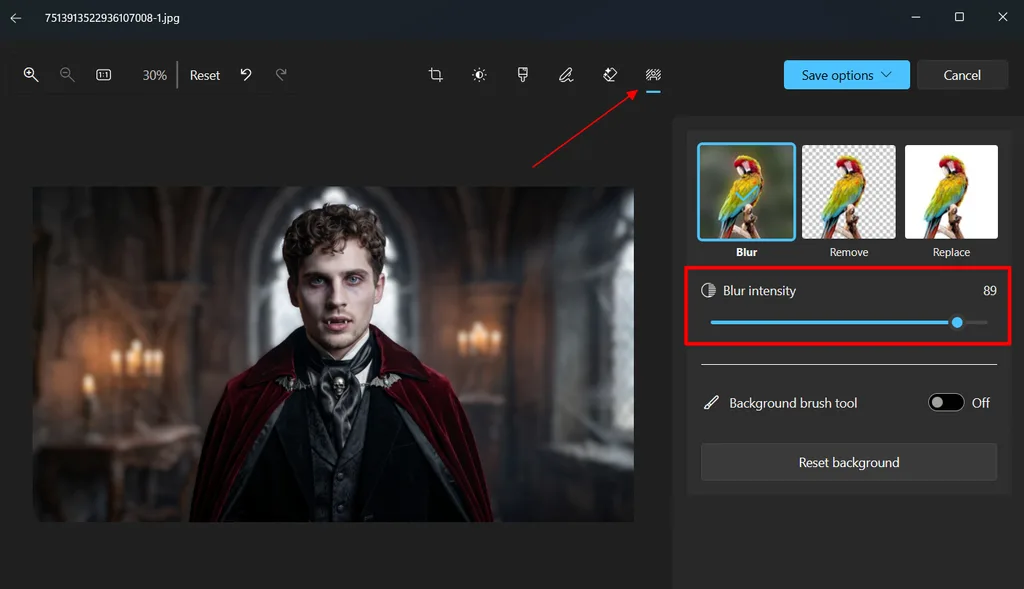
- Windows 11 (Photos App): Open the image, press Ctrl + E, and select the Background panel. Choose Blur, adjust Blur intensity, and select Save Options to finish the edit. Processing runs locally, so the photo never leaves the PC.
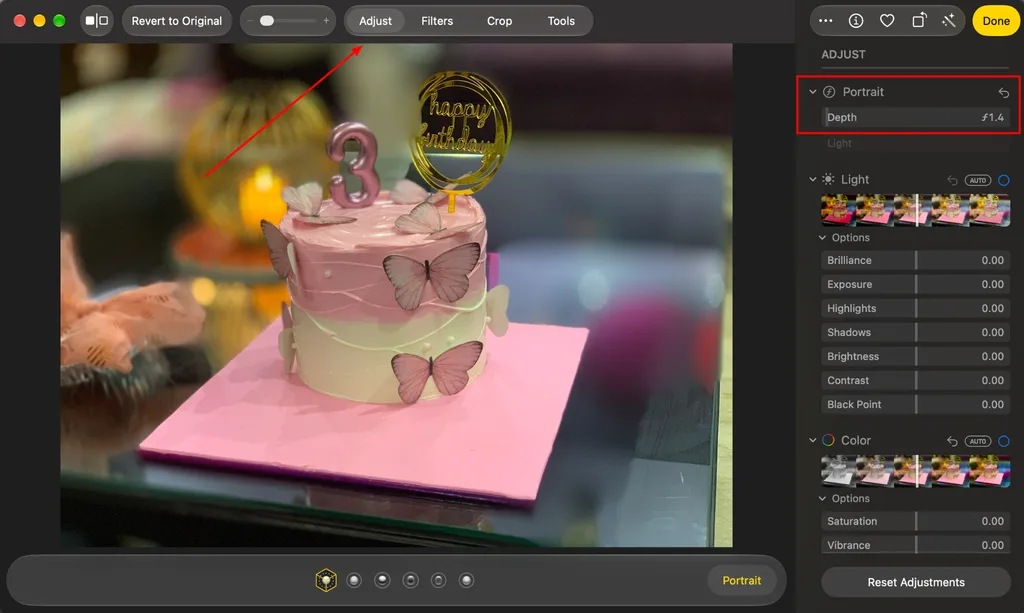
- Mac (Photos App): For compatible Portrait mode photos, open the image in Photos, click Edit, and use the Portrait controls to adjust background blur. You can also change the focus point on supported photos. For regular images, use an editor with a blur tool to soften the background or selected areas.
2. Blur Out Part of a Photo With AI
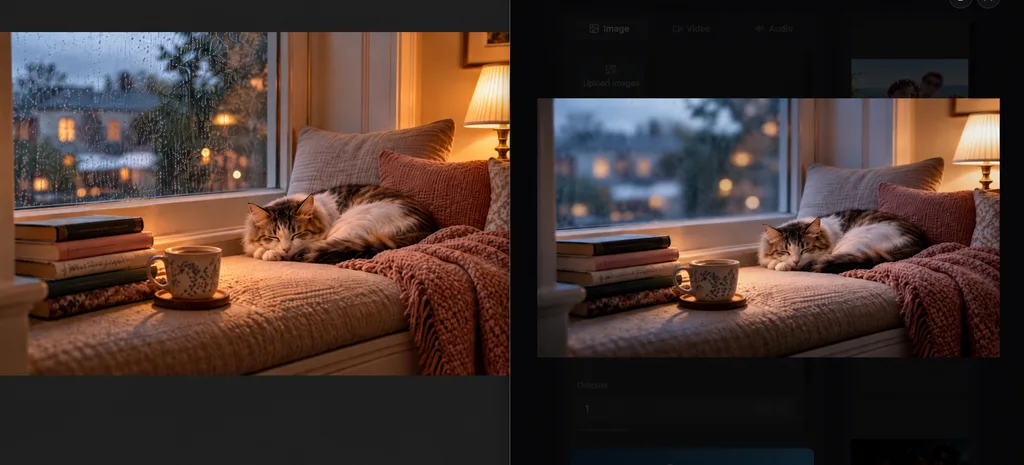
Beyond built-in editors and manual blur brushes, AI tools offer another way to blur pictures with less manual selection. MagicLight AI, for example, lets you describe which area to blur using a simple text prompt instead of carefully brushing around it.
It offers a complete AI ecosystem with the ability to make changes across images as well. With its 5 dedicated image models, you can simply provide a 500-character prompt and make the required changes. The use of AI influences changes within seconds, which presents a very different approach when compared with built-in methods.
Part 2. Why Choose AI Tools to Blur and Edit Images?
Manual blurring can become tedious when hair, glass, or several people need careful selection. AI tools offer a quicker approach to how to blur image edits by identifying subjects, backgrounds, and depth with less manual work. The table below compares where AI-assisted editing can save time and how it differs from traditional blur tools:
| Task | Manual Blur Tools | AI Blur Tools |
| Selecting the Area | Brushes and masks drawn by hand | Can automatically detect subjects, backgrounds, or selected objects |
| Background Blur | One even blur strength | Can isolate the subject and apply background blur automatically |
| Faces and Plates | Painted over one at a time | Some generative editors can target them through written prompts |
| Other Edits | A separate tool for each change | Advanced AI editors may also support removal, replacement, or lighting changes |
| Learning Curve | Layers and masks to master | Often requires less manual masking or selection |
Generative edits need a final check because the model may soften fine hair, shift edges, or change small text. After choosing how to blur the photo, inspect the finished image at full size to catch unwanted changes before saving or sharing it.
Part 3. Best Alternative AI Tool to Blur and Edit Images
Written instructions give finer control than sliders when the target is small or oddly shaped, and MagicLight AI edits photos that way. Its Toolbox Image tab pairs an uploaded photo with a short prompt. That setup suits anyone learning how to blur out images of faces, signs, or license plates.
Photo edits are one part of the platform, which also turns scripts into animated stories of up to 50 minutes through Story to Video. Sign-up comes with free credits and asks for no card, while each paid plan includes a general commercial license.
Key Features
- Prompt-Based Blur: A prompt of up to 500 characters sets what to blur and how strongly. It can ask for a soft portrait background or a hidden license plate.
- Original Photo Uploads: JPEG, JPG, PNG, and WEBP files of up to 20MB each work as references. The edit then starts from the real image rather than a description alone.
- 5 Image Models: MagicLight AI includes Nano Banana 2, GPT Image 2, two GPT Image 2.5 editions, and Seedream 5.0 Pro. If one model changes a face or text outside the area you want blurred, you can switch to another model and compare the results.
- Several Versions per Run: Setting outputs above 1 produces multiple edits at once, so blur strength and edge quality can be compared side by side.
- Animated the Generated Results: Image to Video turns the edited photo into a short clip with up to a 1500-character prompt and 20 video models.
How to Blur a Photo With MagicLight AI
MagicLight AI handles how to blur photo edits by using a written prompt to control which area becomes soft. A clear instruction helps the model separate the subject from the background or other details you want blurred. Follow the steps below to upload your image, write the edit prompt, choose the settings, generate the result, and download it:
Step 1. Open the Image Workspace and Upload
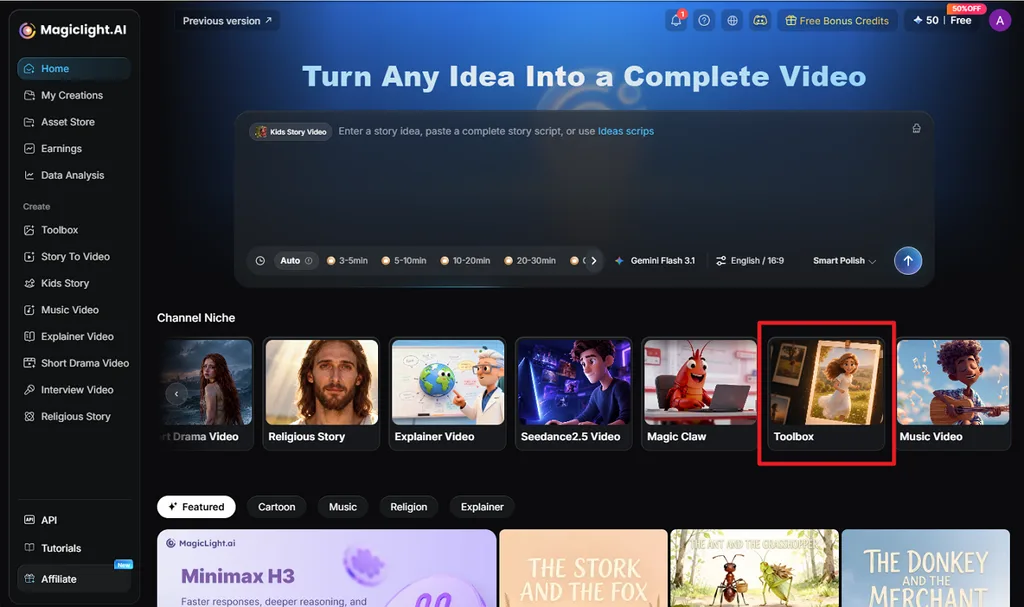
Go to the MagicLight AI home page and select Toolbox under Channel Niche. Open the Image tab, then use Upload images to add the photo you want to blur. Using the original photo helps preserve finer details around subjects and edges.
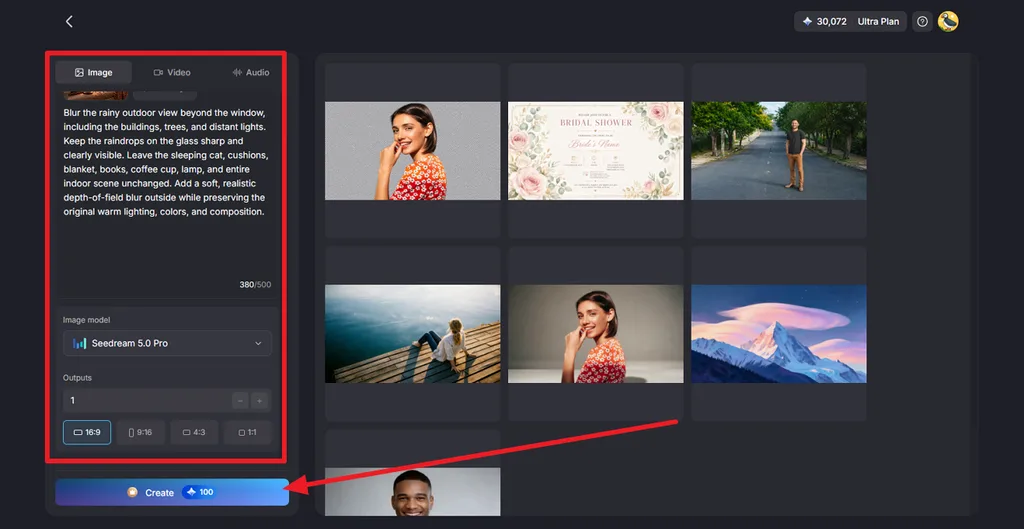
Step 2. Describe the Blur and Generate
Write exactly where the blur should appear and what must remain unchanged. For example, enter “Blur the background like a portrait lens and keep the subject sharp.” Under Image Model, select Nano Banana 2 or Seedream 5.0 Pro. Set the Outputs and Aspect Ratio, then press Create.
Step 3. Review and Download the Result
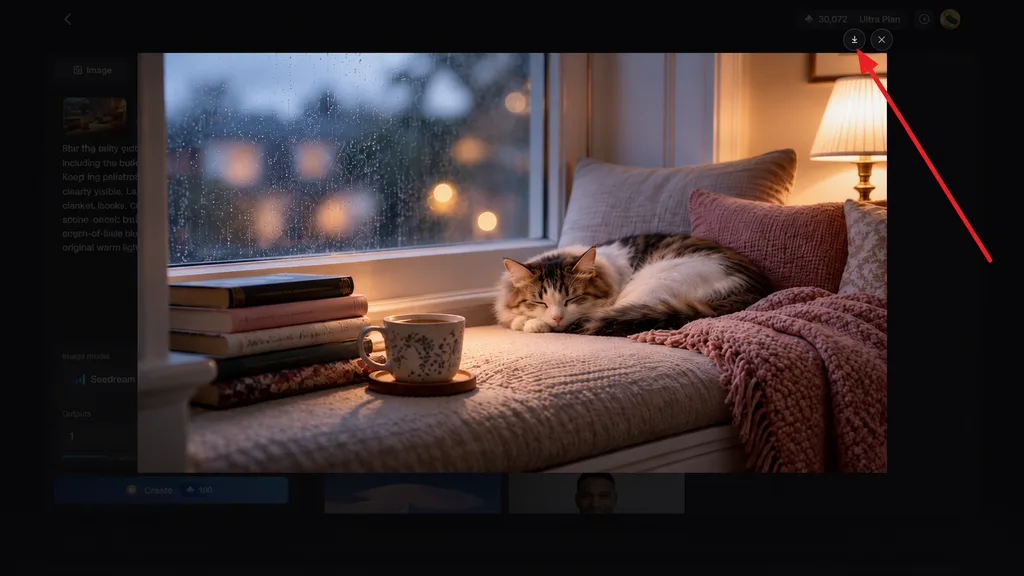
Open the generated versions and inspect the blurred area closely. Check hair, faces, edges, and text for unwanted changes, then choose the most natural-looking result. Choose the Download icon to save your preferred image.
Conclusion
To conclude, learning how to blur a photo is easier with the right tool for each edit. Built-in editors handle quick background blur, while AI Tools proceeds smartly with text. Sensitive text is better covered completely rather than blurred. For prompt-based control and multiple image models, MagicLight AI offers a practical alternative worth trying.
FAQs on How to Blur a Photo
1. How do I blur a photo?
For a quick edit, check the photo tools already available on your device. Portrait controls can soften a distracting background without changing the subject. If those options are unavailable, you can easily share your photo with AI tools. Magiclight AI can be a good option and you can share your idea to Magiclight Agent when you’re not clear.
2. Is there a fast way to blur a picture?
MagicLight AI is a quick route for anyone searching “how to blurred photo,” because one upload and one sentence replace brushing and masking. Its Outputs setting returns several blurred versions in a single run, ready to compare and download.
3. How do I blur out part of an image?
In MagicLight AI, upload the image and name the exact area, such as “blur the face on the left only.” That single prompt settles how to blur out photos without any brushwork. A solid box remains safer for passwords or ID numbers.
4. Can AI blur photos automatically?
AI tools can blur photos automatically by detecting the subject or following a written prompt. For anyone typing “how to blur image” into a search, MagicLight AI applies background or spot blur from a single instruction and offers several versions.



![How to Remove People from Photos in 2026 [Full Guide]](https://magiclight.ai/wp-2/wp-content/uploads/remove-people-from-photos-guide.jpg-300x197.webp)
![6 Best Picture Modification Apps in 2026 to Try [New List]](https://magiclight.ai/wp-2/wp-content/uploads/best-picture-modification-apps-for-photos.jpg-300x200.webp)