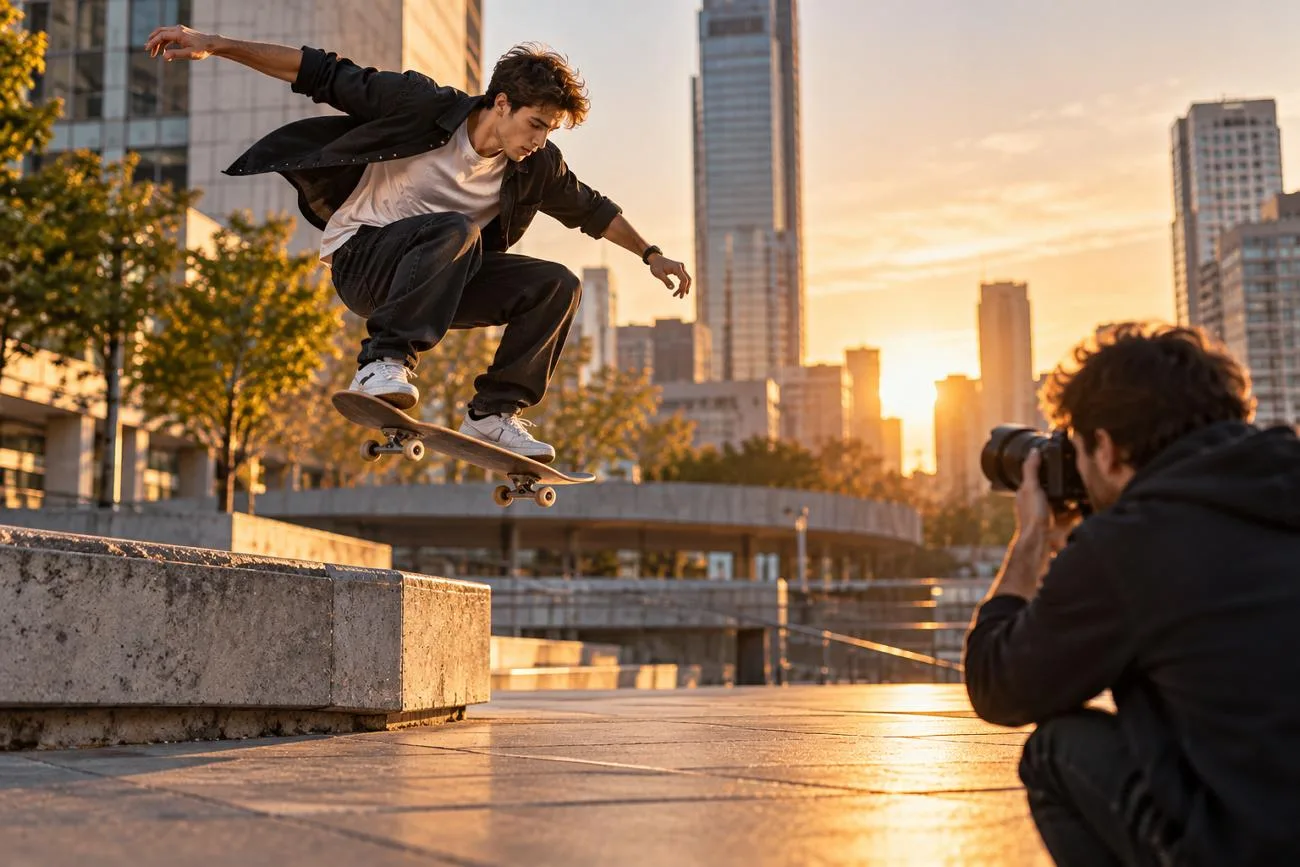
A photo stays still, but movement can make it more interesting. Movement can turn a regular photo into something more interesting to watch. Learning how to make a picture move helps turn photos into engaging visual clips.
These moving images work well for social posts and creative personal projects. Different motion methods change photos in different ways depending on your desired final effect. This guide explains how to choose the right method for your photo and create the type of movement you want.
Part 1. What Types of Motion Can You Add to a Picture?
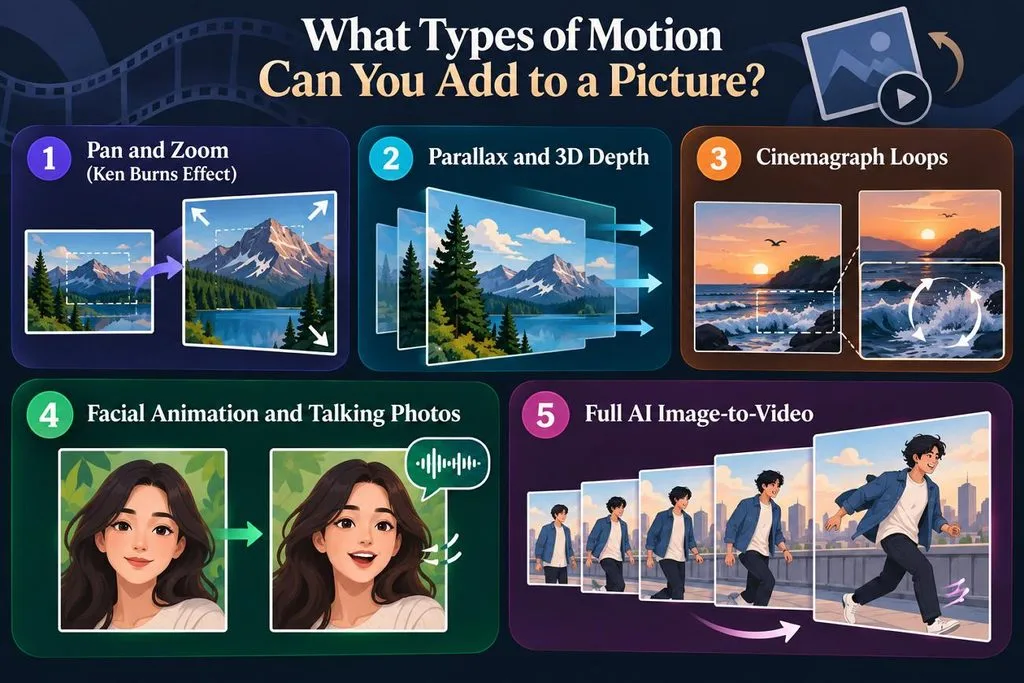
Different motion effects can change a photo in different ways, from camera movement to moving subjects. Knowing how to make an image move starts with choosing an effect that suits the photo and your purpose. Look at the table below to compare the main motion types and where they work best:
| Motion Type | What Moves | Best For |
| Pan and Zoom | View moves across or closer to the photo | Slideshows and documentaries |
| Parallax and 3D Depth | Foreground and background move at different speeds | Landscapes and scenic shots |
| Cinemagraph Loops | One part of the photo moves repeatedly | Social posts, banners, and creative visuals |
| Facial Animation | Eyes, mouth, head, or facial expressions move | Portraits, old family photos, and avatars |
| Image-to-Video Motion | Subjects, objects, and camera can move together | Short videos, stories, ads, and creative clips |
Pan and Zoom (Ken Burns Effect)
Pan and zoom create camera movement across photos without changing any part of the original image. Apple iMovie uses the Ken Burns effect to sweep across photos and zoom inward or outward. Slow movement creates a cinematic look, while faster movement may appear jittery on smaller screens.
Parallax and 3D Depth
Foreground subjects and backgrounds move at different speeds, giving a flat photo a sense of depth. Users can make pictures move with depth through Google Photos Cinematic photos with a 3D effect. On iPhone 12 or later with iOS 26, Apple also supports Spatial Scene effects for compatible photos.
Cinemagraph Loops
Most of the photo remains still while one selected element repeats movement in a continuous loop. Common moving elements include waterfalls, drifting clouds, blowing hair, smoke, or other repeating scene details. Motionleap lets users select areas of a photo and apply motion effects to create animated images.
Facial Animation and Talking Photos
A face in a photo can blink or move its mouth with recorded speech. LiveMemory can animate a still photo into a short video clip, with clear photos generally producing better results.
Full AI Image-to-Video
Image-to-video tools create additional frames, allowing subjects to walk, wave, turn, smile, or perform actions. Google Photos uses Veo-powered photo-to-video features, including Subtle movements for actions like waving or smiling. Learning how to make a picture move into short stories works better with this motion type.
Part 2. How to Make a Picture Move With AI
A still picture can become a short video by adding movement to its content. MagicLight AI provides an Image to Video tool for turning photos into moving clips. You can upload a photo and describe the movement you want to create.
The written prompt tells the tool which parts of your picture should start moving. You can add simple movements or create more action depending on your chosen photo. This method helps make a picture move without requiring any video editing experience.
Key Features
- Precision Camera Control: Camera controls support pans, tilts, and zooms across different photo depth layers. You can describe the desired movement using prompts up to 1,500 characters.
- Lifelike Portrait Animation: Portraits can gain natural blinking, head movement, and small changes in expression. Original facial features stay consistent while the person moves within the generated clip.
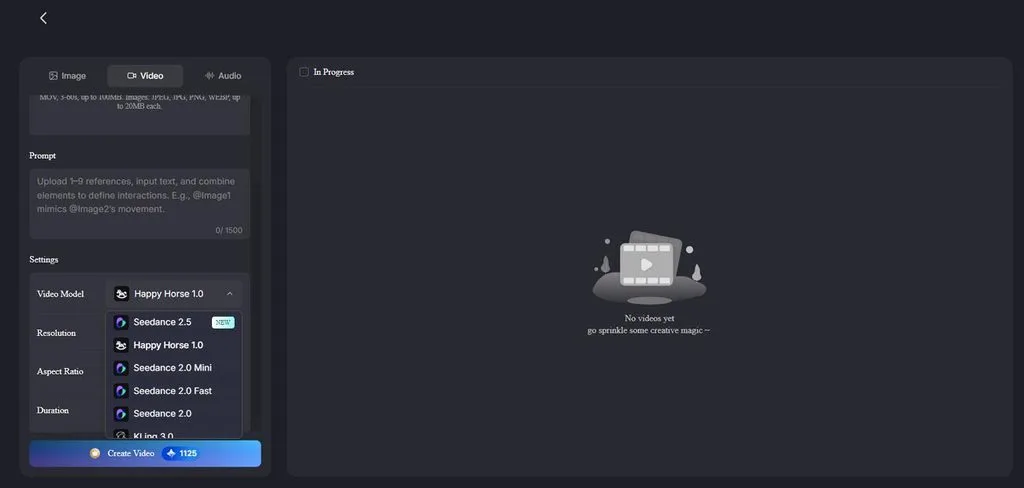
- Video Model Options: MagicLight AI provides 20 video models for different types of video creation. Options include Seedance 2.5, Kling 3.0, and Hailuo 2.3 Fast.
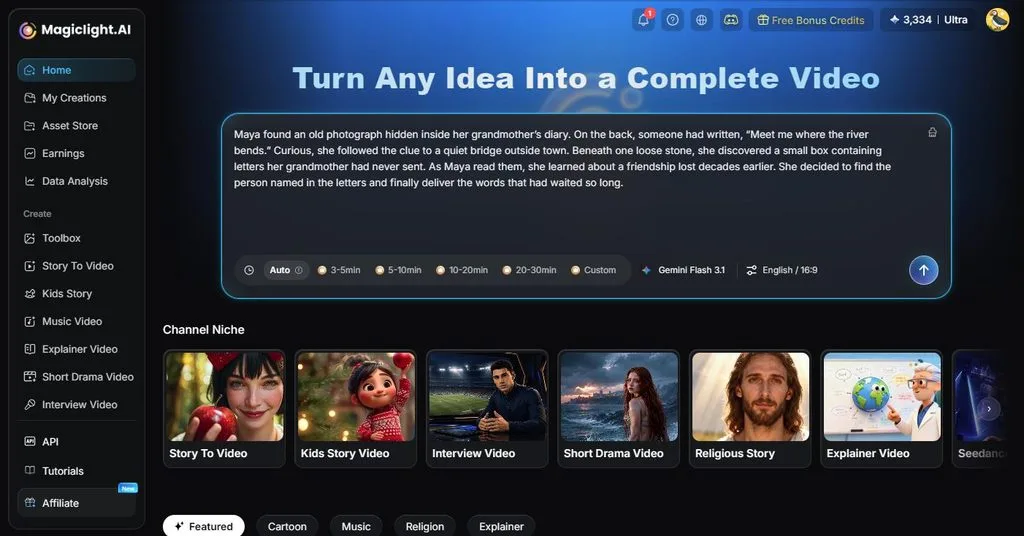
- Story to Video: This feature supports scripts containing up to 12,000 characters for longer projects. Finished videos can reach 50 minutes, making the feature suitable for longer viewing formats.
- Character Consistency: Characters keep the same appearance across different scenes and movements throughout the video. Facial features, clothing, and overall look remain consistent as the story moves forward.
How to Make a Picture Move With MagicLight AI
MagicLight AI can also create new images before turning them into moving video clips. Adhere to the steps below to learn how to make photos move with MagicLight AI:
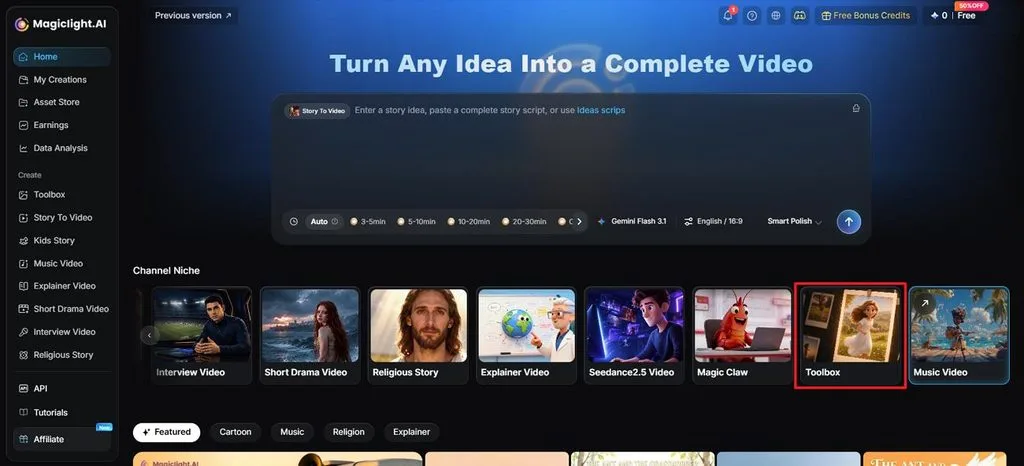
Step 1. Access Image to Video
Visit MagicLight AI and select Toolbox to open the Image to Video workspace.
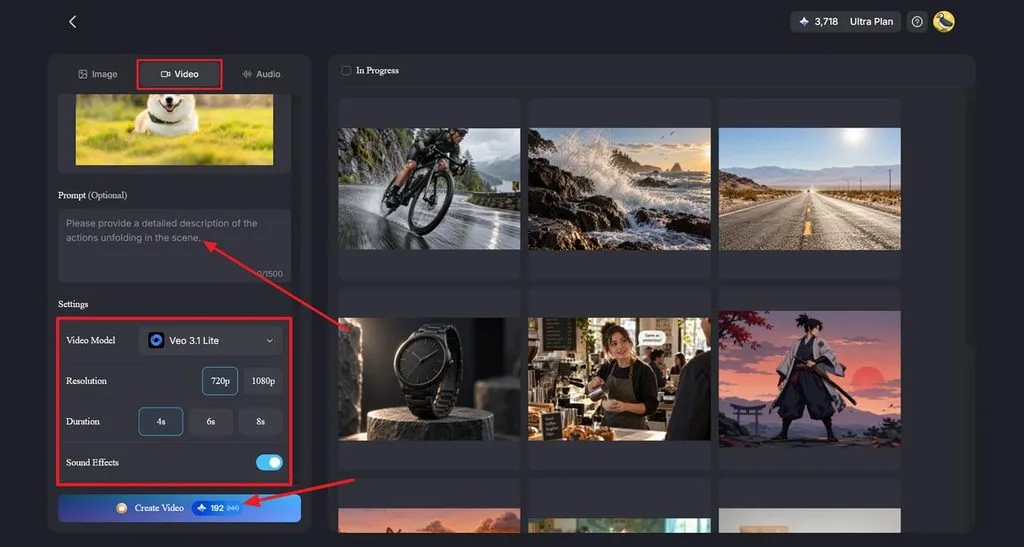
Step 2. Upload Your Photo and Set the Motion
Select the Video tab, then upload or drag your photo into the workspace. In the Prompt section, describe the subject movement, scene action, and camera motion you want. Choose a Video Model from the 20 available options, then set the Resolution and Duration. Turn on Sound Effects if your selected model supports them, then click Create Video.
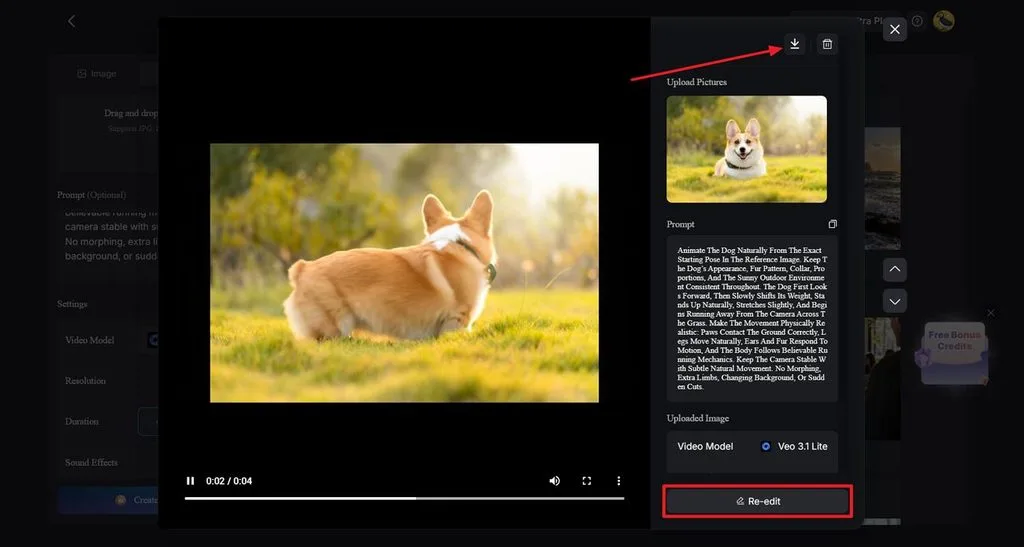
Step 3. Check and Download the Result
Play the generated video and check whether the movement matches your prompt. Select Re-edit to change the instructions or settings when needed. When satisfied with the result, click the Download icon at the top to save your video.
Tips for Natural-Looking Motion
Natural motion depends on simple choices that keep the picture smooth, balanced, and visually believable. Below are the tips for learning how to make an image move with better results:
- Start With a Good Photo: Pick a photo that is sharp and has enough detail to work with.
- Use Less Motion: Stick to one main movement to keep the result natural.
- Keep Camera Movement Slow: Slow pans and zooms create smoother movement across the picture.
- Watch Faces and Text: Check these areas after adding motion because small changes can look strange.
- Think About Where You’ll Post It: Keep social clips short, while slideshows can use longer scenes.
Conclusion
To conclude, learning how to make a picture move begins with choosing the right effect. Simple pans, depth effects, loops, and facial movement offer different ways to animate images naturally. MagicLight AI lets you control movement and turn a regular photo into a short video. Check the final motion and important details before saving your video for sharing or reuse.
Frequently Asked Questions
- How can AI make a picture move?
MagicLight AI can turn a still photo into a moving video using written prompts. Its Image to Video tool supports camera movement, subject motion, and portrait animation options. You can describe the movement you want and adjust settings before creating your video.
- Can I make a picture move for free?
Free options include iMovie for basic movement and Google Photos for short animated clips. MagicLight AI also provides free credits for trying its image animation features before upgrading. These options let you make a picture move without paying for advanced editing software.
- How do I make a picture move without changing the original?
Animation tools usually create a separate video file while keeping your original photo unchanged. You can also keep another copy of your photo before starting the animation process. Describe which areas should remain still to help preserve important faces, text, and details.