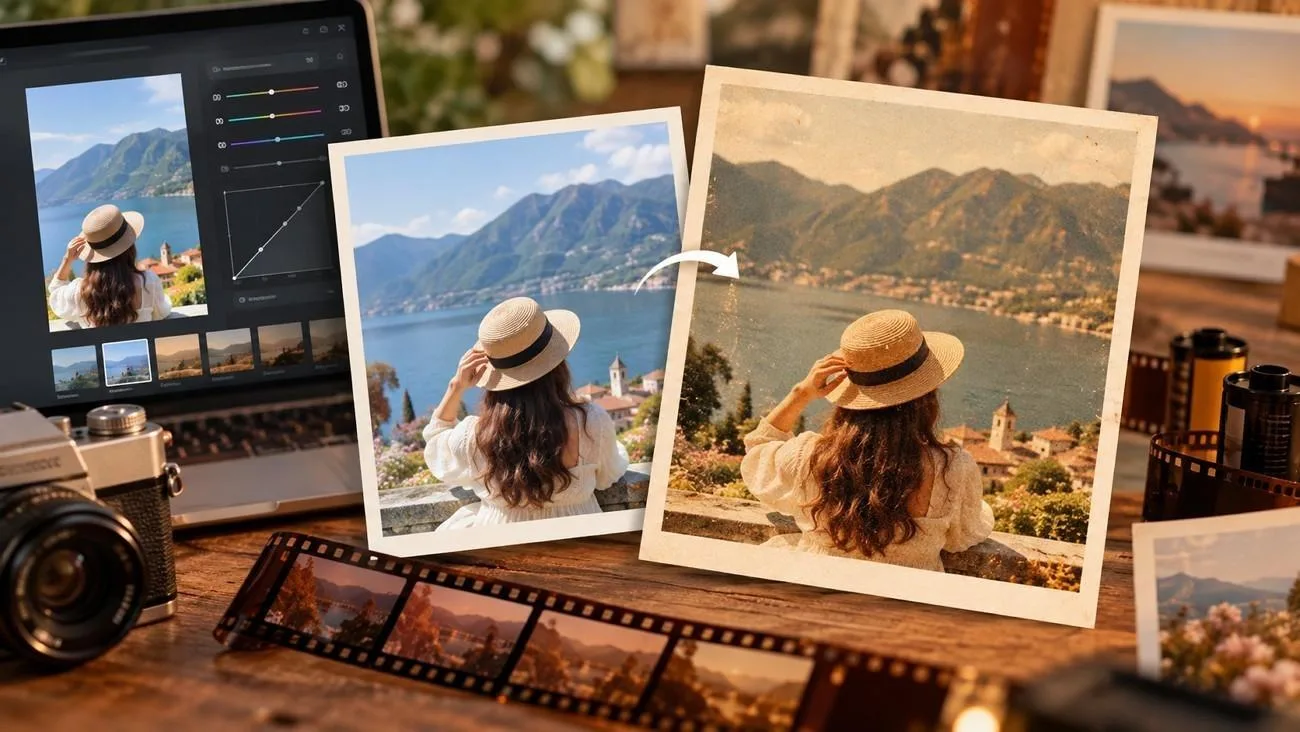
Digital photos often look sharp, clean, and highly saturated, while film has a softer and more organic character. Subtle grain, gentle contrast, muted colors, natural skin tones, and warm highlights can help recreate that classic aesthetic.
This guide explains how to make photos look like film through practical editing techniques. You will also learn how MagicLight AI can recreate film-inspired visuals with AI and turn ordinary digital photos into more cinematic images.
Part 1. What Makes Photos Look Like Film?
Film gets its look from the way it records light, color, and texture. Those differences give photos a softer, less digital feel. The following points further explain the main visual traits that create that film look:
- Film Grain
Grain comes from light-sensitive crystals and dye clouds in the film emulsion, so it looks random and organic. Digital noise often differs from film grain in texture and color, especially in underexposed areas.
Any plan for how to edit a photo to look like film needs grain, matched to a real film speed. Faster films show coarser grain. So, a 3200-speed look needs far more than a 100-speed one. Lightroom’s Grain Amount runs from 0 to 100, and the values below are starting points:
| Film Speed | Grain Character | Example Stock | Starting Grain Amount |
| ISO 100 | Barely visible | Kodak Ektar 100 | 10 to 15 |
| ISO 400 | Fine but present | Kodak Portra 400 | 20 to 30 |
| ISO 800 | Clearly visible | CineStill 800T | 30 to 40 |
| ISO 3200 | Heavy and gritty | Ilford Delta 3200 | 50 or higher |
- Soft Contrast
Negative film handles bright and dark areas more softly. Highlights fade gradually, while shadows usually keep some detail instead of turning completely black. For a similar look in editing, soften the contrast first. Lift the blacks slightly, lower the whites a little, and keep the tone curve gentle. A small reduction in Clarity can also make sharp phone photos feel less digital.
- Muted Colors
Film colors often look softer than phone photos, especially in greens and blues. Instead of lowering all colors equally, adjust them separately:
- Lower Saturation or Vibrance by about 10–20 points.
- Shift greens slightly toward yellow to make foliage look more olive.
- Reduce blue saturation and move blues a little toward teal for softer skies and water.
- Keep reds and oranges mostly unchanged to protect natural skin tones.
- Natural Skin Tones
In 2026, Eastman Kodak also introduced EKTACOLOR PRO 400 branding for the professional ISO 400 film associated with Portra 400. Skin is the first thing to check when learning how to make your pictures look like film, because warm grades push faces orange quickly. Lowering orange saturation and raising orange luminance keeps faces bright without a sunburned cast.
- Warm Highlights
Film often has warm highlights with neutral or slightly cool shadows. This adds separation without making the image look too harsh. In Lightroom, use Color Grading to warm the highlights and keep the shadows more neutral. A highlight hue around 40–60 with low saturation is a good starting point.
Keep the effect subtle. Too much warmth can make whites, clouds, and skin look yellow. For a CineStill-style look, add a soft red glow around bright lights.
Part 2. How to Make Photos Look Like Film with AI?
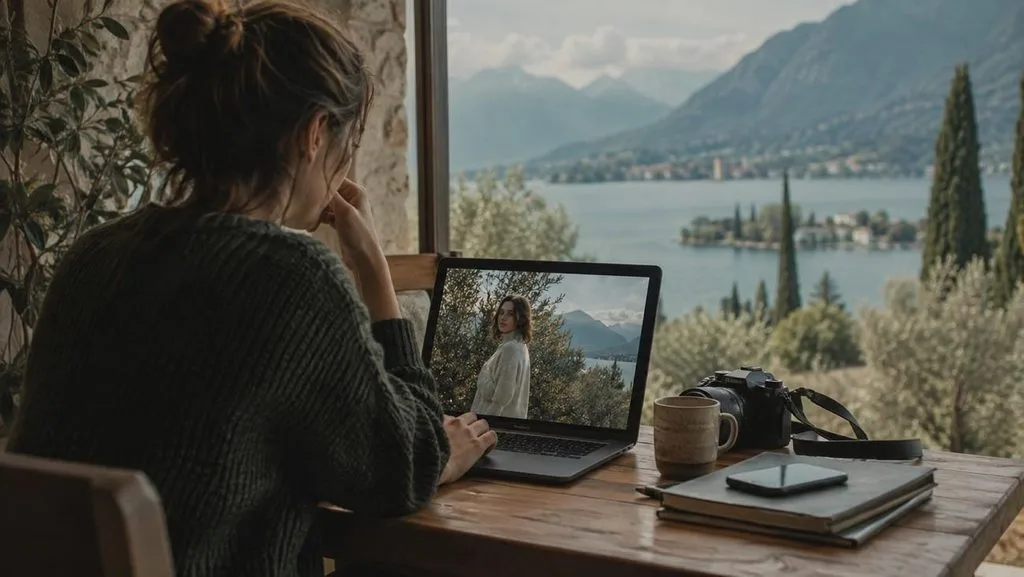
For anyone learning how to make a photo look like film, MagicLight AI can apply a film-inspired look without adjusting every slider by hand. MagicLight AI uses an uploaded photo as a reference, then creates new versions based on the film style described in the prompt. The same workspace can also keep visual assets consistent across a project and carry a finished image into video.

MagicLight Agent can help organize the wider workflow with storyboards, visual style choices, and characters. You can also tailor production plans when the film-look image becomes part of a larger video project. The prompt field takes up to 500 characters, enough to name grain and highlight warmth separately. Users can choose up to 5 aspect ratios, like 16:9 or 1:1.
Key Features of MagicLight AI
- Multiple References: Upload several PNG, JPG, JPEG, or WEBP files up to 20MB each. They can help the tool match specific colors or visual details more closely.

- 5 Image Models and Credits: Choose from Seedream 5.0 Pro, GPT Image 2, GPT Image 2.5 Flare, GPT Image 2.5 Sunburst, or Nano Banana 2. Each generation uses credits based on the selected model and settings; roughly 150 credits.
- Image to Video: Upload up to 5 reference images and describe the motion in up to 1,500 characters. Depending on the selected model, videos can run for up to 30 seconds.
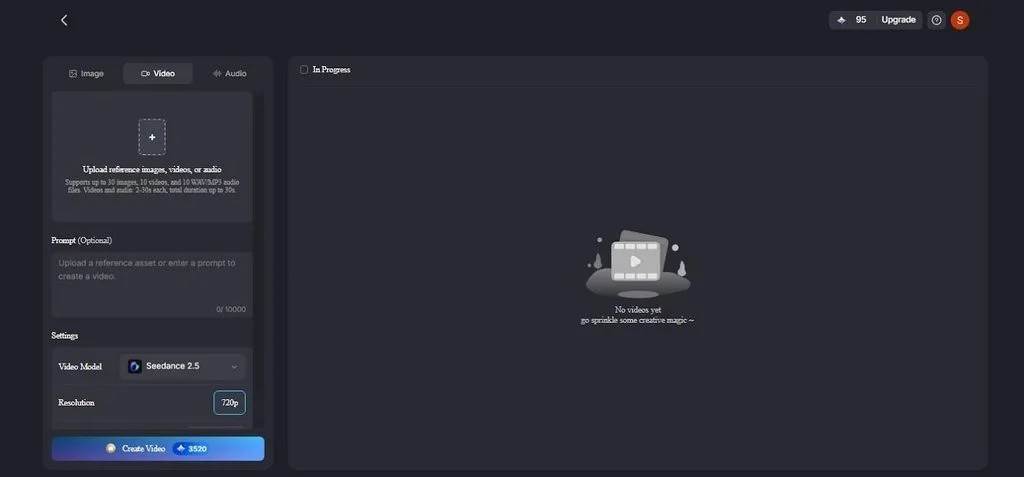
- Narrated Photo Videos: Join several film-look images into one flowing video. Add narration and captions from 37 voices and 16 caption styles.
Guide to Making Photos Look Like Film with MagicLight AI
Review the given directions and learn how to make your photos look like film with MagicLight AI:
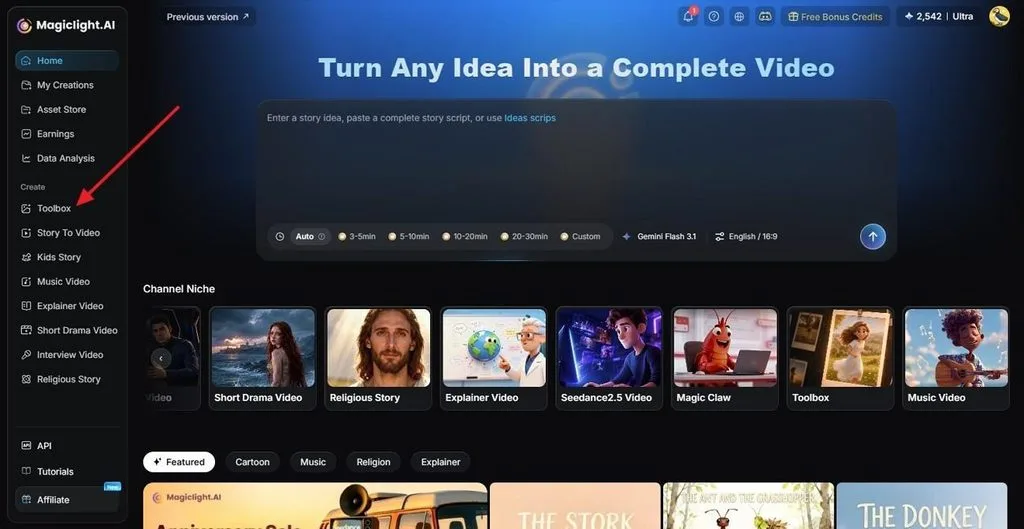
Step 1. Open the Image Tab
From the MagicLight AI dashboard, open Toolbox and select the Image tab. Click Upload Images and add the photo you want to restyle. You can add a genuine film scan as a second reference when a specific stock is the goal.
Step 2. Describe the Film Look
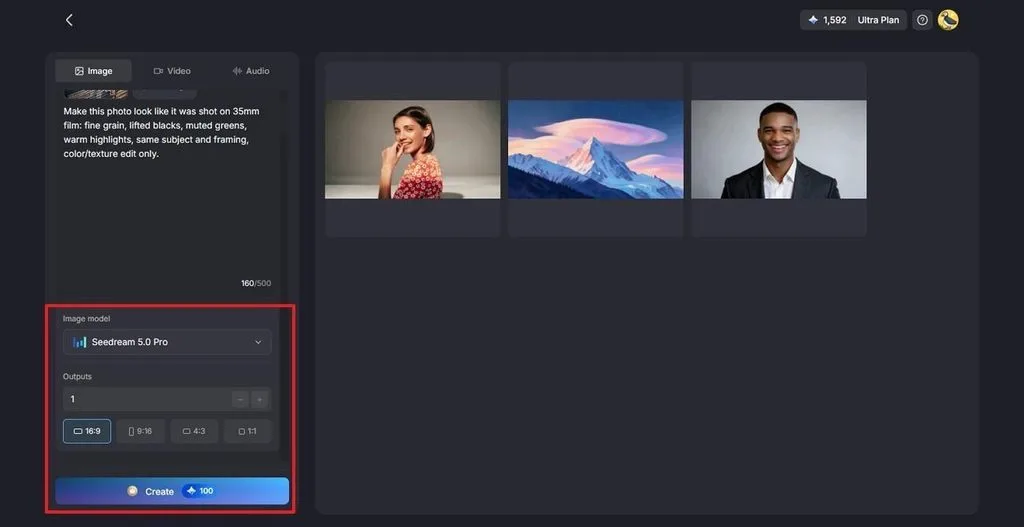
Type the look into the prompt field, such as “fine 35mm grain, lifted blacks, muted greens, warm highlights, same subject and framing.” Expand the Image Model menu to choose an AI model, set the Aspect Ratio, then click Create.
Step 3. Compare and Download
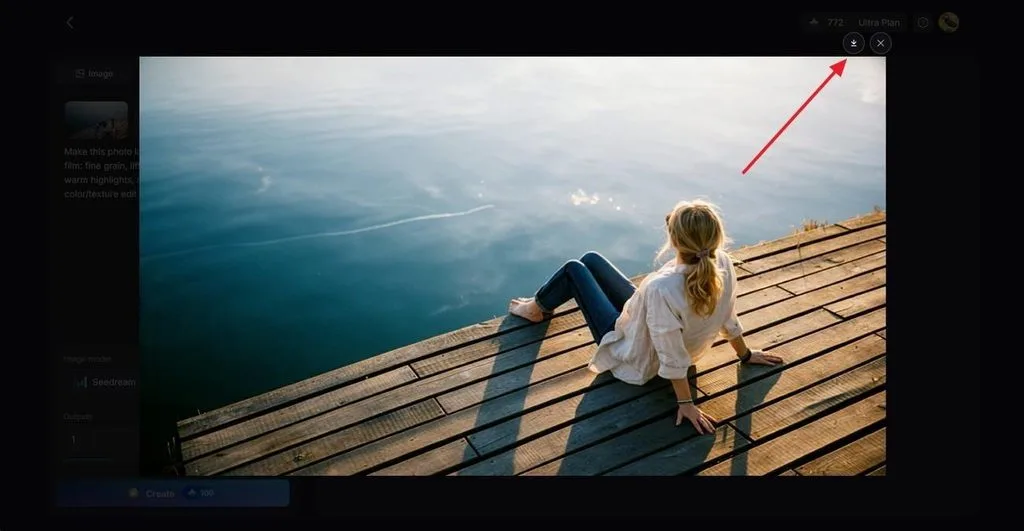
Compare each result with the original, since the photo is regenerated rather than filtered and small details can shift. Click the Download icon to keep the best version, or send it to Image to Video for motion.
Part 3. Tips for Making Better Film
Learning how to edit a photo to look like film starts with adjusting each image to its own light and color. A few simple editing habits can make presets and manual changes look more natural and consistent.
- Start with a Clean Exposure: Film looks best on photos with detail in both highlights and shadows. Recover clipped skies and blocked shadows before adding any style.
- Judge Grain at the Final Size: Grain that looks right at 100% zoom can vanish on a phone screen or overwhelm a large print. Check the effect at the size viewers will see.
- Use One Look Across a Set: Apply the same settings, or the same AI prompt and reference, to every photo from a shoot. Mixed looks break the feel of a single roll of film.
- Add Imperfections Sparingly: Light leaks, dust, and frame borders help only when they suit the subject. Used on every image, they start to look like an app filter.
- Compare Against Real Film Scans: Keep a few genuine scans from the stock being imitated open while editing. Side-by-side checks catch colors that drift too far from the real thing.
Conclusion
Film character depends on grain, soft contrast, calmer color, natural skin, and warm highlights working together. That combination is how to make photos look like film in Lightroom, Snapseed, or any editor with curves and color controls. MagicLight AI offers a faster route by regenerating a photo in a film look from a reference upload and a prompt. You can then turn the finished still into a moving clip.
Frequently Asked Questions
1. What makes digital photos look like film?
Film-style edits usually add grain, soften highlights, lift the blacks slightly, and reduce strong colors. Phone photos often look sharper and more saturated, so these changes help create a softer film look.
2. What app can make photos look like film?
Lightroom’s mobile app can make photos look like film with grain, tone curve, and color grading controls. Snapseed offers similar edits for free, and both apps save finished edits as presets or looks.
3. Can AI make photos look like film?
AI tools can make pictures look like film by regenerating a photo with grain, softer tones, and film-style color. MagicLight AI handles this through image-to-image generation across five image models, and the result can also become video.
4. How do I add film grain to a photo?
In Lightroom, open the “Effects” panel, increase “Grain,” then adjust “Size and Roughness” until the texture matches the film speed you are imitating. On phones, Snapseed’s Grainy Film tool adds grain with a single slider and optional film styles.