
Birthday, travel, and wedding pictures become more meaningful when arranged with suitable background music. A photo video can turn separate memories into one smooth and enjoyable visual story. Understanding how to make pictures into a video with music is simple for beginners.
Google Photos and Clipchamp provide useful features for arranging pictures and adding background music. Photos on Mac also helps create simple picture videos without requiring difficult editing skills. MagicLight AI offers another simple way to animate pictures and create engaging videos with music.
Part 1. How to Turn Pictures Into a Video With AI
Pictures become more engaging when movement, music, and smooth scene changes bring the story together naturally. Music can guide the pacing, helping each scene change at the right moment during playback. MagicLight AI provides simple tools for creating polished videos from your photos and selected music tracks.
Its Music Video feature uses your chosen soundtrack to set the timing throughout the entire video. You can choose from 16 caption styles and add a voiceover to complete your video. Signing up puts some free credits in your account, enough to start with a first project.
Key Features of MagicLight AI
- Camera and Portrait Motion: Precision Camera Control adds pans, tilts, and zooms across different video scenes. Lifelike Portrait Animation gives faces natural expressions and smoother visible movement.
- Beat-Synced Scenes: Music Video Generator matches scene transitions with tempo, beats, and energy. Lyric videos can display song words as animated text during playback.
- Flexible Song Sources: Upload MP3, WAV, or M4A tracks directly for your music video. Choose 14 ready-made songs or generate custom tracks using Suno directly.
- AI Character Generation: Create characters using prompts containing up to 1,000 detailed text characters. You can also upload a reference image to guide their appearance.
- Nano Storyboard: Nano Storyboard lets you adjust clothing, expressions, and movement scene by scene. Choose from 50 poses to control character movement in scenes.
Guide to Turning a Photo Into a Music Video With MagicLight AI
MagicLight AI can turn a character from your photo into an animated video. Follow the steps below to see how to make pictures into a video with music:
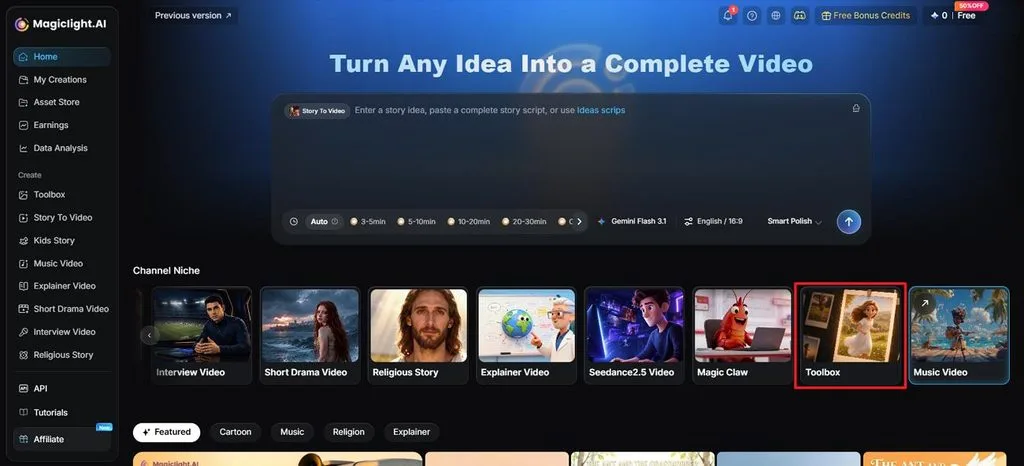
Step 1. Access the Image to Video Function
In MagicLight AI, go to Image to Video from the Toolbox. Add the photo you want to animate, then move to the video settings.
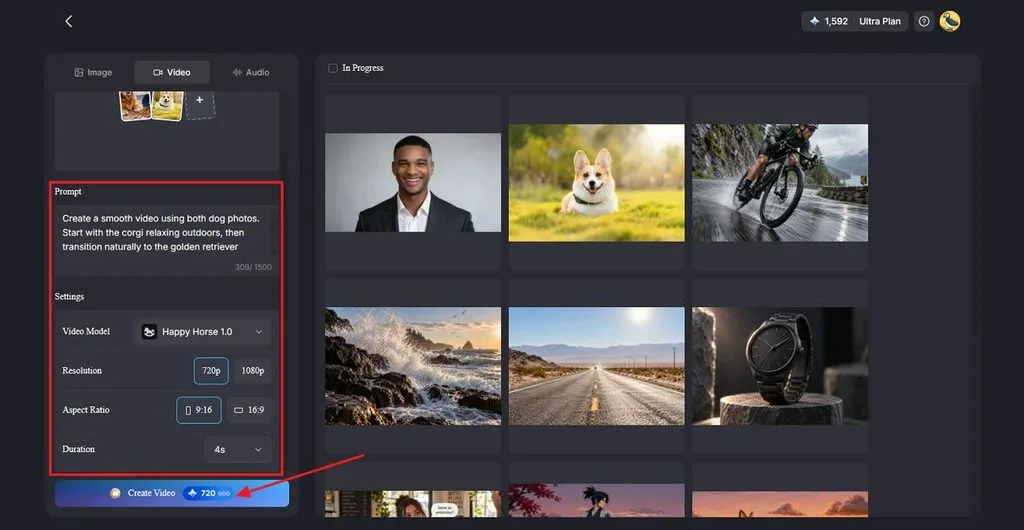
Step 2. Describe Motion With Music
Upload your reference images. Write a Prompt describing the character’s movement and include the music you want in the video. Turn on Sound Effects, choose a Video Model, then set the Resolution and Duration before clicking Create Video.
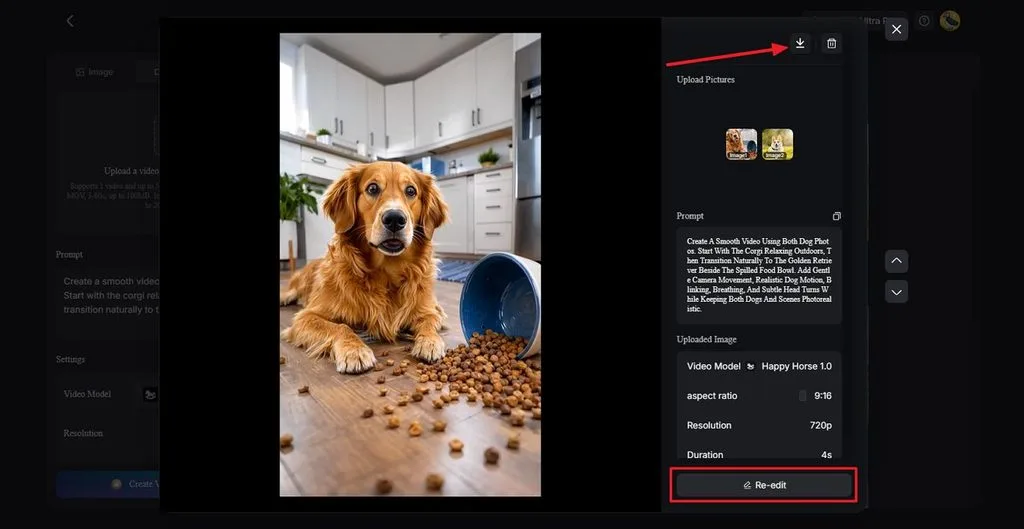
Step 3. Check Your Music Video
Watch the generated video to see how the character moves with the added audio. Use Re-edit if the motion or music needs changes, or click the Download icon to save the finished music video.
Part 2. How to Make Pictures Into a Video With Music
A good photo video begins with choosing pictures, setting their order, and adding suitable music. Understanding how to make a picture into a video with music helps organize memories. The table below compares practical methods, supported devices, music options, and available export quality levels:
| Tool | Works On | Music Source | Free Export |
| Google Photos | Android, iPhone, and web | Built-in music library | Free, with some feature limits |
| Clipchamp | Windows 10/11 and web on Mac/PC | Royalty-free content library | Up to 1080p without watermark |
| Photos on Mac | Mac computers | Theme music or Music library | Up to 1080p |
Method 1. Use Google Photos on Android or iPhone
Google Photos can arrange your pictures and match their timing with your selected music. It offers a simple way to know how to make pictures into a video with music. Follow the steps below to create your photo video using Google Photos:
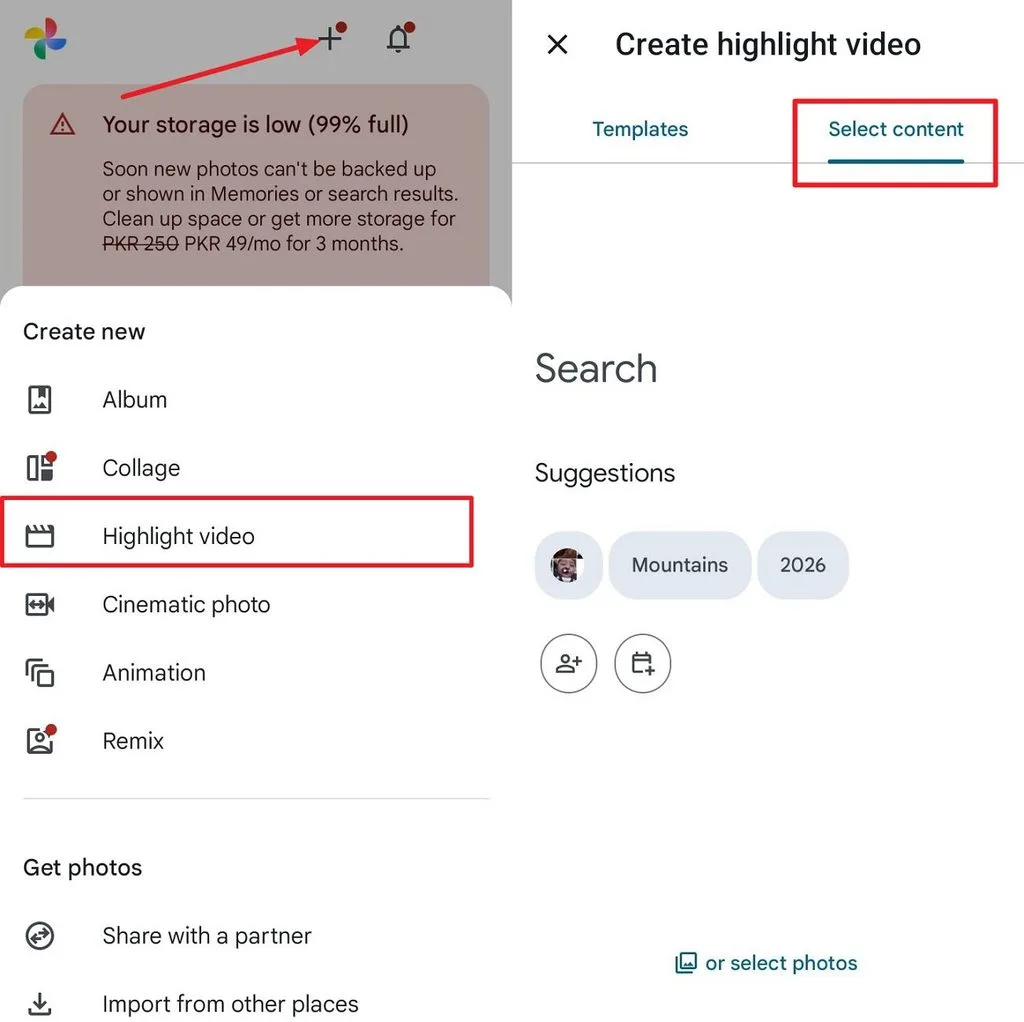
Step 1. First, open the Google Photos app on your phone and tap the + icon. Then, choose Highlight Video and press Select Content. Afterward, choose the photos you want to add and press Create.
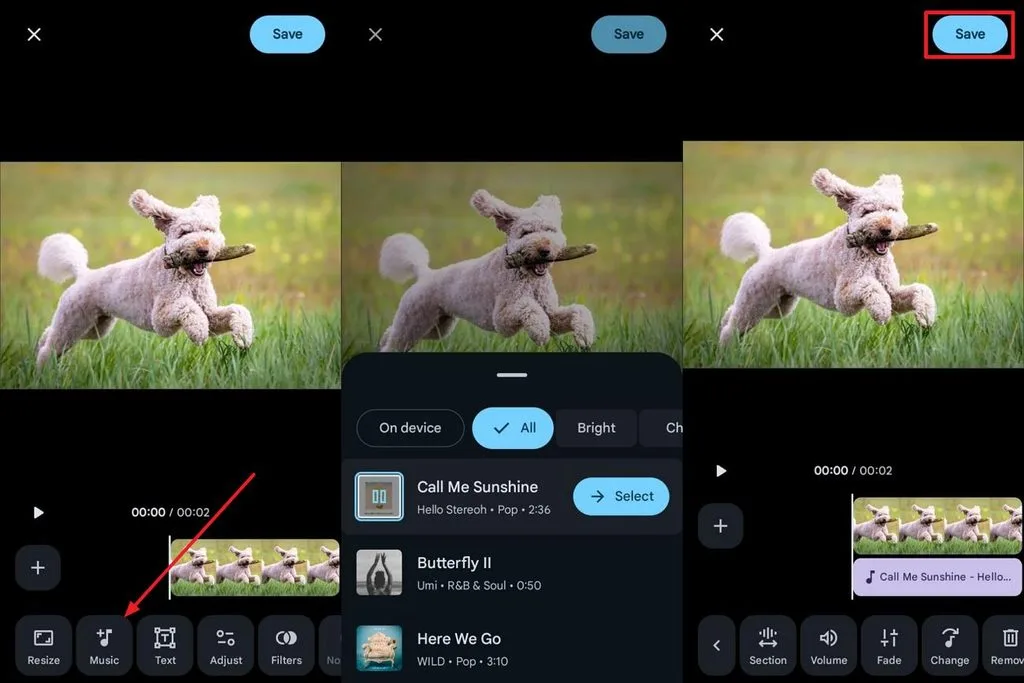
Step 2. Then, tap on the Music option in the editing panel and choose music for your video. Once the music is selected, adjust it on your video and press Save to save the final result.
Method 2. Use Clipchamp on Windows
Clipchamp lets you combine photos, add music, and control each picture's screen time. Its free version supports 1080p video exports without adding any visible watermark afterward. Use the steps given below to create a photo video with Clipchamp:
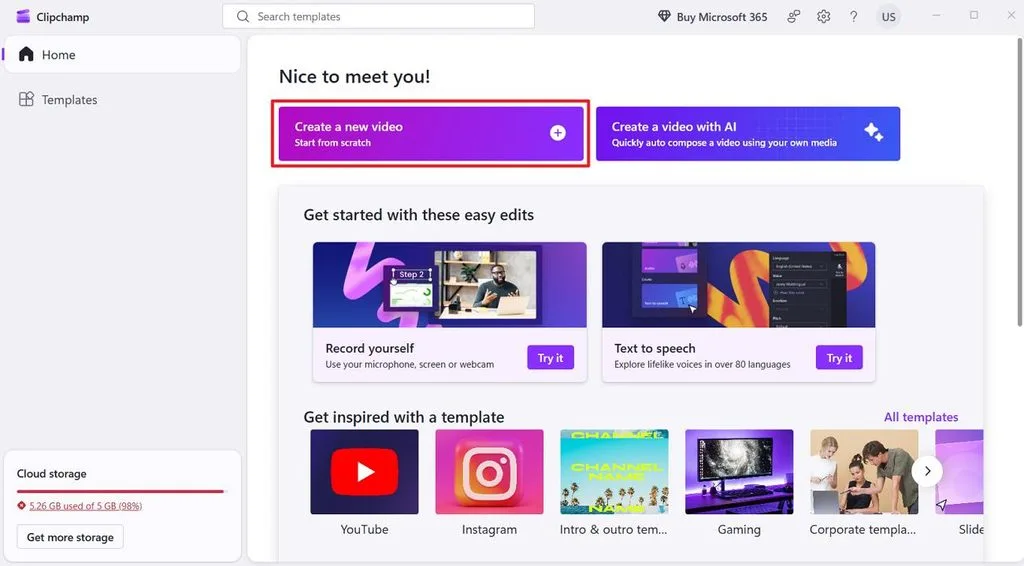
Step 1. Open the tool and press the Create a new video option. Press Import Media to import your photos.
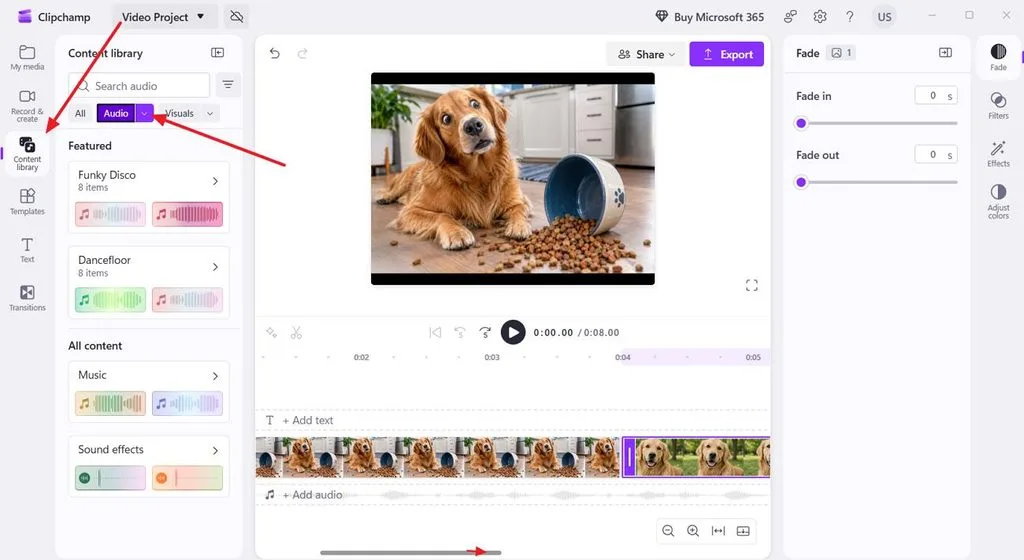
Step 2. Drag and drop your images over the timeline and press the Content Library. Afterward, click the Audio tab. Next, select your favorite music and drag it onto the timeline.
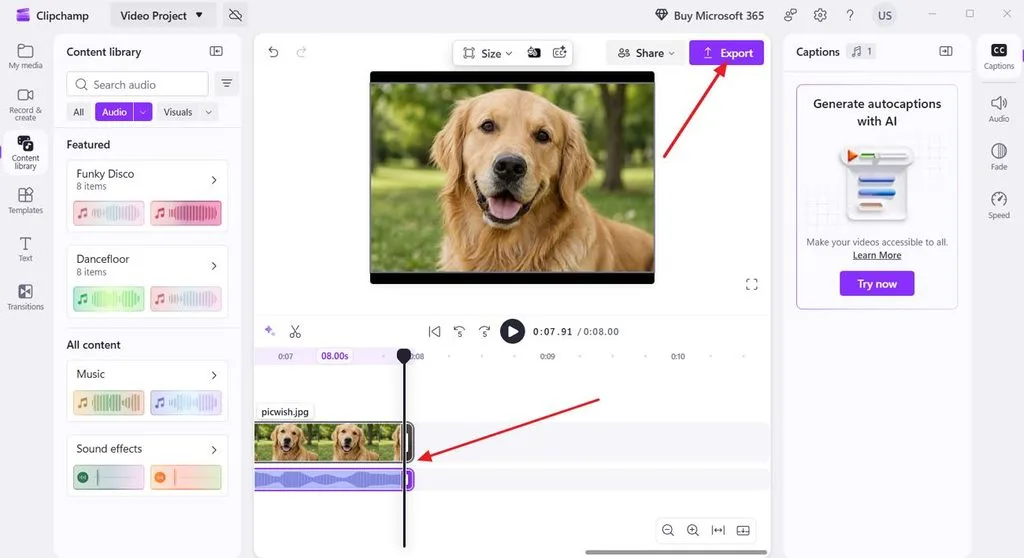
Step 3. Adjust the photo duration to match the music length. Click Export to save the video.
Method 3. Use Photos on Mac
Photos on Mac lets you arrange pictures and add music to your slideshow. You can learn how to make a picture into a video with music using its slideshow feature. Now, follow the steps below to create your photo video on a Mac:
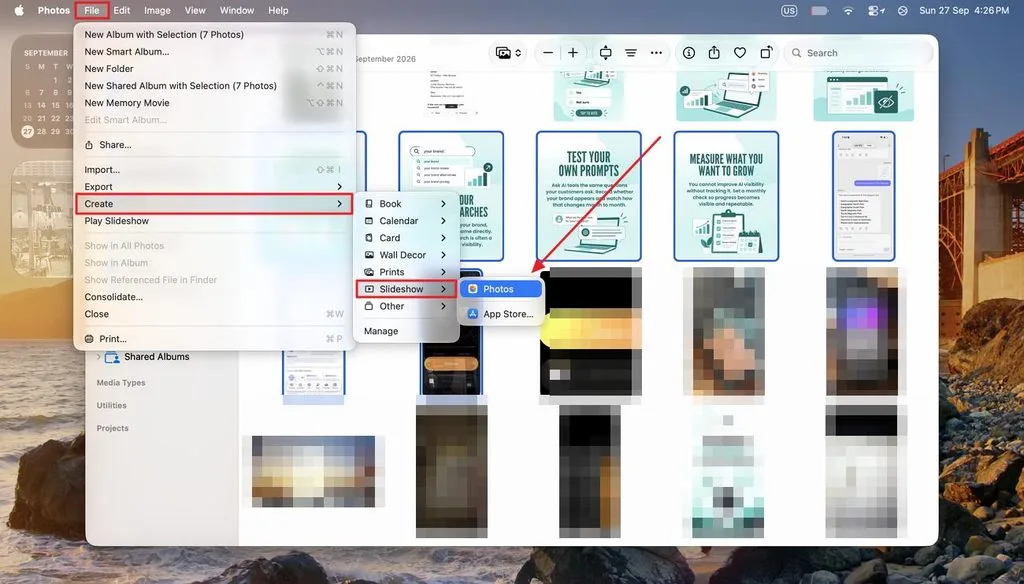
Step 1. Create an album of photos in the Photos app and select all photos. Access File > Create > Slideshow > Photos. After that, pick New Slideshow and name the project.
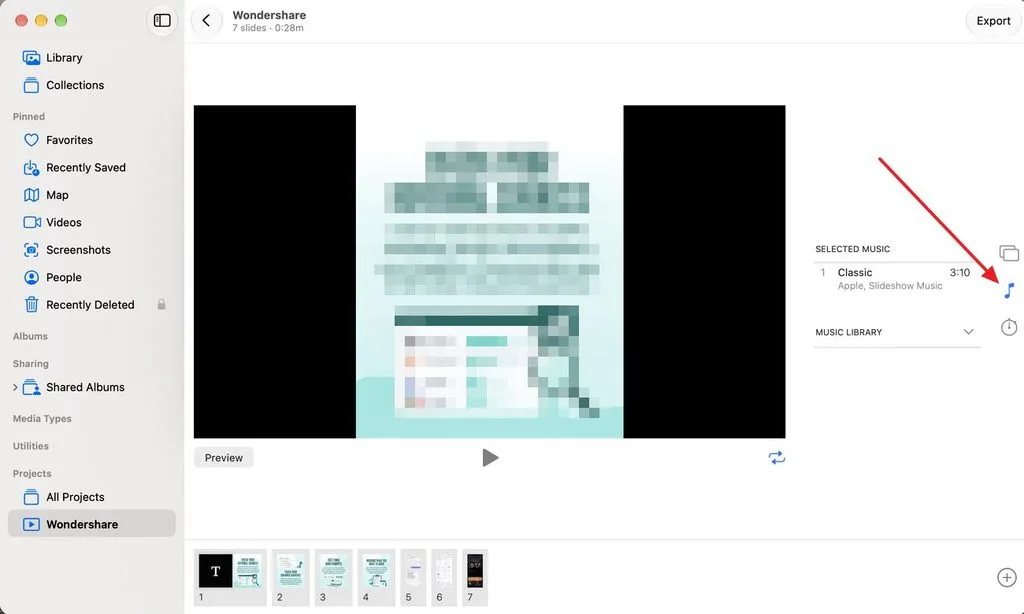
Step 2. Then, press the Music icon in the right-side panel and choose a track that you want to add.
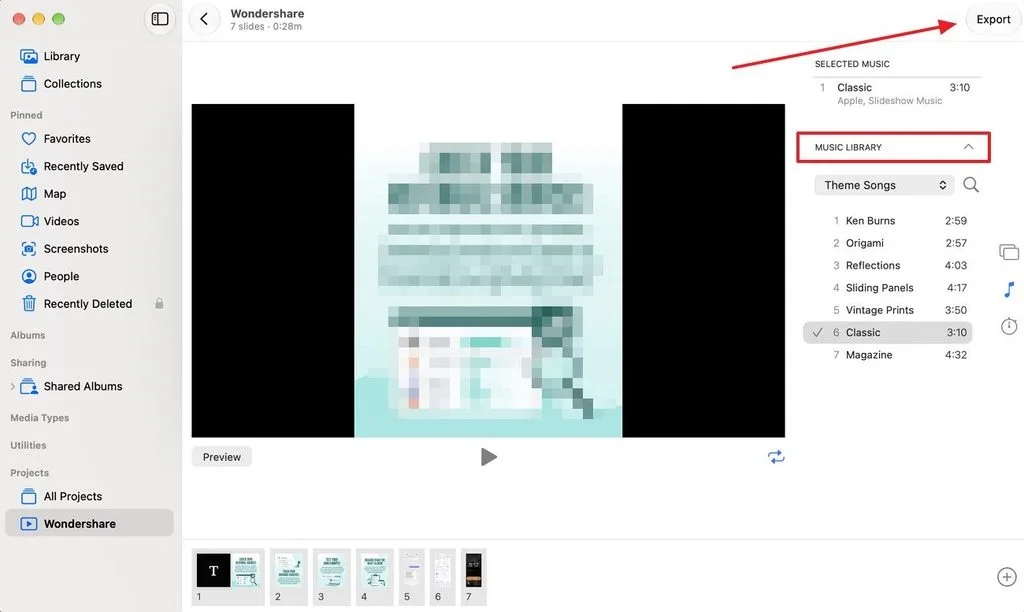
Step 3. To add your favorite music, expand the Music Library tab and search for a specific song. Once the music is added, simply press the Export button to save the music.
Conclusion
In conclusion, turning pictures into music videos becomes simple once you understand the basic editing steps. Different tools let you arrange photos, control timing, add songs, and finish videos without much trouble. Knowing how to make a picture into a video with music gives your memories more life. MagicLight AI offers a different approach when you want to make AI music video with characters.
Frequently Asked Questions
- Which is the best AI that can turn pictures into a video with music?
MagicLight AI works well for making music videos from a character reference photo. Your chosen song sets the pace while scenes follow its rhythm and overall mood. It also keeps the same character appearance across different scenes throughout your music video.
- Can I make a picture video with music for free?
Yes, several tools let you create picture videos with music without paying anything upfront. Google Photos and Photos on Mac include music choices for simple photo video projects. Clipchamp supports free 1080p exports, while MagicLight AI gives credits after account signup.
- How many pictures do I need for a video?
The right number of pictures mainly depends on your song length and preferred pacing. Keeping each picture onscreen for 5 seconds means 20 pictures cover about one full minute. For MagicLight AI music videos, one character reference photo can be enough to begin.
![6 Best Picture Modification Apps in 2026 to Try [New List]](https://magiclight.ai/wp-2/wp-content/uploads/best-picture-modification-apps-for-photos.jpg-300x200.webp)
![How to Turn Audio File Into Video in 2026 [Full Guide]](https://magiclight.ai/wp-2/wp-content/uploads/audio-to-video-conversion-guide.jpg-300x169.webp)
![How to Make an AI Movie in 2026 [Step-by-Step Guide]](https://magiclight.ai/wp-2/wp-content/uploads/ai-movie-creation-journey-posters.jpg-3-300x169.webp)