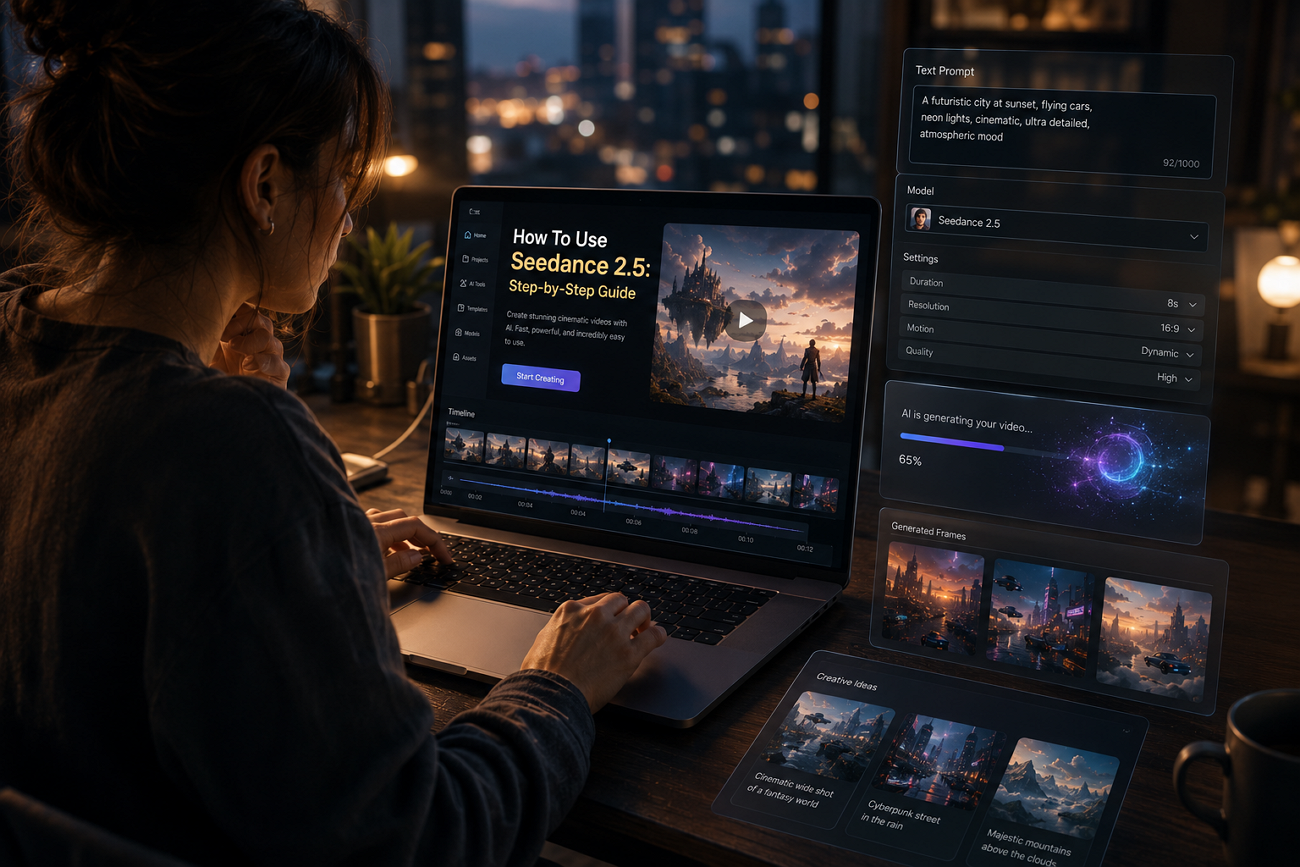
Seedance 2.5 became publicly available on July 31, 2026, after a gradual global rollout process. Access depends on your region and the platform you choose to use the model today. Understanding how to use Seedance 2.5 starts with choosing the right platform for your needs.
Next, choose the generation mode that best matches your content and creative goals. This guide explains every step, from access and modes to a complete video creation workflow.
Part 1. Where to Access Seedance 2.5
Users can access the model through 6 routes with different pricing, regions, and available features. The table below compares every platform, access type, and the best use for each option:
| Platform | Access Type | Best For |
| Dreamina | Web app with free daily credits | International users getting started |
| Jimeng | Web and mobile app (China) | Full Seedance feature access |
| CapCut | Video editor with Seedance integration | Existing CapCut users |
| Doubao | ByteDance AI assistant | Quick AI video generation |
| Volcano Engine API | API for developers | Product and app integration |
| Magiclight AI | Multi-model web platform | Scripted, multi-scene video projects |
Every platform provides Seedance 2.5, but features, availability, and access methods vary between different users. Choose the platform matching your region, budget, and workflow before creating AI videos with confidence.
First-Party ByteDance Apps
Dreamina and Jimeng offer Seedance 2.5 for different regions with similar core features and capabilities. International users learning how to use Seedance 2.5 should choose Dreamina instead of Jimeng first. Go through the steps below to access the model and begin creating AI videos:
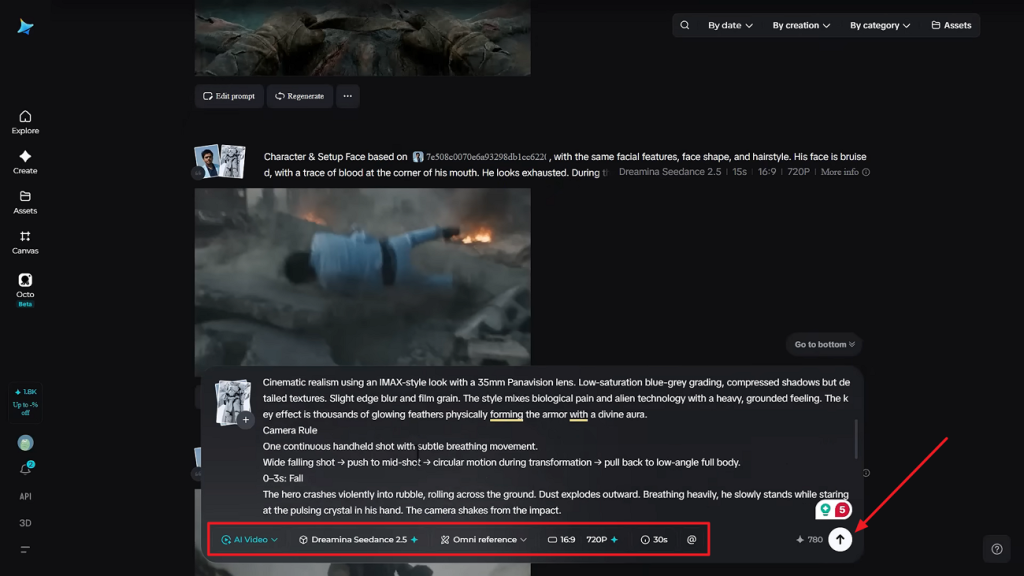
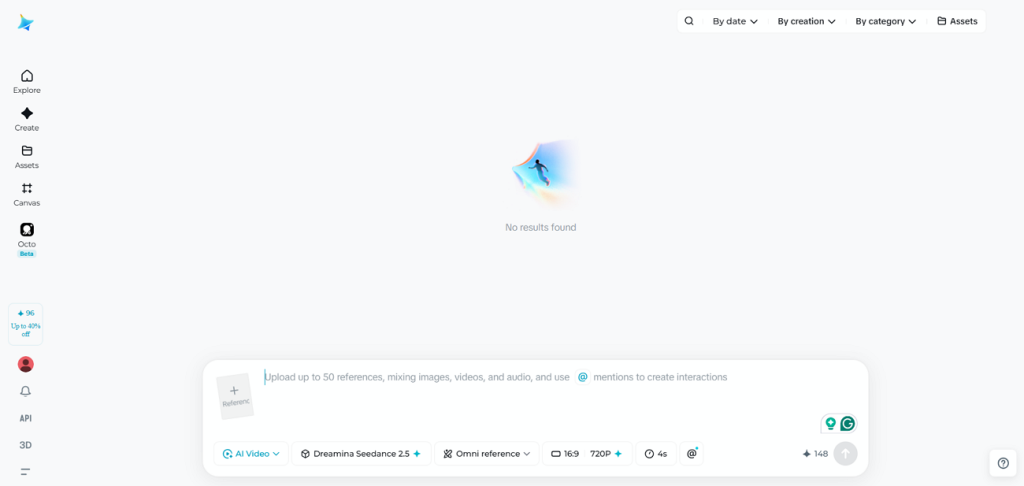
Step 1. If you chose Dreamina, upload the reference image and enter the text prompt. Next, choose the Seedance 2.5 model, select Resolution, and pick a Duration. Once done, press Send.
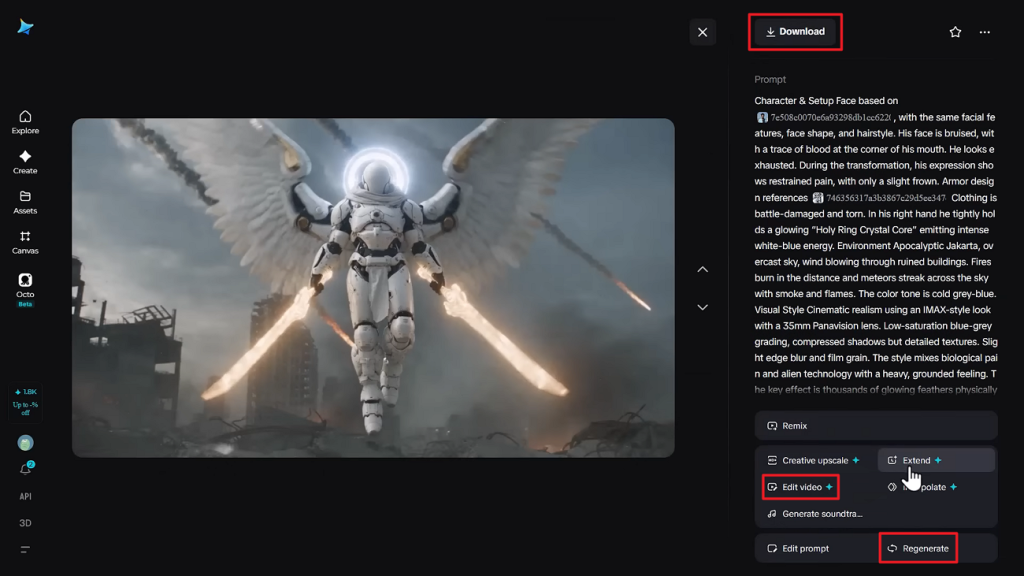
Step 2. After the video is generated, play the video in the Preview panel and press Edit Video if you want further adjustments. If you are not satisfied with the video, click Regenerate, or if you are satisfied, press Download to save it.
API Access for Developers
Developers can access Seedance 2.5 through Volcano Engine and BytePlus ModelArk APIs for custom integrations easily. See the steps below to configure API access correctly before development:
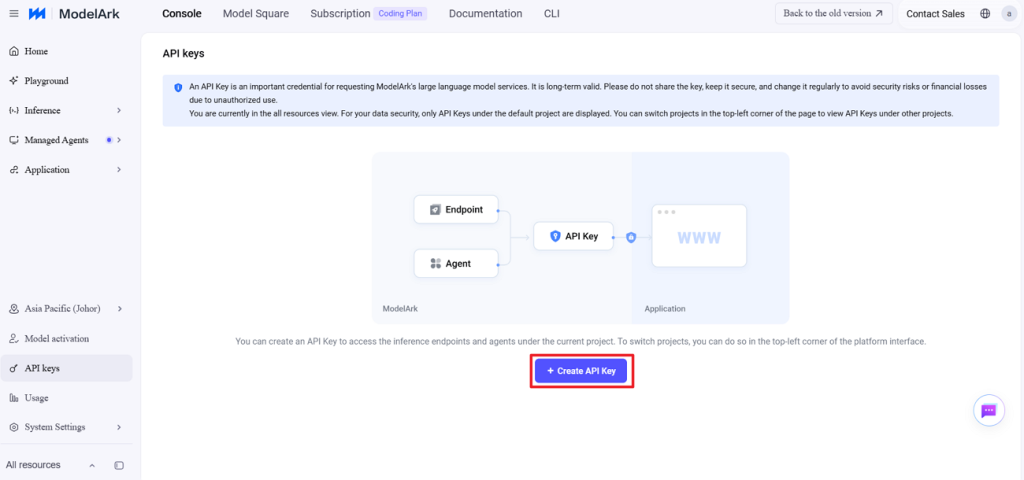
Step 1. Access the Volcano Engine or BytePlus ModelArk platform. Next, enter the API keys page and press Create API Key to get a key.
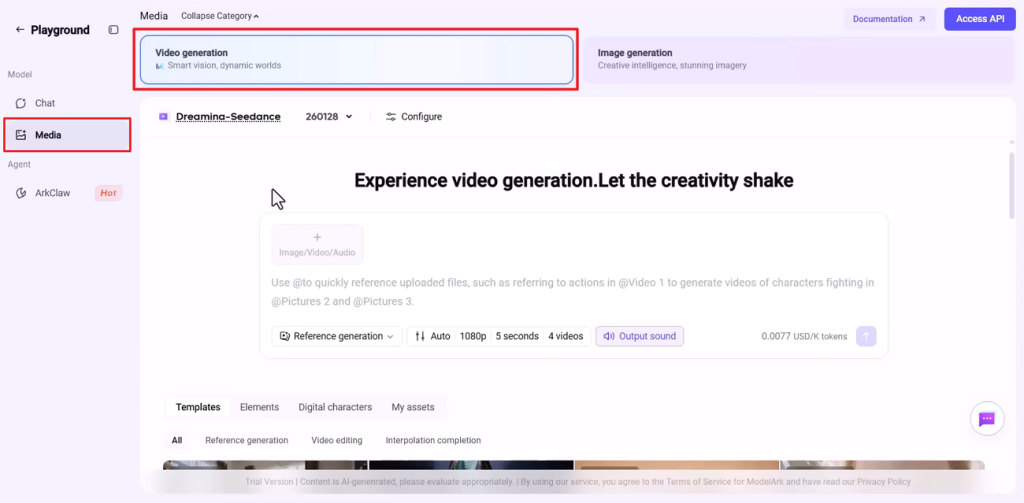
Step 2. Next, activate the Seedance 2.5 model and enter the Playground. Once done, press the Media tab and click Video Generation.
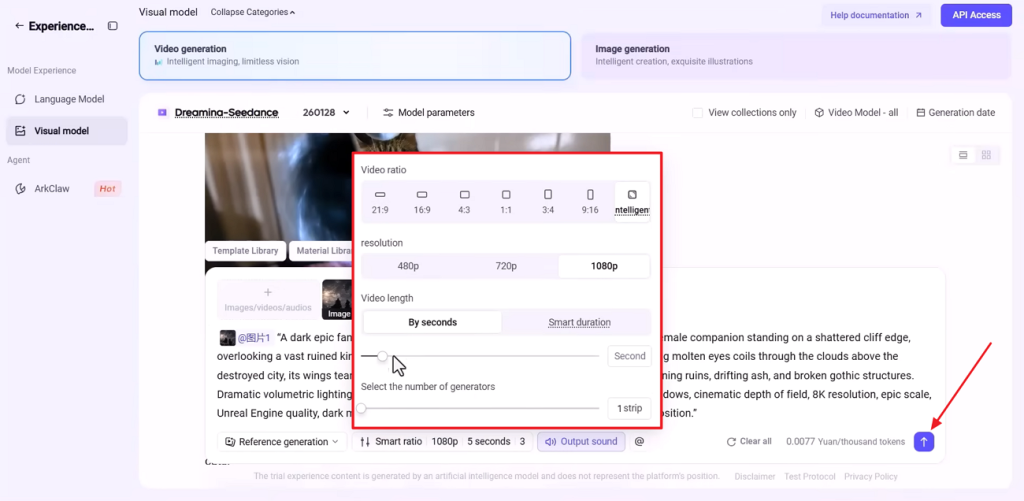
Step 3. After that, upload reference images and enter the prompt. Next, choose the Aspect Ratio, select Video Length and Duration. Once done, press the Send button.
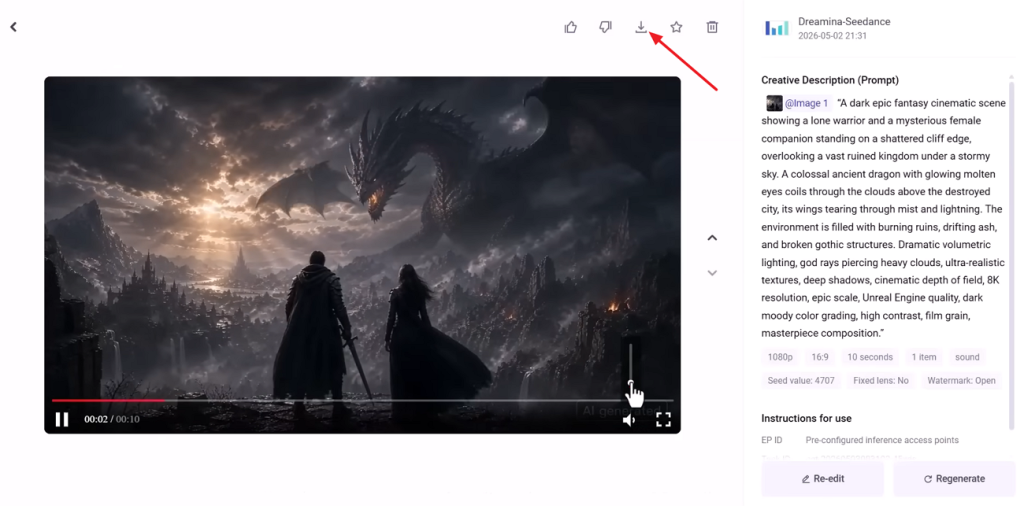
Step 4. When the video is generated, preview the video and press Download to save it.
Third-Party Multi-Model Platforms
Third-party platforms offer Seedance alongside other AI video models for different creative needs. These platforms help users compare models before choosing the best option for each project. Follow the steps below to choose a trusted platform and start using Seedance:
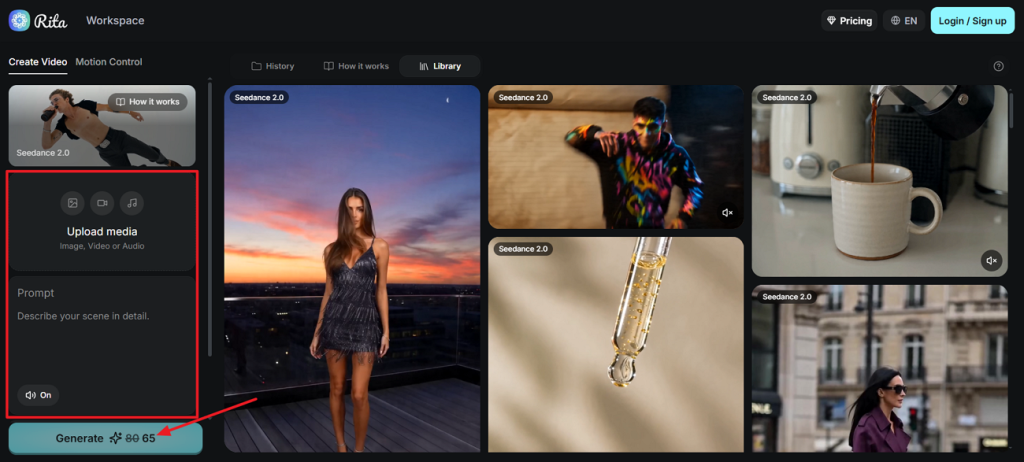
Step 1. Choose a trusted platform that officially offers Seedance 2.5 for video generation. Next, press Upload Media to upload a reference image if needed and enter the prompt. Choose Seedance 2.5 as the AI model and press Generate.
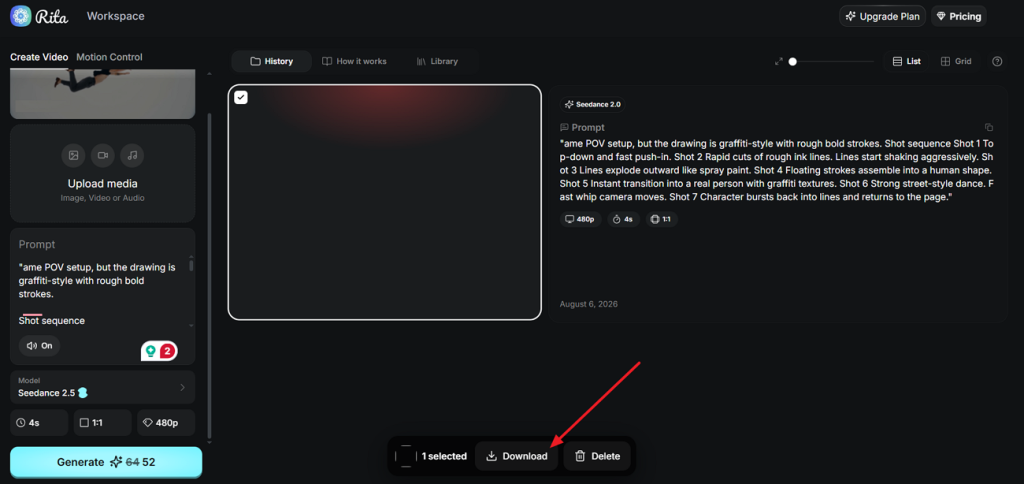
Step 2. After the video is generated, click Download to download the video for offline use.
Part 2. Choosing the Right Generation Mode
The platform includes 5 generation modes for different content types and creative video needs. Understanding how to use Seedance 2.5 starts with choosing the right generation mode first.
Text-to-Video for New Concepts
This mode starts empty, so the prompt provides the complete creative brief alone. It suits concept exploration and any shot without existing footage available beforehand well. Use consistent order: subject, action, camera, lighting, mood, style, 30-second duration, aspect ratio.
Image-to-Video for an Existing Asset
Begin here when a still already has the look you want preserved. A product shot, character render, or photographed scene becomes the opening frame first. Prompts only describe motion and camera behavior because visuals stay fixed throughout.
First-and-Last-Frame Mode in Dreamina
This mode accepts 2 stills and generates the transition between them automatically with control. Providing opening and closing frames gives much tighter control over the final composition always. Product reveals and planned endings benefit because motion fills the space between frames smoothly.
Multimodal Reference Mode for Multiple Assets
Reference-to-video accepts up to 50 assets together inside one generation prompt for consistency. Dreamina supports green screen and white model references for movement, position, and interactions accurately. Assign every upload a clear role because unlabeled assets may become incorrectly interpreted instead.
Video Extension and Targeted Editing
These 2 modes work only after creating an existing video clip for editing purposes. Extension continues existing videos, reaching totals near 180 seconds on supported platforms with ease. Targeted editing changes selected areas while keeping the remaining video unchanged, avoiding complete regeneration costs.
Part 3. Best Way to Use Seedance 2.5 Inside MagicLight AI
Standalone generation handles one clip at a time, whereas running the same model inside a production platform changes what you can realistically build with it.
Why Use Seedance 2.5 Through MagicLight AI
MagicLight AI includes Seedance 2.5 Pro among several AI video models for flexible creative projects. Users can create a character and build complete videos from scripts instead of simple prompts easily.
The platform supports scripts containing up to 12,000 characters for detailed video planning and production workflows. It also creates videos lasting up to 50 minutes from one organized project with consistency. This workflow keeps scenes, prompts, and characters connected throughout the entire video creation process without interruptions.
Setting Up a Project With Script and Storyboard First
Choose Story to Video or Image to Video based on your existing content before starting projects. Understanding how to use Seedance 2.5 becomes easier by following the simple steps below to create a video using a text prompt:
Step 1. Start With a Story to Video Project
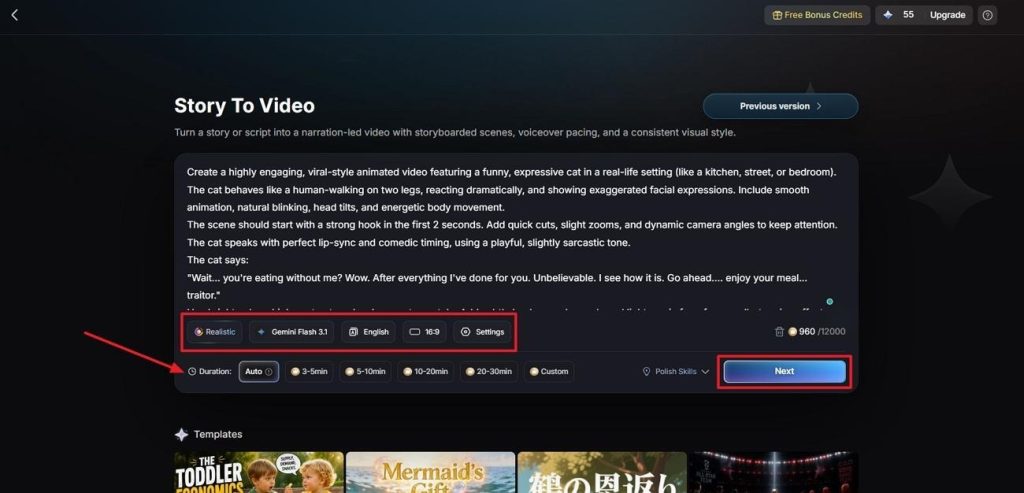
Enter your video prompt into the Text Box. Choose a Visual Style, select Seedance 2.5 as an AI video model, and set the preferred Video Language and Aspect Ratio. Once done, adjust the Video Duration and press Next.
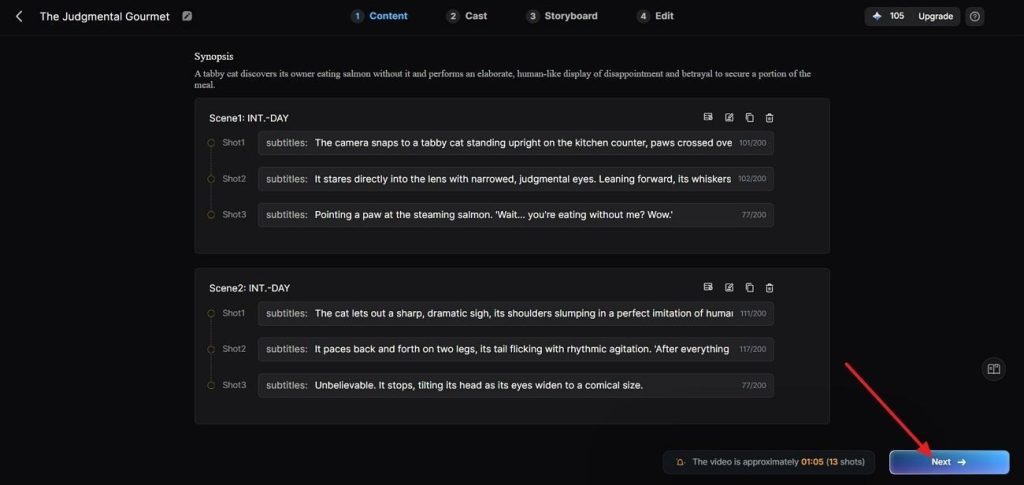
Step 2. Review the Synopsis Breakdown
Next, review all the scenes and use the Controls at the top if any adjustments are required. Once the scene layout is finalized, press Next.
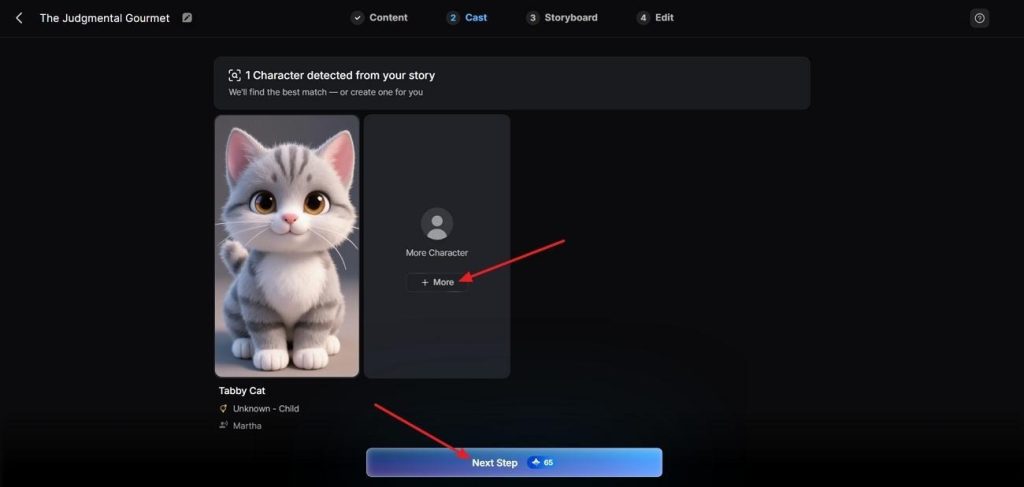
Step 3. Choose a Character for Your Video
Next, MagicLight AI will suggest characters based on your script. Press Next Step to continue or click More to explore more character options.
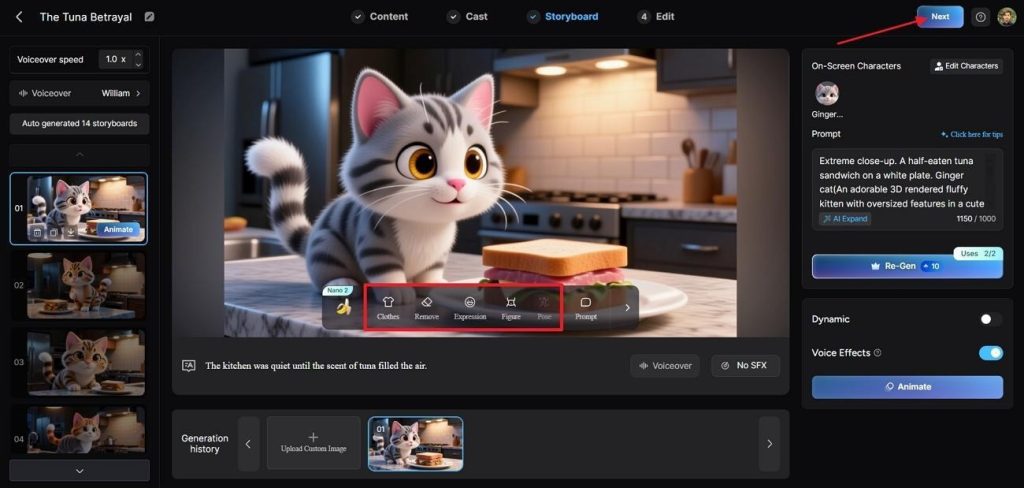
Step 4. Check The Nano Storyboard
After that, review all the scenes in the generated Nano Storyboard. If any adjustments are required in the Clothes, Poses, and Expressions, use the Controls below to adjust. When the Storyboard is finalized, press the Next button for subtitle options.
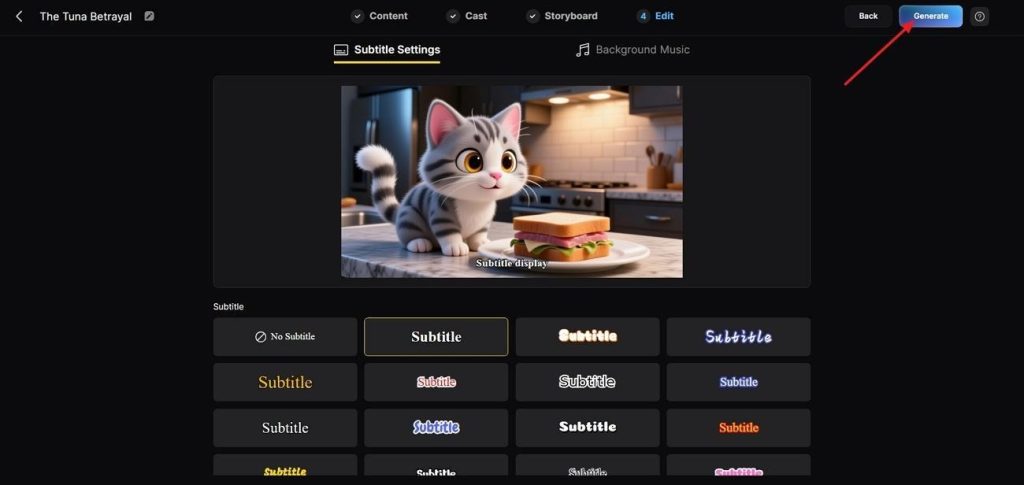
Step 5. Choose Subtitles Style
In the following interface, choose a Subtitle Style from different options and press the Generate button in the top right corner.
Step 6. Save The Final Seedance 2.5 Video
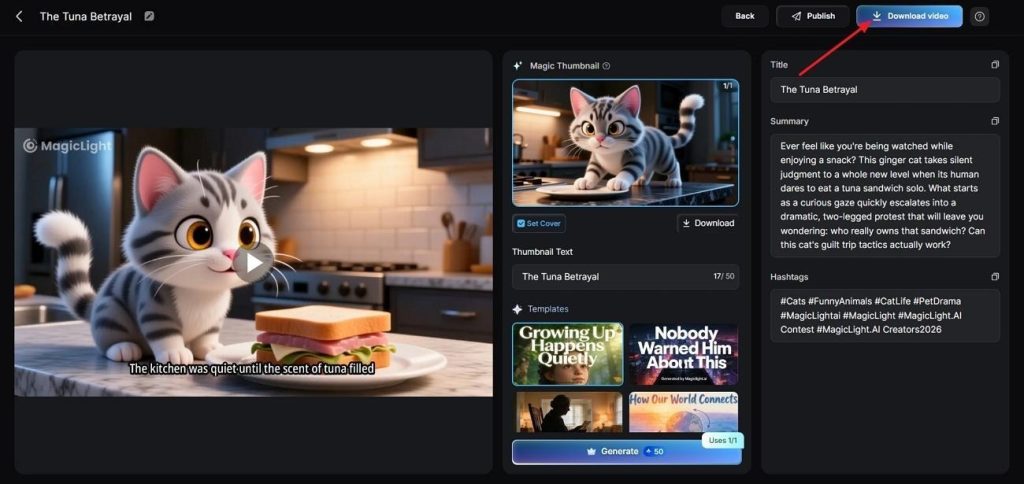
Once the tool generates the video, preview the video. Next, review the Cover, Thumbnail, and Hashtags. After the video is finalized, click Download Video to save the video.
What MagicLight Adds Beyond Standalone Seedance Generation
MagicLight AI offers extra features beyond standard Seedance 2.5 video generation capabilities:
- Long Videos: Create videos lasting up to 50 minutes from one project without splitting into multiple clips.
- Character Persistence: Save one character and reuse it across scenes without repeated reference uploads every generation.
- Story Models: Access 9 story models for different creative video styles and storytelling needs easily.
- Built-in Finishing: Choose from 37 voiceover options, subtitles, and cover images without using another editing application later.
Conclusion
To summarize, understanding how to use Seedance 2.5 starts with choosing the right platform first. Then select the generation mode matching your content before creating AI videos with better results. Each platform offers different features, making the right choice important for every video creation project. If you need longer, script-based AI videos, we recommend using MagicLight AI for complete workflows.
FAQs on How to Use Seedance 2.5
- Is Seedance 2.5 free to use?
Yes, Dreamina offers free access for new users through trial credits, though availability and credit amounts may change. Free videos usually include a watermark, while commercial rights are available through paid plans.
- Which platform gives the fastest access to Seedance 2.5?
Dreamina is the quickest option for international users, while Jimeng serves users in China. ByteDance released Seedance 2.5 through its own platforms before expanding access to additional services.
- Can I edit part of a Seedance 2.5 clip without regenerating it?
Yes, targeted editing changes a defined region or a specific timestamp while leaving the character, camera movement, and surrounding environment exactly as they were approved.
- How many reference images can Seedance 2.5 use at once?
Seedance 2.5 supports up to 50 reference assets in one request, including images, videos, and audio files. The exact combination depends on the platform and current implementation.
- Does Seedance 2.5 work inside CapCut yet?
Yes, CapCut supports Seedance 2.5 through supported desktop and Pro workflows, though pricing and generation limits vary by region and account. Dreamina still offers the most complete official Seedance experience.
- Can MagicLight AI generate longer videos than standalone Seedance 2.5?
Yes, its Story to Video mode reaches 50 minutes from a single script. That runtime sits well beyond what one generation or an extension chain produces on any first-party platform.

![How to Create a TikTok Video for Beginners [2026 Guide]](https://magiclight.ai/wp-2/wp-content/uploads/tiktok-video-creation-guide-300x169.png)
![How to Blur Faces in Photos Like a Pro [2026 Guide]](https://magiclight.ai/wp-2/wp-content/uploads/blur-faces-in-photos-with-ai-300x198.png)