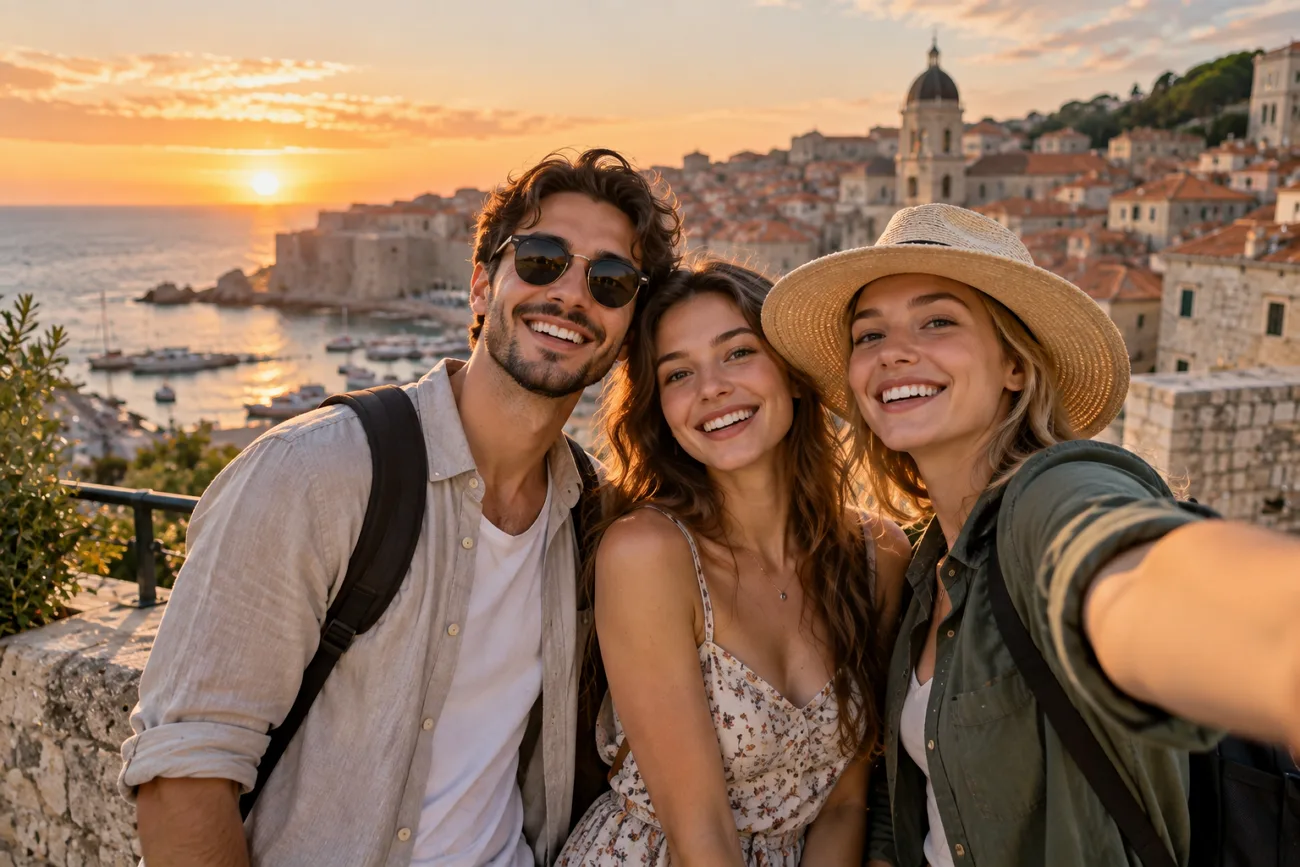
Sometimes a group photo feels incomplete when an important person cannot attend it. Learning how to add a person to a photo can easily solve this problem. You can add someone manually with layers or use an AI editing tool instead. Both methods help beginners blend the person with matching light, shadows, and natural placement. This guide explains simple steps for adding people to photos without needing design experience.
Part 1. How to Add a Person to a Photo for Beginners
Beginners can learn how to add a person to a picture using 2 simple methods. Manual editing and AI tools both require good preparation to make photos look more natural.
What Do You Need Before Adding Someone to a Photo?
The photos need to work well together, especially when it comes to lighting and angles. Below are the things you need before you add someone to the photo:
- A Clear Base Photo: Find a clear photo with good lighting and some free space where the person can fit naturally.
- A Matching Person Photo: The other photo should have a similar angle and lighting, with the needed body parts visible.
- The Right Tool: Photoshop or Photopea gives you the basic tools needed to add and blend someone in.
- A Placement Plan: Think about where the person will go and the direction of light in the photo.
- The Person’s Consent: Make sure the person is okay with their photo being used, particularly before sharing it publicly.
Method 1. How to Add Someone to a Picture With AI
AI can place a person into another photo without using masks or layers. MagicLight AI uses both photos as references to create one combined image. Go through the steps to learn how to add someone to a picture:
Step 1. Open the MagicLight AI Image Tool
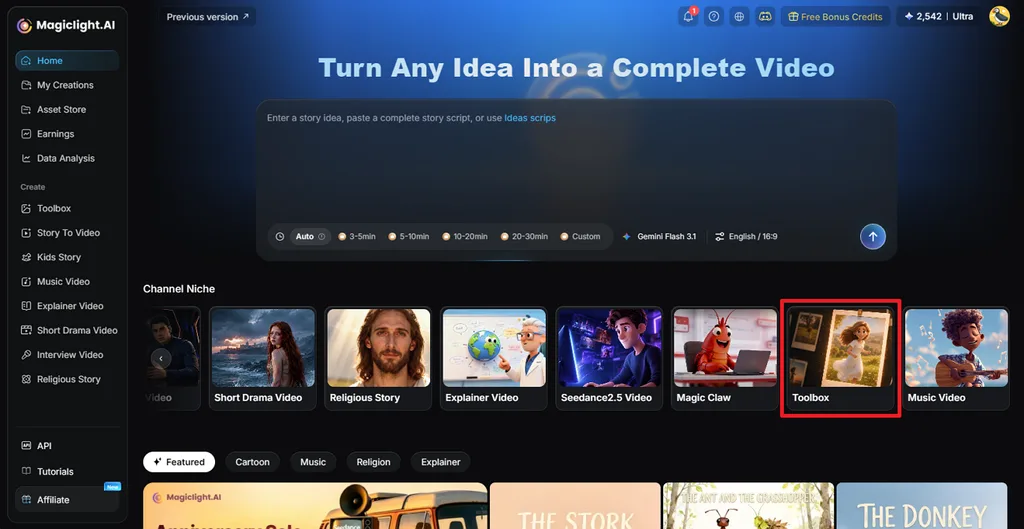
Go to MagicLight AI and select Toolbox to open the editing workspace. Choose the Image tab to start working with your photos.
Step 2. Add Your Photos and Generate the Image
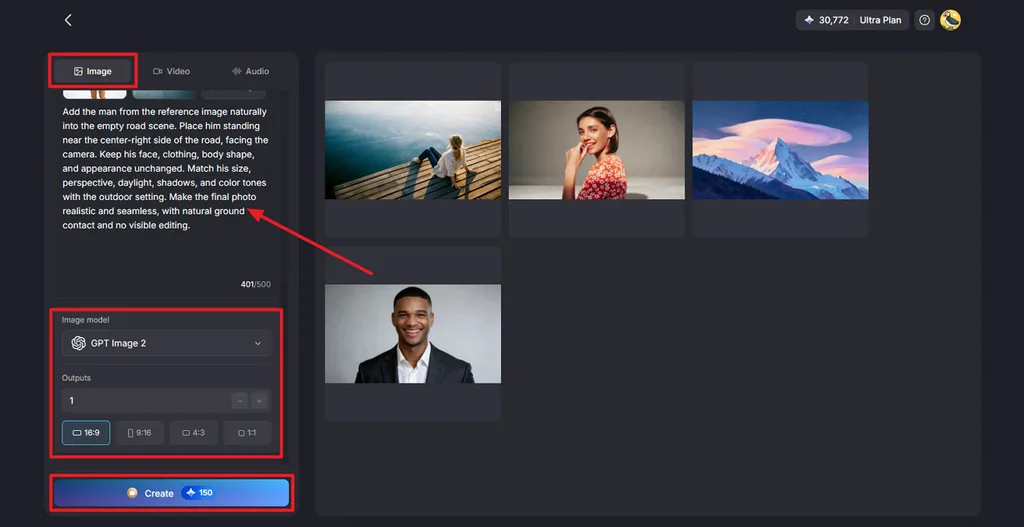
Upload the original photo and the photo of the person you want to add. Write a prompt explaining where the person should appear and how the final photo should look. Pick an Image Model, select the number of Outputs, and set the Aspect Ratio. Click Create to generate the new photo.
Step 3. Check and Save the Final Photo
Look at the generated results and check whether the person fits naturally into the photo. If needed, change your prompt and create another version. Once you are happy with the result, click the Download icon to save it.
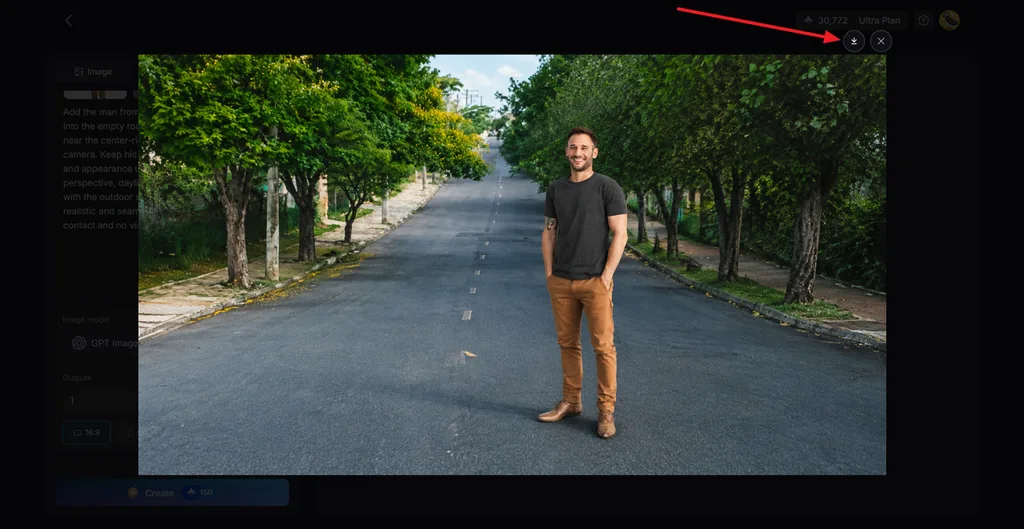
Method 2. How to Add a Person to a Photo Manually
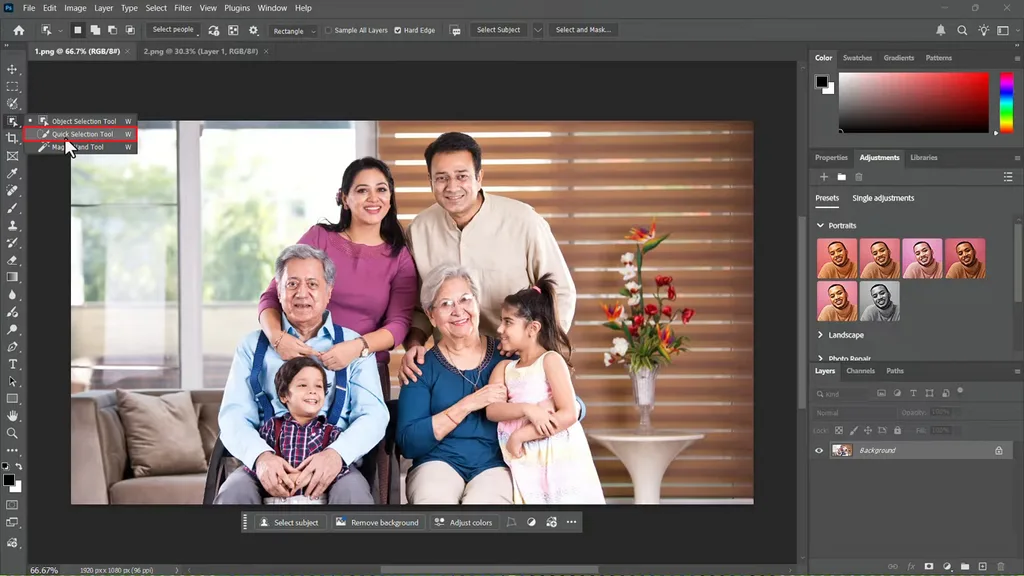
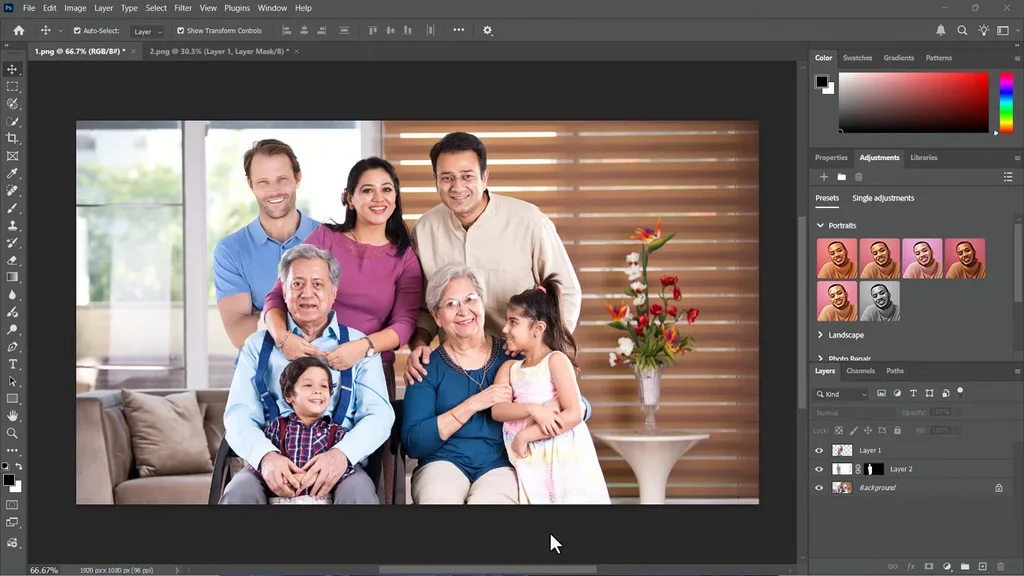
Photoshop lets you add someone manually and adjust their position, size, lighting, and colors. Follow the steps below to learn how to add a person into a photo with Photoshop:
Step 1. Once you open Photoshop, import both images into it. Pick the Quick Selection Tool from the left side panel and select the important elements in the base image.
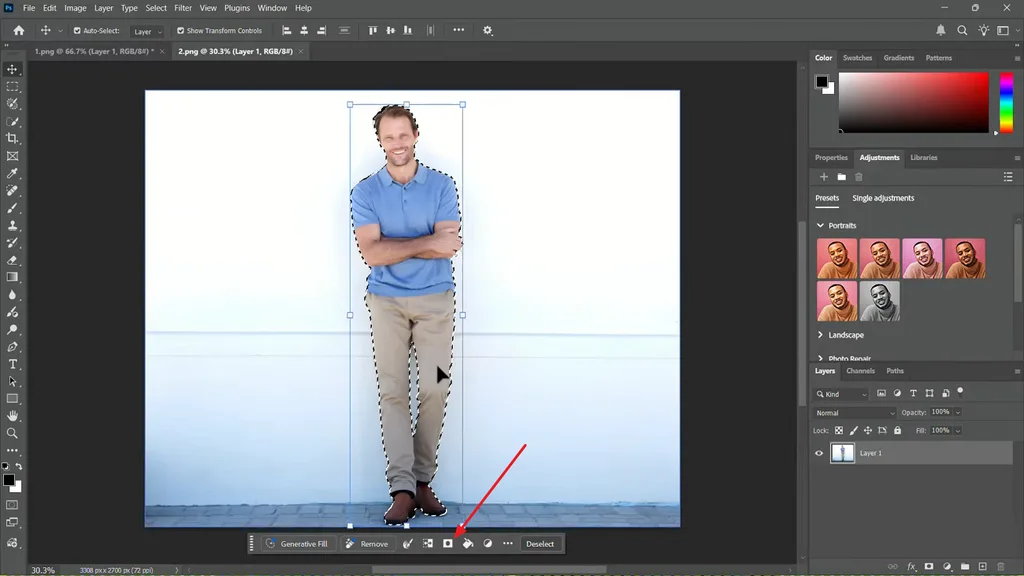
Step 2. Next, open the person’s image, choose Select Object, and click the object to automatically detect it. After that, press the Mask icon to create a mask.
Step 3. Move the masked person layer into the base photo. Use the Move and Transform tools to adjust their position, scale, and angle.
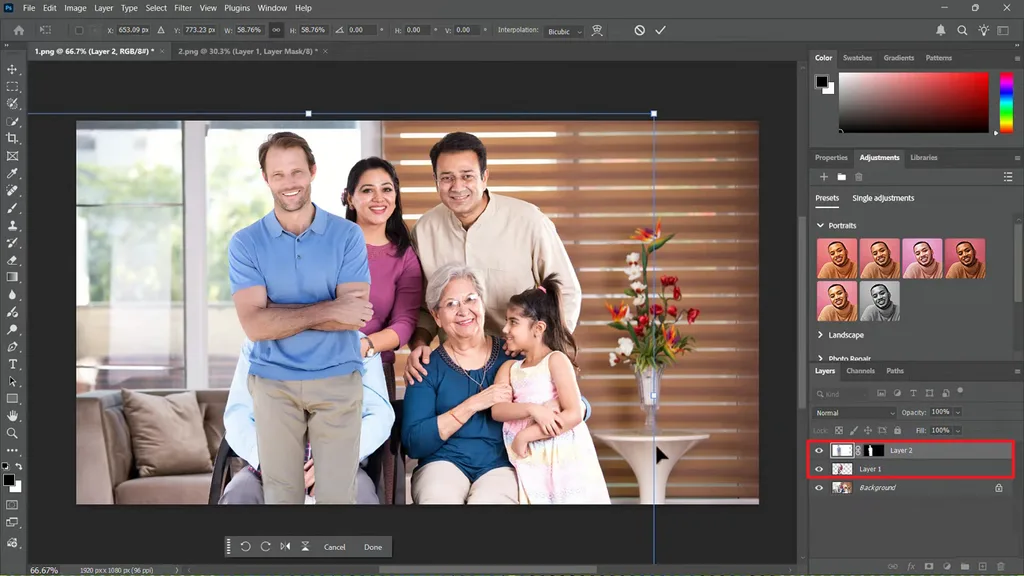
Step 4. Adjust brightness, color, and shadows so the added person blends naturally with the original photo. Review the final image and save it to use further.
Part 2. Why Choose MagicLight AI to Add a Person to a Photo?
Manual editing offers more control, but learning every tool can take time and practice. MagicLight AI makes understanding how to add people to a photo easier with fewer editing steps.
Overview of MagicLight AI
MagicLight AI creates images, videos, and audio from prompts and uploaded files. Its Toolbox includes separate sections for working with each type of content. The Image tool lets you upload reference photos and describe the result you need. It can use those photos while creating a new image based on your prompt. This gives you a simpler way to handle photo edits without doing everything manually.
Reasons to Use MagicLight AI to Add a Person or Persons to a Photo
Learning how to add people in photos becomes simpler when the editing process needs fewer manual steps. Below are the main reasons to use MagicLight AI when adding people to your photos:
- Multiple Image Models: MagicLight AI offers 5 image models for handling different photo editing needs. Options include Nano Banana 2, Seedream 5.0 Pro, and GPT Image 2.
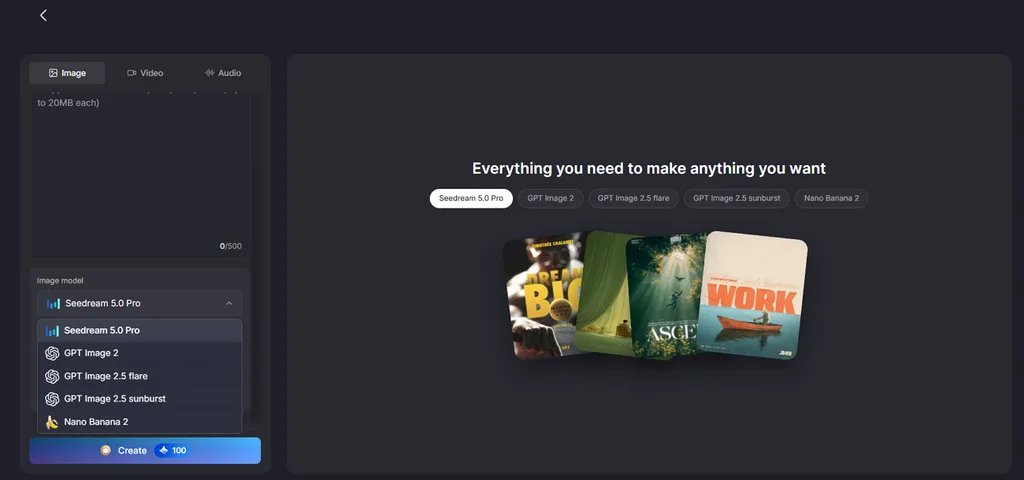
- Reference Photo Support: Add JPEG, PNG, or WEBP photos as references for character appearance. Each uploaded reference image can have a file size up to 20MB.
- From Photo to Video: Turn your completed group photo into a short video using Image to Video. The finished clip can also include narration and captions for more detail.
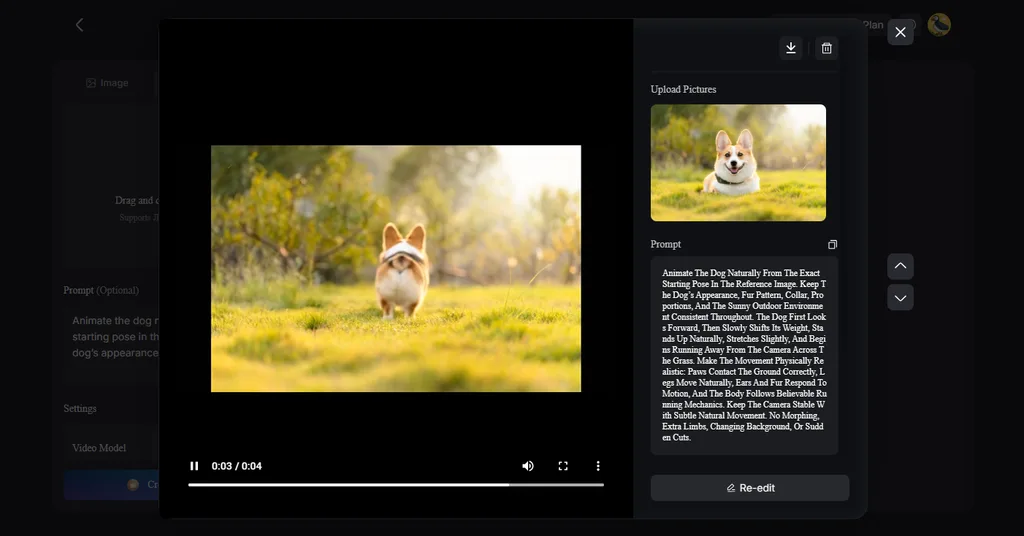
Image alt: turning reference photo into video
- Batch Versions: The Outputs setting lets you create several versions from one generation. You can compare each result and select the most natural pose.
Tips for Getting a Realistic Result
Small details can make a big difference when learning how to add a person into a photo. Here are some useful tips that can help the added person look more natural:
- Match the Lighting: Use a person photo where the light comes from the same direction. This helps the person fit better with the lighting already in the scene.
- Check the Camera Angle: Try to use photos taken from a similar camera height and angle. A different viewpoint can make the added person look out of place.
- Use Clear Photos: Pick sharp photos where the face and body details are easy to see. Low-quality images can lose more detail during the editing process.
- Explain the Placement: Mention exactly where the person should appear and how large they should look. Simple details about position and size can improve the final result.
- Add Natural Shadows: Make sure a soft shadow appears where the person meets the ground. The right shadow helps them look like part of the original photo.
Conclusion
To summarize, learning how to add a person to a photo starts with matching details. Photoshop gives you more control, while MagicLight AI can make the editing process much faster. MagicLight AI supports reference photos, several image models, and multiple outputs for more natural final results. Among photo animation tools, it stands out by turning finished photos into narrated, captioned videos.
FAQs on How to Add a Person to a Photo
- How do I add a person to a photo?
Upload both photos into MagicLight AI and describe where the person should appear naturally. The tool creates a combined image while matching the person with the original scene.
- Is there a fast way to add someone to a picture?
MagicLight AI offers a faster option by using reference photos and simple written prompts. This makes learning how to add someone in a photo easier without manual cutting steps.
- How do I add multiple people to a photo?
Upload the main photo and clear reference images of the people you want to include. Describe each person’s placement clearly, then review the generated result for facial and positional accuracy.
- What is the best AI tool to add a person to a photo?
MagicLight AI supports multiple reference photos and provides different models for generating final images. You can compare several outputs and select the version that looks most natural overall.


![How to Remove People from Photos in 2026 [Full Guide]](https://magiclight.ai/wp-2/wp-content/uploads/remove-people-from-photos-guide.jpg-300x197.webp)
![6 Best Picture Modification Apps in 2026 to Try [New List]](https://magiclight.ai/wp-2/wp-content/uploads/best-picture-modification-apps-for-photos.jpg-300x200.webp)